
How to Create Pixel Art from Photos with AI — Magic Eraser
Step-by-step guide to converting photographs into retro pixel art style using AI. Covers resolution selection, color palette quantization, edge cleanup, and export settings for game assets, social media, and print.
SEO & Growth
Reviewed by Magic Eraser Editorial ·
Table of Contents
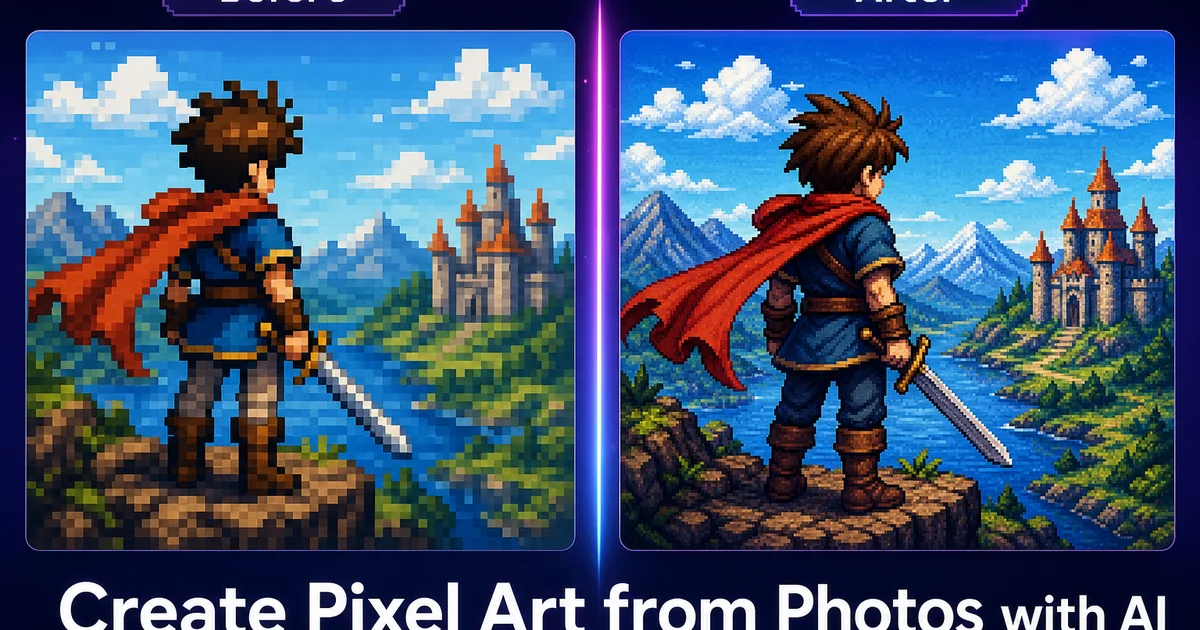
Pixel art has experienced a massive cultural resurgence driven by indie game development, retro-aesthetic social media content. Nostalgic design trends that reference the eight-bit and sixteen-bit eras. What was once a technical limitation. Artists working within hardware constraints of early consoles that could only display a few dozen colors at resolutions below three hundred pixels — has become a deliberate artistic choice valued for its clarity, charm, and iconic visual language. Converting photographs into pixel art bridges the gap between photographic realism and this stylized aesthetic, producing results that are right away distinct as pixel art while retaining the compositional strengths of the original photograph.
Manually creating pixel art from a photo reference is an extraordinarily time-consuming process. A skilled pixel artist might spend four to eight hours recreating a single portrait at sixty-four by sixty-four pixels, carefully deciding which details to preserve and which to simplify, selecting each color from a limited palette. Ensuring every edge follows clean staircase patterns. At higher resolutions like one hundred twenty-eight by one hundred twenty-eight or two hundred fifty-six by two hundred fifty-six, the time investment multiplies greatly. This is where AI-powered conversion changes the creative equation. The AI handles the computationally intensive decisions about detail reduction, color quantization, and edge improvement in seconds, giving the creator a strong starting point that can be refined rather than built from scratch.
This guide walks through the complete process of converting any photograph into polished pixel art using Magic Eraser's AI style filters. We cover how to evaluate which photos convert well, how to choose the right resolution and palette for your target aesthetic, how to use the AI conversion tools well. How to clean up the output to meet expert pixel art standards. Whether you are creating game assets, social media content, merchandise designs, or retro-styled marketing materials, the techniques here produce results that respect the traditions and conventions of pixel art while leveraging AI to greatly accelerate the workflow.
- AI pixel art conversion analyzes photo composition to determine which details are key for subject recognition, keeping those while reducing everything else to a specified pixel grid and color palette.
- Resolution choice drives the entire aesthetic — thirty-two pixels produces iconic minimal art while two hundred fifty-six pixels retains significant photographic detail in pixelated form.
- Color palette size and quantization method matter as much as resolution — median cut produces naturalistic results while k-means clustering creates more vibrant stylized palettes.
- Clean edge stepping with consistent staircase ratios is the hallmark of professional pixel art and requires manual cleanup after AI conversion to remove orphan pixels and irregular patterns.
- Export must use nearest-neighbor interpolation at integer scale multiples to preserve sharp pixel edges — bilinear or bicubic scaling destroys the retro aesthetic.
Why some photos convert to pixel art better than others
The single most important factor in pixel art conversion quality is the strength of the subject silhouette at the target resolution. When you reduce an image to a grid of thirty-two by thirty-two or sixty-four by sixty-four pixels, the outline of the subject must remain distinct with very limited pixel information. A person standing with arms at their sides against a contrasting background maintains a clear human silhouette even at very low resolutions. A person with arms partially raised in front of a cluttered background at similar tonal values becomes an ambiguous blob when reduced to the same grid. Before converting, evaluate whether the primary subject would still be identifiable as a simple silhouette.
Color contrast between elements is the second critical factor. In a full-resolution photograph, subtle color differences are visible because thousands of pixels describe the boundary between two regions. At pixel art resolutions, those boundaries are described by a handful of pixels. Subtle color differences may not survive palette quantization. Photos with strong, clear color distinctions between the subject, foreground. Background convert much better than images where everything falls within a narrow color range. A red object against a blue sky is ideal. A gray object against a slightly different gray background will likely merge into a single indistinct area.
Texture complexity is the third consideration. Photographic textures like hair, fur, foliage, and fabric contain high-frequency detail that cannot be represented at low pixel resolutions. The AI must decide how to simplify these textures into a few representative pixels. Simple, uniform textures convert predictably. Complex, detailed textures require the AI to make more aggressive simplification decisions that may not match your creative intent. If your source photo has very busy textures that you want preserved, use a higher target resolution. One hundred twenty-eight or two hundred fifty-six pixels — where the grid is fine enough to represent some texture variation.
- Strong subject silhouettes remain recognizable at low pixel resolutions while complex poses against cluttered backgrounds become ambiguous shapes.
- High color contrast between subject and background ensures boundaries survive palette quantization — subtle tonal differences may merge at limited color counts.
- Simple uniform textures convert predictably while complex textures like hair and foliage require higher target resolutions to retain recognizable detail.
- Pre-processing with AI background removal or simplification can dramatically improve conversion results for photos with busy or low-contrast backgrounds.
Understanding pixel resolution and color palette selection
The target pixel resolution determines everything about the final aesthetic. At the lowest end, sixteen by sixteen pixels is the domain of favicons and inventory icons. Only the most basic shapes survive, and the result looks like a tiny game sprite. Thirty-two by thirty-two is the classic character portrait size used in many retro RPGs, where a face can show basic features like eyes, nose. Mouth with a few pixels each. Sixty-four by sixty-four is the sweet spot for most photo-to-pixel conversions because it allows distinct facial features, clothing details. Background elements while still reading as distinctly pixel art. One hundred twenty-eight by one hundred twenty-eight and above enter the territory of detailed scene art where the pixel grid is visible but individual elements have enough resolution for nuanced rendering.
Color palette selection works in tandem with resolution to define the output style. Historical console palettes provide excellent starting points because they were carefully designed by engineers and artists to maximize visual impact within hardware constraints. The NES palette offered fifty-four colors. The SNES could display two hundred fifty-six colors at once from a total palette of thirty-two thousand seven hundred sixty-eight. The Game Boy used just four shades of green. Each of these constraints produces a distinct visual character. When the tool does not expose exact palette controls, use a prompt that names the target look — for example Game Boy green tones, NES-inspired colors, or a limited sixteen-color palette — and refine with a pixel editor if strict console accuracy matters.
The quantization algorithm that reduces the photograph's millions of colors down to the target palette has a major impact on the output quality. Median cut divides the color space by splitting the most populated color ranges, producing palettes that accurately represent the most common colors in the image. This works well for naturalistic results. K-means clustering iteratively finds optimal color centroids, which can produce more aesthetically pleasing but less statistically faithful palettes. Octree quantization is faster but less accurate. For most photo-to-pixel conversions, try median cut first for faithful results and k-means if you want a more stylized, vibrant interpretation.
- Sixteen by sixteen pixels is icon territory. Thirty-two by thirty-two shows basic features — sixty-four by sixty-four is the sweet spot for most photo conversions — one hundred twenty-eight and above allows detailed scene art.
- Historical console palettes like NES fifty-four colors or Game Boy four greens provide proven starting points with distinct visual character.
- Median cut quantization produces naturalistic color palettes while k-means clustering creates more vibrant stylized results.
- For strict console aesthetics, compare the AI output against a reference palette and make final color edits in a pixel editor rather than relying on arbitrary generated colors.
Cleaning up AI conversion artifacts for professional results
Raw AI conversion output, while greatly faster than manual pixel art creation, often contains artifacts that expert pixel artists would not leave in a finished piece. The most common artifact is orphan pixels. Single isolated pixels of a color that do not connect to any cluster of the same color. In traditional pixel art, every pixel is on purpose placed and relates to its neighbors. Orphan pixels look like noise and break the visual coherence of the piece. Zoom to one hundred percent on the converted output and systematically scan for single pixels that stand alone. Either remove them by changing them to the surrounding color or expand them into a deliberate cluster of two or more pixels.
Edge stepping is the second area that distinguishes polished pixel art from raw conversion output. In expert pixel art, diagonal lines and curves follow consistent step patterns. A forty-five-degree diagonal uses one-to-one stepping where each pixel advances one unit horizontally and one vertically. A shallower angle might use two-to-one stepping. The key is consistency — within any single edge, the step ratio should be uniform, creating a smooth staircase rather than an irregular jumble. AI conversion often produces edges with mixed step ratios because it is optimizing for color accuracy rather than edge aesthetics. Review major subject edges and correct any stepping inconsistencies by nudging pixels to maintain regular patterns.
Anti-aliasing in pixel art uses intermediate colors placed at specific positions to smooth the visual look of edges without actual resolution increase. The AI conversion may produce accidental anti-aliasing where quantization happened to place an intermediate color at an edge, or it may omit anti-aliasing where it would improve the result. For a clean retro look that references eight-bit or sixteen-bit games, remove unintentional anti-aliasing for sharp edges. For a more polished modern pixel art style, on purpose add single pixels of intermediate color at the outside corners of staircase steps where curves change direction.
- Orphan pixels — single isolated pixels that do not connect to same-color clusters — are the most common artifact and should be removed or expanded into deliberate groups.
- Consistent edge stepping with uniform staircase ratios along each edge distinguishes polished pixel art from raw downsampling results.
- Removing unintentional anti-aliasing produces a clean retro eight-bit look while deliberately adding intermediate corner pixels creates a modern polished pixel art style.
- Systematic scanning at one hundred percent zoom across the entire converted image catches artifacts that are invisible at reduced display sizes.
Creative applications and use cases for AI pixel art conversion
Game development is the most natural application for AI-powered pixel art conversion. Indie developers working in retro pixel art styles can use photo conversion as a rapid prototyping tool. Photographing real-world settings, objects, and textures, then converting them to pixel art to generate reference material or placeholder assets. A developer can photograph a city street, convert it at the target resolution for their game. Use the result as a starting point for background art that would take hours to create from scratch. The converted output will need artistic refinement, but it provides accurate proportions, color relationships. Composition that serve as a strong foundation.
Social media content creation has embraced pixel art as a distinctive visual format that stops scrolling feeds. Profile pictures converted to pixel art at thirty-two by thirty-two or sixty-four by sixty-four pixels have become a distinct style associated with gaming culture, tech communities, and creative industries. Brands use pixel art versions of their products or mascots for retro-themed campaigns. Content creators convert key frames from their videos into pixel art for thumbnails that stand out against photorealistic competition. The AI conversion makes this feasible as a regular content format rather than an occasional special project that requires commissioning a pixel artist.
Merchandise and print design using pixel art from converted photos creates products that feel both personal and stylized. Pet portraits converted to pixel art at one hundred twenty-eight by one hundred twenty-eight pixels and printed on t-shirts, mugs, or phone cases retain the distinct likeness of the specific animal while transforming it into a charming pixel art style. Family photos converted to pixel art become unique wall prints. The key for print applications is exporting at enough physical resolution. A sixty-four by sixty-four pixel artwork exported at eight times scale produces a five hundred twelve by five hundred twelve pixel image, which prints clearly at about one-point-seven inches square at three hundred DPI. For larger prints, either use higher base resolutions or accept the visible pixel grid as an intentional design element.
- Game developers use photo conversion for rapid prototyping of background art, reference material, and placeholder assets that provide accurate proportions and color relationships.
- Social media pixel art profile pictures and thumbnails have become a recognizable visual format that stands out in photorealistic feeds.
- Pet portraits and family photos converted to pixel art create personalized merchandise with a charming stylized aesthetic.
- For print, calculate physical dimensions from pixel count and scale factor — sixty-four pixels at eight times scale prints at approximately one-point-seven inches at three hundred DPI.
Advanced techniques for multi-frame and animated pixel art
Converting a sequence of video frames to pixel art using consistent settings produces animated pixel art that mimics the sprite animation style of retro games. The critical need is consistency — every frame must use the same resolution, the same color palette. Ideally the same quantization settings, otherwise the animation will flicker with changing colors and shifting detail levels between frames. Extract key frames from the source video at the desired frame rate. Eight to twelve frames per second is typical for retro pixel animation — and batch-process them through the AI conversion with locked settings. The result is a sequence of pixel art frames that can be assembled into an animated GIF or sprite sheet.
Maintaining palette consistency across frames is the biggest technical challenge in animated pixel art conversion. If the AI on its own quantizes each frame, frames with slightly different color distributions will produce slightly different palettes, causing color flicker in the animation. The solution is to generate a single master palette from a representative frame or from the composite of all frames, then apply that locked palette to every frame in the sequence. This ensures that the same real-world color maps to the same palette entry in every frame, eliminating flicker. If palette locking is not available in your tool, create one representative frame first, reuse the same style prompt and settings for every frame, then normalize final colors in a pixel editor.
Sprite sheet generation from converted frames is the final step for game development use cases. A sprite sheet arranges all animation frames in a regular grid on a single image. Game engines can efficiently load and index. After converting and cleaning up all frames, arrange them in a grid with consistent spacing. Standard sprite sheet formats use power-of-two dimensions. A sheet of sixteen frames at sixty-four by sixty-four pixels per frame would be arranged as a four-by-four grid totaling two hundred fifty-six by two hundred fifty-six pixels. Export the final sheet as PNG with no compression artifacts and no interpolation to preserve pixel-perfect edges across all frames.
- Animated pixel art requires every frame to use identical resolution, palette, and quantization settings to prevent color flicker and detail shifting.
- Generate a master palette from a representative frame or composite of all frames and lock it across the entire sequence for consistent color mapping.
- Standard sprite sheets use power-of-two dimensions — sixteen frames at sixty-four pixels each fits a four-by-four grid at two hundred fifty-six by two hundred fifty-six total.
- Export sprite sheets as PNG with nearest-neighbor interpolation and no compression to preserve pixel-perfect edges across all frames.
How to do it
- 1
Upload the source photo and evaluate its suitability for pixel art conversion
Open the image in Magic Eraser and assess the composition. Photos with strong silhouettes, high contrast between subject and background, and limited fine texture detail convert best into pixel art. Portraits with clear facial features, landscapes with distinct horizon lines, and objects with distinct outlines all work well. Photos with very busy backgrounds or very low contrast between elements may lose legibility at low pixel resolutions. Consider using AI background removal or simplification before converting.
- 2
Choose a target pixel resolution and color palette size
Decide the pixel grid density for your output. Common retro styles range from thirty-two by thirty-two pixels for icon-style art up to two hundred fifty-six by two hundred fifty-six for detailed scene art. Lower resolutions produce a more iconic, retro-game aesthetic while higher resolutions preserve more photographic detail. Select a palette size between eight and sixty-four colors. Classic console palettes used sixteen colors, while modern pixel art often uses thirty-two to sixty-four. Use your chosen AI pixel-art style or prompt to target that look before processing, then adjust the source or rerun if the output needs a different level of detail.
- 3
Apply the pixel art AI filter and adjust quantization settings
Run the pixel art conversion filter. The AI analyzes the image to determine which details are key for subject recognition and preserves those while reducing everything else to the target grid. Adjust the color quantization method — median cut produces naturalistic palettes while k-means clustering creates more vibrant, stylized results. If the initial output loses important details like facial features or text, increase the resolution by one step and re-process rather than trying to manually fix individual pixels.
- 4
Refine edges and clean up artifacts in the converted output
Examine the pixel art output at one hundred percent zoom. AI conversion sometimes produces orphan pixels — single isolated pixels that break the visual flow of clean pixel art edges. Use any pixel editor or cleanup pass to remove stray pixels and ensure edges follow consistent staircase patterns. Check that diagonal lines maintain a regular step ratio such as two-to-one or three-to-one rather than irregular patterns. Clean, consistent edge stepping is the hallmark of expert pixel art and distinguishes AI-assisted results from raw downsampling.
- 5
Export at the correct scale with nearest-neighbor interpolation
Export the pixel art at an integer multiple of the pixel grid size. Two times, four times, or eight times — using nearest-neighbor interpolation to preserve the sharp pixel edges. Never use bilinear or bicubic scaling, which blurs the pixel boundaries and destroys the retro aesthetic. For social media, four times or eight times scaling produces images that display cleanly on high-density screens. For print, calculate the physical size at your target DPI and scale accordingly. Save as PNG to avoid JPEG compression artifacts that soften pixel edges.
Sources
- Depixelizing Pixel Art — Microsoft Research / Hebrew University
- Pixel-Aware Deep Function-Mixture Network for Spectral Super-Resolution — arXiv
- A Review of Artistic Stylization Techniques for Images and Video — ACM Computing Surveys