
Online Course Creator Photo Workflow: Sales Page to Last Lesson
Online course businesses live or die by their visual production quality. The sales-page hero photo, the instructor headshot in the bio section, the in-lesson screenshots, the social-promo carousels driving traffic to the sales page, and the email-newsletter inline imagery in the launch sequence — every one of those surfaces directly affects conversion, completion, and refund rates. Magic Eraser handles the full course-creator image workflow without a designer on staff, on the same laptop or phone you record courses with.
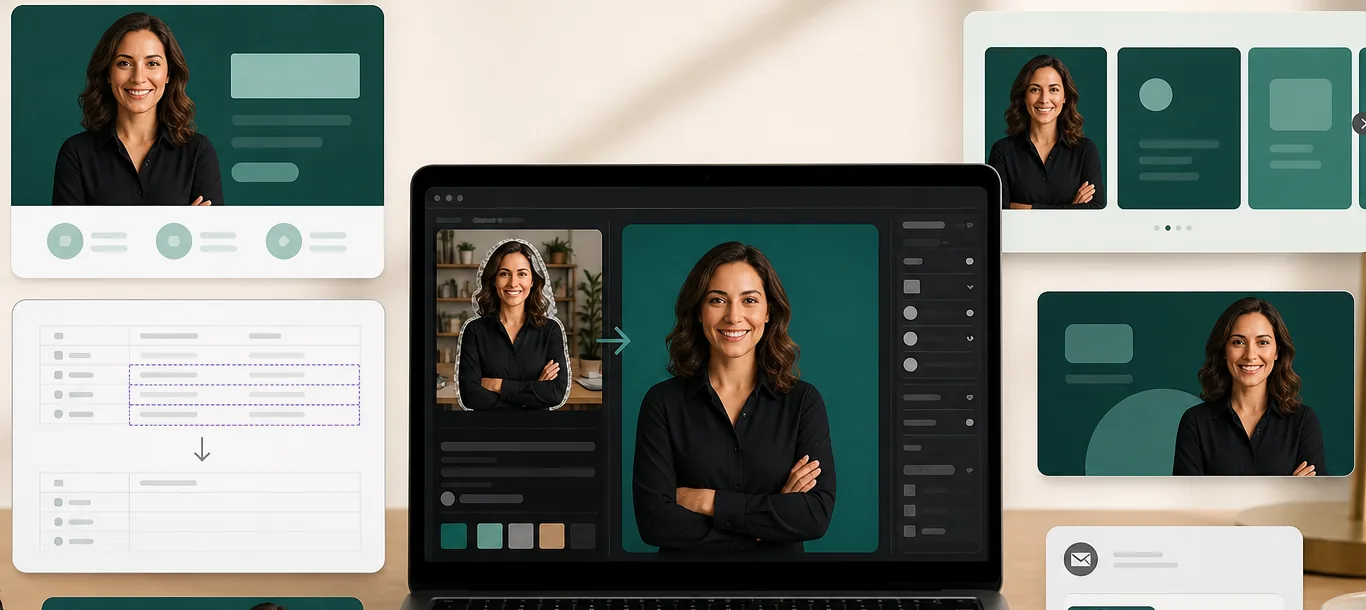
The sales-page hero photo is the conversion bottleneck
Sales-page conversion testing across the course-creator space consistently shows the hero image is one of the top 3 conversion-driving elements on the page, alongside the headline and the price-anchor copy. A poorly-shot instructor selfie, a cluttered home-office background, or a stock-photo hero clearly not the instructor all measurably reduce conversion — typically 15-30% versus a clean, instructor-on-brand-background hero. Hiring a photographer for a hero session runs $300-800, and the photo goes stale every 12-18 months as branding, hair, or wardrobe changes. For early-stage course creators, the photographer cost is often the gating factor on launching at all.
In-lesson screenshots leak sensitive personal info
Courses that teach software, marketing platforms, accounting workflows, or any business tool routinely embed screenshots of real accounts as teaching examples. Every screenshot is a potential PII leak — student names visible in the customer list, real emails in the contact panel, account numbers in the billing screen, personal calendar entries in the dashboard. Manually redacting each screenshot in Photoshop with blur or black-rectangle overlays takes 2-5 minutes per screenshot, scales poorly across a 40-80 lesson course, and the blurs can sometimes be unblurred by motivated viewers (real incident in 2023). Magic Eraser brushes over the sensitive UI text and rebuilds the surrounding UI chrome cleanly — faster than blur, more reliable than rectangles.
Social-promo carousels and YouTube thumbnails need their own visual discipline
The promo channels that drive course-business traffic (Instagram carousels, YouTube thumbnails, LinkedIn document posts, Pinterest pin sets) each have their own canvas, format, and visual conventions — and a course creator with no design team has to produce all of them. The full launch-sequence promo set for a single course can run 30-50 distinct visual assets: 5-10 Instagram carousels at 4:5 portrait, 8-15 YouTube thumbnails at 16:9, 4-6 LinkedIn document posts at 1200×627, and a Pinterest pin set of 3-5 variants per blog post supporting the launch. Without a fast workflow, the visual production becomes the rate-limiting step of the entire launch.
Existing course assets feel stale after the second cohort
Course creators running multiple cohorts of the same course frequently find that the same sales-page imagery feels stale to returning audience members and to platforms tracking content freshness. Re-shooting from scratch each cohort is impractical (cost, time, instructor availability), but mechanical filter-swaps look like obvious filter-swaps. AI Filter color-grade variations and AI Fill compositional outpainting let course creators produce visually-distinct refreshed assets from the same master photo library — fresh enough for the algorithm and the audience without requiring a new shoot.
How Magic Eraser fits the course-creator workflow
Build the master instructor headshot library before anything else
Spend one focused 30-60 minute session creating 4-6 master instructor headshots covering the angles and expressions you'll need across the course business — a confident-direct-gaze headshot for the sales page hero, a warmer side-angled headshot for the bio section, a thinking-pose headshot for thought-leadership social posts, and a casual-laughing headshot for email-newsletter sign-off images. Run each through Background Eraser to isolate the subject on solid brand-color backgrounds, AI Enhance for upscaling and sharpening, and a consistent AI Filter color-grade preset. Save the cleaned masters in a Notion or Drive folder — every downstream visual asset references this library, so the upfront investment pays back across hundreds of assets.
Prep the sales-page hero photo to convert
Pick the strongest instructor headshot from the master library, run AI Fill outpaint if the sales-page hero region needs a wider aspect (1920×1080 or 2560×1440 for above-the-fold heroes), and color-grade with AI Filter to match the brand palette. The hero photo should answer the visitor's first-second question of 'is this real, and is this person credible' — clean background, professional but warm expression, eye contact with the camera (so the gaze reads as direct toward the visitor), and color grading that matches the brand. For courses targeting B2B / corporate audiences, neutral grays / navies / muted earth tones outperform vibrant saturated palettes; for creative-economy courses (photography, design, content), more vibrant grading works.
Redact sensitive UI text from in-lesson screenshots at scale
Before recording any lesson that includes screen-share, identify which interface panels you'll show (customer list, billing screen, calendar, analytics dashboard) and run a redaction pass on the screen captures or screenshots. Magic Eraser brushes over real names, emails, account numbers, billing amounts, calendar entries — and the AI rebuilds the surrounding UI chrome (table cell background, form-field outline, surrounding text styling) so the screenshot stays readable as a teaching reference without leaking the underlying data. For courses with 40-80 lessons each containing 3-8 screenshots, the redaction pass adds 15-30 seconds per screenshot via Magic Eraser versus 2-5 minutes per screenshot via Photoshop blur — a meaningful difference across the full course.
Produce the social-promo carousel and thumbnail set from one master shoot
From the master headshot library plus 5-10 lifestyle / desk / studio photos shot in the same session, produce the full launch-sequence promo set with the AI workflow: 5-10 Instagram carousels at 4:5 portrait (AI Fill outpaints landscape sources to portrait, AI Filter applies consistent color grading across all 10 slides), 8-15 YouTube thumbnails at 16:9 (Magic Eraser cleans the subject, Background Eraser swaps cluttered backgrounds for brand-color solids, AI Filter saturates +30-50% for dark-mode feed visibility), 4-6 LinkedIn document posts at 1200×627 (AI Fill outpaints to wide aspect for cover slides), and a Pinterest pin set of 3-5 variants per supporting blog post (AI Fill outpaints landscape blog hero photos to 2:3 vertical, AI Filter applies recipe-card category color grading).
Refresh assets each cohort with AI Filter variations and AI Fill recomposition
Between course cohorts (typically 8-16 weeks apart), refresh the sales-page hero and the supporting promo assets without re-shooting. The fast-refresh workflow: same master photo, different AI Filter preset (warmer for a fall cohort, cooler for a winter cohort, brighter for a spring cohort), and different AI Fill compositional treatment on the supporting carousel slides. The result is visually-distinct material that doesn't trip the staleness signal — fresh enough for returning audience members and platform algorithms tracking content freshness, without the time and cost of a new instructor photo shoot. Save the cohort-specific presets on your Magic Eraser account for easy reuse across launches.
Build the email-newsletter inline imagery template once and reuse
Email newsletters in course launch sequences (welcome, lesson-drip, sales pitch, scarcity, follow-up) typically need 1-3 inline images per email. Build a template-driven inline image system: hero-style image at the email top (640×320 standard email-image dimension), inline supporting images at 600×300, and CTA-button images at 600×120. Use the same master headshot library and AI Filter brand preset across all inline images so the email visual identity is consistent. For drip sequences running multiple weeks, batch-edit produces 20-40 inline images in a single 60-90 minute session that powers the entire email sequence.
Frequently Asked Questions
What's the minimum viable photo setup for a new course creator?
+
Start with one focused 30-60 minute master headshot session producing 4-6 angles and expressions, plus 5-10 desk / studio / lifestyle photos shot in the same session. Total source-material cost: a phone or DSLR, even natural window light, a clean wall as background (Background Eraser will handle the swap), and one hour of focused shooting. From those 10-15 master source photos, the AI workflow produces 30-50 launch-sequence promo assets, the sales-page hero, the bio section headshot, and the in-lesson redaction template. Compared to hiring a photographer ($300-800) plus a designer ($500-2000 for the full promo set), the AI workflow is the difference between launching at all and waiting for budget.
How do I redact student names and personal info from teaching screenshots?
+
Use the Magic Eraser brush over the sensitive UI text — names, emails, account numbers, billing amounts, calendar entries, dashboard values. The AI rebuilds the surrounding UI chrome (table cell background, form-field outline, surrounding text styling) so the screenshot stays readable as a teaching reference. This is faster than re-recording the lesson with dummy data and more reliable than blur or black-rectangle overlays (which can sometimes be unblurred by motivated viewers). For courses teaching software, marketing tools, accounting workflows, or any platform with real account data, build the redaction pass into your lesson-prep checklist so every screenshot is cleaned before recording.
Can I use the same master headshots across multiple courses?
+
Yes, with AI Filter variation to keep each course visually distinct. The same master instructor headshots can power a beginner course (warmer, more saturated AI Filter grade signaling friendliness and approachability), an advanced course (cooler, more neutral grade signaling depth and rigor), and a corporate-targeted course (muted, professional grade signaling enterprise-fit) — without re-shooting. The AI Filter color-grade variation creates enough visual distinction that audience members and platforms read the courses as separate offers, while keeping production cost flat. For course-business operations running 3-8 courses across different audience segments, this is the difference between sustainable visual production and a constant photo-shoot treadmill.
Does this workflow scale to a course-creator team with multiple instructors?
+
Yes. For multi-instructor course platforms (academies, cohort-based programs, multi-author memberships), build a shared master headshot library covering all instructors with the same Background Eraser background treatment and AI Filter brand preset. Every downstream asset (sales pages, lesson covers, social promo) references the shared library, so visual identity stays consistent regardless of which instructor is featured in which asset. Magic Eraser's preset sharing on the team plan handles the consistency leg; the structural decisions (which instructor leads which course, which promo theme) are editorial work.
What about course-platform thumbnail and cover requirements?
+
Course platforms (Teachable, Kajabi, Thinkific, Podia, Circle, Skool, Mighty Networks) each have their own thumbnail and cover specs. Common dimensions: course thumbnail 1280×720 or 1920×1080 (16:9), course cover 1500×500 or 1280×400 (ultra-wide banner), lesson thumbnail 640×360 (16:9). Magic Eraser preps all formats from the same master library — AI Fill outpaints the source to the right aspect ratio, Background Eraser swaps backgrounds for platform-consistent looks, AI Filter applies the brand color grade. For platforms that auto-generate thumbnails from video covers, override the auto-thumbnail with a manually-prepped Magic Eraser thumbnail for measurably higher click-through.
How often should I refresh the sales-page hero photo?
+
For active courses running multiple cohorts: every 12-18 months for a full refresh (new shoot, new master library) and AI Filter variations between cohorts for cohort-specific refreshes (8-16 weeks apart). For evergreen courses without cohort gates, every 18-24 months for a full refresh works because the audience turns over more gradually. The signal to refresh sooner is a measurable drop in sales-page conversion (3+ percentage points) on otherwise-stable traffic — that usually indicates the imagery has aged out of the audience's current visual expectations. The AI workflow makes the refresh cycle low-cost enough that erring on the side of more-frequent refresh is the safer operational default.
Can I produce video-thumbnail covers for lesson videos at scale?
+
Yes. Video-thumbnail covers for course lessons typically follow the same 16:9 thumbnail discipline as YouTube — subject-centered framing, 3-5 word descriptive text overlay, high-contrast composition that reads at the lesson-library grid size (typically 280×158 in the course UI). Magic Eraser preps lesson thumbnails from the master headshot library or from lesson screenshots: Background Eraser isolates the subject or screenshot, AI Filter applies the course-specific color grade, and an 80-100 point sans-serif text overlay at the top or bottom carries the lesson title. For courses with 40-80 lessons, a batch-edit pass produces the full thumbnail set in 60-90 minutes versus 8-15 hours manually.
Run a course business without hiring a designer
Magic Eraser preps the full course-creator visual stack — sales-page hero, instructor headshots, in-lesson screenshot redaction, social-promo carousels and thumbnails, email-newsletter inline imagery, and lesson covers — in 60-90 minutes per launch instead of $1500-3000 of designer time. Try the free tier on web, iOS, or Android.
Try Magic Eraser freeRelated use cases
See how professionals use these tools in real-world workflows.
Listing photos cluttered with personal items, parked cars, or construction equipment can turn buyers away. Magic Eraser uses AI to clean up your property photos instantly — no Photoshop skills required.
Product listings need clear images before shoppers can judge the item. Magic Eraser helps sellers remove messy backgrounds, table edges, labels, props, glare, and other distractions so each product photo is easier to review before publishing.
Photobombers ruining your travel pics? Messy backgrounds killing your selfie game? Stop wasting hours in Photoshop. Magic Eraser removes distractions, cleans up cluttered shots, and expands your photos to fit any platform format — all in one tap.
Related comparisons
See how Magic Eraser compares to similar tools.
TouchRetouch is a popular paid mobile app for removing objects and blemishes. Magic Eraser offers free AI-powered editing on any device with no install required. See how they compare across features, pricing, and ease of use.
Cleanup.pictures is a free web tool with one generic eraser brush. Magic Eraser gives you 100+ purpose-built removal tools — one for emoji, glasses, watermarks, sky, power lines, and dozens more — plus background removal, AI enhance, and mobile apps, in 16 languages. See how breadth changes the result.
remove.bg is the market leader for background removal, offering a powerful API and integrations with Photoshop and Figma. Magic Eraser goes further with eight AI-powered editing tools — from object removal and generative fill to AI enhance and design — all in one editor.
Two powerful AI photo editors with different strengths. Magic Eraser offers a broader set of generative AI tools for creative editing, while Photoroom excels at e-commerce product photography and batch processing. See which fits your workflow.
Related guides
Explore more guides and editorial content related to this workflow.
Learn how to use Magic Eraser to remove objects, people, text, and distractions from photos with cleaner AI editing results.
Learn how to remove people from photos using AI in seconds. Step-by-step guide for travel photos, real estate shots, and product images.
Step-by-step guide to removing watermarks from your own photos using AI. Learn when it is appropriate, the best techniques, and how Magic Eraser handles it.