Skip to content

Generative fill for product photos, social creatives, and marketing edits

Use AI Fill to replace selected areas, rebuild missing details, and create more natural results when a photo needs cleanup, scene repair, or visual expansion.

Magic Eraser AI Fill rebuilds missing or removed image areas with context-aware generative fill. After removing an object, AI Fill reconstructs the empty area with content that matches the surrounding scene — commonly used for fixing edited areas, replacing removed objects with natural backgrounds, and repairing damaged photos.


Use generative fill to rebuild missing parts of an image

AI Fill helps you replace unwanted areas and regenerate missing visual information without obvious patch marks. It is useful for product photography, creative cleanup, and fast content production when you need realistic-looking results without heavy retouching.

Try AI Fill now

Generative fill example
Natural rebuild

Speed up photo editing with generative fill instead of manual retouching

Instead of patching every small area by hand, select the region you want to change and let AI Fill generate a better match. This works well when you need to repair edges, remove distractions, or complete an incomplete scene while keeping the image usable for commercial work.

Try AI Fill now

AI Fill workflow example
Faster editing

Use generative fill across multiple image editing scenarios

AI Fill works well when you want to fill empty space after object removal, replace part of a background, refine image edges, or add more scene context. It is useful for ecommerce photos, social media assets, and fast campaign cleanup.

Try AI Fill now

Generative fill scenarios
Multiple use cases

Pair AI Fill with a complete AI photo editing workflow

AI Fill becomes more useful when combined with Remove Objects, Remove Background, AI Enhance, and AI Expand. Clean the image, rebuild missing areas, sharpen the result, and prepare the final asset for ads, marketplaces, and social channels inside one workflow.

Try AI Fill now
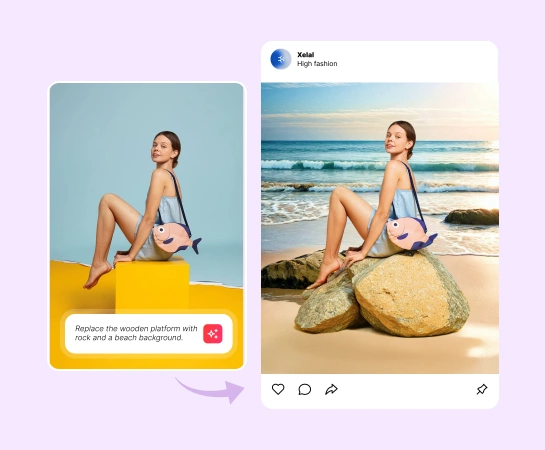
AI editing workflow with AI Fill
One workflow

How to use generative fill

Step 1

Upload your image

Start with a product photo, social visual, lifestyle image, or any asset that needs a partial rebuild.

Step 2

Select the area to change

Brush over the region you want to replace, repair, or regenerate with AI Fill.

Step 3

Describe what you want with text

Enter a short prompt describing the new content, background, or visual detail you want AI Fill to generate.

Step 4

Run generative fill

Let the AI rebuild the selected area so the new content blends more naturally with the rest of the image.

All the AI image editing tools you need

Explore the main editing capabilities available in Magic Eraser Web, from cleanup and enhancement to generation, expansion, and design.

AI Fill

Replace selected areas and regenerate missing content with natural-looking results.

Remove Objects

Erase people, props, text, or distractions before rebuilding the cleared area.

Remove Background

Isolate your subject first, then use AI Fill to refine edges or rebuild scene details.

AI Enhance

Improve clarity, detail, and overall polish after the fill result is generated.

AI Expand

Extend the canvas and combine it with generative fill to create more usable space.

Design

Move edited visuals into layouts, ad creatives, thumbnails, or simple design compositions.

AI Filter

Change the visual mood or style after the main generative fill edit is complete.

AI Create

Generate fresh visual ideas from prompts and continue refining them with AI Fill.

What users say about AI Fill workflows in Magic Eraser

These comments reflect common needs behind generative fill, object cleanup, background rebuilding, and quick image editing inside a simple workflow.

"Needed to clean up a few problem areas in product photos and the app rebuilt the background much better than I expected. It saved me a lot of manual retouching time."

A. Nguyen
March 14, 2026 • 67 helpful

"The fill result looked natural enough for my social creatives. I could remove distractions, patch missing parts, and keep moving without opening a heavy desktop editor."

Linh Tran
February 25, 2026 • 43 helpful

"I liked that I could combine object removal and AI fill in one workflow. It made quick edits much easier when I needed clean visuals for ads."

Minh Pham
January 8, 2026 • 31 helpful

"Good for fast concept cleanup. I used it to replace rough areas and rebuild parts of a scene before sending the image into design."

Hoang Le
April 2, 2026

Frequently asked questions

AI Fill is a generative fill workflow that replaces selected areas and rebuilds missing visual content so the edit blends more naturally with the rest of the image.

Use generative fill when you need to rebuild the cleared area, replace part of a background, repair missing content, or create a more complete scene after an edit.

Yes. It is useful for product photography, ecommerce visuals, social media creatives, thumbnails, and marketing assets where you need fast cleanup and more polished results.

Yes. Many workflows work better when you first remove objects or backgrounds, then use AI Fill to rebuild areas, and finally enhance or expand the image for the final export.

The usual flow is simple: upload an image, brush over the area you want to change, run AI Fill, review the generated result, and export the final image.

Other comparisons

See how Magic Eraser compares to other photo editing tools.

Best AI Photo Editors in 2025 — Compared

We tested and compared the top AI photo editing tools so you don't have to. From object removal to background replacement, see which editor delivers the best results for your workflow.

Magic Eraser vs Photoshop: Which Photo Editor Fits Faster Workflows?

Photoshop is the industry standard for deep image editing, but many people only need fast object removal, clean backgrounds, and AI-powered fixes. Magic Eraser focuses on those jobs with a lighter workflow that works in seconds on web and mobile.

Magic Eraser vs Inpaint: Which Tool Removes Distractions More Efficiently?

Inpaint is a recognizable name for removing unwanted objects from photos. Magic Eraser builds on that workflow with broader AI editing tools, faster cross-device access, and more useful cleanup features beyond a single task.

The Faster Photoshop Alternative for Everyday Photo Editing

Adobe Photoshop is powerful, but most people only use a fraction of its features. Magic Eraser delivers the photo cleanup tools you actually need — object removal, background removal, AI enhancement, and generative fill — in a simpler interface that works on web and mobile with no subscription required to start.

Magic Eraser vs Adobe Express: Which Is Better for Photo Cleanup?

Adobe Express bundles photo editing inside a design and content-creation suite tied to Adobe Firefly. Magic Eraser is purpose-built for AI photo cleanup: object removal, background replacement, generative fill, and enhancement. This comparison shows where each tool fits best.

Magic Eraser vs Pixelcut: Which AI Photo Editor Should You Pick?

Magic Eraser and Pixelcut both offer AI-powered photo editing across web, iOS, and Android with free tiers and paid Pro tiers. Pixelcut leans heavily into e-commerce product photos with templates. Magic Eraser is purpose-built for AI cleanup tasks across the full range of photo work. This comparison shows where each tool wins.

Related use cases

See how professionals use these tools in real-world workflows.

Remove Unwanted Objects from Real Estate Photos in Seconds

Listing photos cluttered with personal items, parked cars, or construction equipment can turn buyers away. Magic Eraser uses AI to clean up your property photos instantly — no Photoshop skills required.

Remove text, captions, date stamps, and overlays from any photo

Dealing with screenshots cluttered by captions, old photos stamped with dates, or images covered in text overlays? Magic Eraser's AI text remover erases unwanted text from any image and rebuilds the background naturally, so your photos look clean and professional.

Yearbook Photo Editing with AI Tools

Yearbook photos need consistent backgrounds, even lighting, and clean portraits. Magic Eraser helps schools, studios, and parents get professional-looking results without expensive retouching workflows.

Food Photography Cleanup with AI Editing

Great food photos drive orders and engagement, but messy tables, utensils, and background clutter ruin the shot. Magic Eraser helps restaurants, food bloggers, and delivery platforms clean up food images fast.

Pet Photo Editing with AI Tools

Pet photos rarely come out the way you want. The dog moves, the cat is half in shadow, the background is full of clutter. Magic Eraser handles all of that in seconds — background swaps, leash removal, blur cleanup, sharper fur — without manual masking or expensive software.

Virtual Staging with AI

Empty listings sit on the market longer because buyers struggle to visualize the space. Virtual staging with AI fills the rooms with furniture in the style your buyer wants — modern, transitional, coastal, traditional — in minutes per room instead of days. Magic Eraser handles the pre-staging cleanup (paint touch-ups, painter's tape, debris) and the post-staging polish (lighting refinement, edge cleanup).

Restaurant Menu Photo Editing

Dish photos move delivery and dine-in revenue more than menu copy ever will. Magic Eraser turns phone-shot food photos into delivery-platform-ready images: clean the cluttered table, enhance the dish, swap to a brand-consistent background, and export to DoorDash, Uber Eats, Yelp, and Instagram specs without a food photographer.

YouTube Thumbnail Editing for Creators

YouTube thumbnails decide 50-70% of the click decision in the first 1-2 seconds of feed exposure. Magic Eraser handles the workflow that lets creators ship higher-CTR thumbnails in 25-40 minutes per video: subject isolation via Background Eraser, dark-mode-feed color contrast via AI Filter, clean text-overlay surfaces via AI Fill, and 2-3 distinct variants ready for YouTube's native Test & Compare in under 30 minutes.

Travel Photo Editing for Trip Recaps and Memory Books

Travel photos are the most-edited and most-shared images on most cameras — and the hardest to fix manually. Crowds at every landmark, harsh midday sun, lens glare from phone cameras pressed against bus windows, dim interiors, and decades-old film scans that finally need restoration. Magic Eraser handles every common travel-photo failure mode in seconds, on the same phone you took the photo with.

Pinterest Pin Design for Bloggers, Creators, and Small Brands

Pinterest is a visual search engine, not a social feed — pins keep earning impressions for 6-18 months on evergreens and 2-5 years on seasonal evergreens like holiday recipes and gift guides. That long-tail traffic only compounds if every pin is built for the 2:3 vertical canvas at 1000×1500 displayed at ~320px on mobile (85%+ of Pinterest traffic). Magic Eraser's AI tools turn a landscape source photo library into pin-ready vertical compositions in 2-3 minutes per pin instead of 20-40 minutes in Photoshop.

Online Course Creator Photo Workflow: Sales Page to Last Lesson

Online course businesses live or die by their visual production quality. The sales-page hero photo, the instructor headshot in the bio section, the in-lesson screenshots, the social-promo carousels driving traffic to the sales page, and the email-newsletter inline imagery in the launch sequence — every one of those surfaces directly affects conversion, completion, and refund rates. Magic Eraser handles the full course-creator image workflow without a designer on staff, on the same laptop or phone you record courses with.

Podcaster Photo Workflow: Cover Art, Guest Graphics, Per-Season Refresh

Podcasting is a uniquely visual-poor medium that lives or dies by its visual surfaces. The cover art is the most-viewed surface of every podcast brand, displayed at 56-100px in feed where new listeners decide whether to tap in under a second. The supporting graphic set per episode (Instagram squares, Stories, TikTok, YouTube audiogram covers, email-newsletter inline imagery) is where the show's growth happens between episodes. Magic Eraser handles the full podcaster visual stack — 3000×3000 cover art, host-portrait libraries, per-episode guest graphics, per-season AI refreshes, supporting graphic sets — without a designer on staff, on the laptop or phone you record episodes with.

Self-Published Author Photo Workflow: Covers, Headshots, BookTok, Series

Indie authors compete with traditional publishing on Amazon's discovery surface where the same algorithms, the same readers, and the same 100-150px mobile-thumbnail decision window apply equally to both. The difference is the production budget — traditional publishers have in-house art departments and marketing teams; indie authors have to handle covers, author headshots, BookTok and Instagram promo, A+ Content modules, and series-consistent visual identity themselves. Magic Eraser preps the full self-published author visual stack — book covers that survive the thumbnail render, author headshots for back covers and bios, social-promo across BookTok / Instagram / Pinterest, Amazon A+ Content modules, and series-consistent presets across 3-12 books — in minutes per asset instead of $400-1500 of designer time per book.

Newsletter Writer Photo Workflow: Hero Images, Inline Imagery, Notes, Author Photos

Newsletter writing in 2026 is platform-fragmented across Substack (35M+ subscribers), beehiiv, ConvertKit, Ghost, and Beehiiv-adjacent indie tools — and the visual surfaces have multiplied with each platform's discovery features (Substack Notes, beehiiv Boost, Ghost's recommendation network). Newsletter writers need post hero images that survive every platform's render pipeline, author photos that work across bylines and email signatures, microblog imagery for the discovery-driving feed surfaces, and email-newsletter inline graphics that render across Gmail / Apple Mail / Outlook. Magic Eraser preps the full newsletter visual stack — phone-to-publish in minutes per asset — without a designer on staff.

Interior Design Portfolio: Clean Rooms, Correct Lighting & Extend Compositions

An interior designer's portfolio is the primary sales tool for landing new clients — prospective homeowners and commercial clients evaluate design sensibility, style range, and attention to detail entirely through project photography. The challenge is that completed projects are photographed in occupied spaces where client belongings, everyday clutter, power cords, and personal items compete with the design work for visual attention. Magic Eraser removes the distractions that undermine design photography, AI Enhance corrects the mixed-lighting conditions endemic to interior spaces, and AI Fill extends tight compositions to show the full spatial context of the design.

Common removals with this tool

Quick guides for specific things people remove most often.

Related guides

Explore more guides and editorial content related to this workflow.

AI Generative Fill - Replace & Rebuild | Magic Eraser