
YouTube Thumbnail Editing for Creators
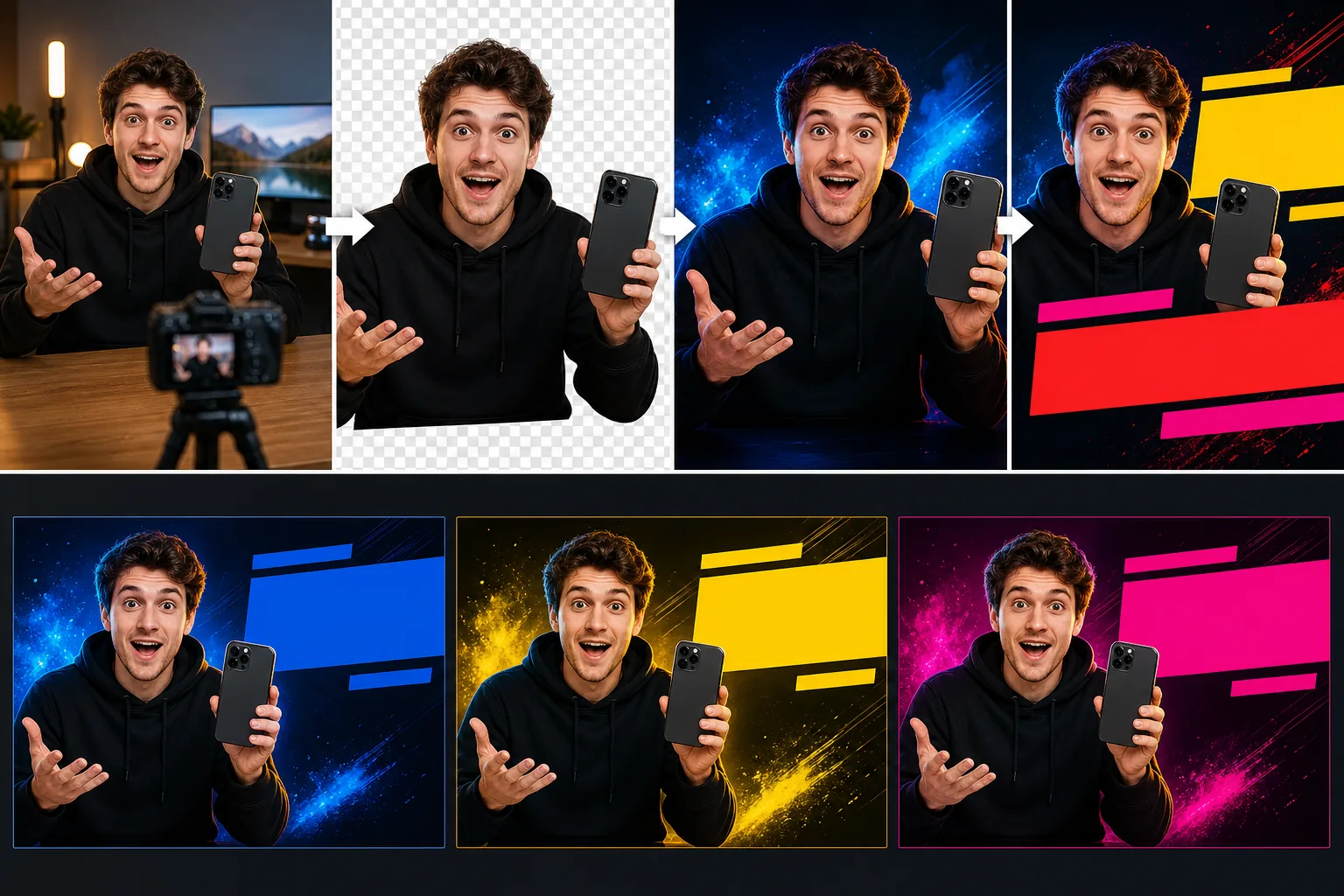
Build cleaner YouTube thumbnail assets from your own photos. Use Background Eraser to isolate a subject, Magic Eraser or AI Fill to simplify distracting areas, and AI Filter to explore a consistent visual style. Preview the result at a small size and check YouTube’s current publishing requirements before export.
Thumbnails take 30-60 minutes per video in Photoshop
Traditional thumbnail design in Photoshop or Affinity Photo is 30-60 minutes per thumbnail just for the initial design, plus another 20-30 minutes per variant if you want to A/B test. For a channel shipping 2-3 videos a week, that's 3-6 hours per week on thumbnail design alone — the single largest non-editing time sink for most growth-stage channels.
Phone selfie base photos kill CTR before the design starts
Most thumbnail bases start as phone selfies where the eyes are looking at the screen (not the lens), the hands are out of frame (holding the phone), and there's no scale reference. These three issues violate the subject-framing rules that have predicted high-CTR thumbnails since 2015. No amount of editing recovers a base photo that breaks all three; the result is a thumbnail that looks finished but underperforms by 30-50% versus a properly-shot base.
Thumbnails disappear in YouTube's dark-mode feed
Dark mode adoption on YouTube reached ~60% of viewing sessions in 2026. Thumbnails using muted colors, dark-grey backgrounds, or sophisticated low-saturation palettes simply disappear into the feed background and lose impressions before the viewer even sees them. The fix is high-saturation primary colors (yellow / orange / red / magenta / electric blue / lime), but pushing saturation that hard in traditional editors requires fiddling with curves and HSL panels for 10-15 minutes per thumbnail.
Text overlays kill readability at mobile feed scale
The thumbnail editor view is 1280×720, but the mobile feed view is 320×180. Text that looks elegant at the editor scale becomes unreadable at the feed scale — too small, too thin, too many words. The 3-5 word maximum and 80-100 pixel minimum size at 1280×720 are non-negotiable for mobile feed performance, but it's hard to evaluate them in the editor without exporting and previewing on a phone every time.
How Magic Eraser fits the YouTube thumbnail workflow
Shoot a base photo that follows the subject-framing rules
Before opening any editor, get the base photo right: direct eye contact (with the camera lens, not the screen), visible hands or arms in frame implying action, and a clear scale reference so the viewer's brain understands what's in the frame in under 1 second. Use a phone tripod or a stable surface with a 5-second timer; no amount of AI editing recovers a base photo that breaks these rules.
Isolate the subject with Background Eraser
Upload the base photo to Background Eraser. The tool isolates the subject in 15-30 seconds with edge precision that matches a 15-minute manual masking pass in Photoshop. The replacement background should be a solid color block, a simple gradient, or a single thematic element — never a competing focal point that pulls attention away from the subject.
Color-grade for dark-mode-feed contrast with AI Filter
Run AI Filter with saturation pushed +30-50% above the natural photo, ambient shadow recovery dialed back, and contrast increased by +15-20%. The output should look mildly over-saturated when viewed in isolation on a clean monitor — that's correct calibration for the actual viewing environment, where ~60% of viewers are in dark mode and the thumbnail needs to pop against a dark-grey feed.
Add the 3-5 word text overlay with AI Fill cleanup
Lock the text to 3-5 words maximum, sized at least 80-100 pixels tall in the 1280×720 export (which scales to ~20-25 pixels on the mobile feed — still readable, not overwhelming). Use AI Fill to remove distracting background details behind the text so the typography sits on a clean controlled surface. The text-area background should be a solid color block, a simple gradient, or an out-of-focus subject area; anything else creates visual interference at feed scale.
Generate 2-3 distinct variants for YouTube's Test & Compare
Re-run AI Filter with a different color grade (cinematic teal-orange vs warm cozy vs cool sleek vs vintage muted vs high-contrast punchy) and re-run AI Fill with different text-area treatments to produce 2-3 visually distinct variants from the same base photo. Total time: 20-30 minutes for all three variants. Upload them to YouTube Studio's Test & Compare feature and let the platform auto-rotate impressions across them for the recommended 2-week minimum window.
Read Test & Compare results and refresh underperformers on a 14-day cadence
After the test window closes, evaluate the winning variant's CTR against your channel's baseline for similar-topic videos. If it underperforms by 20%+ versus baseline, refresh with a single-variable change (new color palette OR new text overlay OR new subject framing — not all three) and run a fresh Test & Compare round. Channels that refresh underperformers on a 14-day cadence typically recover 10-30% of the original CTR loss over 60-90 days, which translates to 25-100% view-count recovery via the recommendation algorithm's amplification.
Frequently Asked Questions
How much faster is AI thumbnail editing vs Photoshop?
+
Roughly 5x faster end-to-end. A Photoshop thumbnail design pass typically takes 30-60 minutes for the initial design plus another 20-30 minutes per variant. The AI workflow (Background Eraser + AI Filter + AI Fill) takes 25-40 minutes for 2-3 distinct variants ready for Test & Compare. For a channel shipping 2-3 videos per week, that's the difference between 3-6 hours per week on thumbnails (Photoshop) and 1.0-1.5 hours per week (AI workflow), with the saved time redeploying to actual video content production.
What are the subject framing rules I should follow before editing?
+
Three rules that have predicted high-CTR thumbnails from 2015 through 2026: direct eye contact with the camera lens (not the screen), visible hands or arms in frame implying action or motion, and a clear scale reference so the viewer's visual cortex parses the subject instantly. Phone selfies typically violate all three (eyes on screen, hands holding phone, no scale). No amount of AI editing recovers a base photo that breaks these rules — reshoot with a tripod or stable surface and a 5-second timer before starting the design.
Why does dark mode matter so much for thumbnail design?
+
Dark mode adoption on YouTube reached ~60% of viewing sessions by 2026. Thumbnails using muted colors or dark-grey backgrounds disappear into the dark-mode feed background; thumbnails using cream or light-grey disappear into the light-mode feed. The empirical fix is high-saturation primary colors (yellow / orange / red / magenta / electric blue / lime) that contrast against both feed environments. The output should look slightly over-saturated when viewed in isolation on a clean monitor — that's correct calibration for actual feed viewing, not a mistake.
How many words should be on a YouTube thumbnail?
+
3-5 words maximum. Past 5 words, the average viewer treats the entire text block as visual clutter and skips reading it entirely, so the text becomes negative-value rather than positive-value. The text should be readable in 1 second at the 320-pixel mobile feed scale, which means the largest text should be at least 80-100 pixels tall in the 1280×720 export (scaling to ~20-25 pixels on mobile — readable but not overwhelming). AI Fill removes distracting background details behind the text so the typography stays on a clean controlled surface.
What is YouTube's Test & Compare and how should I use it?
+
YouTube Studio's Test & Compare feature (rolled out in 2024 and matured through 2025-2026) lets creators ship up to 3 thumbnail variants per video and have YouTube auto-rotate them across feed impressions to identify the highest-CTR variant. The discipline: ship 2-3 visually distinct directions per video (different color palette OR different subject framing OR different text overlay — not micro-variations like 'slightly larger text'), respect the platform's 2-week minimum test window even when day 3-5 looks conclusive, and read the winning variant's CTR against your channel's baseline for similar topic videos.
How often should I refresh underperforming thumbnails?
+
Run a Test & Compare round every 14 days on videos that underperform the channel baseline by 20%+. The refresh isn't a complete redesign — it's a single-variable change (new color palette OR new text overlay OR new subject framing) so the next round produces interpretable data. Channels that refresh underperformers on this cadence typically recover 10-30% of the original CTR loss over 60-90 days as the YouTube recommendation algorithm re-evaluates the video's signal, which translates to 25-100% view-count recovery via algorithm amplification — the compounding view delta is far larger than the raw CTR delta would suggest.
Does this workflow work for any video category?
+
Yes, with one category exception. The high-saturation color discipline applies to most categories (gaming, tech, education, lifestyle, business, fitness, etc.) where viewers expect vibrant thumbnails. Music, ASMR, and slow-living channels are the exception — viewers searching these categories actively filter against high-saturation thumbnails because they read as 'wrong category.' For these channels, the workflow inverts: stay muted overall, but use a single high-saturation accent (a small high-saturation element) to give the pre-conscious filter something to lock onto. The subject framing rules and text discipline apply to every category without exception.
Create a clearer YouTube thumbnail
Prepare the subject, background, and text area with Magic Eraser, then preview the complete thumbnail at a small size before publishing.
Try Magic Eraser freeRelated use cases
See how professionals use these tools in real-world workflows.
Listing photos cluttered with personal items, parked cars, or construction equipment can turn buyers away. Magic Eraser uses AI to clean up your property photos instantly — no Photoshop skills required.
Product listings need clear images before shoppers can judge the item. Magic Eraser helps sellers remove messy backgrounds, table edges, labels, props, glare, and other distractions so each product photo is easier to review before publishing.
Photobombers ruining your travel pics? Messy backgrounds killing your selfie game? Stop wasting hours in Photoshop. Magic Eraser removes distractions, cleans up cluttered shots, and expands your photos to fit any platform format — all in one tap.
Related comparisons
See how Magic Eraser compares to similar tools.
TouchRetouch is a popular paid mobile app for removing objects and blemishes. Magic Eraser offers free AI-powered editing on any device with no install required. See how they compare across features, pricing, and ease of use.
Cleanup.pictures is a free web tool with one generic eraser brush. Magic Eraser gives you 100+ purpose-built removal tools — one for emoji, glasses, watermarks, sky, power lines, and dozens more — plus background removal, AI enhance, and mobile apps, in 16 languages. See how breadth changes the result.
remove.bg is the market leader for background removal, offering a powerful API and integrations with Photoshop and Figma. Magic Eraser goes further with eight AI-powered editing tools — from object removal and generative fill to AI enhance and design — all in one editor.
Two powerful AI photo editors with different strengths. Magic Eraser offers a broader set of generative AI tools for creative editing, while Photoroom excels at e-commerce product photography and batch processing. See which fits your workflow.
Related guides
Explore more guides and editorial content related to this workflow.
Learn how to use Magic Eraser to remove objects, people, text, and distractions from photos with cleaner AI editing results.
Learn how to remove people from photos using AI in seconds. Step-by-step guide for travel photos, real estate shots, and product images.
Step-by-step guide to removing watermarks from your own photos using AI. Learn when it is appropriate, the best techniques, and how Magic Eraser handles it.