
AI photo editing tools
Explore the full Magic Eraser toolset for image cleanup, visual creation, product photo editing, and faster marketing asset production.
Cleanup & background editing
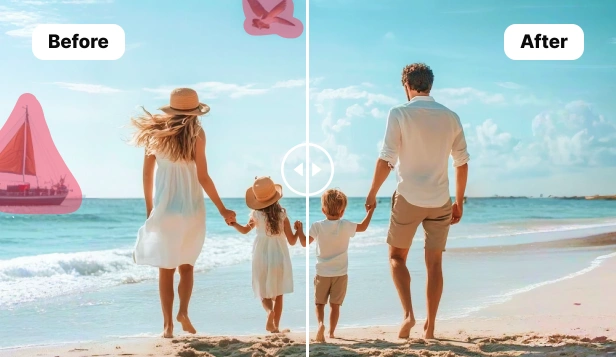
Handle high-intent cleanup workflows such as object removal, background removal, and generative rebuilding.




Enhancement & styling
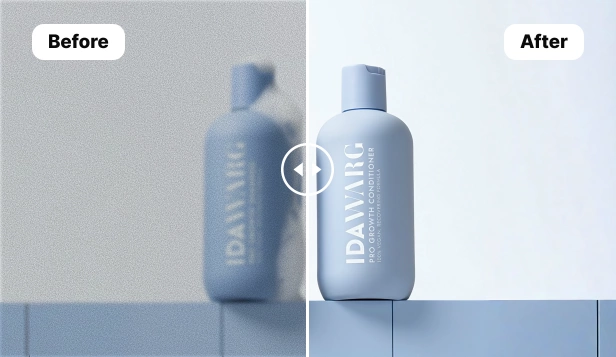
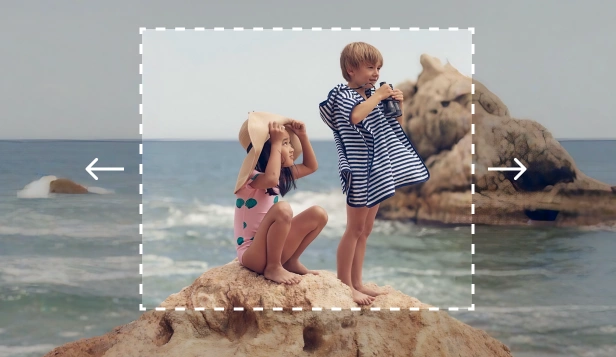
Improve image quality, expand framing, and apply styles for social, ecommerce, and marketing visuals.




Creation & design workflows
Generate new visuals from prompts or build final assets in the editor to move from idea to launch faster.




Free browser tools
Fast image utilities that run before the AI workflow
Use these browser-based tools for quick resizing, compression, cropping, conversion, colors, and file checks. Open Magic Eraser when you need AI cleanup.
Popular tool
Color picker from image
Pick HEX and RGB values from any uploaded image or screenshot.
Popular tool
Palette generator from image
Extract a color palette from a photo for design and branding.
Popular tool
Image resizer
Resize photos for web, social, and product listings in your browser.
Popular tool
Image compressor
Reduce image file size with a quality slider and instant preview.
Popular tool
Image cropper
Crop images with freeform, square, and common aspect ratios.
Popular tool
PNG to JPG converter
Export PNG files as smaller JPG images with background fill.
Popular tool
JPG to PNG converter
Convert JPG images to PNG locally in your browser.
Popular tool
WebP converter
Convert JPG, PNG, and WebP files for faster web images.
Popular tool
HEIC to JPG converter
Turn iPhone HEIC photos into shareable JPG files.
Popular tool
Image flipper and rotator
Flip, rotate, and straighten photos without uploading them.
Popular tool
Circle image cropper
Create round avatars, profile photos, and circular crops.
Popular tool
Image collage maker
Combine multiple photos into a clean grid or social layout.
Resize, crop, check, and prepare images
Convert image and document formats
Create social and profile assets
Prepare product and marketplace photos
Pick colors and build design assets
Make creative edits and shareable images
Apply quick photo effects
Create professional-ready photos
Common workflows you can start with immediately
Product photo cleanup
Use Remove Objects to clear distractions, Background Remover to create a clean cutout, then AI Enhance to sharpen the image before exporting for a website or marketplace.
Social and ad creative production
Start with AI Create for concept generation, refine mood and framing with AI Filter or AI Expand, then finish the asset in Design.
Fast retouch and rebuild
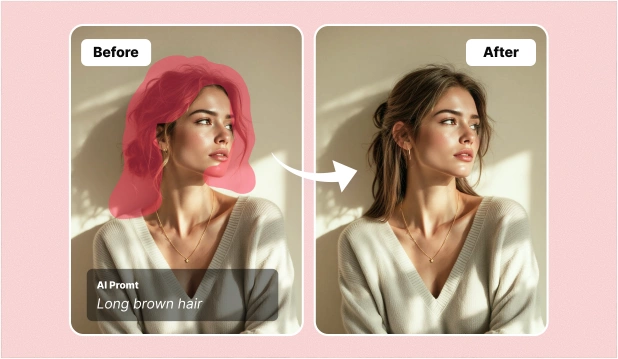
When you need to replace or repair part of an image, use AI Fill to rebuild the missing area naturally, then continue with AI Enhance or Design.
Questions about Magic Eraser tools
Use these answers to choose the right tool for the job, understand how the tools fit together, and know where to start for common editing workflows.
What is the Magic Eraser tools page for?
It acts as the main hub for Magic Eraser image workflows, including object removal, background removal, enhancement, expansion, filters, generative fill, image generation, and design.
Which tool should I start with?
Start with Remove Objects or Background Remover for cleanup work, AI Create or Design for asset creation, and AI Enhance or AI Expand when you need to improve or reframe an existing image.
Can these tools be combined in one workflow?
Yes. Many users remove a background, enhance the image, then move into Design or another editor to finish the asset for publishing.
Is this tools hub useful for ecommerce and social content?
Yes. The toolset is useful for product photography, social posts, banners, ads, thumbnails, marketplace visuals, and other marketing assets.