
Generate images from prompts with AI for fast content and concept creation
Use Magic Eraser's AI image generator to turn prompts into fresh visuals for ads, social media, thumbnails, posters, and product concepts. Choose styles, iterate faster, and generate multiple image ideas in one workflow.
Magic Eraser AI Create is a text-to-image generator that turns written prompts into visual content. Users describe the image they want and the AI produces multiple variations in different styles — commonly used for ad creatives, social media visuals, thumbnails, concept mockups, and rapid visual ideation.
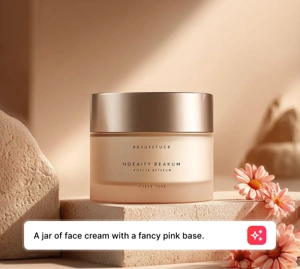
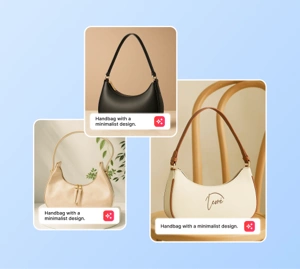
AI generate styles
Start from a generation style
Pick a popular AI Generate style, or browse the full style library for every creative direction.
Generate campaign visuals and concepts from prompts
Move from rough idea to visual direction fast. Write a prompt, test a scene, choose a style, and generate image options for ad concepts, thumbnails, posters, and social creatives without waiting for a full production cycle.
Open AI Create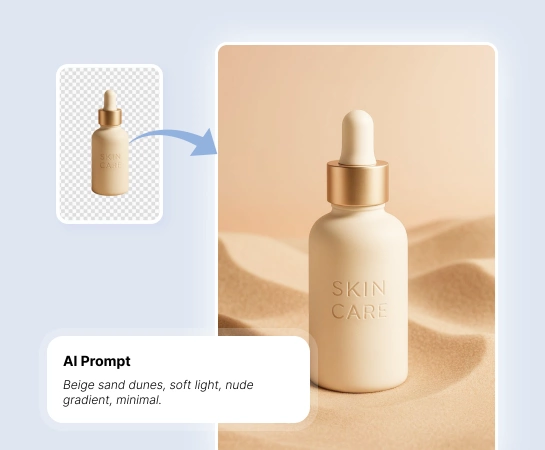
Reduce the time from concept to usable visual asset
When teams need more creative options in less time, AI Create helps marketers, creators, and sellers explore visual directions before full production. It is a practical way to test ideas, moods, and campaign angles with less cost and less waiting.
Open AI Create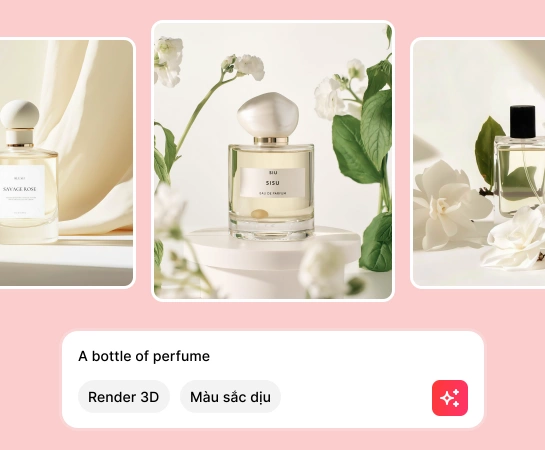
Use AI Create for everything from social posts to product concepts
From ad creatives, thumbnails, posters, and mockups to social visuals and concept art, AI Create helps you generate new images from text prompts and shift the visual direction quickly with style presets.
Open AI Create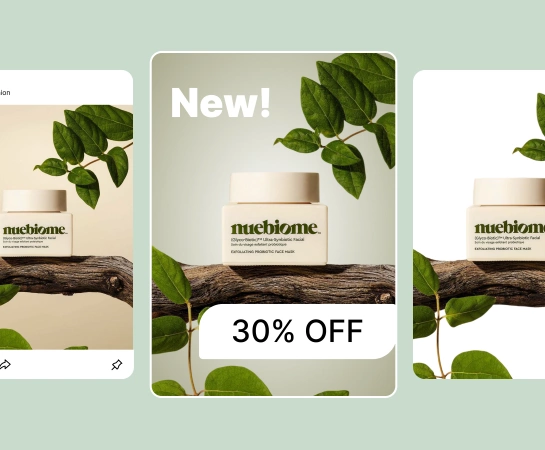
Extend your workflow after image generation
Generation is usually the first step, not the last. Once you have a strong image, you can move into design, remove the background, expand the canvas, or refine the asset for landing pages, marketplaces, ads, and social content. This creates a faster path from rough idea to production-ready visual.
Open AI Create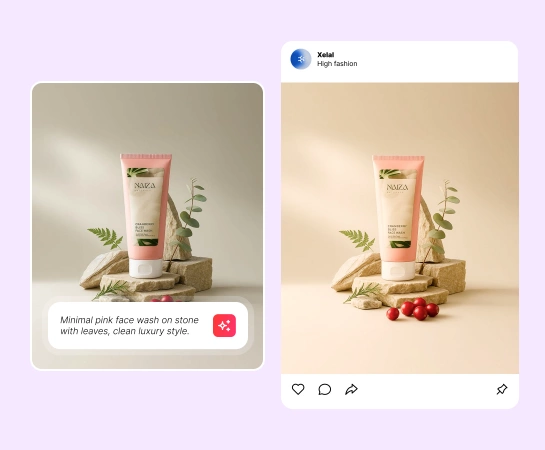
How to create AI images from prompts
Write your prompt
Describe the subject, scene, lighting, and mood you want to generate. The clearer the prompt, the easier it is to steer the output.
Choose style and settings
Pick a style preset, resolution, and optional advanced settings to shape the visual direction before you generate.
Generate multiple results
Create several image options from the same prompt so you can compare compositions, style direction, and quality quickly.
Download or continue editing
Download the image you like most or move it into other Magic Eraser tools for background removal, design, or further refinement.
All the AI image editing tools you need
Explore the main editing capabilities currently available in Magic Eraser Web, from cleanup and enhancement to generation and design.

AI Create
Generate brand-new images from prompts for concepts, campaigns, and content production.

Style presets
Shift the look and feel of your results with ready-made styles for faster creative exploration.

Design
Bring generated visuals into lightweight design flows to add text and build quick layouts.

Remove Background
Convert generated images into cutouts when you need cleaner compositions or transparent assets.

AI Expand
Extend generated scenes to fit wider layouts, ads, and presentation formats.

AI Enhance
Improve clarity and polish when you want a cleaner final asset after generation.

AI Fill
Replace or regenerate specific regions when one part of the image needs a different treatment.

Remove Objects
Clean up extra details after generation when you want a simpler visual or cleaner focal point.
Frequently asked questions
You enter a prompt, choose a style or settings, and AI Create generates multiple image results from your description. You can then download the best option or keep editing it in other Magic Eraser tools.
Yes. AI Create is useful for ad concepts, thumbnails, posters, social content, mockups, product scenes, and early visual exploration for campaigns.
Yes. You can steer the output with your prompt, choose style presets, adjust generation settings, and iterate several times to move closer to the visual direction you want.
Yes. Generated images can be used with other Magic Eraser Web tools such as Remove Background, AI Expand, AI Fill, and Design depending on the next step in your workflow.
The usual flow is simple: write a prompt, pick a style, generate several results, review the output, then download or continue refining the selected image.