
Expand images with AI to add background, fix tight crops, and fit any layout
Use Magic Eraser's AI Expand tool to extend photo backgrounds, uncrop images, and adapt visuals for social media posts, ads, thumbnails, banners, and ecommerce layouts. Create more canvas space around portraits, product shots, and marketing images with a faster AI image extender workflow.
Magic Eraser AI Expand extends image boundaries and uncrops photos using generative AI. It adds new content beyond the original frame that matches the style and context of the existing image — commonly used for converting portrait photos to landscape, adding headroom, and extending backgrounds for banner formats.
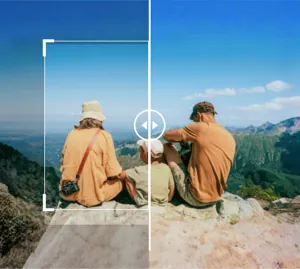

Extend photo backgrounds with AI for cleaner framing
Expand beyond the original crop and let AI generate more of the surrounding canvas so the image feels less cramped. This works well when portraits, product photos, or campaign visuals need more room around the subject.
Open AI Expand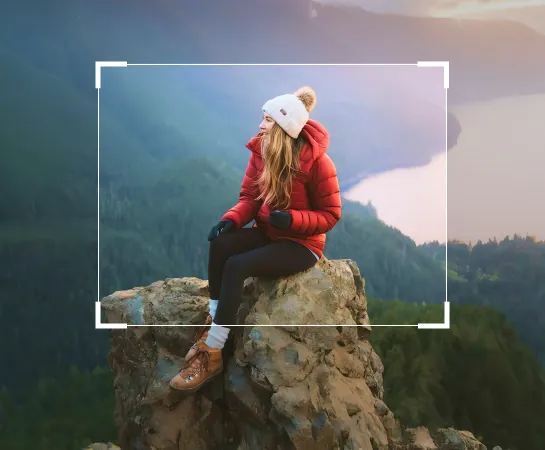
Expand image backgrounds faster than rebuilding the canvas manually
When a photo is cropped too tightly or lacks enough room for text, layout, or better framing, AI Expand helps you generate more space around the subject quickly. It is a practical way to rebuild compositions for ads, social posts, thumbnails, and ecommerce without starting from scratch.
Open AI Expand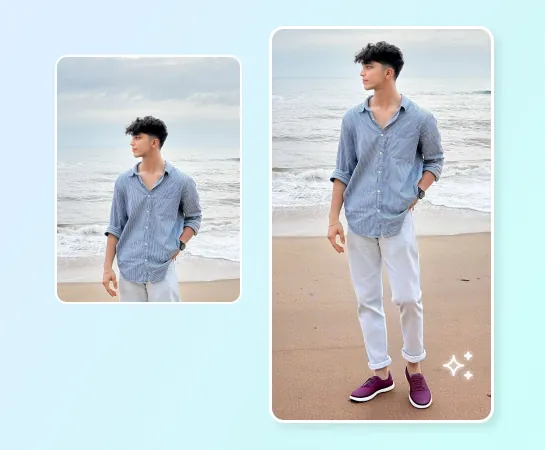
Use AI Expand for social content, ads, product photos, and wider layouts
From portraits and lifestyle shots to product images and marketing visuals, AI Expand helps you change aspect ratios and create more breathing room around the subject. It is especially useful when converting landscape to vertical, creating space for copy, or extending visuals for banners and campaigns.
Open AI Expand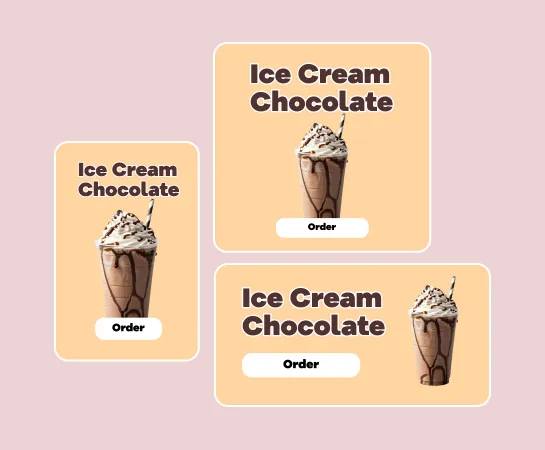
Keep editing after the image has been expanded
Expansion is often just one step in the workflow. After creating a larger canvas, you can keep editing with background removal, enhancement, filters, text, or other tools to finish the asset. This gives teams a faster path from awkward source image to layout-ready visual.
Open AI Expand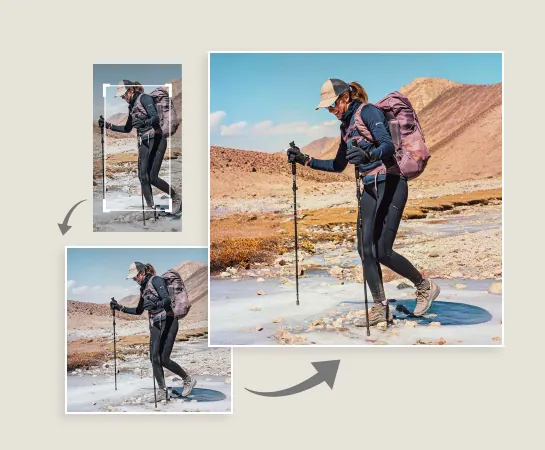
How to expand an image with AI
Upload an image
Start with a portrait, product image, banner asset, or any photo that needs more canvas space.
Choose a canvas preset
Pick a target aspect ratio or layout direction based on the format you want to create next.
Adjust the frame and generate
Rotate or reposition the image if needed, then let AI Expand generate new background area around the subject.
Download or continue editing
Select the best expanded result, export it, or move into enhancement, design, or cleanup workflows.
All the AI image editing tools you need
Explore the main editing capabilities currently available in Magic Eraser Web, from cleanup and enhancement to generation and design.

AI Expand
Extend image edges and generate new canvas space around the subject with a faster AI expand workflow.

Remove Background
Cut out the subject after expansion when you need transparent assets or cleaner compositions.

AI Enhance
Improve sharpness, color, and detail after expansion for a more polished final result.

Design
Use the added canvas space for text, headlines, and lightweight design layouts.

AI Create
Pair generated visuals with expansion when you need a fresh creative direction and more room in the frame.

Remove Objects
Clean up distractions after expanding when you want a simpler and more focused composition.

AI Filter
Apply a new mood or style to the expanded result for more creative campaign variations.

AI Fill
Replace selected regions or rebuild missing areas when the image needs more targeted generation.
Frequently asked questions
Upload an image, choose a canvas preset, adjust the framing, and let Magic Eraser generate more background around the subject. You can then review the expanded results, apply one, and export or continue editing.
AI Expand works well for portraits, product images, social content, ad creatives, thumbnails, banners, and other visuals that need more room around the subject or a new aspect ratio.
Yes. One of the main use cases is adapting a source image to wider, taller, or more platform-friendly layouts by generating new space around the original frame.
Yes. After expansion, you can continue with tools like AI Enhance, Remove Background, Remove Objects, Design, AI Filter, and other Magic Eraser workflows.
The usual flow is simple: upload the image, choose a canvas preset, generate expanded variations, pick the best result, and export or keep editing it.