


How does Magic Eraser remove objects from photos?
Upload a photo, brush over the unwanted object, person, text, sticker, shadow, or glare, and let the editor rebuild the selected area so the result blends back into the surrounding image.
Upload a photo, mark the distraction, and remove unwanted objects with Magic Eraser. Clean up product images, portraits, travel shots, and social posts without manual retouching.
Magic Eraser is an AI object remover for photos. Upload an image, brush over unwanted objects, people, emoji, stickers, glasses, watermarks, text, or visual clutter, then let the editor reconstruct the background for cleaner product shots, portraits, travel photos, and social posts.
Magic Eraser removes selected visual distractions from a photo. Upload an image, brush over the item to clean up, run the remove action, then review the AI-filled background before export. For focused cleanup paths, start with the remove hub or open a specific page such as emoji removal and rights-safe watermark cleanup.
Use the existing Magic Eraser workflow to clean product photos, profile images, travel shots, and social content. Upload a photo, brush over the object, then preview an after image where the background is filled in instead of leaving a cutout.
Upload photo to remove objects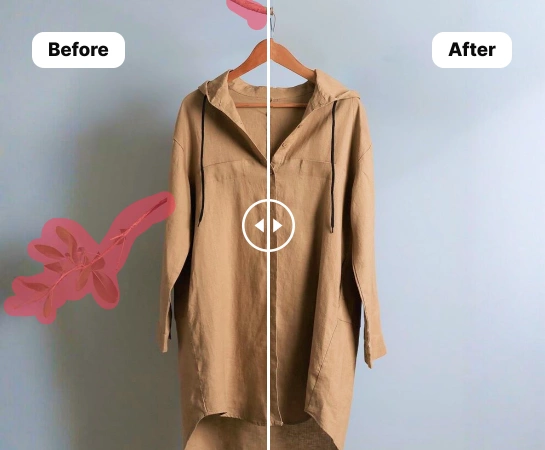
Magic Eraser focuses on a simple SaaS editing flow: select the area to erase, run the AI remove action, review the filled background, and export when the image looks ready. It works well for small distractions and larger cleanup tasks that would otherwise require careful cloning.
Upload photo to remove objects
Remove people in the background, glasses glare, stickers, emoji, watermarks, props, or messy visual clutter from many kinds of images. Keep the subject in focus while Magic Eraser rebuilds the selected area as part of the same edit.
Upload photo to remove objects
After cleanup, continue in Magic Eraser with supported tools such as Remove Background, AI Enhance, AI Expand, AI Fill, AI Filter, Design, and AI Create. Use one editor for the common steps between a raw upload and a cleaner image for web, marketplace, or social use.
Upload photo to remove objects
Choose the photo you want to clean up and upload it to the Magic Eraser editor. Start with product photos, portraits, screenshots, travel images, or social posts.
Use the brush tool to swipe over the object you want to remove from your picture, adjusting the brush size as needed. The AI detects the unwanted object and erases distracting elements.
After highlighting the unwanted area, trigger the Remove button to let the AI erase the object and rebuild the background automatically with a clean, realistic result.
Review the before-and-after result, then export the cleaned image for your website, marketplace listing, profile, presentation, or social post.
Explore the main editing capabilities currently available in Magic Eraser Web, from cleanup and enhancement to generation and design.

Erase unwanted people, props, text, or distractions from your image with AI-powered cleanup.

Improve image quality, detail, and overall clarity with fast AI enhancement tools.

Cut out the subject and replace the background with a cleaner scene in one workflow.

Extend image edges and create more room for new layouts or wider compositions.

Add text and build lightweight design layouts directly on top of your images.

Generate fresh visuals from prompts to create new image directions with AI.

Apply AI-powered style and look transformations to refresh the mood of your image.

Replace selected areas and rebuild missing parts with a more natural visual result.
Upload a photo, brush over the object you want to remove, then tap Remove. Magic Eraser rebuilds the cleared area automatically so the result looks cleaner and more natural.
Yes. You can use it to remove people, text, logos, small distractions, or messy background details from product photos, portraits, travel shots, and everyday images.
Yes. After you highlight the unwanted area and run the remove action, the app uses AI Fill to recreate the missing background instead of leaving an empty cutout.
Yes. In addition to object removal, Magic Eraser Web also includes tools like Remove Background, AI Enhance, AI Expand, AI Fill, AI Filter, and Design depending on the workflow you need.
The main flow is simple: upload your image, highlight what you want to change, run the edit, review the result, and export the final image. It is designed to keep cleanup fast without heavy manual retouching.
Object removal answers
Upload a photo, brush over the unwanted object, person, text, sticker, shadow, or glare, and let the editor rebuild the selected area so the result blends back into the surrounding image.
It works best on product photos, portraits, travel shots, social posts, and marketplace images where the item to remove is clearly separated from the subject you want to keep.
For seller images, remove distractions first, then clean the background, enhance sharpness, and export the image for your product page, ad, or social listing.
This product page explains the object-removal workflow and related editing tools. The main page is the broader brand homepage for the web editor and app downloads.
Seller photo workflow
Use these tools together for ecommerce product photos: remove distractions, isolate the product, then improve quality before exporting.
Erase unwanted objects, people, text, glare, and small defects before publishing seller images.
Remove backgrounds and prepare transparent PNG assets for marketplaces, ads, and design layouts.
Improve clarity, color, and detail after cleanup so product photos look ready for sales pages.
See how Magic Eraser compares to other photo editing tools.
TouchRetouch is a popular paid mobile app for removing objects and blemishes. Magic Eraser offers free AI-powered editing on any device with no install required. See how they compare across features, pricing, and ease of use.
Cleanup.pictures is a free web tool with one generic eraser brush. Magic Eraser gives you 100+ purpose-built removal tools — one for emoji, glasses, watermarks, sky, power lines, and dozens more — plus background removal, AI enhance, and mobile apps, in 16 languages. See how breadth changes the result.
Two powerful AI photo editors with different strengths. Magic Eraser offers a broader set of generative AI tools for creative editing, while Photoroom excels at e-commerce product photography and batch processing. See which fits your workflow.
We tested and compared the top AI photo editing tools so you don't have to. From object removal to background replacement, see which editor delivers the best results for your workflow.
Photoshop is the industry standard for deep image editing, but many people only need fast object removal, clean backgrounds, and AI-powered fixes. Magic Eraser focuses on those jobs with a lighter workflow that works in seconds on web and mobile.
Canva is a design platform that bundles some photo editing; object removal is a side feature, often Pro-gated. Magic Eraser is a dedicated AI photo editor with 100+ task-specific removal tools. This comparison shows when you need cleanup-first power vs a design canvas.
See how professionals use these tools in real-world workflows.
Listing photos cluttered with personal items, parked cars, or construction equipment can turn buyers away. Magic Eraser uses AI to clean up your property photos instantly — no Photoshop skills required.
Product listings need clear images before shoppers can judge the item. Magic Eraser helps sellers remove messy backgrounds, table edges, labels, props, glare, and other distractions so each product photo is easier to review before publishing.
Photobombers ruining your travel pics? Messy backgrounds killing your selfie game? Stop wasting hours in Photoshop. Magic Eraser removes distractions, cleans up cluttered shots, and expands your photos to fit any platform format — all in one tap.
Dealing with screenshots cluttered by captions, old photos stamped with dates, or images covered in text overlays? Magic Eraser's AI text remover erases unwanted text from any image and rebuilds the background naturally, so your photos look clean and professional.
Wedding photos deserve perfection, but manual retouching takes hours. Magic Eraser helps photographers and couples remove distracting elements, clean backgrounds, and enhance details so every shot looks its best.
Clean, professional photos help shoppers assess a vehicle listing without background distractions. Magic Eraser helps dealers, private sellers, and automotive marketers remove background clutter, fix reflections, and enhance car images without a photo studio.
Jump straight to a step-by-step guide for the things people remove most — ranked by what users search for.
Explore more guides and editorial content related to this workflow.
Learn how to use Magic Eraser to remove objects, people, text, and distractions from photos with cleaner AI editing results.
Learn how to remove people from photos using AI in seconds. Step-by-step guide for travel photos, real estate shots, and product images.
Step-by-step guide to removing watermarks from your own photos using AI. Learn when it is appropriate, the best techniques, and how Magic Eraser handles it.