
LinkedIn Headshots from a Phone Selfie: AI Walkthrough
Turn a phone selfie into a LinkedIn-ready headshot in about 10 minutes with AI. Background replacement, lighting fixes, circular-crop framing, and the export settings LinkedIn rewards.

Growth Marketing
Table of Contents
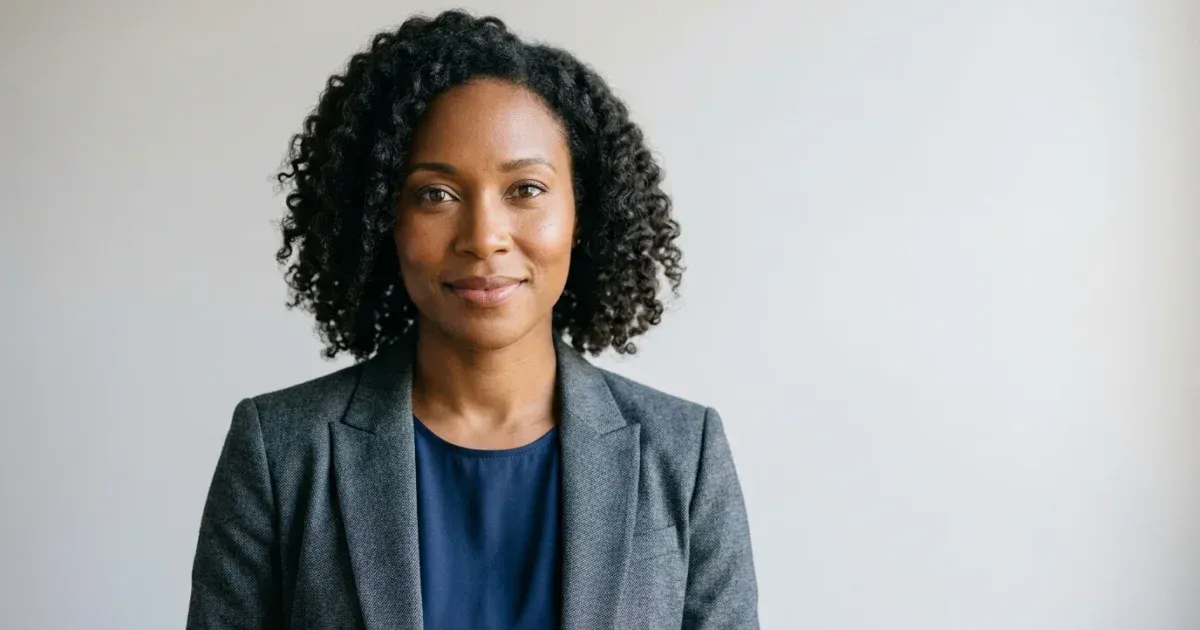
LinkedIn profile photos are the most-viewed image a working expert has online. The platform's own data has long suggested that profiles with photos get substantially more profile views and connection requests than those without. And a generic, dim, or cluttered photo is almost as bad as no photo at all. But booking a studio headshot every time you change jobs, gain or lose weight, or update your look is impractical. Most people end up with a years-old photo or a casual snap that doesn't match the role they're hiring or selling into.
AI photo editing closes that gap. A phone selfie taken in five minutes of half-decent light can be turned into a sharp, neutral-background, LinkedIn-ready headshot using AI in another five minutes. No photographer, no studio, no Photoshop. This walkthrough covers the exact steps to do that, with a focus on the LinkedIn-specific quirks that trip people up: the circular crop, the way the platform displays profile photos in search results and the news feed, and the export sizes that actually matter.
If you manage a team page, the same workflow scales to a consistent set of headshots across an entire department or company without scheduling a group shoot.
- LinkedIn profile photos are 400x400 in most surfaces but should be uploaded at 800x800 or larger for sharp display on high-DPI screens.
- The platform applies a circular mask — corners are cropped off, so center the face in the upper-middle of the square frame.
- Soft, even light from a window beats indoor overhead lighting every time; no studio is required.
- AI background removal + a neutral solid color is the highest-leverage edit you can make.
- The whole workflow — shoot, edit, export — runs in about 10 minutes.
Why your LinkedIn photo matters more than the rest of your profile copy
When someone lands on your LinkedIn profile, their eyes go to the profile photo before they read a single word of your headline or summary. The same is true in search results, connection requests, recruiter inbox previews, and the news feed. The photo is the first impression, and the brain forms judgments about trust, competence, and warmth in fractions of a second based on visual cues — lighting, framing, expression, background.
A professional headshot signals that you take your professional identity seriously. A blurry selfie taken in a car or a cropped wedding photo signals the opposite, regardless of how strong your actual experience is. Recruiters and hiring managers will not consciously rule you out for a weak photo. The warm-vs-cold signal does measurable work in attention and click-through rates — and at scale, that matters.
The good news: producing a photo that lands in the 'looks intentional' band is much easier than people think. You do not need expensive equipment, formal training, or a studio. You need a window, a phone, and a few minutes with an AI editor.
- Profile photos are the first thing viewers see — before headline, before summary.
- Recruiters scan dozens of profiles a day; a sharp, warm photo earns a few extra seconds of attention.
- The visual judgment is unconscious and fast — there is no recovering from a weak photo by writing better copy.
Capturing a phone selfie that will edit cleanly
AI editing tools work on what you give them. A photo with usable light and a distinct face will come out looking great after editing. A photo taken in a dim room from a weird angle will still look off no matter how much polish you apply. The goal at the shooting stage is not perfection. It is producing a starting frame the AI has something to work with.
Stand facing a window during the day. Overcast light is the best — direct sun creates harsh shadows under the eyes and a squinty expression. If you only have indoor lighting, turn off any overhead fixtures and stand close to a window or a soft lamp. Mixed lighting from a window plus a yellow overhead bulb produces uneven skin tone that is harder for AI boost to fix cleanly.
Hold the phone at slightly above eye level. This is more flattering than below-the-chin angles, which most casual selfies default to. Frame from mid-chest up so the AI has shoulders to anchor the background replacement and the eventual square crop has room. Look directly at the camera. Shoot 8 to 10 frames — small differences in expression matter more than you'd think. You want the option to pick the one where the eyes look engaged.
Wear what you would wear to a meeting in the role you want, not the role you have. The photo should look like the next step in your career, not the current one.
- Window light, slightly above eye level, mid-chest framing — that is the entire shot list.
- Shoot multiple frames; pick the one where the eyes are engaged, not the one with the widest smile.
- Wear the clothing of the role you want to be hired or recognized for.
- Avoid mixed lighting (window + indoor fluorescent) — it produces skin tone the AI cannot reliably correct.
The AI edit: background, distractions, polish
Once you have a usable frame, the actual edit is three steps and runs in about three minutes. Upload to Magic Eraser, run background removal to isolate yourself from whatever was behind you, and export as a transparent PNG. The AI handles hair edges, glasses frames, and clothing boundaries natively. You do not need to manually refine the cutout.
Drop the transparent cutout onto a new background. For LinkedIn, the safest choice is a flat neutral color: light gray (#E5E7EB), warm white (#FAF8F5), or a desaturated tone matched to your industry's palette. Saturated colors and busy patterns fight with the circular crop the platform applies; they pull attention away from the face. If you want a hint of personality, a very subtle gradient (one shade of gray to a slightly darker shade) reads as intentional rather than corporate.
Use the eraser tool to clean up stray hairs against the background, lint on the shoulders, and any cutout artifacts the background-removal step left behind. Then run AI boost once to even out skin tone, sharpen the eyes, and balance overall exposure. Resist the urge to run boost multiple times. The goal is a polished natural look, not a filter-smoothed result that signals over-processing.
- Background removal → transparent PNG → solid neutral color.
- Eraser tool for stray hairs and shoulder lint.
- One pass of AI enhancement, not three.
- Subtle gradient backgrounds read as intentional; busy patterns read as amateur.
Cropping and export for LinkedIn's circular mask
LinkedIn displays profile photos inside a circular mask. The corners of whatever square you upload get cropped off in every surface where the photo appears. The profile header, search results, comment thread avatars, the news feed. This has practical consequences: anything in the corners is invisible to viewers. Faces positioned too low or too far to one side end up partially clipped by the mask.
Crop to a 1:1 square with the face in the upper-middle. Roughly the top of the head should sit about 15% down from the top edge. The eyes should fall on the upper-third horizontal line. The chin should clear the lower edge of the circle. Test this by overlaying a circle on the square in your editor. If the entire face and a bit of shoulder context fit inside the circle, you are set.
Export at 800x800 pixels minimum. LinkedIn accepts up to 7680x4320 but will downscale; uploading at 800-1200 px square balances quality and file size. Save as JPEG at 85-90% quality for the best size-to-fidelity ratio, or PNG if you used a hard-edged solid background and want pixel-perfect rendering.
- Crop 1:1 square with face in upper-middle of the frame.
- Top of head ~15% from top edge; eyes near upper-third horizontal line.
- Export at 800x800 minimum; 1200x1200 is plenty.
- JPEG 85-90% for photographic backgrounds; PNG for flat solid colors.
Scaling to a team page
If you manage a team page on LinkedIn's company page, on your website's About section, or both, consistency matters more than individual photo perfection. A page where every photo has a different background, different lighting, and a different crop ratio reads as disorganized even when each individual photo is fine.
Document the workflow: background color hex code, crop dimensions, boost settings, export size. When a new hire joins, anyone on the team can produce a matching headshot from a phone selfie in 10 minutes without guessing. For remote teams where in-person photography is impractical, send the shoot guidelines to each new hire and run the AI editing pass centrally so all results stay aligned.
Re-shoot existing headshots every two to three years. People change, and a team page full of photos from a previous decade signals stale energy to anyone evaluating the company. The advantage of an AI-driven workflow is that re-shoots cost minutes, not a coordinated studio day.
- Document background hex, crop ratio, and enhancement settings as a one-pager.
- New hires self-shoot from guidelines; AI editing pass runs centrally for consistency.
- Re-shoot the whole team every 2-3 years — the cost is minimal.
How to do it
- 1
Shoot the selfie in soft, even light
Stand facing a window or large light source on an overcast day. Hold the phone slightly above eye level for a flattering angle, frame from mid-chest up. Shoot 8-10 frames so you have a strong expression to pick from.
- 2
Remove the background with AI
Upload the selected frame to Magic Eraser, run background removal, and export the cutout as a transparent PNG. The AI handles hair edges and clothing boundaries without manual masking.
- 3
Place the cutout on a LinkedIn-friendly background
Drop the cutout onto a neutral background — light gray, soft gradient, or a desaturated brand color. Avoid pure black, busy patterns, and high-saturation colors that fight the circular crop LinkedIn applies.
- 4
Erase distractions and clean up the framing
Brush over stray hairs, clothing wrinkles, or background remnants with the eraser tool. Crop to a square at 1:1 with the face centered in the upper-middle of the frame so it sits well inside LinkedIn's circular mask.
- 5
Apply AI enhancement and export at 800x800
Run one pass of AI boost to balance exposure, sharpen the eyes, and even skin tones. Export at 800x800 pixels minimum. Sanity-check the result at thumbnail size — that is how most viewers will see it.
Sources
- Profile Photo Tips for LinkedIn Members — LinkedIn Help
- How to Make a Great First Impression on LinkedIn — LinkedIn Talent Blog