
How to Remove Background from a Photo
Learn how to remove the background from any photo in seconds using AI tools. Step-by-step guide covering transparent, white, and custom backgrounds.
Product Team
Reviewed by Magic Eraser Editorial ·
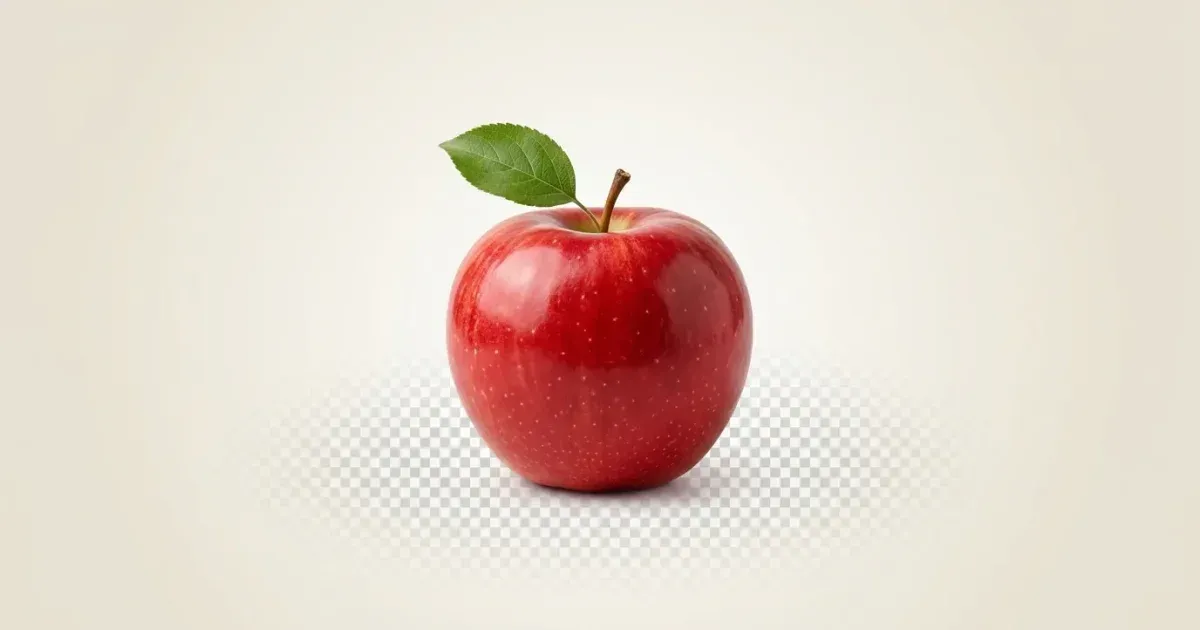
Removing the background from a photo used to require advanced Photoshop skills and a steady hand with the pen tool. Today, AI-powered tools can isolate subjects from their backgrounds in seconds, producing clean cutouts that work for product listings, social media posts, expert headshots, and graphic design projects.
Whether you need a transparent PNG for your online store, a white background for a marketplace listing, or a completely custom backdrop, the process is now accessible to anyone. No design experience required.
This guide walks you through the fastest methods for removing photo backgrounds, compares manual and AI approaches, and shares practical tips for getting the cleanest possible results every time.
- AI background removal works in seconds, no design skills needed.
- Choose transparent, white, or custom replacement backgrounds.
- Works for product photos, headshots, social media, and design assets.
- Modern AI handles complex edges like hair and fur accurately.
- Export in PNG for transparency or JPG for solid backgrounds.
Why remove backgrounds from photos
E-commerce is the most common reason people remove photo backgrounds. Marketplaces like Amazon, eBay, and Etsy require or strongly recommend product images on clean white backgrounds. Consistent backgrounds make your listings look expert, improve buyer trust, and can directly increase conversion rates. A product shot on a cluttered kitchen table tells a very different story than the same item on a crisp white background.
- Product listings with clean backgrounds convert better on marketplaces.
- Headshot cutouts work for thumbnails, slides, and profile images.
- Transparent PNGs give designers maximum flexibility for compositing.
- Consistent backgrounds across a catalog build brand trust.
Social media and marketing use cases
Social media creators and marketers also rely on background removal for compositing images, creating collages, and building branded content. Removing the background from a headshot lets you place yourself on any backdrop. Is useful for thumbnails, display slides, and profile pictures across platforms.
Transparent cutouts for graphic design
Graphic designers use transparent cutouts constantly. Whether you are building a flyer, a banner ad, or a website hero image, having subjects cleanly separated from their original backgrounds gives you the flexibility to compose layouts without visual artifacts or messy edges.
Step-by-step: remove a background with Magic Eraser
Using Magic Eraser to remove a background takes less than a minute. Open the app or website, upload your photo, and select the background removal tool. The AI analyzes the image, detects the subject, and separates it from the background automatically. You will see a preview of the cutout within a few seconds.
- Upload your photo and let the AI detect and separate the subject.
- Choose transparent, white, or custom background for your export.
- Use the touch-up brush to refine tricky edges if needed.
- Download in PNG for transparency or JPG for solid backgrounds.
- The entire process takes under a minute for most photos.
Choosing your new background
Once the background is removed, you have several options. You can keep the transparent background and download as a PNG, which is ideal for design work and layered compositions. You can switch to a solid white background for e-commerce listings. Or you can choose a custom color or even upload a new background image to create a composite.
Handling complex edges
For photos with complex edges, such as hair, fur, or semi-transparent fabrics, the AI does the heavy lifting that would take 30 minutes or more with manual selection tools. If any small area needs adjustment, you can use the touch-up brush to refine the edges. The result is a production-ready image without the tedious manual work that Photoshop in the past requires.
Tips for the cleanest cutouts
Start with the best source image you can. Higher resolution photos give the AI more detail to work with, which means cleaner edges and fewer artifacts. If you are shooting specifically for background removal, use good lighting and try to create some contrast between your subject and the original background. A dark product on a dark background is harder for any tool to separate cleanly.
- Use high-resolution source images for the best edge quality.
- Shoot with contrast between the subject and original background.
- Check hair and fine edges, refine with the touch-up tool if needed.
- Export as PNG for transparency, JPG for solid backgrounds.
- Batch process multiple images to save time on large catalogs.
Portrait edge refinement
When working with portraits, pay attention to stray hairs and wisps at the edges. AI tools have improved greatly at handling hair. Very fine or light-colored strands against a similar background can still be challenging. Shooting against a contrasting backdrop, or using a slightly blurred background, helps the AI distinguish the subject boundary.
Choosing the right export format
Finally, consider your output format carefully. Use PNG when you need transparency for layering in design tools. Use JPG with a white or colored background when file size matters, such as web pages or marketplace listings where loading speed affects user experience. Matching the right format to the right use case ensures your final image looks expert wherever it appears.
Batch processing for product catalogs
When you have dozens or hundreds of product images that all need clean backgrounds, processing them one at a time is not practical. Batch background removal lets you upload multiple photos, apply the same settings, and download the results in one pass. This is mainly valuable for e-commerce sellers who add new inventory frequently and need consistent white-background listings across Amazon, Etsy, and Shopify. Magic Eraser supports batch workflows that reduce hours of manual cutting to minutes of automated processing, maintaining the same quality threshold across every image in the set.
To get the best results from batch processing, start by standardizing your source photography. Shoot every product against a similar backdrop with consistent lighting. The AI has a predictable starting point for each image. Group similar products together for processing. Items with smooth outlines like electronics process differently than items with complex edges like clothing or jewelry. Review a small sample from each batch before downloading the full set to catch any outliers that need individual attention.
Sources
- Product Photography Tips for Beginners — Shopify
- Image File Type and Format Guide — MDN Web Docs