
Remove Objects from Photos: Step-by-Step
Remove unwanted objects from any photo with Magic Eraser. Step-by-step instructions for removing people, wires, text, signs, and debris.
Product Team
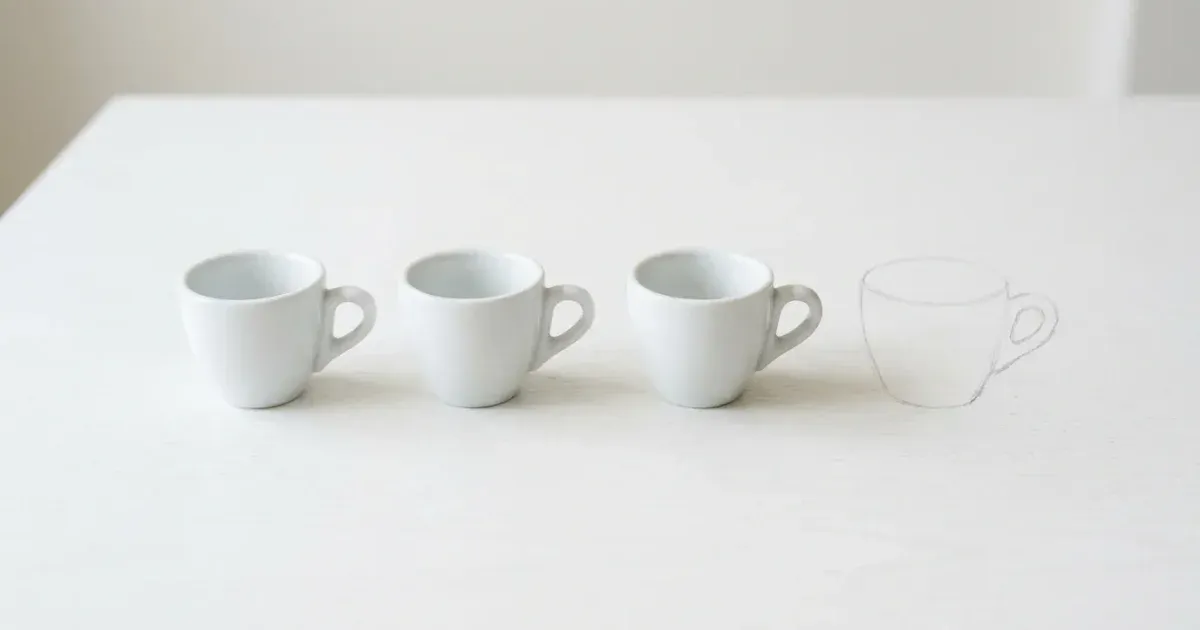
Every photographer knows the frustration: you capture a perfect moment, only to notice a stray power line cutting across the sky, a stranger walking through the background, or a piece of litter on an otherwise pristine beach. In the past, removing these distractions required painstaking work in Photoshop, carefully cloning and healing pixels until the unwanted element disappeared. Today, AI-powered tools like Magic Eraser make object removal as simple as brushing over what you want gone.
Object removal is one of the most common photo editing tasks, whether you are cleaning up real estate photos, preparing product shots, editing travel snapshots, or polishing portraits. The technique works by analyzing the surrounding pixels and intelligently filling the gap left behind, reconstructing textures, patterns. Lighting so the edit looks natural. Modern AI does this far more accurately than older clone-stamp methods, mainly on complex backgrounds like foliage, brick walls, or crowded scenes.
This guide walks you through the complete process of removing objects from photos using Magic Eraser. We will cover the brush tool technique, tackle different object types from thin wires to large people, share tips for handling complex backgrounds. Explain when to switch to AI Fill for bigger removals. By the end, you will have the skills to clean up virtually any photo in seconds.
- Remove people, wires, text, signs, trash, and other distractions from any photo.
- AI analyzes surrounding pixels to fill the gap naturally, matching textures and lighting.
- Works on iOS, Android, and the web with no design experience required.
- The brush tool gives you precise control over exactly what gets removed.
- Switch to AI Fill for large-area removals where generative reconstruction improves results.
- Most object removals take under 30 seconds from upload to download.
Understanding the Brush Tool and How Object Removal Works
The core of Magic Eraser's object removal is the brush tool. You paint over the object you want to remove, and the AI takes care of the rest. The brush works like a highlighter: you do not need to be surgically precise. You do need to cover the entire object you want gone. The AI uses the painted area as a mask, then analyzes the surrounding context to determine what should replace the removed pixels.
Behind the scenes, the AI examines the texture, color, lighting direction, and patterns around the masked area. If you remove a person standing on grass, the AI reconstructs the grass pattern, matching the blade direction, color gradients, and shadows. If you erase a sign from a brick wall, the AI continues the brick pattern, mortar lines, and surface texture. This context-aware filling is what makes modern AI removal look natural rather than smudged or blurred.
Brush size matters. For thin objects like power lines or antenna poles, use a smaller brush that just covers the line width with a small margin on each side. For larger objects like people or vehicles, use a bigger brush and paint over the entire object in broad strokes. You do not need to trace the exact outline. In fact, slightly overpainting past the edges of the object often produces cleaner results because it gives the AI more context about the boundary between the object and the background.
If your first pass leaves a faint shadow or artifact, simply brush over the residual area and run the removal again. Layered passes are a legitimate technique, mainly for objects that cast strong shadows or leave reflections on nearby surfaces.
- Paint over the entire unwanted object with the brush tool to create a removal mask.
- Use a smaller brush for thin objects like wires and a larger brush for people or vehicles.
- Slightly overpainting past the object edges gives the AI better boundary context.
- Run a second pass over any remaining shadows or artifacts for a cleaner result.
- The AI reconstructs textures, patterns, and lighting to fill the gap naturally.
Removing Different Types of Objects
Different objects present different challenges, and understanding these helps you get the best results. Thin linear objects like power lines, cables, and fence wires are among the easiest to remove. A single swipe with a narrow brush often eliminates them completely because the AI only needs to fill a thin strip of pixels. The key is to trace the entire length of the wire in one stroke when possible, rather than dabbing at small sections, which can leave discontinuities.
People and large objects are more demanding because the AI must reconstruct a bigger area. When removing a person from a scene, make sure to brush over their entire body including shadows and reflections. If someone is standing on wet pavement, their reflection needs to go too, or the edit will look obviously manipulated. For people partially obscured by other objects, remove only the visible portions and the AI will blend the result with the overlapping elements.
Text and signage on surfaces like walls, glass, or clothing require careful brushing that covers all the letterforms. The AI is mainly good at this because text usually sits on a fairly uniform surface, making reconstruction straightforward. For text on complex textures like wrinkled fabric or rough stone, use a slightly larger brush to give the AI more surrounding texture data to work with.
Debris, litter, and small unwanted objects scattered across a scene are best handled by removing them one at a time rather than selecting everything at once. This gives the AI a simpler reconstruction task for each removal. Work from the least complex removals to the most complex, as each successful edit simplifies the background for subsequent removals.
- Wires and cables: use a narrow brush and trace the full length in one stroke.
- People: cover the entire body including cast shadows and reflections on surfaces.
- Text and signs: brush over all letterforms, using a slightly larger brush on textured surfaces.
- Debris and litter: remove items one at a time, working from simplest to most complex.
- Vehicles and large objects: use broad strokes and consider AI Fill for very large areas.
- Partially hidden objects: only remove visible portions and let the AI blend with overlapping elements.
Tips for Complex Backgrounds and Tricky Edits
The background complexity directly affects how clean your removal will look. Simple, uniform backgrounds like clear skies, solid walls, or calm water produce the best results because the AI has an easy pattern to continue. Complex backgrounds with many overlapping elements, like a crowded marketplace or a dense forest, require more care.
When working with complex backgrounds, zoom in and use a brush sized just large enough to cover the object without including too much surrounding detail. The less background you include in your mask, the less the AI needs to reconstruct. If you are removing a person from a group photo, brush carefully around adjacent people rather than using sweeping strokes that might distort their features.
For objects near edges or boundaries, such as a trash can next to a curb where pavement meets grass, the AI needs to maintain that boundary line. Brush precisely along the boundary so the AI understands the transition. If the result blurs the boundary, undo and try again with a more precise selection, or do the removal in two passes: one for the portion on the pavement, another for the portion on the grass.
Repeated patterns like tile floors, brick walls. Fences are actually forgiving backgrounds for object removal because the AI can extrapolate the pattern reliably. The hardest backgrounds are those with unique, non-repeating details, like a painting or a crowded bookshelf. The AI must invent plausible content. For these situations, consider using AI Fill instead. Uses generative AI to create contextually right content rather than just cloning neighboring pixels.
- Uniform backgrounds like skies and walls produce the cleanest removal results.
- Zoom in and use a precisely sized brush to minimize the reconstruction area on complex backgrounds.
- For objects near boundaries like pavement-to-grass edges, brush precisely along the transition line.
- Repetitive patterns like brick and tile are forgiving because the AI can extend the pattern.
- Unique, non-repeating backgrounds benefit from AI Fill's generative reconstruction capabilities.
- If a result looks unnatural, undo and retry with a more precise or differently sized brush.
When to Use AI Fill Instead of the Eraser Tool
Magic Eraser's standard removal tool works excellently for small to medium objects. There are situations where AI Fill produces greatly better results. AI Fill uses generative AI to create fully new content for the removed area, rather than relying solely on cloning from surrounding pixels. This distinction matters when the area you need to fill is large or when the surrounding context does not provide enough information for a natural reconstruction.
Consider switching to AI Fill when removing very large objects that occupy a major portion of the frame, such as a parked car from a street scene or a large piece of furniture from a room photo. When the removed area is bigger than the surrounding context, the standard tool may produce visible repetition artifacts or blurring. AI Fill generates fresh content that integrates naturally with the scene.
AI Fill also excels when you want creative control over what replaces the removed object. Instead of simply filling with more background, you can guide the AI to generate specific content. For example, after removing an old sign from a storefront, AI Fill can generate a clean wall section that matches the building's architecture, or after removing a person from a park bench, it can generate the bench slats and background foliage that would logically be behind them.
The workflow for AI Fill is similar to the eraser: select the area, then let the AI generate the fill. You can regenerate multiple times until you get a result that matches your vision. For best results, provide as much context as possible by including some surrounding area in your selection. Use the text prompt feature when available to describe what you want the filled area to contain.
- Use AI Fill for large objects that occupy a significant portion of the image.
- AI Fill generates new content rather than cloning, avoiding repetition artifacts.
- Guide the fill with text prompts to specify what should replace the removed object.
- Regenerate multiple times to explore different fill options for creative projects.
- Combine both tools: use the eraser for small cleanups and AI Fill for major removals in the same image.
- AI Fill works especially well for architectural scenes, interiors, and landscape photos.