
Remove a person from a photo
Get rid of photobombers, ex-partners, strangers in the background, or distracting bystanders. Magic Eraser's AI removes the person and rebuilds the scene behind them in seconds — no manual masking, no Photoshop.
Last updated
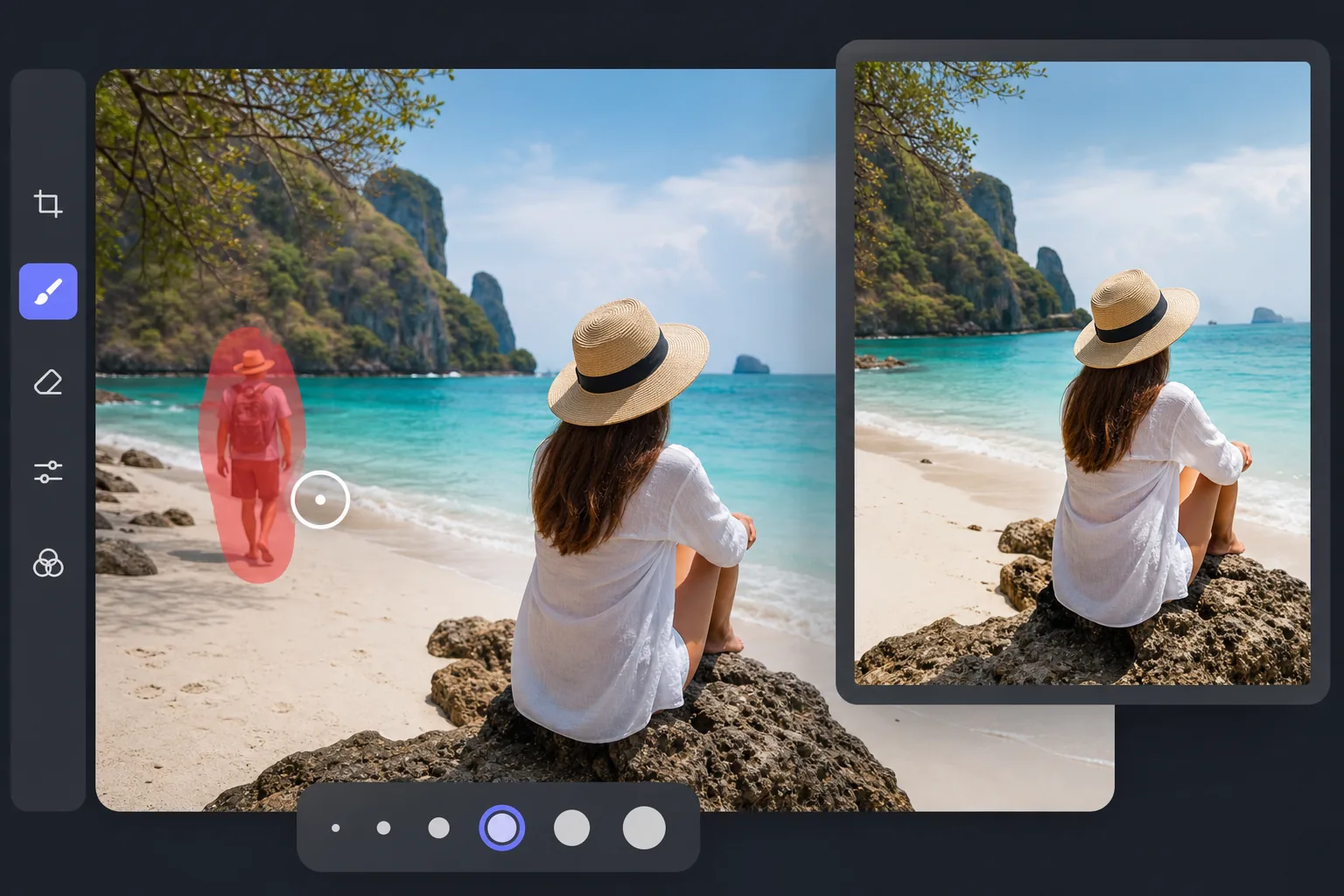
How to remove a person from a photo
To remove a person from a photo, open Magic Eraser on the web, iOS, or Android, upload the image, brush over the person you want gone, and tap Erase — the AI predicts what the background should look like behind them and paints it back in, leaving a clean-looking photo where the background is estimated from surrounding pixels. It includes limited free edits after sign-in. You can remove one person or several people, and overlapping subjects usually work best one pass at a time. This works on travel shots, family photos, real-estate exteriors, product flat-lays, and event coverage. The same tool handles partial removals — erasing someone's arm or leg from the edge of the frame — and crowded scenes where a photobomber or background stranger needs to go. Removal is cleanest when the background behind the person is visible elsewhere in the frame (open sky, a wall, grass, pavement), and is a best-guess reconstruction when the person blocks unique detail the AI can't see anywhere else.
Remove a person in three steps
- 1
Upload your photo
Open Magic Eraser on the web, iOS, or Android and upload the photo with the person you want gone. JPEG, PNG, and WebP are all supported, including camera-roll photos and exported screenshots.
- 2
Brush over the person
Paint over the full person you want to remove, including hair, shoes, bags, shadows, and any reflection connected to them. Be generous — a slightly larger brush than the silhouette gives the AI cleaner edges to work with than a tight outline.
- 3
Tap Erase and download
The AI rebuilds the background underneath in seconds. Review the result at 100%, fine-tune any leftover smudges with the touch-up brush, then export when the background looks consistent.
Best for
- Travel photos with tourists, strangers, or photobombers in the background
- Real-estate exterior shots with cars, pedestrians, or neighbors
- Group photos where you want to keep only certain people
- Wedding and event photography with unwanted guests in the frame
- Product flat-lays with stray hands or arms in the shot
Edge cases and tips
AI person removal works best when the background behind the person is visible elsewhere in the frame — open sky, walls, ground, foliage. Cluttered or geometric backgrounds (signage with text, repeating patterns, faces in a crowd) sometimes need a second pass with the touch-up brush. For group photos with overlapping bodies, remove people one at a time and review each result before continuing. Avoid using AI removal to manipulate news photos or evidence — those use cases require manual editing and disclosure.
Frequently asked questions
- Is it free to remove a person from a photo?
- Yes. Magic Eraser includes limited free person-removal edits after sign-in. The app shows current limits and upgrade options when you need more exports or higher-resolution output.
- Can I remove multiple people at once?
- Yes. You can brush over multiple people in a single pass, or remove them one at a time. Removing them one at a time usually produces cleaner edges when the people overlap; review each pass at 100% before brushing the next person.
- Does it work on group photos and crowds?
- It works on small groups and partial-crowd shots. For dense crowds where every pixel is a person, the AI has less surrounding context to work with and may need touch-up. Photos with clear background between bodies give the best results.
- Will the edit look obvious?
- On most photos, no — the AI matches lighting, color, and texture of the surrounding scene. Complex backgrounds with text, geometric patterns, or distinctive landmarks behind the removed person are where you'll most likely see signs of the edit.
- How do I remove a person from a photo on my phone?
- Open Magic Eraser in any mobile browser or the iOS or Android app, load the photo from your camera roll, brush over the person with your finger, and tap Erase. Pinch to zoom so you can trace cleanly around their outline, including any shadow they cast. The phone version uses the same AI as desktop, so the result is identical — it's just easier to brush precisely on a touchscreen.
- How do I remove a stranger or photobomber from the background?
- Brush over the background person and tap Erase — this is one of the easiest cases because strangers are usually standing on open ground (a street, beach, or plaza) that the AI can rebuild from the surrounding area. Include their full silhouette and any shadow or reflection. For a distant photobomber against a busy crowd, brush just that person; the AI fills from the people and scene around them.
- Can I remove everyone except one person from a group photo?
- Yes, when the people you remove are separated from the person you keep. Brush over each person you want gone, leave the subject untouched, then tap Erase. If bodies overlap, remove people one at a time and review each pass so the kept subject is not distorted.
- Does it work on full-body removal, not just faces?
- Yes — you remove the whole person, not just the face. Brush their entire body from head to feet, including arms or legs that extend toward the edge of the frame and any shadow on the ground. Full-body removal works best when the person stands against a continuous background; if they're partly behind furniture or another subject, the AI rebuilds the visible portion and you keep what's in front.