
Remove distracting objects from the background of your photos
Clear photobombers, traffic signs, bins, parked cars and clutter behind your subject — while your foreground stays untouched. Magic Eraser's AI fills the gap with a plausible reconstruction of what the background should look like.
Last updated
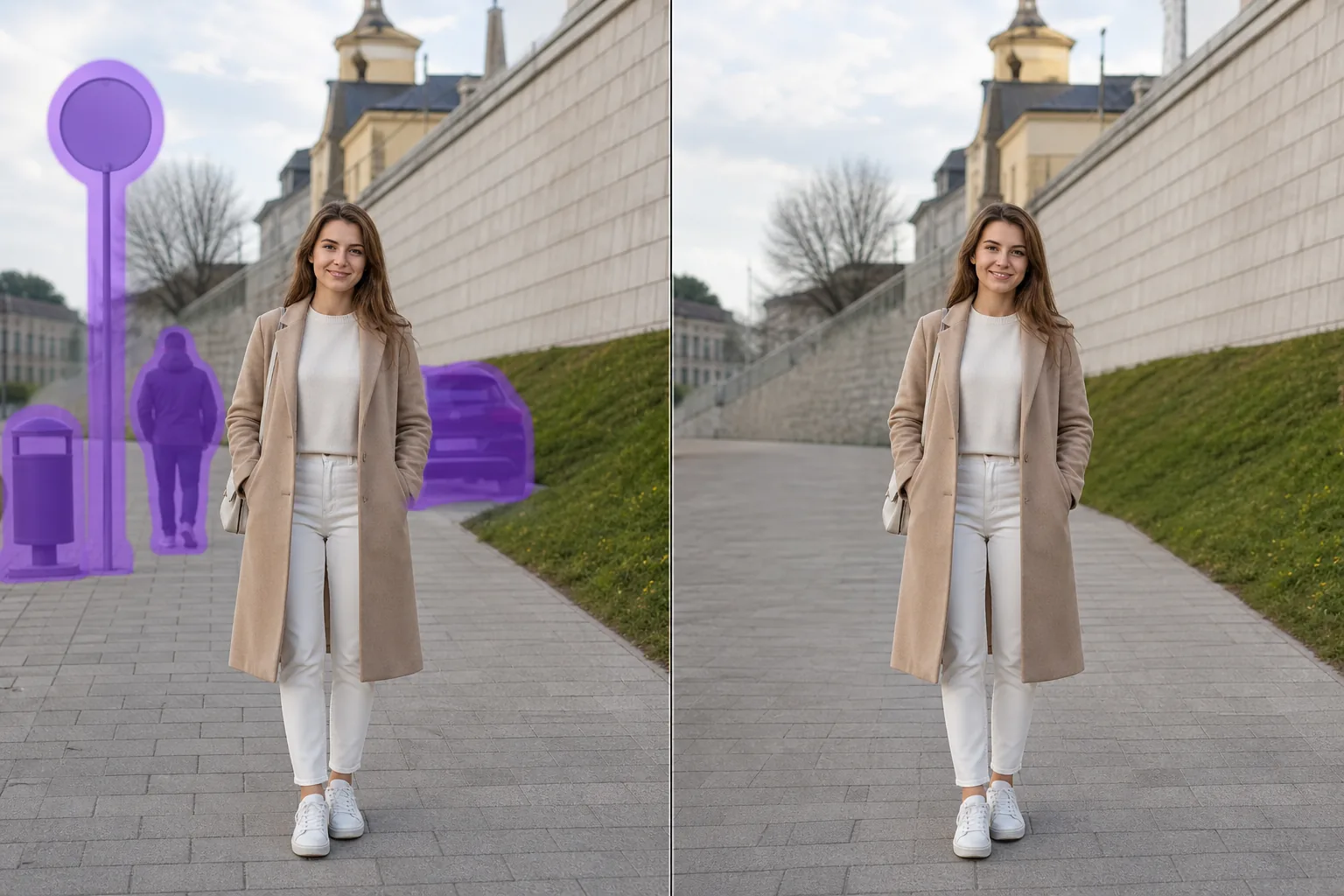
Keep your subject, lose what's behind them
A great shot is often ruined by something in the background — a stranger walking through, a rubbish bin by the wall, a road sign poking out behind someone's head. Magic Eraser focuses on exactly that problem: removing background distractions without disturbing the person, pet or product in front. You brush over the thing you want gone, and the AI rebuilds the area behind it — the wall, sky, grass or pavement that the object was hiding. Because the original pixels behind an object don't exist in the photo, the tool synthesizes a believable replacement rather than recovering anything literal. For background clutter set against fairly even surfaces, that reconstruction is usually clean enough to share straight away. It runs on the web and on iOS and Android, with limited free edits after sign-in, so you can test background distraction cleanup before exporting.
How to remove a background object
- 1
Upload your photo
Open Magic Eraser in your browser or app and drop in the image. Your foreground subject stays exactly as shot — you only touch the background.
- 2
Brush over the background distraction
Paint over the photobomber, sign, bin, car or clutter behind your subject. Zoom in near edges so you stay on the background and don't overlap the subject.
- 3
Erase, review and download
The AI removes the object and reconstructs the background behind it. Check the patch, refine with another pass if needed, then export at full resolution.
Best for
- Erasing a stranger or photobomber walking behind your main subject
- Removing road signs, posts and street furniture sticking out behind someone's head
- Clearing rubbish bins, recycling boxes and clutter against a back wall
- Deleting parked or passing cars in the background of portraits and travel shots
- Tidying messy shelves, cables and household clutter behind a product photo
- Removing distant tourists or crowds behind a landmark
- Cleaning up power lines or poles in the sky behind a scene
- Taking out background scaffolding, fences or construction mess
What to expect
Magic Eraser doesn't uncover the hidden pixels behind an object — it generates a plausible reconstruction based on the surrounding area. That works best when the background behind the object is fairly simple and continuous: a wall, sky, water, grass, pavement or an even floor. In those cases the patch usually blends in seamlessly. Removing something in front of a busy or highly detailed background — repeating patterns, text, faces, or intricate architecture — is harder, and the fill can look soft or slightly off on close inspection. A few tips: brush a little beyond the object's edge to capture its shadow and any colour spill, work in zoomed-in passes for cleaner boundaries, and remove large background objects in smaller sections rather than one huge selection. If the first result isn't perfect, run a second pass over the leftover area — it often resolves the remaining artifacts. Always keep your brush on the background and off the foreground subject so the person or product in front stays crisp.
Frequently asked questions
- How is this different from a regular object eraser?
- This page is about background distractions specifically — things behind your main subject. The workflow keeps your foreground person, pet or product untouched while you remove and rebuild only the area behind them, so the relationship between subject and background stays intact.
- Will removing a background object damage my subject?
- No, as long as you keep the brush on the background. The AI only changes the area you paint over, so a foreground subject you don't touch stays exactly as it was. Zoom in near edges to avoid overlapping the subject.
- Does it really show what was hidden behind the object?
- Not literally. The pixels behind an object aren't in the photo, so the AI synthesizes a believable reconstruction from the surrounding background. On simple surfaces like walls or sky it looks natural; on busy backgrounds it may be less precise.
- Is Magic Eraser free to start?
- Yes. Magic Eraser includes limited free background-object cleanup edits after sign-in on web, iOS, and Android. Upload a photo, remove the distraction, and review the export options shown in the app.