
Magic Eraser + Notion: Clean Images for Every Page
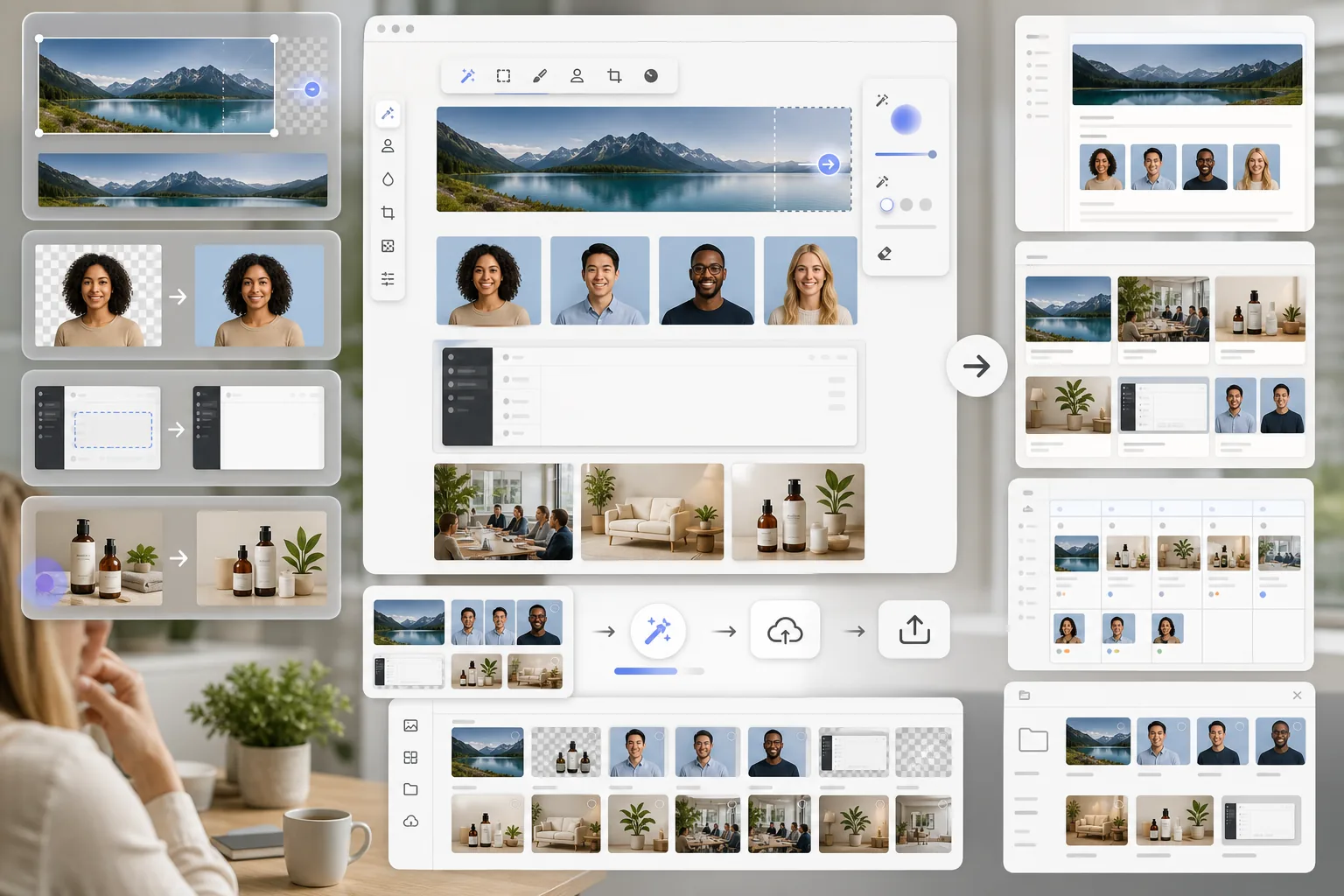
Notion pages live or die by their visual polish — the cover photo, the embedded hero image, the inline screenshot, the team headshots in the about-us section. Magic Eraser preps every image type Notion uses in seconds: clean transparent-background headshots, distraction-free product hero shots, professional cover photos for wiki pages, and screenshots without the sensitive personal info still showing.
About Notion
Notion is a unified workspace for notes, wikis, docs, and project management used by over 30 million users across personal, team, and enterprise plans. Notion pages support cover photos, inline images, embedded blocks, and synced image content across databases, making image quality a core part of how pages read.
Benefits
Cover photos that match the page topic
Notion page cover photos sit at 1500×600 (2.5:1 aspect ratio) and define the visual identity of every wiki page, doc, and project. Magic Eraser preps cover photos by isolating subjects with Background Eraser, expanding landscape phone shots to the 2.5:1 wide aspect via AI Fill outpaint, and color-grading for brand consistency via AI Filter — so every page in a wiki feels visually coherent.
Clean team-portrait headshots for about-us and team pages
Most Notion team pages display headshots in 1:1 grid layouts. Magic Eraser handles the bulk-headshot workflow: Background Eraser for clean cutouts on solid color backgrounds, AI Enhance for upscaling smaller phone-selfie headshots to print resolution, and AI Fill for consistent crop framing across a 5-50 person team — useful when bringing on new hires whose existing photos don't match the team grid's visual style.
Screenshots without exposed personal info
Notion docs frequently embed screenshots that include names, emails, account numbers, or other sensitive fields the team forgot to redact before pasting. Magic Eraser brushes over the sensitive areas and rebuilds the surrounding UI texture so the screenshot stays useful as a reference without leaking the personal info. Faster than re-taking the screenshot with dummy data, more reliable than a blurred-rectangle overlay.
Product and lifestyle photos for marketing-doc embeds
Marketing teams use Notion as the working canvas for content briefs, campaign plans, and asset libraries. Magic Eraser handles every image-prep task that needs to happen before assets get embedded in those docs: distraction removal from lifestyle shots (Magic Eraser), background swaps for product photos (Background Eraser), quality recovery on phone-camera reference photos (AI Enhance), and generative fill for outpainting tight crops to fit the page layout (AI Fill).
How to Use Magic Eraser with Notion
Identify the image's role in the Notion page
Before opening any editor, decide what the image is doing on the page: cover photo (2.5:1 aspect at 1500×600), inline hero image (typically 1200-1600px wide), team headshot (1:1 square), embedded screenshot (variable), or icon (sized at 280×280). Each role has different optimal dimensions and editing priorities — cover photos need wide aspect framing, headshots need clean cutouts, screenshots need privacy redaction.
Run the appropriate Magic Eraser tool
For cover photos: Background Eraser to isolate the subject, AI Filter to brand-grade the colors, AI Fill if the source photo is landscape and needs widening to 2.5:1. For headshots: Background Eraser for clean cutouts, AI Enhance for resolution upscaling. For screenshots: Magic Eraser brush over names, emails, account numbers, or any other sensitive UI text — the AI rebuilds the surrounding UI chrome cleanly. For product or lifestyle marketing assets: the full editing canvas — distraction removal, background work, enhancement, and color grading.
Export at the right resolution for the role
Cover photos: 1500×600 (Notion's display dimension) or 3000×1200 for retina displays. Headshots: 400×400 minimum, 800×800 for retina. Inline images: match the Notion page's content width (typically 1200px for default-width pages, 1600px for full-width). Screenshots: original resolution. Notion accepts JPEG, PNG, and WebP — PNG for screenshots with text or transparent backgrounds, WebP or JPEG for photographs.
Upload to Notion via the page UI or via the Notion API
For one-off pages: drag the exported file into the cover-photo selector or paste it directly into the page body. For programmatic upload at scale (large content libraries, automated content calendars): use the Notion API's file upload endpoint to attach the cleaned images to database properties or page blocks. The image-prep step happens once in Magic Eraser; the upload step is whatever fits the team's existing Notion workflow.
Re-use the cleaned assets across multiple Notion surfaces
Cleaned images uploaded to a Notion database become reusable across every page in the workspace via the Notion content reference system. A single team headshot library, brand-asset library, or product-shot library powers the about-us page, the team page, the marketing docs, and the launch-asset pages — without re-running the cleanup workflow each time.
Frequently Asked Questions
Does Magic Eraser connect directly to Notion?
+
Magic Eraser works as the image-prep step before uploading to Notion. Edit the cover photo, headshot, screenshot, or marketing asset in Magic Eraser, export at the right specs, and upload through Notion's page UI or via the Notion API. For teams running automated content pipelines, the workflow integrates cleanly: image goes into Magic Eraser, comes out cleaned, gets uploaded to a Notion database via the API as part of the existing automation.
What's the right size for a Notion page cover photo?
+
Notion displays cover photos at 1500×600 (2.5:1 aspect ratio). Export at that exact size or at 3000×1200 if you want retina-display sharpness on high-DPI screens. Notion crops uploaded images to fit the 2.5:1 frame, so if your source photo is portrait or square, use AI Fill to outpaint it to landscape before uploading — the alternative is letting Notion auto-crop, which often cuts off important parts of the subject.
How do I prep a consistent team-headshot grid for a Notion team page?
+
The Notion team-page convention is 1:1 square headshots in a grid layout. Run the team's photos through Background Eraser to isolate each subject on a consistent solid-color background (the brand's primary or secondary color works well), AI Enhance to upscale any low-resolution phone-selfie source photos, and a consistent 1:1 crop across all photos. For teams hiring rapidly, batch-process new headshots as they come in so the grid stays visually consistent over time.
Can I redact sensitive info from screenshots before posting to Notion?
+
Yes. Use the Magic Eraser brush over the sensitive text or fields — names, emails, account numbers, phone numbers, addresses, billing details. The AI rebuilds the surrounding UI chrome (the table cell background, the form-field outline, the surrounding text styling) so the screenshot still reads as a useful reference. This is faster than re-taking the screenshot with dummy data and more reliable than a blurred-rectangle overlay (which can sometimes be unblurred or carries metadata).
Does this approach work for marketing-doc image embeds at scale?
+
Yes. Marketing teams running large content operations through Notion (campaign briefs, content calendars, asset libraries with hundreds of images) benefit from a consistent image-prep step before each asset enters the Notion workspace. Magic Eraser's batch-edit capability (on the Premium tier) handles 10-50 photos at a time with the same editing pass applied to all of them — useful for bulk cleanup on a season's worth of product photos or a quarter's worth of social-media assets that all need the same background treatment.
What image formats does Notion accept?
+
Notion accepts JPEG, PNG, WebP, and GIF for inline images and cover photos. SVG is supported for icons and emoji-style elements. Use PNG for screenshots with text or transparent-background cutouts (clean team headshots, product photos with transparent BG), WebP or JPEG for photographic content where file size matters, and SVG only for icon-style images. Magic Eraser exports all four formats at full resolution.
Can I use Magic Eraser to prep content for Notion's database gallery views?
+
Yes. Notion database entries can display in gallery view with the entry's cover image as the tile thumbnail. For databases like product catalogs, content calendars, team directories, or project libraries, prep each entry's cover image to a consistent 4:3 or 1:1 aspect ratio (depending on the gallery layout) with consistent color grading and background treatment. The visual consistency at the gallery-tile scale is what makes a database feel polished versus ad-hoc — and it scales linearly with the number of entries, so batch-prepping is the practical path for databases over 20-30 entries.
Ship polished Notion pages with cleaner images
Try Magic Eraser free to prep cover photos, headshots, screenshots, and marketing-doc embeds — the image-prep step that makes the difference between a Notion workspace that looks polished and one that looks ad-hoc.
Try Magic Eraser freeRelated use cases
See how professionals use these tools in real-world workflows.
Listing photos cluttered with personal items, parked cars, or construction equipment can turn buyers away. Magic Eraser uses AI to clean up your property photos instantly — no Photoshop skills required.
Product listings need clear images before shoppers can judge the item. Magic Eraser helps sellers remove messy backgrounds, table edges, labels, props, glare, and other distractions so each product photo is easier to review before publishing.
Photobombers ruining your travel pics? Messy backgrounds killing your selfie game? Stop wasting hours in Photoshop. Magic Eraser removes distractions, cleans up cluttered shots, and expands your photos to fit any platform format — all in one tap.
Related comparisons
See how Magic Eraser compares to similar tools.
TouchRetouch is a popular paid mobile app for removing objects and blemishes. Magic Eraser offers free AI-powered editing on any device with no install required. See how they compare across features, pricing, and ease of use.
Cleanup.pictures is a free web tool with one generic eraser brush. Magic Eraser gives you 100+ purpose-built removal tools — one for emoji, glasses, watermarks, sky, power lines, and dozens more — plus background removal, AI enhance, and mobile apps, in 16 languages. See how breadth changes the result.
remove.bg is the market leader for background removal, offering a powerful API and integrations with Photoshop and Figma. Magic Eraser goes further with eight AI-powered editing tools — from object removal and generative fill to AI enhance and design — all in one editor.
Two powerful AI photo editors with different strengths. Magic Eraser offers a broader set of generative AI tools for creative editing, while Photoroom excels at e-commerce product photography and batch processing. See which fits your workflow.
Related articles
Tips, guides, and tutorials related to this topic.
Learn how to use Magic Eraser to remove objects, people, text, and distractions from photos with cleaner AI editing results.
Learn how to remove people from photos using AI in seconds. Step-by-step guide for travel photos, real estate shots, and product images.
Step-by-step guide to removing watermarks from your own photos using AI. Learn when it is appropriate, the best techniques, and how Magic Eraser handles it.
Other integrations
Explore more platforms that work with Magic Eraser.