
Magic Eraser + Figma: Clean Assets for Every Design
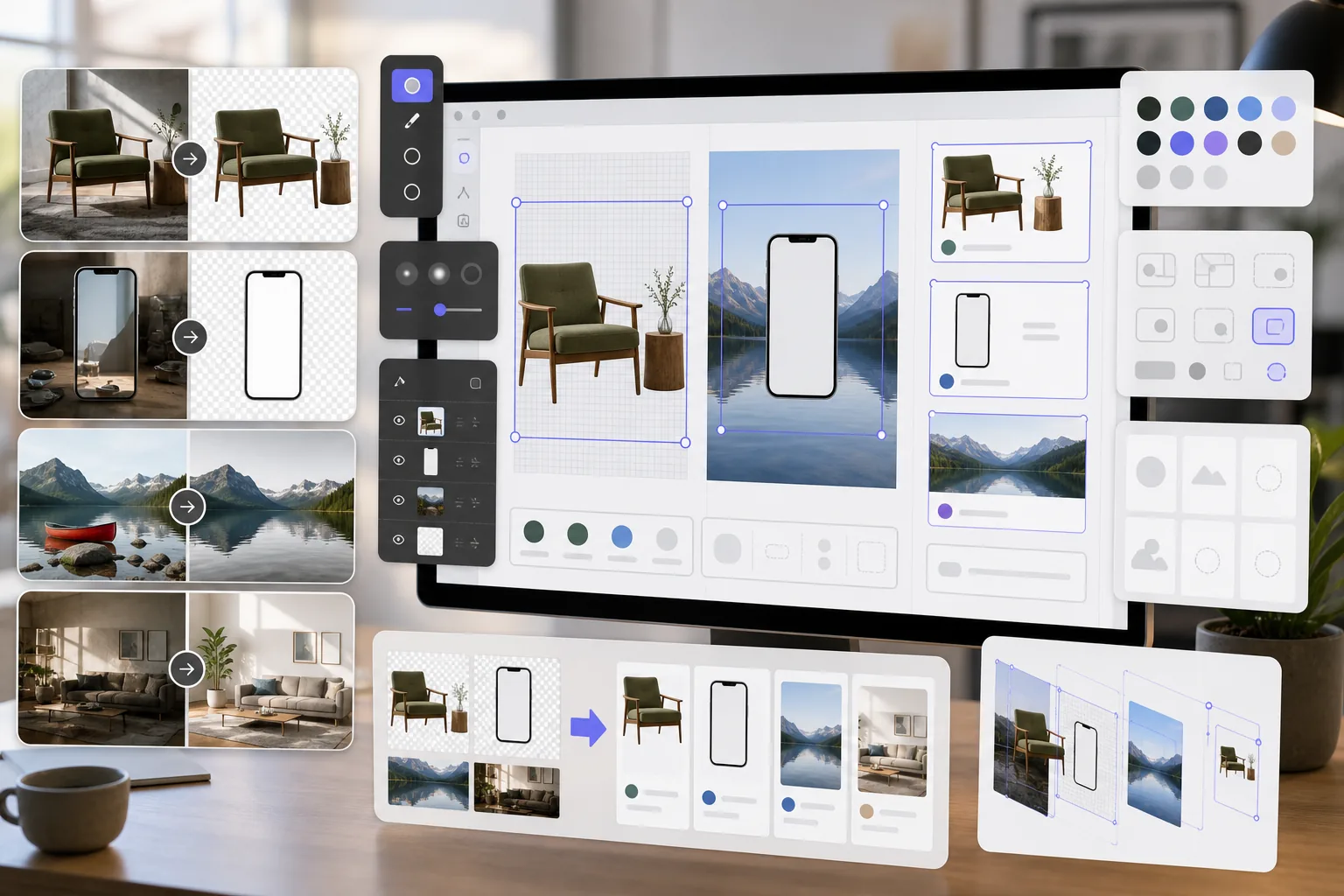
Figma designers need clean image assets for mockups, prototypes, and production designs. Magic Eraser removes backgrounds for transparent PNGs, cleans up reference images, and prepares photo assets so your Figma projects look polished from the start.
About Figma
Figma is a collaborative browser-based design tool used by product teams, UI/UX designers, and agencies for interface design, prototyping, and design system management. It supports real-time collaboration and plugin integrations.
Benefits
Transparent PNGs for mockups and prototypes
Remove backgrounds from product photos, device screens, and UI elements to create transparent PNGs that layer cleanly in Figma frames and components.
Cleaned-up reference images
Erase annotations and distracting elements from reference images and screenshots before placing them in Figma design files. Only edit images you have permission to use.
Production-ready photo assets
Enhance image quality and remove unwanted objects from photos before importing them as assets in Figma designs, reducing revision cycles with stakeholders.
Faster asset preparation
Use AI-powered tools to prepare image assets before importing them into Figma, reducing the need for manual masking and retouching.
How to Use Magic Eraser with Figma
Upload your image
Open Magic Eraser and upload the photo or asset you want to prepare for your Figma design project.
Process the image
Remove backgrounds for transparent assets, erase unwanted elements, or enhance quality depending on your design needs.
Download as PNG
Export the processed image as a PNG to preserve transparency, or as JPEG for full background images.
Import into Figma
Drag the processed image into your Figma file or use the Place Image feature to add it to frames and components.
Frequently Asked Questions
Does Magic Eraser integrate directly with Figma?
+
Magic Eraser and Figma work together through an export-import workflow. Prepare your images in Magic Eraser, download them, and import into Figma by dragging files onto the canvas.
Can I create transparent PNGs for Figma components?
+
Yes. Magic Eraser's background removal creates transparent PNGs that import into Figma with full alpha channel support, ideal for components, mockups, and layered designs.
What resolution should I export for Figma?
+
Choose PNG when transparency matters and JPEG for full-background images. Check the downloaded image at its intended Figma display size, and use enhancement when the source needs more clarity.
Can I edit stock photos for Figma mockups?
+
Yes, if your stock-photo license permits editing. Do not remove ownership or licensing marks to bypass usage restrictions; confirm the image rights before using the result in a design.
When should I use Magic Eraser before Figma?
+
Use Magic Eraser when an image needs background removal, object cleanup, or enhancement before layout work. This page describes an export-import workflow, not a direct Figma plugin or integration.
Prepare better assets for your Figma designs
Try Magic Eraser free to create transparent PNGs, clean up reference images, and enhance photo assets for your Figma projects.
Try Magic Eraser freeRelated use cases
See how professionals use these tools in real-world workflows.
Listing photos cluttered with personal items, parked cars, or construction equipment can turn buyers away. Magic Eraser uses AI to clean up your property photos instantly — no Photoshop skills required.
Product listings need clear images before shoppers can judge the item. Magic Eraser helps sellers remove messy backgrounds, table edges, labels, props, glare, and other distractions so each product photo is easier to review before publishing.
Remove a distracting background and replace it with a clean solid color for a passport, visa, or ID photo. Because requirements vary by document and country, confirm the current official color, crop, size, and submission rules before you apply.
Related comparisons
See how Magic Eraser compares to similar tools.
TouchRetouch is a popular paid mobile app for removing objects and blemishes. Magic Eraser offers free AI-powered editing on any device with no install required. See how they compare across features, pricing, and ease of use.
remove.bg is the market leader for background removal, offering a powerful API and integrations with Photoshop and Figma. Magic Eraser goes further with eight AI-powered editing tools — from object removal and generative fill to AI enhance and design — all in one editor.
Two powerful AI photo editors with different strengths. Magic Eraser offers a broader set of generative AI tools for creative editing, while Photoroom excels at e-commerce product photography and batch processing. See which fits your workflow.
We tested and compared the top AI photo editing tools so you don't have to. From object removal to background replacement, see which editor delivers the best results for your workflow.
Related articles
Tips, guides, and tutorials related to this topic.
Explore how AI is reshaping business operations, from automation to data analysis and more personalized customer experiences.
Learn how to use Magic Eraser to remove objects, people, text, and distractions from photos with cleaner AI editing results.
Learn how to use a Figma translate plugin to localize design files faster while keeping layout changes under control.
Other integrations
Explore more platforms that work with Magic Eraser.