
How to Remove a Person from a Photo
Learn how to remove people from photos using AI in seconds. Step-by-step guide for travel photos, real estate shots, and product images.

Content Lead
Table of Contents
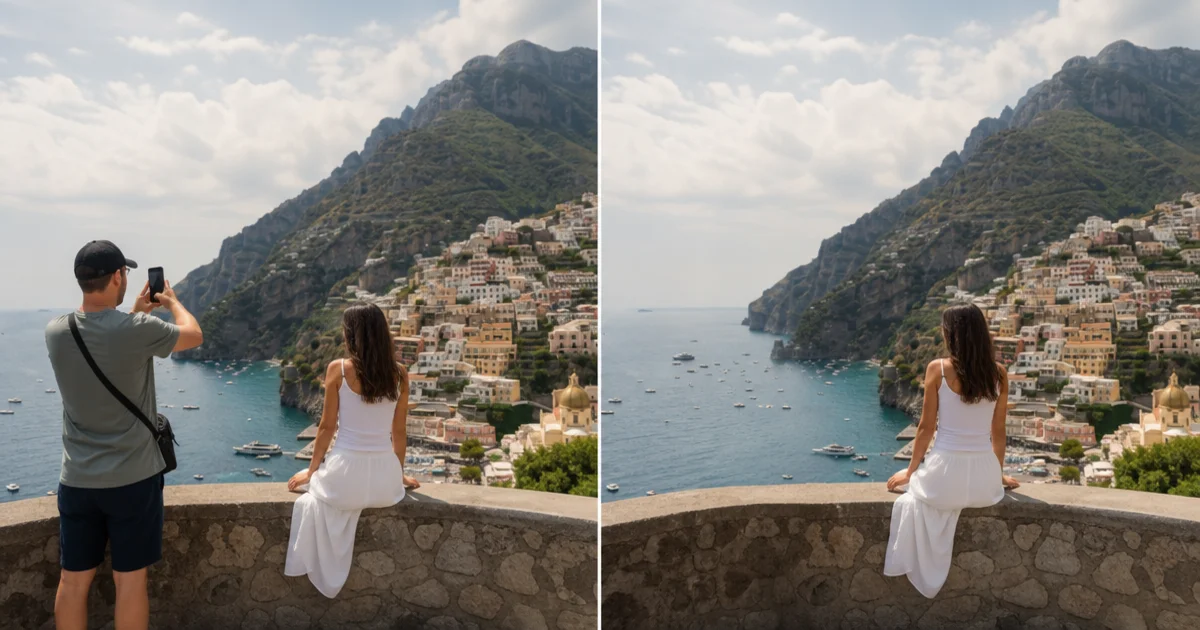
We have all taken a great photo ruined by a stranger walking through the frame. Maybe it is a landscape with a tourist in the middle, a real estate shot with the owner visible, or a group photo where you need to remove one person. Whatever the reason, removing a person from a photo used to require advanced Photoshop skills and a lot of patience.
AI has changed that completely. Modern tools like Magic Eraser can detect and remove people from photos in seconds, filling in the background automatically so the result looks natural. No layers, no masks, no clone stamp — just brush over the person and the AI handles the rest.
- Open your photo in Magic Eraser on iOS, Android, or the web editor.
- Select the Remove Object tool from the toolbar.
- Brush over the person you want to remove. You do not need to be precise — the AI detects edges automatically.
- Tap the process button and wait a few seconds for the AI to fill in the background.
- Review the result. If any small artifacts remain, brush over them for a second pass.
- Save or export the final image in full resolution.
When you need to remove people from photos
Travel photography is the most common use case. You waited for the perfect light at a landmark, but tourists kept walking through your shot. Rather than spending twenty minutes in Photoshop, you can remove them in seconds and get a clean frame.
Real estate agents often need to remove the current occupants or their belongings from listing photos. Buyers want to see the space, not someone else's furniture. AI removal makes this fast without hiring a professional retoucher.
E-commerce sellers sometimes need to remove a model or mannequin from product shots to create a clean isolated image. Combined with background removal, this lets you create studio-quality product photos from casual shoots.
- Travel photos: remove strangers from landmarks, beaches, and cityscapes.
- Real estate: remove occupants and personal items from listing photos.
- E-commerce: remove mannequins or models to isolate products.
- Group photos: remove an ex, an unwanted person, or someone who blinked.
- Street photography: clean up distracting passersby from compositions.
Tips for the best results
AI removal works best when the person is not overlapping with another important subject. If two people are standing close together and you only want to remove one, the AI needs enough context to reconstruct what is behind them. Isolated subjects on a clear background will always produce the cleanest results.
For large subjects that cover a significant portion of the frame, work in stages. Remove the person first, then do a second pass on any areas where the background reconstruction looks slightly off. The AI improves with each pass because it has more surrounding context to work with.
Consistent backgrounds help the AI perform better. A person standing in front of a brick wall or a grass field is easier to remove than someone in front of a complex scene with many different textures. That said, modern AI handles even complex scenes surprisingly well — the technology has improved dramatically in the past two years.
- Isolated subjects on simple backgrounds produce the best results.
- Work in stages for large removals — do a first pass, then refine.
- Zoom in to check edges and fine details after processing.
- Use the highest resolution version of your photo for better AI accuracy.
- Compare before and after to make sure shadows and reflections are handled correctly.
Magic Eraser vs Photoshop for person removal
Photoshop offers Content-Aware Fill and the Clone Stamp tool for removing people, but both require manual effort. Content-Aware Fill works well for small areas but often struggles with large subjects. The Clone Stamp gives you full control but demands time and skill to produce seamless results.
Magic Eraser takes a different approach. The AI model is specifically trained on object removal tasks, so it understands how to reconstruct backgrounds that look natural. You brush over the area, and the AI fills it in — usually in a single pass. For most use cases, the result is indistinguishable from a photo where the person was never there.
The practical difference comes down to time. A skilled Photoshop user might spend five to twenty minutes removing a person, depending on complexity. Magic Eraser does it in three to ten seconds. For professional photographers processing dozens of images, that time savings adds up fast.
- Photoshop: maximum control but requires skill and time (5-20 minutes per edit).
- Magic Eraser: AI-powered, works in seconds, no skill required.
- For batch processing, AI tools save hours compared to manual editing.
- Photoshop is better for extremely complex compositions where pixel-level control is needed.
- Magic Eraser is better for quick edits, mobile workflows, and non-designers.
Handling tricky removal scenarios
Not every person removal is straightforward. Shadows, reflections, and overlapping subjects all add complexity. Knowing how to handle these edge cases helps you get clean results even in difficult photos.
Shadows are the most commonly missed detail. When you remove a person from a sunny outdoor photo, their shadow remains on the ground unless you include it in your selection. Always extend your brush stroke to cover the full shadow area. The AI will reconstruct the ground texture to match the surrounding surface.
Reflections create a similar challenge. If a person is standing near glass, water, or polished floors, their reflection needs to be removed separately. Brush over the reflection in a second pass after removing the person. The AI handles reflective surfaces well because it can infer the expected pattern from nearby pixels.
Overlapping subjects require the most care. If the person you want to remove is partially behind another object — standing behind a railing, for example — the AI needs to reconstruct both the person-shaped gap and the occluded object. Work in small increments: remove the visible parts of the person first, then clean up the edges where they overlap with other elements.
- Always include shadows in your brush selection to avoid ghost shadows on the ground.
- Handle reflections in a separate pass after removing the main subject.
- For overlapping subjects, work in small increments rather than one large selection.
- Check the result at full zoom to catch subtle edge artifacts around complex overlaps.
- Save your original photo before editing so you can start over if needed.