
Remove a sticker from a photo
Clean up still photos and screenshots by brushing over stickers, emoji overlays, app annotations, and price labels. Magic Eraser fills the selected area from nearby context, so review the result when a sticker covers a face, text, or unique detail.
Last updated
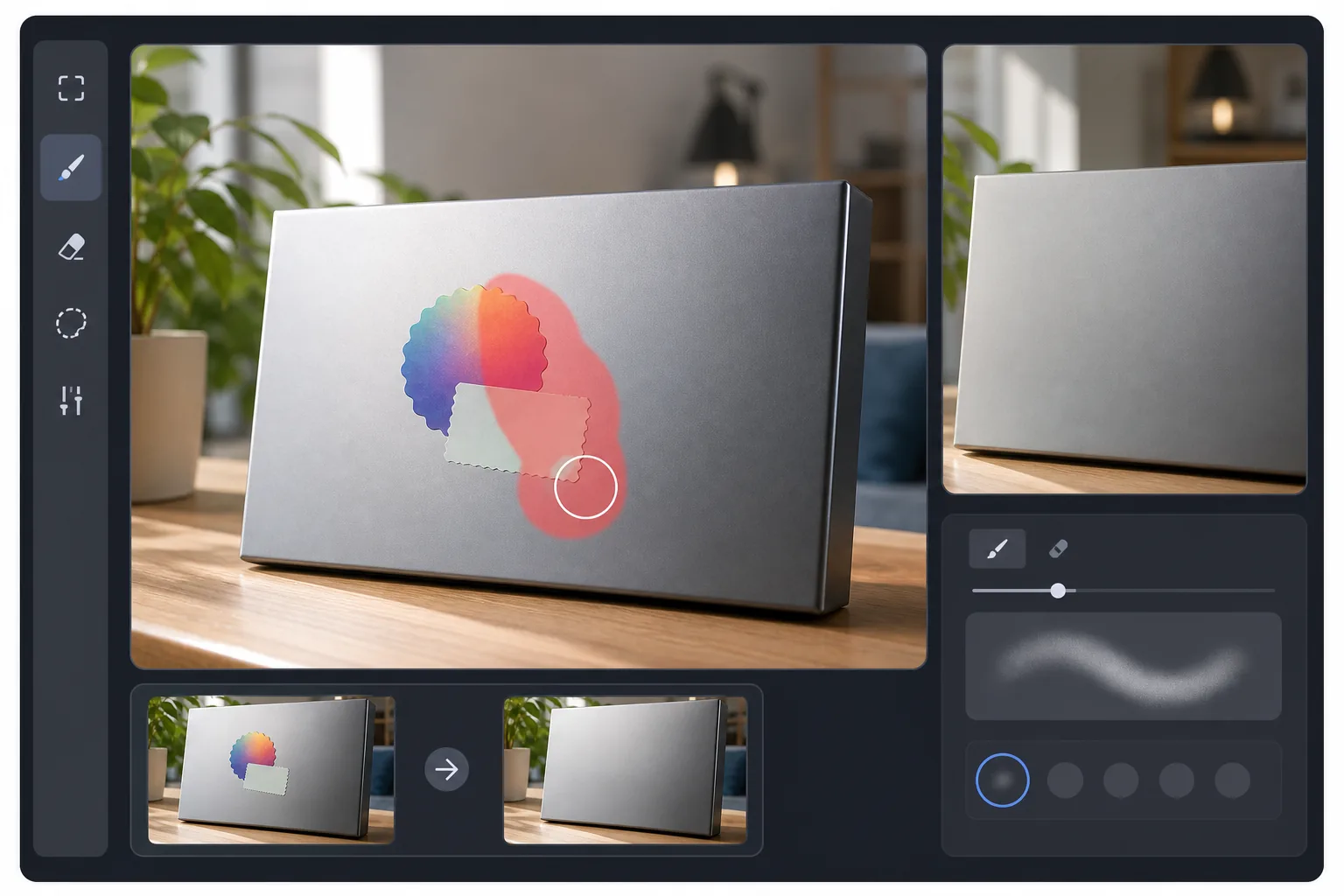
How to remove a sticker from a photo
To remove a sticker from a photo or screenshot, open Magic Eraser on the web, iOS, or Android, upload the image, brush over the full sticker, and tap Erase. The AI rebuilds the selected area from surrounding pixels, which works best on simple surfaces, repeating textures, and screenshot backgrounds. When a sticker covers a face, important text, a logo, or another unique detail, the result is an estimate rather than recovered original pixels. Use sticker removal only on images you own or have permission to edit. It is useful for cleaning decorative stickers, emoji overlays, app annotations, price labels, and your own screenshot markups. It should not be used to identify someone hidden by a sticker, remove rights signals from copyrighted media, or bypass watermark protections.
Remove a sticker in three steps
- 1
Upload your photo or screenshot
Open Magic Eraser and add the still image with the sticker. Use a photo or screenshot that you own or have permission to edit.
- 2
Brush over the full sticker
Paint over the sticker, including any border, shadow, transparent edge, or leftover caption. Brush slightly past irregular shapes so the AI has clean boundaries.
- 3
Erase, review, and save
Tap Erase and review the rebuilt area before saving. Simple backgrounds usually need fewer touch-ups; faces, text, patterns, and covered details may need another pass or may not reconstruct accurately.
Best for
- Removing emoji overlays from your own social story screenshots
- Erasing app annotations from screenshots you are allowed to edit
- Cleaning price labels and clearance stickers from product photos
- Removing decorative photo-app stickers from still images
- Cleaning up screenshots before sharing or embedding in documents
Things to know
A sticker hides the original pixels underneath it. Magic Eraser predicts a replacement from nearby context; it does not recover hidden information. Do not use it to reveal a stranger's identity, undo intentional face coverage, or remove copyright watermarks, streaming-service marks, paid-app marks, or other rights signals. Edit only content you own or have permission to modify.
Frequently asked questions
- Can I remove stickers covering a face?
- You can brush over a face sticker, but the result is an AI estimate, not the original face. Use it only for images you have rights to edit, and do not use it to identify someone who was intentionally covered.
- Does it work on animated stickers in videos?
- This page covers still images and screenshots. For video work, edit only still frames you have permission to modify and review each frame carefully.
- What about multiple stickers in one photo?
- Brush over each sticker completely, including shadows and edges. You can mark several stickers at once, but removing overlapping stickers one at a time usually gives you more control.
- Will the sticker leave any trace?
- It depends on what was covered. Plain surfaces and repeating textures usually look cleaner. Detailed backgrounds, text, faces, and logos can show blur, distortion, or guessed details after the sticker is removed.
- How do I remove a sticker from a photo on my phone?
- Open Magic Eraser in a mobile browser or the iOS or Android app, load the image, zoom in, brush over the full sticker, and tap Erase. Review the result before saving, especially on screenshots with text or interface details.
- Can it remove a price sticker or product label from an item?
- Yes, when you have rights to edit the product photo. Brush over the price tag, barcode label, or promotional sticker and review the rebuilt packaging or surface. Flat, uniform areas tend to work better than curved, glossy, or textured surfaces.
- Can I use it to remove watermarks or rights marks?
- Do not use sticker removal to bypass copyright watermarks, streaming-service marks, paid-app marks, or other rights signals. Use it for your own stickers, annotations, and images you are allowed to edit.