
Remove red eye from photos
Fix red-eye caused by camera flash in portraits, group photos, and event snapshots. Magic Eraser removes the red glare and restores natural iris color and detail — producing a result that looks like the flash never fired.
Last updated
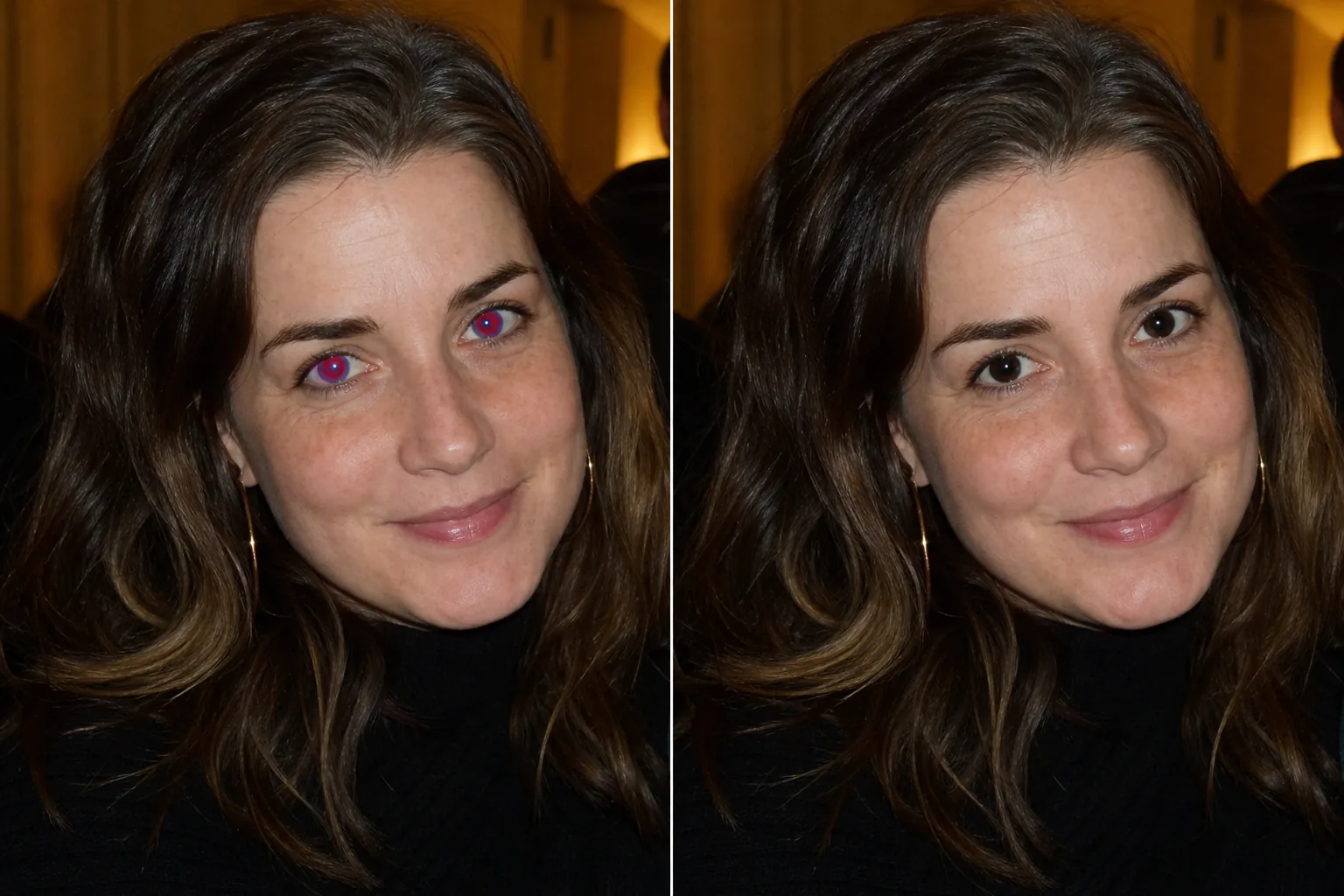
How to remove red eye from a photo
To remove red eye from a photo, open Magic Eraser on the web, iOS, or Android, upload the flash photo, brush over each red pupil, and tap Erase — the AI replaces the red glow with a natural dark pupil and realistic iris color in seconds. It includes limited free edits after sign-in or watermark, and works on single portraits, group shots, and scanned prints. Because correction happens per eye, you can fix one person or a whole room of red-eyed party guests in the same pass. Red eye occurs when a camera flash reflects off the retina, causing pupils to glow red in the photo. While modern phones use pre-flash and computational photography to reduce red eye, it still appears frequently in low-light event photos, indoor flash shots, and photos taken with older cameras or external flashes. Group photos are especially prone — the flash fires to illuminate everyone, and subjects looking directly at the camera get the full retinal reflection. Children and people with lighter eyes are more susceptible because their pupils tend to be larger in dim conditions. Scanned film prints from the era of point-and-shoot cameras are full of red-eye shots that were never corrected. Magic Eraser's AI detects the red-eye pattern — the red glow in the pupil area — and replaces it with natural-looking iris color and dark pupil detail, preserving the eye's natural highlights and depth.
Fix red eye in three steps
- 1
Upload your photo
Open Magic Eraser on the web, iOS, or Android and upload the flash photo with red-eye. The tool works on individual portraits, group shots, and scanned prints.
- 2
Brush over the red eyes
Paint over each affected eye. Cover the entire red area including any orange or yellow fringing around the edges. For group photos, brush each person's eyes individually.
- 3
Erase and check
Tap Erase and the AI replaces the red glow with natural eye color. The pupil darkens to black, the iris takes on a natural tone, and the catchlight (the small white flash reflection) is preserved to keep the eyes looking alive. Zoom in to verify both eyes look natural, then export.
Best for
- Indoor event and party photos taken with flash
- Group photos where multiple people have red eye
- Scanned film prints from point-and-shoot cameras
- Children's photos taken in dim lighting
- Wedding and reception flash photography
- School portrait day photos with studio flash
- Pet photos with eye glow (green or yellow reflection)
- Archived family photos being digitized and restored
Tips for natural red-eye correction
Red-eye correction works best when you brush precisely over the affected area — cover the red glow but try not to extend far into the surrounding skin or eyelid. The AI uses the non-red portions of the eye (the iris edge, the white of the eye, the eyelid line) to reconstruct natural color. For severe red eye where the entire iris appears red, the AI estimates natural eye color based on surrounding tones and applies a realistic shade. If you know the person's actual eye color and the result doesn't match, a second pass with a tighter brush can refine the tone. Pet eye glow (typically green or yellow from the tapetum lucidum) follows the same process — brush over the glowing area and the AI restores natural-looking animal eyes. For scanned prints with red eye, ensure the scan resolution is at least 300 DPI so the AI has enough detail to work with in the small eye area.
Frequently asked questions
- Does it work on pet eye glow too?
- Yes. Pets often have green, yellow, or white eye glow from flash (caused by the tapetum lucidum). Brush over the glowing area and the AI restores natural-looking animal eye color.
- Will it preserve the natural eye color?
- The AI estimates natural iris color based on the surrounding eye detail and non-affected areas. For most cases the result looks natural. If you need a specific eye color, a precise brush over just the red area gives the AI the best reference information.
- Can I fix red eye in a group photo with 20 people?
- Yes. Brush over each person's affected eyes individually. The AI processes each correction independently, so the quality is consistent regardless of how many people need fixing.
- Is red-eye removal free?
- Yes. Magic Eraser's free tier covers red-eye correction. Upload your flash photo, brush over the red eyes, and export the corrected version at no cost.
- How do I remove red eye from a photo on my phone?
- Open Magic Eraser in any mobile browser or the iOS or Android app, load the photo from your camera roll, pinch to zoom into the face, and brush over each red pupil. Tap Erase and the red glow is replaced with a natural dark pupil. Working on your phone is often easier than desktop for red eye because you can zoom in with two fingers and brush precisely on the small eye area. Results are identical across phone and desktop.
- Why not just use my phone's built-in red-eye fix?
- Built-in red-eye tools detect a red circle and darken it, which works for a clean, isolated red pupil but often fails on partial red eye, orange or amber glow, off-axis eyes, or pets. They also tend to leave a flat black dot with no iris detail or catchlight, making the eye look dead. Magic Eraser's AI reconstructs natural iris color and preserves the white flash highlight, so the corrected eye still looks alive rather than blacked-out.
- Can it fix red eye in old scanned photos and film prints?
- Yes — scanned prints from point-and-shoot film cameras are one of the most common red-eye sources, and the process is the same: brush each red pupil and tap Erase. For the best result, scan at 300 DPI or higher so the small eye area has enough pixels for the AI to rebuild detail. Very low-resolution or heavily faded scans give the AI less to work with, so a higher-quality scan directly improves the correction.
- What if only part of the pupil is red, or the glow is orange instead of red?
- Brush the entire affected area, not just the obviously red center — include any orange, amber, or yellow fringing around the edge, since that discoloration comes from the same retinal reflection. Partial brushing can leave a colored halo. The AI treats the whole brushed region as one correction and blends it into the surrounding iris, so covering the full glow gives the most natural result regardless of its exact color.