
Remove any object from a photo
Got something in the shot that shouldn't be there? Magic Eraser's AI removes any unwanted object — a stranger in the background, a parked car, a road sign, a trash can, a power line, a stray distraction — and rebuilds the scene behind it. Brush over what you want gone and the model reconstructs a plausible background to fill the gap. Works on the web, iOS, and Android, with a free tier and no watermark.
Last updated
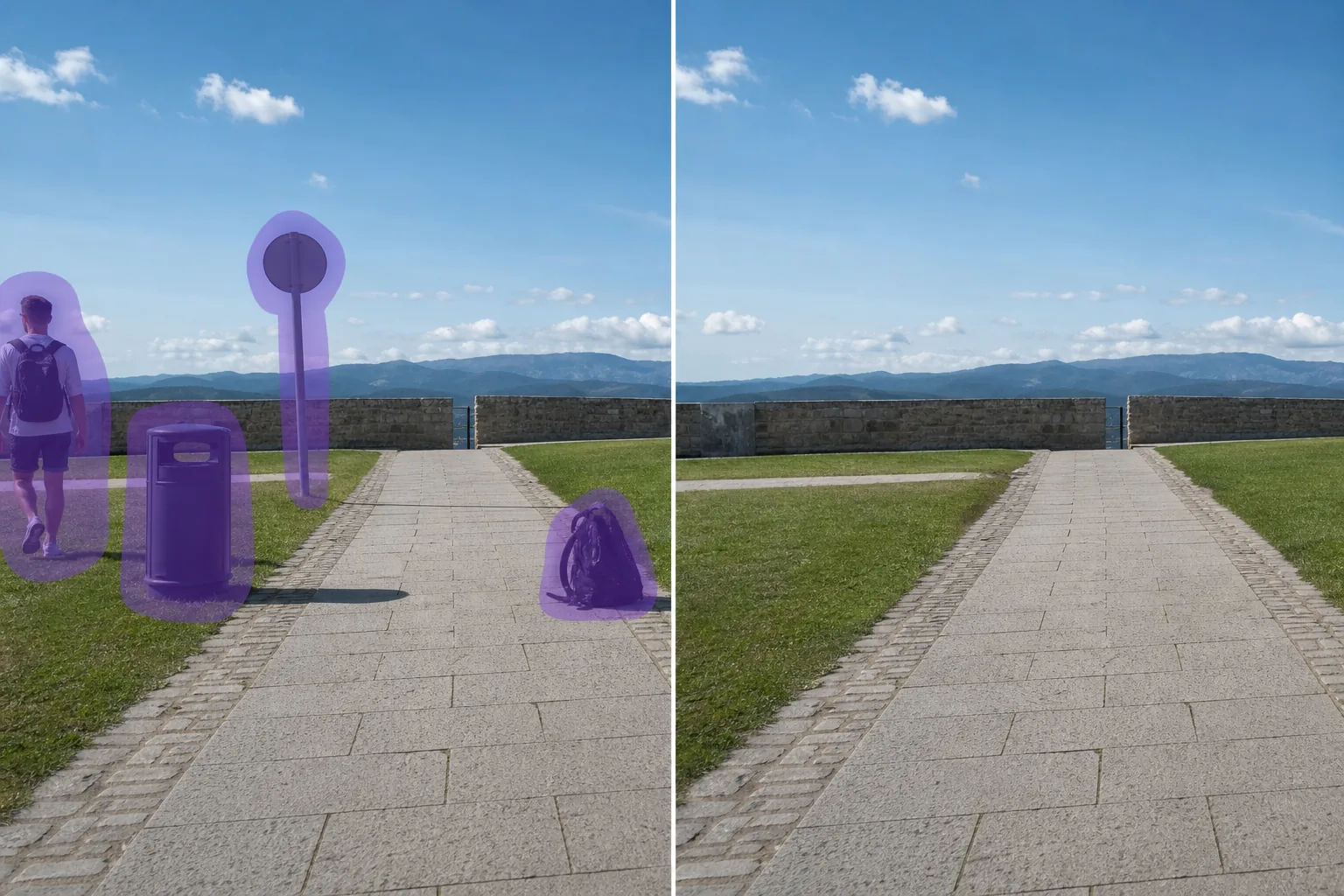
One eraser for whatever's in the way
Most photos don't have one obvious flaw — they have a little of everything. A travel shot with a stranger walking through it and a bin in the corner. A new-listing photo with a car in the driveway and a recycling tote by the gate. A portrait with an exit sign hovering over someone's shoulder. This is the catch-all page for all of it: instead of hunting for the exact tool for each thing, you point one AI eraser at whatever doesn't belong. Magic Eraser uses AI inpainting — you mark the object, and the model synthesizes a believable reconstruction of what was likely behind it, matching the surrounding light, color, and texture. It's important to be clear about what that means: the tool does not recover the literal hidden pixels (the camera never saw them). It generates a plausible fill based on the rest of the frame. For everyday subjects — pavement, grass, sky, walls, water — that fill is usually convincing enough that no one can tell. If your object falls into a common category, there's often a dedicated page tuned for it (people, cars, text and signs, watermarks, glare, and more), but this general eraser handles the long tail of one-off objects that don't fit a neat label.
Remove an object in three steps
- 1
Upload your photo
Open Magic Eraser on the web, iOS, or Android and drop in the photo. JPEG, PNG, HEIC, and WebP are all supported. Sign-in is required to use free edits.
- 2
Brush over the object
Paint over the thing you want gone — a person, a vehicle, a sign, a pole, a piece of clutter. Be a little generous with the brush; a selection slightly larger than the object gives the AI cleaner edges than a tight outline. You can mark several unrelated objects in the same pass.
- 3
Tap Erase and refine
The AI removes the object and rebuilds the background underneath in a few seconds. Inspect the result, then run the touch-up brush over any soft seams or odd patches. Export at full resolution when it looks right.
Best for
- Travel and vacation photos with strangers, tourists, or passers-by wandering through the background
- Real-estate and listing shots with a parked car, recycling bins, or a for-sale sign in the frame
- Street and architecture photos cluttered with power lines, poles, traffic signs, or scaffolding
- Portraits and group photos with a distracting exit sign, fire alarm, or wall fixture behind the subject
- Pet and kid photos where a leash, toy, or stray object pulls attention from the subject
- Product and marketplace listings with a stray hand, prop, or label that shouldn't be in shot
- Event and wedding photos with an unwanted guest, gear bag, or trash can at the edge of the frame
- Landscape and nature shots spoiled by a trail marker, fence post, or a single distant building
What to expect and tips
Because this is AI inpainting, the eraser fills the gap with a synthesized reconstruction, not the real pixels that were hidden behind the object — the camera never captured them. The quality of that fill depends mostly on what's around the object. When the background is simple or repeating — sky, grass, pavement, water, a plain wall — the rebuild is usually seamless and no one can tell anything was removed. It gets harder when the object sits in front of something detailed or structured: a face, repeating tile or brick, text on a sign, or a complex pattern the model has to invent. There you may see slight smudging, a soft patch, or a guess that doesn't quite line up. Two habits help most. First, work in smaller passes for big or layered objects so the model has more reference pixels each time. Second, use the touch-up brush on any seams instead of redoing the whole erase. Large objects that take up most of the frame, or objects in front of clear text, are the cases most likely to need a manual cleanup pass. And for high-stakes uses — news, evidence, legal, or insurance photos — don't alter the image; keep AI removal to personal photos, listings, and creative work, and disclose edits where a platform or MLS requires it.
Frequently asked questions
- Is it free to remove an object?
- Yes. Magic Eraser's free tier covers object removal on web, iOS, and Android, with no watermark and daily usage limits. Premium ($29.99/year) removes the limits and unlocks higher-resolution exports for print, catalogs, and professional work.
- Can I remove any kind of object, or just specific ones?
- Any kind — that's the point of this page. A person, a car, a sign, a pole, clutter, or a one-off object that doesn't fit a category all work the same way: brush over it and erase. If your subject is a common one, there's often a dedicated page tuned for it (people, cars, text and signs, watermarks, and more), but this general eraser handles everything, including the odd objects that don't have their own page.
- Does it actually recover what was behind the object?
- No, and it's worth being clear about this. The tool can't see the pixels the object was covering — they were never in the photo. Instead it uses AI inpainting to generate a plausible reconstruction of what was likely there, based on the rest of the frame. On simple backgrounds that's indistinguishable from the real thing; on detailed or patterned areas it's an educated guess that may need a touch-up.
- Can I remove several objects from the same photo?
- Yes. Brush over all the objects you want gone — they don't have to be related — and erase them in one pass. For a busy photo with many objects, working in a few smaller passes often gives the AI more reference pixels and a cleaner rebuild than removing everything at once.