
AIでプロフェッショナルなヘッドショットを作成
AIツールで洗練されたプロ向けヘッドショットを作成。背景差し替え、照明補正、ディテール強化で、スタジオなしでも統一感のあるチームページを作れます。

Growth Marketing
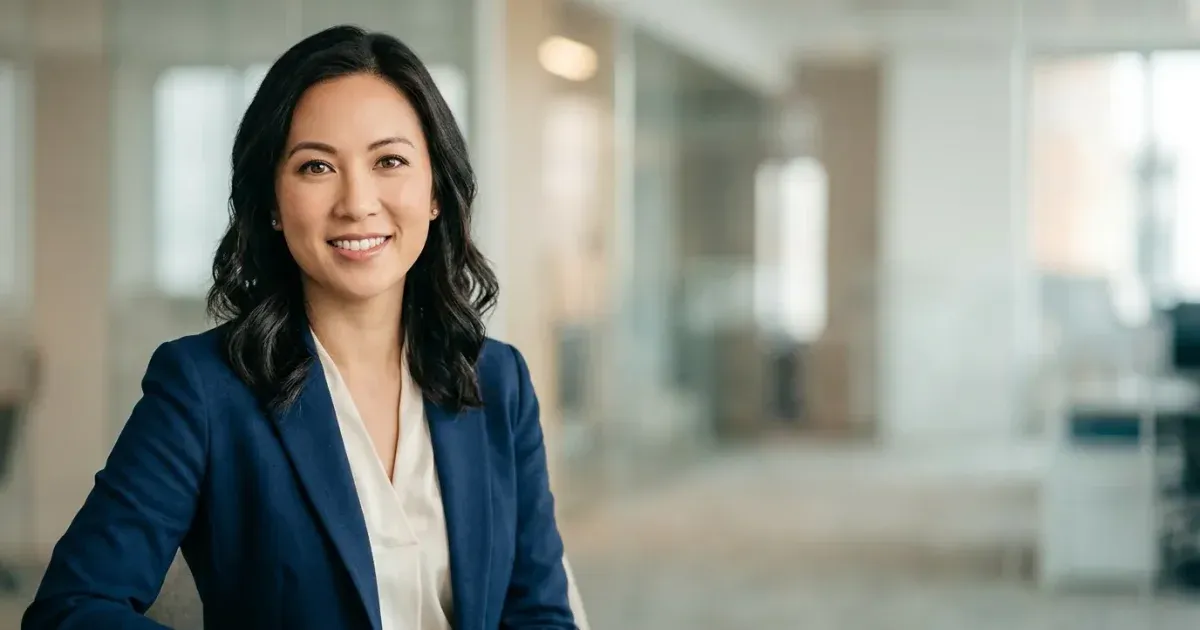
プロフェッショナルなヘッドショットは、LinkedInのプロフィール、会社のチームページ、カンファレンスの自己紹介、ビジネスコミュニケーションに欠かせません。しかし、スタジオでのヘッドショット撮影は1人あたり100〜300ドルの費用がかかり、スケジュール調整が必要で、チームメンバーが変わればすぐに古くなってしまいます。成長中の企業やリモートチームにとって、統一感のあるプロフェッショナルなヘッドショットを揃えることはロジスティクス上の課題です。
AI写真編集ツールは、この課題に対する実用的な代替手段を提供します。スマートフォンでそこそこの写真を撮影し、AIを使って背景を差し替え、照明を補正し、ディテールをシャープにすることで、スタジオ品質に見える結果を生み出せます。プロセス全体は1人あたり5分で完了し、カメラマンのスケジュール調整は不要です。
このガイドでは、初期写真の撮影からチーム用の洗練された統一感のあるヘッドショットの作成まで、AIツールを使ったDIYヘッドショットの完全なワークフローを解説します。
- あらゆる背景をクリーンでプロフェッショナルな無地またはグラデーションに差し替え可能。
- AI Enhanceが照明バランスを改善し、顔のディテールをシャープにします。
- チーム全体で統一された背景は、まとまりのあるプロフェッショナルな印象を与えます。
- 自然光の下で撮影したスマートフォン写真でも、十分に強力な出発点となります。
- ワークフロー全体は1人あたり5分で完了し、スタジオ時間の予約や費用は不要です。
良好な元写真を撮影する
AIツールは写真を大幅に向上させることができますが、出発点となる素材が適切であればあるほど、その効果は最大限に発揮されます。スタジオ機材は必要ありませんが、いくつかの簡単な工夫が、AIで強化された素晴らしいヘッドショットと平凡な仕上がりの差を生みます。
被写体を窓の方向に向けるか、拡散された自然光の下で撮影します。直射日光が強いと、目元や鼻の下に強い影ができます。曇りの日や、薄いカーテンを通して差し込む光が最も魅力的な照明を提供します。窓からの自然光と天井の蛍光灯や室内の白熱灯が混ざるような照明環境は避けてください。
フレームは胸の辺りから頭の上に少し余裕をもって切り取ります。これにより、後でトリミングの柔軟性が生まれ、AIが自然な背景差し替えを行うために十分な肩のコンテキストを確保できます。被写体はカメラをまっすぐ見て、自然でリラックスした表情をするようにしましょう。
- 被写体を窓の方向に向けるか、拡散された自然光を利用する。
- 胸の辺りから頭の上に余裕をもってフレームに収め、トリミングの柔軟性を確保する。
- 同一ショット内で自然光と蛍光灯など異なる光源が混ざるのを避ける。
- 被写体はカメラをまっすぐ見て、自然でリラックスした表情をする。
- 複数フレームを撮影し、後で最も良い表情を選ぶ。
背景を差し替える
背景は、カジュアルな自撮り写真とプロフェッショナルなヘッドショットを分ける最大の要素です。オフィスの廊下、キッチンカウンター、寝室の壁といった背景は、すぐにプロらしからぬ印象を与えます。これらをクリーンで統一感のある背景に差し替えることで、写真の印象は大きく変わります。
写真をMagic Eraserにアップロードし、背景除去を使用します。AIは高い精度で人物を背景から分離し、髪の毛の輪郭や衣服の境界線もきれいに処理します。透明PNGとして書き出し、選択した背景色の上にカットアウトを配置します。
法人利用には、薄いグレー、白、またはブランドパレットに合わせた彩度を抑えた色味の無地が最適です。純粋な黒や非常に暗い背景は、ブランドの美学として特に必要でない限り避けてください。目標は、人物に焦点が当たる、クリーンで邪魔にならない背景です。
- AI背景除去で、髪の毛の輪郭も含めて被写体をきれいに分離する。
- 薄いグレーまたは白の背景が、プロフェッショナル用途に最も安全な選択。
- ブランドパレットに合わせた背景色でチームページの統一感を出す。
- 最初は透明PNGで書き出し、異なる背景色を試せるようにする。
照明とディテールを強化する
背景を差し替えた後は、AI Enhanceを使ってヘッドショットを磨き上げます。Enhanceツールは、露光バランス(顔全体の明暗を均等にする)、シャープネス(目や髪、顔の特徴に鮮明なディテールを追加する)、色精度(ホワイトバランスを補正して肌の色調を自然に見せる)の3つの主要な側面を改善します。
Enhanceは控えめに使用しましょう。目指すのは、洗練された自然な仕上がりであり、フィルターをかけたような人工的で滑らかになりすぎた結果ではありません。AI Enhanceの1回の適用で通常は十分です。元の写真が著しく露出不足だったりブレていたりする場合は、2回目の適用が効果的なこともありますが、それ以上の回数はほとんど必要ありません。
一貫性が重要なチームページでは、すべてのヘッドショットを同じEnhance設定で処理します。これにより、異なる人物が異なるスマートフォンで異なる照明条件下で撮影した写真でも、すべてが同程度の品質と洗練度に仕上がります。
- AI Enhanceで露光バランスを調整し、ディテールをシャープにし、色を補正する。
- Enhanceの適用は通常1回で十分 — 過剰処理を避ける。
- すべてのチームヘッドショットで一貫したEnhance設定を使用する。
- フルズームで結果を確認し、自然な肌の質感が保たれているか確認する。
統一感のあるチームページを構築する
背景、照明、品質レベルがバラバラなヘッドショットが並ぶチームページは、まとまりがなくプロフェッショナルではない印象を与えます。細部に注意を払っていない会社だというシグナルになります。個々の写真の完成度よりも、統一感の方が重要です。
基準を設定しましょう:同じ背景色、同じクロップ比率、同じおおよそのフレーミング。すべての写真を同じワークフローで処理します。新しいチームメンバーが加わったときも同じプロセスを踏み、既存のヘッドショットと調和するようにします。
LinkedInプロフィール用には、最終的なヘッドショットを正方形にクロップします(プラットフォームが円形マスクを適用します)。チームページ用には、肩のコンテキストを残した一貫した長方形クロップを使用します。高DPIディスプレイで鮮明に表示するために、最低800x800ピクセルで書き出しましょう。
- 背景色、クロップ比率、フレーミングをすべてのチームヘッドショットで統一する。
- すべての写真を同じワークフローで処理し、視覚的な一貫性を確保する。
- LinkedIn用:正方形クロップ(プラットフォームが円形マスクを適用)。
- チームページ用:肩のコンテキストを含む長方形クロップ、最低800x800ピクセル。
チームの成長に合わせてヘッドショットを更新する
新入社員は入社から1週間以内にヘッドショットを撮影・編集するようにしましょう。背景色のカラーコード、クロップ寸法、Enhance設定など、正確なワークフローを文書化しておけば、チームの誰でも迷わずに統一のとれたヘッドショットを作成できます。プロセスが文書化されていれば、1人のオンボーディングでも20人でも、シームレスにスケールします。既存のヘッドショットは2〜3年ごとに撮り直し、チームページが現在の姿を反映したものになるようにしましょう。対面で会うクライアントやパートナーとの信頼構築につながります。リモートチームで対面撮影が難しい場合は、セルフショットの明確なガイドラインを提供し、AIを使って背景、照明、全体的な見た目を統一しましょう。