
फोटो से बैकग्राउंड ऑब्जेक्ट हटाएं
Magic Eraser के साथ अपनी फोटो से बैकग्राउंड ऑब्जेक्ट को सेकंडों में हटाएं। AI स्वचालित रूप से बैकग्राउंड को फिर से बनाता है। iOS, Android और वेब पर मुफ्त।
अंतिम अपडेट
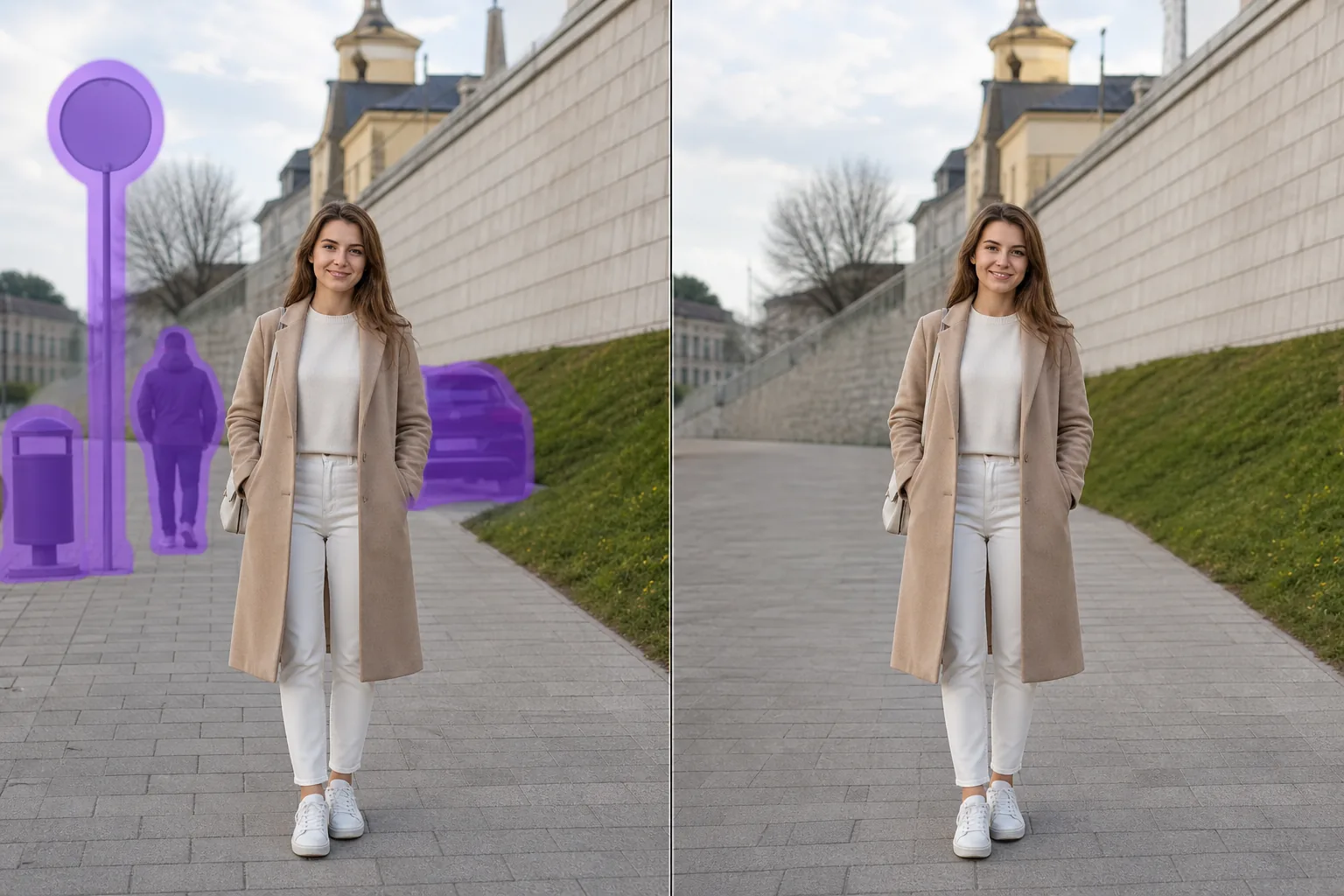
AI बैकग्राउंड ऑब्जेक्ट हटाने की प्रक्रिया कैसे काम करती है
Magic Eraser के साथ अपनी फोटो से बैकग्राउंड ऑब्जेक्ट को सेकंडों में हटाएं। AI स्वचालित रूप से बैकग्राउंड को फिर से बनाता है। iOS, Android और वेब पर मुफ्त। वेब, iOS या Android पर Magic Eraser खोलें और जिस फोटो में बैकग्राउंड ऑब्जेक्ट हटाना है वह अपलोड करें। JPEG, PNG और WebP सपोर्टेड हैं। जिस बैकग्राउंड ऑब्जेक्ट को हटाना है उस पर ब्रश से पेंट करें। ऑब्जेक्ट से थोड़ा बड़ा ब्रश उपयोग करें ताकि AI साफ किनारे बना सके। AI सेकंडों में बैकग्राउंड फिर से बनाता है। परिणाम की जांच करें, जरूरत पड़ने पर टच-अप करें, फिर पूर्ण रिज़ॉल्यूशन में एक्सपोर्ट करें।
स्टेप-बाय-स्टेप निर्देश
- 1
अपनी फोटो अपलोड करें
वेब, iOS या Android पर Magic Eraser खोलें और जिस फोटो में बैकग्राउंड ऑब्जेक्ट हटाना है वह अपलोड करें। JPEG, PNG और WebP सपोर्टेड हैं।
- 2
क्षेत्र पर ब्रश करें
जिस बैकग्राउंड ऑब्जेक्ट को हटाना है उस पर ब्रश से पेंट करें। ऑब्जेक्ट से थोड़ा बड़ा ब्रश उपयोग करें ताकि AI साफ किनारे बना सके।
- 3
मिटाएं और डाउनलोड करें
AI सेकंडों में बैकग्राउंड फिर से बनाता है। परिणाम की जांच करें, जरूरत पड़ने पर टच-अप करें, फिर पूर्ण रिज़ॉल्यूशन में एक्सपोर्ट करें।
सबसे उपयुक्त
- वेब, iOS या Android पर Magic Eraser खोलें और जिस फोटो में बैकग्राउंड ऑब्जेक्ट हटाना है वह अपलोड करें। JPEG, PNG और WebP सपोर्टेड हैं।
- जिस बैकग्राउंड ऑब्जेक्ट को हटाना है उस पर ब्रश से पेंट करें। ऑब्जेक्ट से थोड़ा बड़ा ब्रश उपयोग करें ताकि AI साफ किनारे बना सके।
- AI सेकंडों में बैकग्राउंड फिर से बनाता है। परिणाम की जांच करें, जरूरत पड़ने पर टच-अप करें, फिर पूर्ण रिज़ॉल्यूशन में एक्सपोर्ट करें।
- क्या फोटो से बैकग्राउंड ऑब्जेक्ट हटाना मुफ्त है?
- बैकग्राउंड ऑब्जेक्ट हटाने में कितना समय लगता है?
- क्या यह मोबाइल पर काम करता है?
- क्या इमेज क्वालिटी बनी रहती है?
महत्वपूर्ण नोट्स
आमतौर पर कुछ ही सेकंड। AI चिह्नित क्षेत्र को प्रोसेस करता है और बैकग्राउंड को लगभग तुरंत फिर से बनाता है। नहीं। AI आपकी फोटो की मूल रिज़ॉल्यूशन और गुणवत्ता बनाए रखता है। पुनर्निर्मित क्षेत्र आसपास की रोशनी, रंग और बनावट से मेल खाता है।
अक्सर पूछे जाने वाले सवाल
- क्या फोटो से बैकग्राउंड ऑब्जेक्ट हटाना मुफ्त है?
- हां। Magic Eraser का मुफ्त प्लान दैनिक उपयोग सीमा के साथ बैकग्राउंड ऑब्जेक्ट हटाने की सुविधा प्रदान करता है। Premium ($29.99/वर्ष) सीमाएं हटाता है और उच्च रिज़ॉल्यूशन एक्सपोर्ट अनलॉक करता है।
- बैकग्राउंड ऑब्जेक्ट हटाने में कितना समय लगता है?
- आमतौर पर कुछ ही सेकंड। AI चिह्नित क्षेत्र को प्रोसेस करता है और बैकग्राउंड को लगभग तुरंत फिर से बनाता है।
- क्या यह मोबाइल पर काम करता है?
- हां। Magic Eraser iOS, Android और वेब ब्राउज़र पर काम करता है। आप किसी भी डिवाइस से बैकग्राउंड ऑब्जेक्ट हटा सकते हैं।
- क्या इमेज क्वालिटी बनी रहती है?
- नहीं। AI आपकी फोटो की मूल रिज़ॉल्यूशन और गुणवत्ता बनाए रखता है। पुनर्निर्मित क्षेत्र आसपास की रोशनी, रंग और बनावट से मेल खाता है।