
Facebook Cover Photo
Create Facebook cover photos that look polished on both desktop and mobile. This template handles the tricky difference between the 820×312px desktop display and the 640×360px mobile crop — ensuring your brand message, images, and call-to-action are visible on every device without getting hidden behind the profile picture or action buttons.
Try this template freeSocial Media template preview
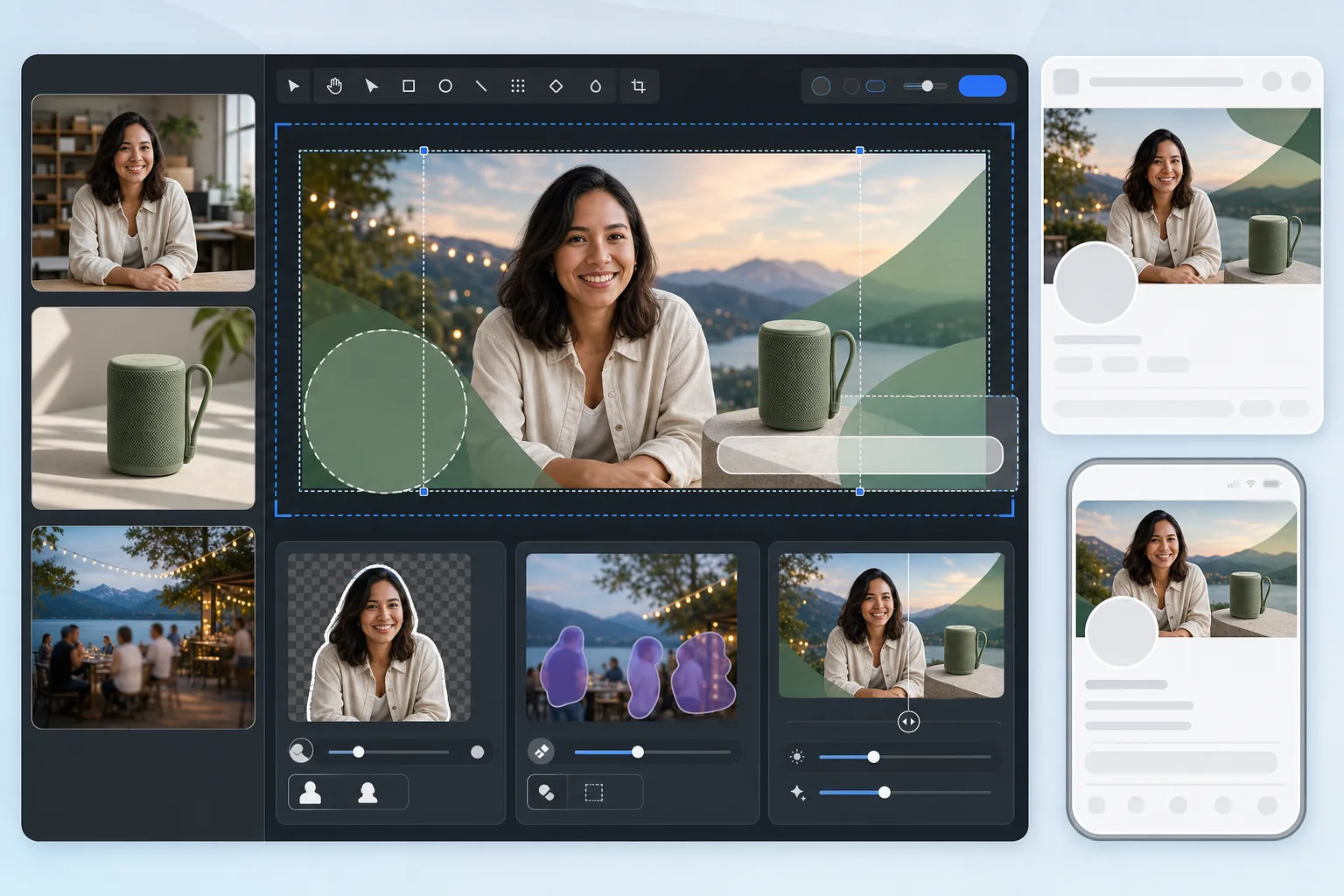
What this template does
Produces a Facebook cover photo optimized for both desktop (820×312px) and mobile (640×360px) display. The template accounts for the profile picture overlap on the left side, the action buttons on the right, and the different aspect ratios between devices. Background Eraser cleanly extracts people or products for compositing, Magic Eraser removes distracting elements from scenic backgrounds, and AI Enhance keeps the image crisp after Facebook's compression.
Template settings
| Upload canvas | 820×360px (covers both desktop and mobile crops) |
| Desktop visible area | 820×312px (wider, shorter) |
| Mobile visible area | 640×360px (narrower, taller — center crop) |
| Profile picture overlap | 170×170px circle in bottom-left (desktop) |
| File format | PNG for graphics, JPEG 85% for photos (pre-compression) |
| Color profile | sRGB (Facebook strips other profiles on upload) |
How to use this template
Upload your cover image
Start with a photo, brand graphic, or a portrait you want to composite. Landscape-oriented photos at least 820px wide work best. The template will guide you on where content is safe to place.
Clean up the composition
Use Background Eraser to extract people or products for placement over a branded background. Magic Eraser removes unwanted elements like photo-bombers, signage, or clutter from scenic or event photos.
Position content in safe zones
Keep essential content — text, faces, logos — in the center area that is visible on both desktop and mobile. Avoid the bottom-left corner (profile picture overlap on desktop) and the right edge (action buttons).
Export with pre-compression
The template outputs at 820×360px with optimized compression settings. Facebook re-compresses all uploads, so the export applies light pre-sharpening and careful JPEG quality to survive the double compression without banding or blur.
Pro tips for best results
- ✓Design to the 820×360px canvas but place all critical content within a 580×280px center zone. This is the overlap area visible on both desktop and mobile without any obstruction from profile pictures or buttons.
- ✓Avoid placing text smaller than 24px on your cover photo. Facebook compresses cover images heavily, and small text becomes blurry and illegible after upload — especially on mobile screens.
- ✓For business pages, coordinate your cover photo with the CTA button ('Book Now', 'Shop Now', etc.) that appears on the right side. Leave visual space for the button so it does not overlap your design.
- ✓Update your cover photo for campaigns, seasons, or events. Facebook shows the cover upload in your page's timeline as a post, which gives the update additional organic reach beyond just the page header.
Common questions
Why does my cover photo look different on mobile?
+
Facebook crops cover photos differently by device. Desktop shows 820×312px (wide and short), while mobile shows a 640×360px center crop (narrower but taller). Content on the far left and right edges is visible on desktop but gets cut off on mobile. The template's safe-zone guide ensures your important content survives both crops.
Will Facebook blur my cover photo?
+
Facebook re-compresses every image uploaded. The template counters this by applying light pre-sharpening and using an optimal JPEG quality level that survives double compression. Uploading as PNG instead of JPEG also helps, as Facebook's server-side conversion from PNG often produces better results than re-compressing an already-compressed JPEG.
Can I use text on my Facebook cover photo?
+
Yes, Facebook removed the '20% text rule' for cover photos. However, keep text large (24px minimum) and high-contrast because of Facebook's compression. Use the template's safe-zone overlay to make sure your text is not hidden behind the profile picture on desktop or cropped out on mobile.
Create a Facebook cover that works on every device
Upload your photo or brand assets and get a cover image optimized for both desktop and mobile display in seconds.
Try it freeRelated templates
More social media templates for your workflow.
Instagram-optimized square crop template at 1080×1080px. Clean backgrounds, vibrant colors, and the sharp detail that stands out in the feed.
YouTube banner template at 2560×1440px with safe-zone guides. Clean background removal for creator photos, device-aware layout, and brand-consistent channel art.
Create professional Twitter/X header images at the exact 1500×500px dimension. Accounts for profile picture overlap, works in both dark mode and light mode.
Enhance dating profile photos with natural skin smoothing, background cleanup, lighting correction, and subtle color grading that looks authentic — not filtered.
Create scroll-stopping Pinterest pin images with clean backgrounds, optimal 2:3 vertical dimensions, vibrant color enhancement, and pin-ready composition.
Create eye-catching TikTok video cover photos with clean backgrounds, bold subject framing, and optimized 9:16 vertical dimensions for profile grid consistency.