
ein Hintergrundobjekt aus Fotos entfernen
Entfernen Sie ein Hintergrundobjekt aus Ihren Fotos in Sekunden mit Magic Eraser. Die KI baut den Hintergrund automatisch neu auf. Kostenlos auf iOS, Android und im Web.
Zuletzt aktualisiert
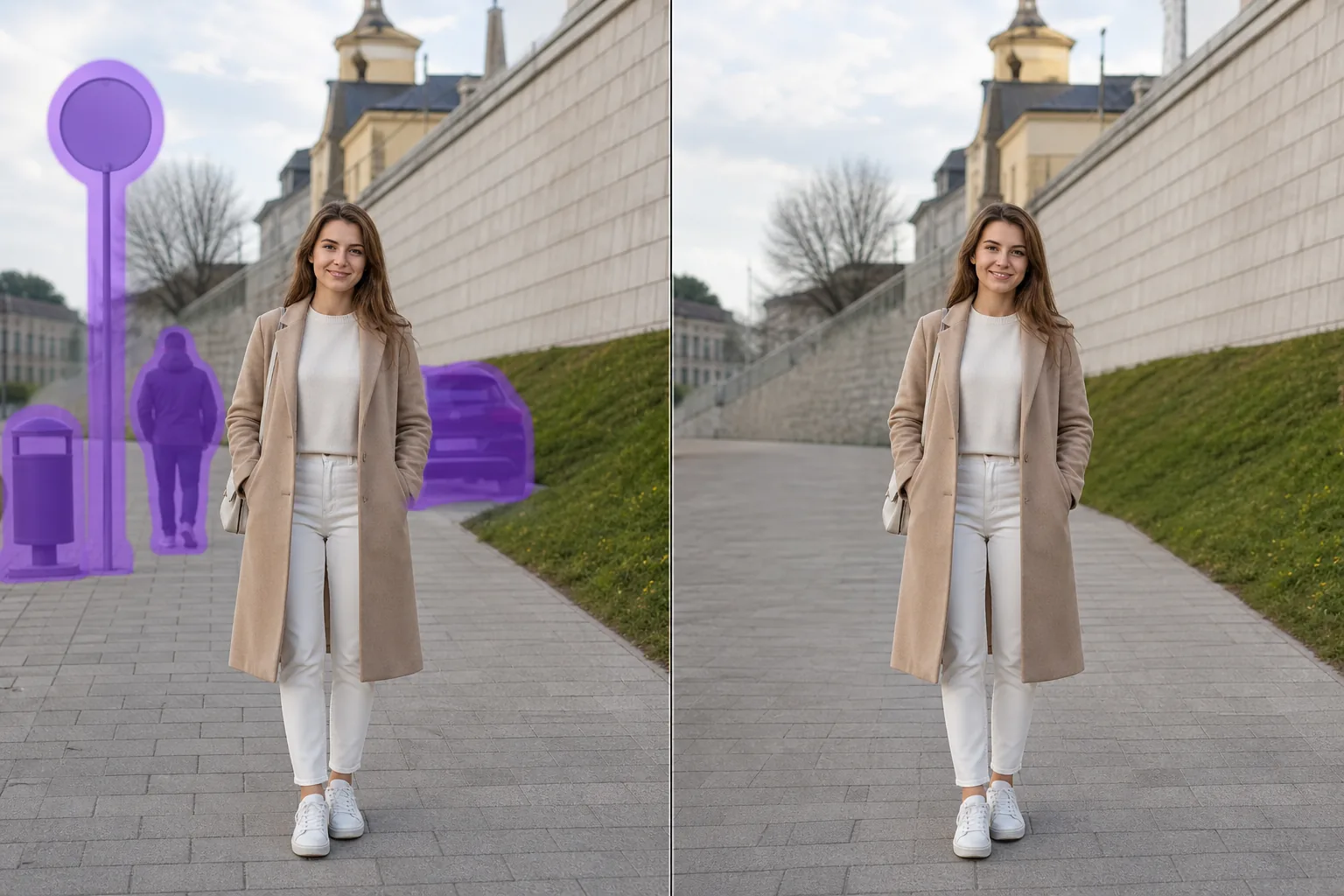
So funktioniert die KI-Entfernung von ein Hintergrundobjekt
Entfernen Sie ein Hintergrundobjekt aus Ihren Fotos in Sekunden mit Magic Eraser. Die KI baut den Hintergrund automatisch neu auf. Kostenlos auf iOS, Android und im Web. Öffnen Sie Magic Eraser im Web, auf iOS oder Android und laden Sie das Foto mit ein Hintergrundobjekt hoch. JPEG, PNG und WebP werden unterstützt. Malen Sie über ein Hintergrundobjekt, die Sie entfernen möchten. Ein etwas größerer Pinsel als das Objekt gibt der KI sauberere Kanten. Die KI baut den Hintergrund in Sekunden neu auf. Überprüfen Sie das Ergebnis, verfeinern Sie es bei Bedarf mit dem Nachbearbeitungspinsel und exportieren Sie in voller Auflösung.
Schritt-für-Schritt-Anleitung
- 1
Foto hochladen
Öffnen Sie Magic Eraser im Web, auf iOS oder Android und laden Sie das Foto mit ein Hintergrundobjekt hoch. JPEG, PNG und WebP werden unterstützt.
- 2
Über den Bereich malen
Malen Sie über ein Hintergrundobjekt, die Sie entfernen möchten. Ein etwas größerer Pinsel als das Objekt gibt der KI sauberere Kanten.
- 3
Löschen und herunterladen
Die KI baut den Hintergrund in Sekunden neu auf. Überprüfen Sie das Ergebnis, verfeinern Sie es bei Bedarf mit dem Nachbearbeitungspinsel und exportieren Sie in voller Auflösung.
Am besten geeignet für
- Öffnen Sie Magic Eraser im Web, auf iOS oder Android und laden Sie das Foto mit ein Hintergrundobjekt hoch. JPEG, PNG und WebP werden unterstützt.
- Malen Sie über ein Hintergrundobjekt, die Sie entfernen möchten. Ein etwas größerer Pinsel als das Objekt gibt der KI sauberere Kanten.
- Die KI baut den Hintergrund in Sekunden neu auf. Überprüfen Sie das Ergebnis, verfeinern Sie es bei Bedarf mit dem Nachbearbeitungspinsel und exportieren Sie in voller Auflösung.
- Ist es kostenlos, ein Hintergrundobjekt aus einem Foto zu entfernen?
- Wie lange dauert es, ein Hintergrundobjekt zu entfernen?
- Funktioniert es auf dem Handy?
- Bleibt die Bildqualität erhalten?
Wichtige Hinweise
Normalerweise nur wenige Sekunden. Die KI verarbeitet den markierten Bereich und baut den Hintergrund nahezu sofort neu auf. Nein. Die KI bewahrt die ursprüngliche Auflösung und Qualität Ihres Fotos. Der rekonstruierte Bereich passt sich an Beleuchtung, Farbe und Textur der Umgebung an.
Häufig gestellte Fragen
- Ist es kostenlos, ein Hintergrundobjekt aus einem Foto zu entfernen?
- Ja. Der kostenlose Plan von Magic Eraser umfasst die Entfernung von ein Hintergrundobjekt mit täglichen Nutzungslimits. Premium ($29,99/Jahr) hebt die Limits auf und schaltet hochauflösende Exporte frei.
- Wie lange dauert es, ein Hintergrundobjekt zu entfernen?
- Normalerweise nur wenige Sekunden. Die KI verarbeitet den markierten Bereich und baut den Hintergrund nahezu sofort neu auf.
- Funktioniert es auf dem Handy?
- Ja. Magic Eraser funktioniert auf iOS, Android und im Webbrowser. Sie können ein Hintergrundobjekt von jedem Gerät aus entfernen.
- Bleibt die Bildqualität erhalten?
- Nein. Die KI bewahrt die ursprüngliche Auflösung und Qualität Ihres Fotos. Der rekonstruierte Bereich passt sich an Beleuchtung, Farbe und Textur der Umgebung an.