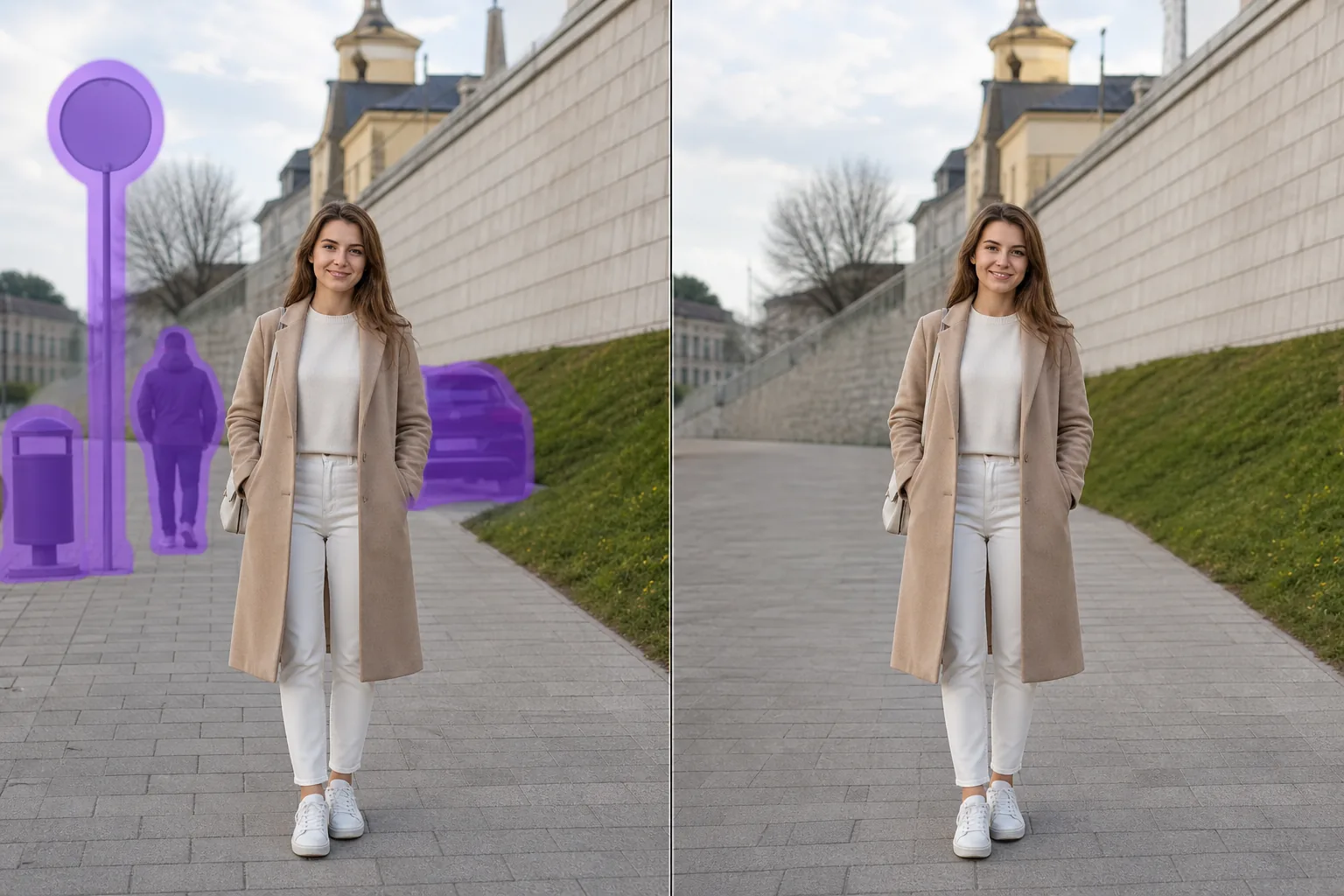
写真から背景のオブジェクトを削除
Magic Eraserで写真から背景のオブジェクトを数秒で削除。AIが背景を自動的に再構築します。iOS、Android、Webで無料で利用可能。
Last updated
今すぐ試す

AIによる背景のオブジェクト削除の仕組み
A great shot is often ruined by something in the background — a stranger walking through, a rubbish bin by the wall, a road sign poking out behind someone's head. Magic Eraser focuses on exactly that problem: removing background distractions without disturbing the person, pet or product in front. You brush over the thing you want gone, and the AI rebuilds the area behind it — the wall, sky, grass or pavement that the object was hiding. Because the original pixels behind an object don't exist in the photo, the tool synthesizes a believable replacement rather than recovering anything literal. For background clutter set against fairly even surfaces, that reconstruction is usually clean enough to share straight away. It runs on the web and on iOS and Android, with a free tier and no watermark, so you can fix a background in seconds and download the result.
ステップバイステップ手順
- 1
写真をアップロード
Web、iOS、AndroidでMagic Eraserを開き、背景のオブジェクトが写っている写真をドロップ。JPEG、PNG、WebPに対応。
- 2
削除したい部分をブラシ
削除したい背景のオブジェクトの上をブラシで塗ります。対象より少し広めに塗ると、AIがきれいなエッジを作ります。
- 3
消去してダウンロード
AIが数秒で背景を再構築。結果を確認し、必要に応じてタッチアップブラシで調整、フル解像度でエクスポート。
こんな方におすすめ
- Erasing a stranger or photobomber walking behind your main subject
- Removing road signs, posts and street furniture sticking out behind someone's head
- Clearing rubbish bins, recycling boxes and clutter against a back wall
- Deleting parked or passing cars in the background of portraits and travel shots
- Tidying messy shelves, cables and household clutter behind a product photo
- Removing distant tourists or crowds behind a landmark
- Cleaning up power lines or poles in the sky behind a scene
- Taking out background scaffolding, fences or construction mess
注意事項
Magic Eraser doesn't uncover the hidden pixels behind an object — it generates a plausible reconstruction based on the surrounding area. That works best when the background behind the object is fairly simple and continuous: a wall, sky, water, grass, pavement or an even floor. In those cases the patch usually blends in seamlessly. Removing something in front of a busy or highly detailed background — repeating patterns, text, faces, or intricate architecture — is harder, and the fill can look soft or slightly off on close inspection. A few tips: brush a little beyond the object's edge to capture its shadow and any colour spill, work in zoomed-in passes for cleaner boundaries, and remove large background objects in smaller sections rather than one huge selection. If the first result isn't perfect, run a second pass over the leftover area — it often resolves the remaining artifacts. Always keep your brush on the background and off the foreground subject so the person or product in front stays crisp.
よくある質問
- 写真から背景のオブジェクトを削除するのは無料ですか?
- はい。Magic Eraserの無料プランで背景のオブジェクトの削除が可能です(1日の使用制限あり)。Premium($29.99/年)にアップグレードすると制限が解除され、高解像度エクスポートが可能になります。
- 背景のオブジェクトの削除にはどのくらい時間がかかりますか?
- 通常数秒です。AIが塗った領域を処理し、背景をほぼ瞬時に再構築します。
- スマートフォンでも使えますか?
- はい。Magic EraserはiOS、Android、Webブラウザで動作します。どのデバイスからでも背景のオブジェクトを削除できます。
- 画質は劣化しますか?
- いいえ。AIは写真の元の解像度と品質を維持します。再構築された領域は周囲の明るさ、色、テクスチャに合わせます。