
写真からテキストを削除する方法
ストック写真全体の透かしテキスト、古いカメラで休暇中の写真に焼き付けられた日付スタンプ、スクリーンショットのキャプション オーバーレイ、製品画像のブランド テキスト、不動産物件の物件の壁に落書きされたテキストなど、写真に重ねられたテキストは、最も一般的な削除対象の 1 つです。 Magic Eraser の AI ブラシは、テキスト文字を削除し、その下にある表面 (空、肌、布地、壁、製品の表面) を、あたかもテキストが存在しなかったかのように再構築します。
Last updated
今すぐテキストを削除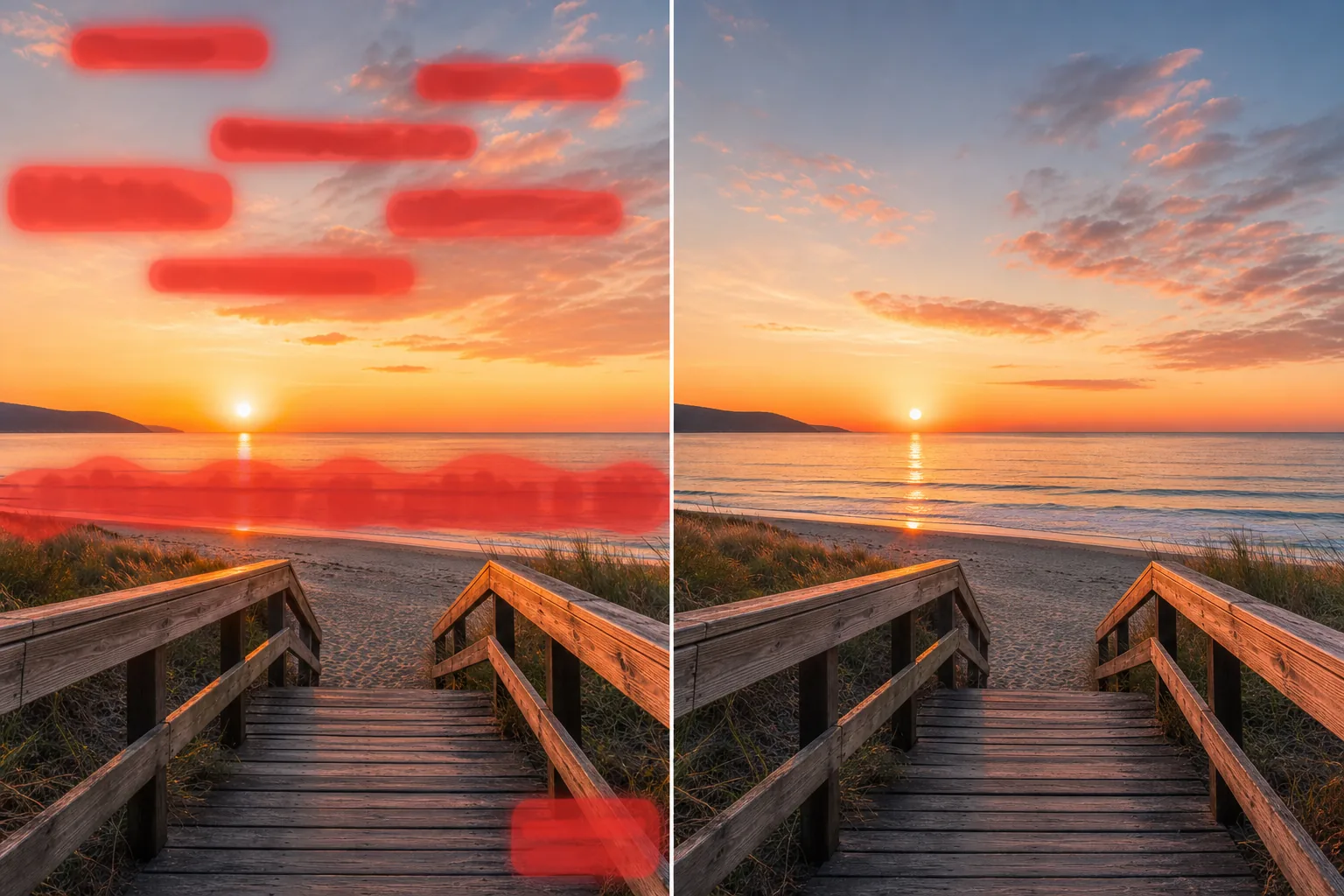
写真から文字を消す方法
写真から文字を消すには、Web版またはiOS・Androidアプリで Magic Eraser を開き、画像をアップロードして、文字の上をブラシでなぞり、「消去」をタップします。AIが文字をオーバーレイとして認識し、その下にある空・肌・商品・壁などの背景を数秒で再現します。無料で、登録も不要。キャプションや日付スタンプ、看板、スクリーンショット内のUIテキストもきれいに消せます。編集できるのは、ご自身が所有しているか、編集の許可を得ている画像の文字だけにしてください。 多くのワークフローを経て、テキストは最終的に写真の上に重ねられます。ストック フォトのプレビューでは、画像の中央に透かしテキストが表示されます。別の作物のライセンスを購入した写真家は、より広い視野から透かしを削除する必要がある場合があります。古いデジタル カメラや携帯電話のカメラ設定からの日付スタンプは、すべての写真の下隅にオレンジ色または黄色の日付/時刻のテキストを焼き付け、それ以外の点では完全に使用できる画像を永続的にマークします。ソーシャル メディアのスクリーンショットには、元の写真には必要のないプラットフォーム UI テキスト (ユーザー名、タイムスタンプ、エンゲージメント指標) が含まれています。ミーム ジェネレーターはソース写真にキャプション テキストを追加しますが、場合によってはきれいなオリジナルが失われることがあります。再販用の製品写真には、元のブランドのオーバーレイ テキストが含まれており、再販業者はこれを独自のブランドに置き換える必要があります。不動産や旅行の写真には、現場から気が散る標識、落書き、掲示物が写っています。いずれの場合も、重要なのは下にある画像であり、上に重ねられたテキストは邪魔になります。 Photoshop での手動テキスト削除では、各文字のクローン スタンプを使用して、下にある表面のテクスチャをストロークごとに一致させます。このプロセスは、大きなテキスト ブロックの場合は面倒で、テキストが複数のテクスチャ領域を横切る複雑な表面 (樹木と交わる空、色調の変化のある肌、表面の詳細のある製品) ではエラーが発生しやすくなります。 Magic Eraser の AI は、フェンスの削除を処理する方法と同様に、テキストをオクルージョン レイヤーとして扱い、その下のサーフェスをコンテキストから再構築することでこれを処理します。テキスト文字の規則的な形状により、オクルージョン パターンが予測可能になります。
Before you start
3 つのステップで写真からテキストを削除します
Start with 写真をアップロードする. The result preview above and tips below use this guide's existing content; no separate before-and-after proof is assumed.
- 1
写真をアップロードする
Web、iOS、または Android で Magic Eraser を開きます。削除したいテキストを含む写真をドロップします。透かしテキストのあるストック写真、日付スタンプのある休暇写真、UI オーバーレイのあるスクリーンショット、ブランド テキストのある製品画像などです。 JPEG、PNG、HEIC、WebP がサポートされています。
- 2
テキストをブラシで上書きする
削除する各テキスト要素をペイントします。画像全体にまたがる透かしテキストの場合は、透かし領域全体を 1 回の連続ストロークでブラシします。隅にある日付スタンプの場合は、日付文字列の上を素早くブラシでなぞるだけで十分です。散在するテキスト要素 (複数のラベル、異なる位置のキャプション) の場合は、それぞれを個別にブラシします。各文字を完全に覆い、アンチエイリアス処理されたエッジやテキストのシャドウやグロー効果を捉えるために薄いマージンを付けます。
- 3
「消去して確認」をタップします
AI はテキストを削除し、その下の表面を再構築します。単純な背景 (空、無地の壁、固体製品の表面) 上のテキストの場合、再構築はシームレスです。複雑な背景を横切るテキスト(人物の顔の上のテキスト、詳細なシーンにまたがるテキスト)の場合、AI は隣接するきれいな領域を参照として使用して、テキストがカバーしていた各背景領域を再構築します。フルズームで結果を確認します。文字の残骸やエッジのアーティファクトが残っている場合は、それらの特定の領域を 2 回目のブラシで通過させて除去します。フル解像度でエクスポートします。
こんな方に最適
- 画像コンテンツを妨げるため、異なる作物やサイズのライセンス購入後に削除する必要があるストック写真の透かし
- カメラがすべてのショットに日付/時刻テキストを永久に焼き付けていた古いデジタル カメラ写真から日付スタンプを削除
- プラットフォーム UI テキスト (ユーザー名、タイムスタンプ、メトリクス) が基になる画像コンテンツを乱雑にするスクリーンショットのクリーンアップ
- 製品写真のブランド変更。再販業者が独自のブランドを追加する前に、元のブランドのオーバーレイ テキストを削除する必要がある
- 看板、掲示物、落書きが現場から邪魔になる不動産や旅行の写真
- クリーンな元の写真を復元するには、キャプション テキストを削除する必要があるミームおよびソーシャル メディア画像のクリーンアップ
最良の結果を得るためのヒント
テキスト文字は、下にある表面の比較的少量を遮る細いストロークを備えた予測可能な形状をしているため、テキストの削除は一般に任意のオブジェクトの削除よりも簡単です。 AI は、削除するよりも多くの表面を再構築するため、品質に有利です。大きなブロック テキスト (画像領域の 30% 以上をカバーする透かし) は、隣接する参照が少なく、より多くの面を再構築する必要があるため、小さなテキスト (日付スタンプ、短いラベル) よりも困難です。大きな透かしの場合: 透かしが半透明の場合 (ストック フォトのプレビューに一般的)、下にある表面が部分的に透けて見えるため、AI はそれを適切に処理し、再構成の強力な参照を提供します。複雑な背景上の不透明なテキストの場合は、セクションに分けて作業します。透かしブロック全体を一度にブラシするのではなく、テキストを 1 行ずつブラシして、再構築パスごとに AI に最大の隣接参照を与えます。強い効果(濃いドロップ シャドウ、外側のグロー、エンボス)を持つテキストの場合: 文字のストロークだけでなく、効果領域もブラシします。シャドウまたはグローは、削除する必要があるオクルージョンの一部です。背景パターンを繰り返すテキスト (布地にスタンプされたテキスト、ガラスにエッチングされたテキスト) の場合: パターンが各文字の両側に強力な再構成参照を提供するため、AI は多くの場合優れた結果を生成します。
よくある質問
- 写真から文字を削除するのは無料ですか?
- はい。 Magic Eraser の無料枠には、1 日の使用制限付きでテキストを削除するためのブラシ ツールが含まれています。プレミアム ($29.99/年) では制限がなくなり、高解像度のエクスポートが可能になります。
- ストック写真から透かしを削除できますか?
- このツールは、ブラシで表示されているテキストやオーバーレイを削除します。ストック フォトの透かしの場合: AI が遮られた表面に対して部分的な参照を持っているため、テキストを通して下にある画像を示す半透明の透かしはきれいに削除されます。複雑な背景の不透明な透かしは良好な結果をもたらしますが、大きなブロックではセクションごとのアプローチが必要になる場合があります。ライセンスを取得していない画像から透かしを削除すると、著作権を侵害する可能性があることに注意してください。所有している画像またはライセンスを取得している画像に対してこれを使用してください。
- 手書きの文字や落書きにも対応していますか?
- はい。手書きのテキスト、落書き、描画された注釈、不規則なテキスト スタイルはすべてブラシ ツールに反応します。 AI は、ペイントされたコンテンツを削除するオクルージョンとして扱います。テキストを読み取り可能な文字として認識する必要はなく、下のサーフェスをオクルージョンしているオーバーレイされたコンテンツであることを識別するだけです。
- テキストが人の顔の上を横切ったらどうなるでしょうか?
- AI は、顔の目に見える部分を参照として使用して、テキストの下の顔を再構築します。面を横切る軽いテキスト (細いストローク、小さなフォント) の場合、再構成は通常シームレスです。顔のかなりの部分を覆う重いテキスト (大きな透かし、太いストローク) の場合、AI は、元の特徴と完全には一致しない可能性のある、もっともらしい顔の継続を生成します。結果は自然に見えますが、大きく遮られた領域の細かい部分は復元されるのではなく、再構築されます。
- 古いデジタル写真から日付スタンプを削除できますか?
- はい。古いカメラで写真に焼き付けられた日付スタンプは、通常、画像の隅にある 10 ~ 15 文字の小さくて薄いテキストで、その下に一貫した背景があるため、最もきれいに削除できるケースの 1 つです。日付文字列をブラシで上書きすると、AI が背景のコンテンツを塗りつぶします。 50 ~ 100 枚の写真が含まれるバケーション アルバムから日付スタンプを一括削除するには、写真を 1 つずつ処理するのに約 15 ~ 20 分かかります。
- AndroidやiPhoneで写真から文字を消すには?
- スマホのブラウザ、またはiOS・Androidアプリで Magic Eraser を開き、カメラロールから画像を読み込んで、文字の部分をピンチで拡大します。指で文字の上をなぞり、「消去」をタップするだけ。拡大すれば、まわりのディテールを塗りつぶさずに文字をぴったりなぞれるので、小さなキャプションや隅にある日付スタンプにも便利です。仕上がりはデスクトップ版と同じで、そのまま写真に保存できます。
- 複数のテキストやキャプション全体を一度に消せますか?
- はい。消したい文字をすべて——キャプション、ウォーターマークの一行、日付スタンプなどをまとめて——ブラシでなぞってから「消去」をタップすれば、AIが覆われた部分を一度の処理でまとめて再現します。シンプルな背景の上にある大きな文字(空に重なったバナーや、単色の上のキャプションなど)はほぼ完璧に消えます。一方、背景が複雑で変化に富んだ場所の文字は難しいので、その場合は区切りながらなぞり、100%表示で仕上がりを確認してください。