
写真からケーブルを削除する
製品写真、インテリア デザインの写真、ライフスタイルの画像、デスクのセットアップから、充電ケーブル、延長コード、USB ワイヤ、HDMI リード、ケーブルの乱雑さを消去します。 Magic Eraser はケーブルを取り外し、その後ろの机の表面、床、壁、またはカウンターを再構築し、エディトリアル写真や電子商取引写真に求められるクリーンでミニマリストな外観を作り出します。
最終更新日
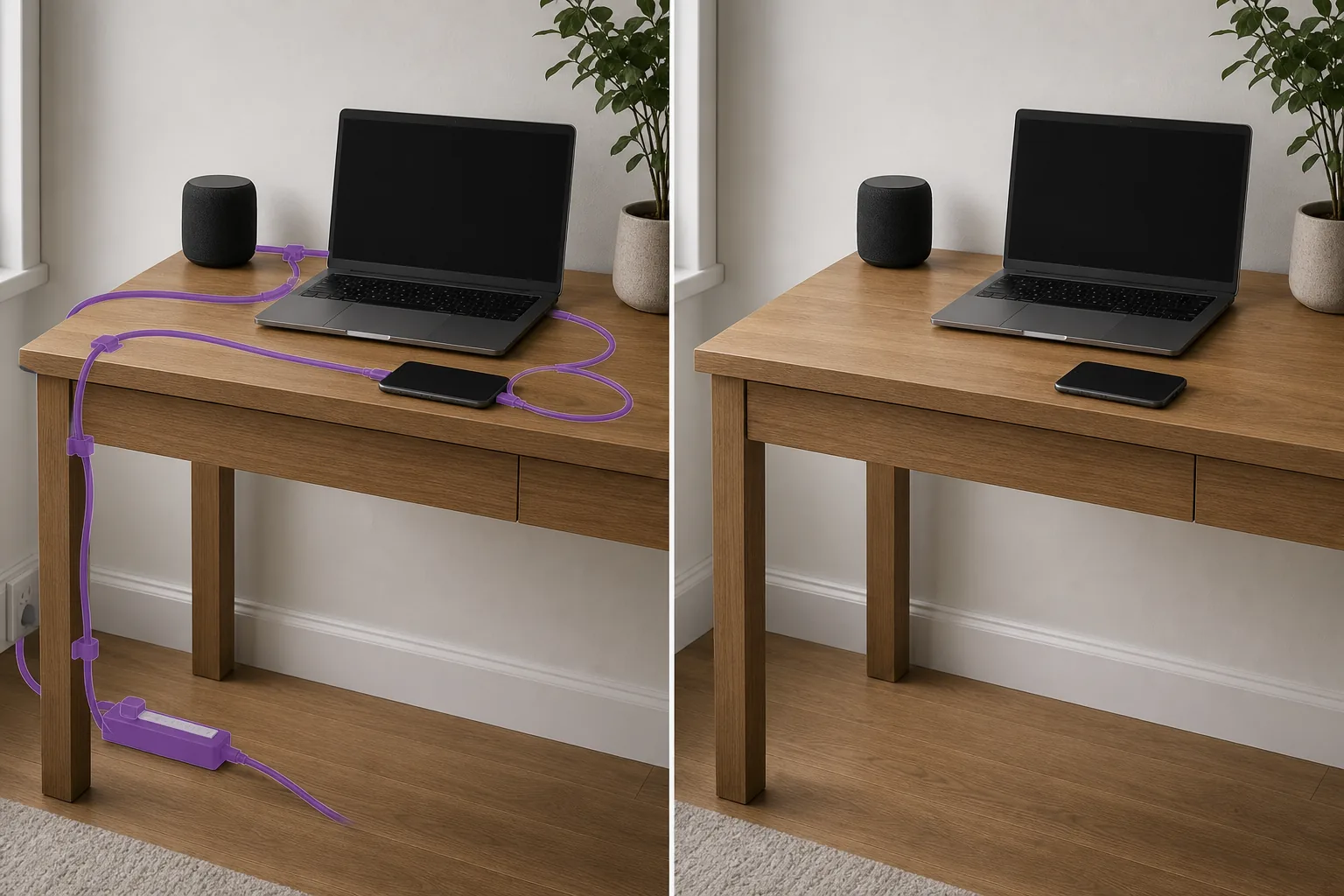
ケーブルが見えると製品や内部の写真が台無しになる理由
製品やインテリアの写真撮影において、視覚的に最も一般的なのはケーブルです。充電ケーブルが机の上を引きずっているラップトップのレビュー写真、延長コードがベースボードに沿って蛇行しているインテリアデザインの写真、携帯電話の充電器が構図を切り裂いているライフスタイルのフラットレイアウト - これらのディテールは、製品やスペースを販売するクリーンな美学を台無しにします。物理的なケーブル管理 (ルーティング、非表示、テーピング) にはセットアップ時間が必要ですが、既存の写真アーカイブでは不可能です。 Magic Eraser はデジタル的にケーブルを取り外します。ケーブル経路をブラシでなぞると、AI がその下の机、床、壁、布地の表面を再構築します。このツールは、複雑なテクスチャ上の細いケーブルや複数のワイヤが一緒に走る束ねられたケーブルなど、あらゆる背景に対してあらゆる色のケーブルを処理します。
3 つのステップでケーブルを取り外します
- 1
写真をアップロードする
Web、iOS、または Android で Magic Eraser を開き、製品の写真、インテリアの写真、デスクのセットアップ、または目に見えるケーブルを含むライフスタイルの画像をアップロードします。すべての標準画像形式が受け入れられます。
- 2
ケーブル経路に沿ってブラシをかける
ブラシをケーブルに沿って端から端までなぞり、ケーブルの全幅と両側の小さなマージンをカバーします。束ねられたケーブル (複数のワイヤが一緒に走っている) の場合は、束全体をブラシで拭きます。オブジェクト上を交差するケーブルの場合は、表示されているケーブル セグメントをブラシします。AI は各背景サーフェスを個別に再構築します。
- 3
消去して確認する
「消去」をタップすると、AI がケーブルを削除し、その下の表面 (木の机の木目、カーペットのテクスチャ、壁のペイント、カウンタートップの素材) を再構築します。ケーブル パスを 100% ズームでトレースし、残留アーティファクトがないか確認します。ケーブルが複数の表面 (机から床、壁まで) を横切る場合、各トランジションは自然に融合する必要があります。製品リスト、ポートフォリオの使用、または編集出版のためにエクスポートします。
こんな方に最適
- 充電ケーブルや電源コードが写り込む製品写真
- 延長コードと電源タップが見えるインテリア デザインのポートフォリオ写真
- レビュー、ソーシャルメディア、編集用のデスクセットアップとワークスペースの写真
- ベースボードやエンターテイメント センターに沿ってケーブルが見える不動産内部の写真
- 充電ケーブルが構図を切り裂くライフスタイルのフラットレイ写真
- 電子商取引の商品画像には、すっきりとした、気が散るようなプレゼンテーションが必要です
- 技術レビューの写真と開梱コンテンツ、机の上にケーブルが散乱
- 実用的な照明ケーブルがフレーム内に見えるスタジオおよびセット写真
ケーブルをきれいに取り外すためのヒント
ケーブルはさまざまな背景に対して細い線状のオブジェクトであるため、AI による除去が技術的に簡単です。主な課題は、複数の異なる表面を横断するケーブルです。机から机の脚を下って床を横切って壁に上るケーブルは、4 つの異なるテクスチャを通過します。最もきれいな結果を得るために各サーフェス セグメントを個別に処理するか、ケーブル全体を 1 ストロークでブラシして各遷移点を確認します。白い表面上の白いケーブルの場合は、AI が完全なケーブル パスを識別したことを確認するためにズームインします。暗い表面上の黒いケーブルにも同じ課題があります。製品写真からケーブルを削除する場合は、通常、製品にケーブルが表示されている状態 (ラップトップ + 充電器) と非表示状態 (スタジオの製品写真) が付属しているかどうかを考慮してください。編集および広告の基準は出版物によって異なります。ケーブル管理アクセサリ (クリップ、チャネル、ベルクロ タイ) が見える場合は、取り外すこともできます。ケーブル自体を外すのと同じように、ブラシで上から拭きます。
よくある質問
- 製品写真からケーブルを削除するのは無料ですか?
- はい。 Magic Eraser の無料枠では、1 日の使用量制限付きでケーブルの取り外しがカバーされます。製品の写真家とレビュー担当者は、無制限の使用と高解像度のエクスポートが可能なプレミアム (年間 29.99 ドル) の恩恵を受けます。
- ワイヤーを外すのとどう違うのですか?
- ワイヤ ツールは、空の背景に対して架空の送電線とユーティリティ ワイヤに焦点を当てます。このケーブル ツールは、机、床、壁などの表面に設置されている屋内ケーブル (充電コード、延長リード、USB ケーブル、HDMI ケーブル) を対象としています。どちらも同じ AI を使用しますが、ターゲットとするユースケースは異なります。
- 絡まったケーブルの束を処理できますか?
- はい。バンドル全体をブラシでなぞると、AI が目に見えるケーブルをすべて削除し、その下の表面を再構築します。非常に高密度のケーブル クラスター (テレビ エンターテイメント センターの後ろ、机の下) の場合は、最もクリーンな結果を得るためにエリアをセクションに分けて処理します。
- 部分的に物陰に隠れているケーブルはどうなるでしょうか?
- ケーブルの目に見える部分のみをブラシで塗ります。 AI は露出したケーブル セグメントを除去し、表面を再構築します。ケーブルが物体 (机の脚、モニター スタンド) の後ろに隠れると、物体はそのまま残り、ケーブルは単に存在しないように見えます。