
AI Create style
AI Pop Art Image Generator
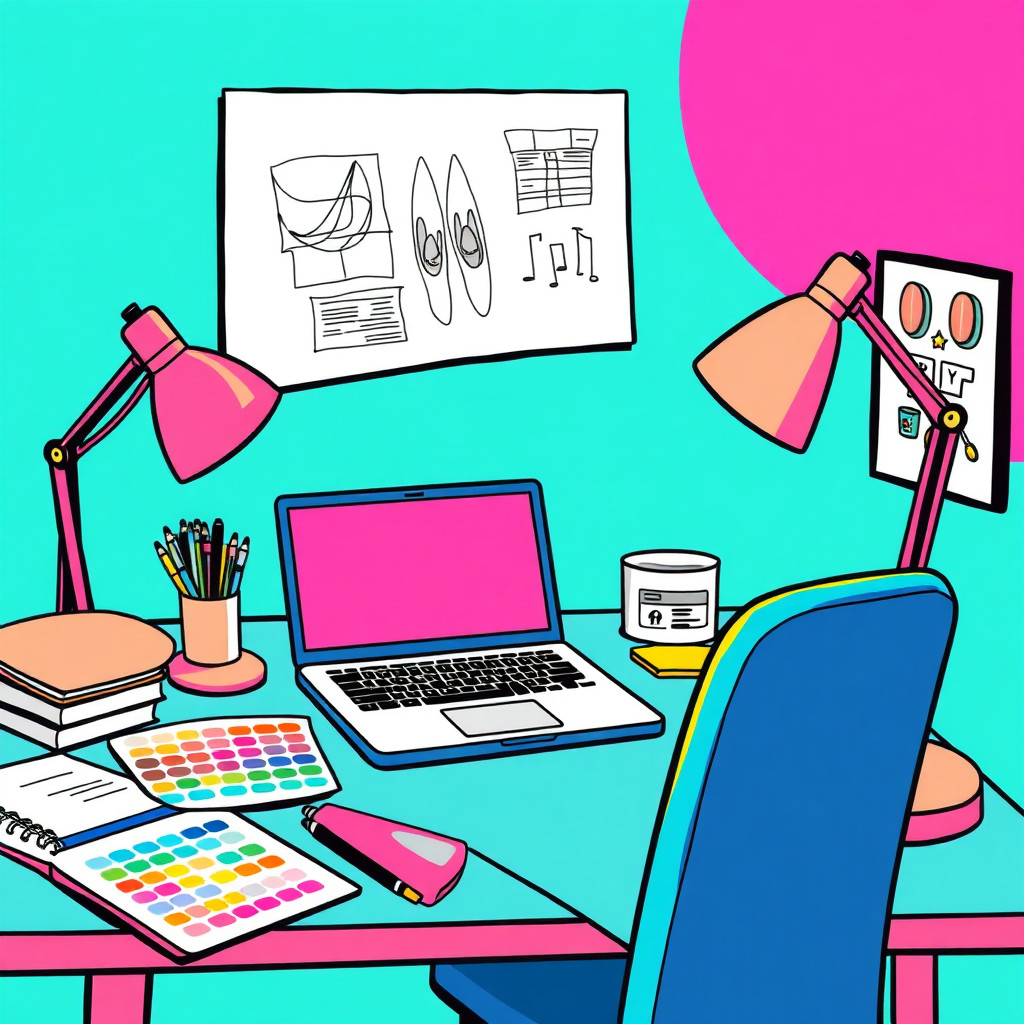
Create pop art images from text prompts with bold color blocks, graphic contrast, halftone dots, and poster-like rhythm. Use the style for social campaigns, product launches, thumbnails, and striking portraits; describe the subject, palette, and composition.
Use case
Launch posters, sale graphics, and high-energy social ad concepts.
Use case
Creator portraits, product hero ideas, and editorial graphics with punchy color.
Use case
Thumbnail concepts where the subject needs to stand out in a crowded feed.
Visual direction preview
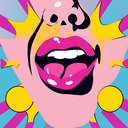
Use the style thumbnail as the creative target
The preview gives users a concrete reference for color, texture, edge detail, and mood before they open the generator. Pair it with the prompt starters below to keep the page useful instead of only decorative.
Generated examples
See the pop art style in real outputs
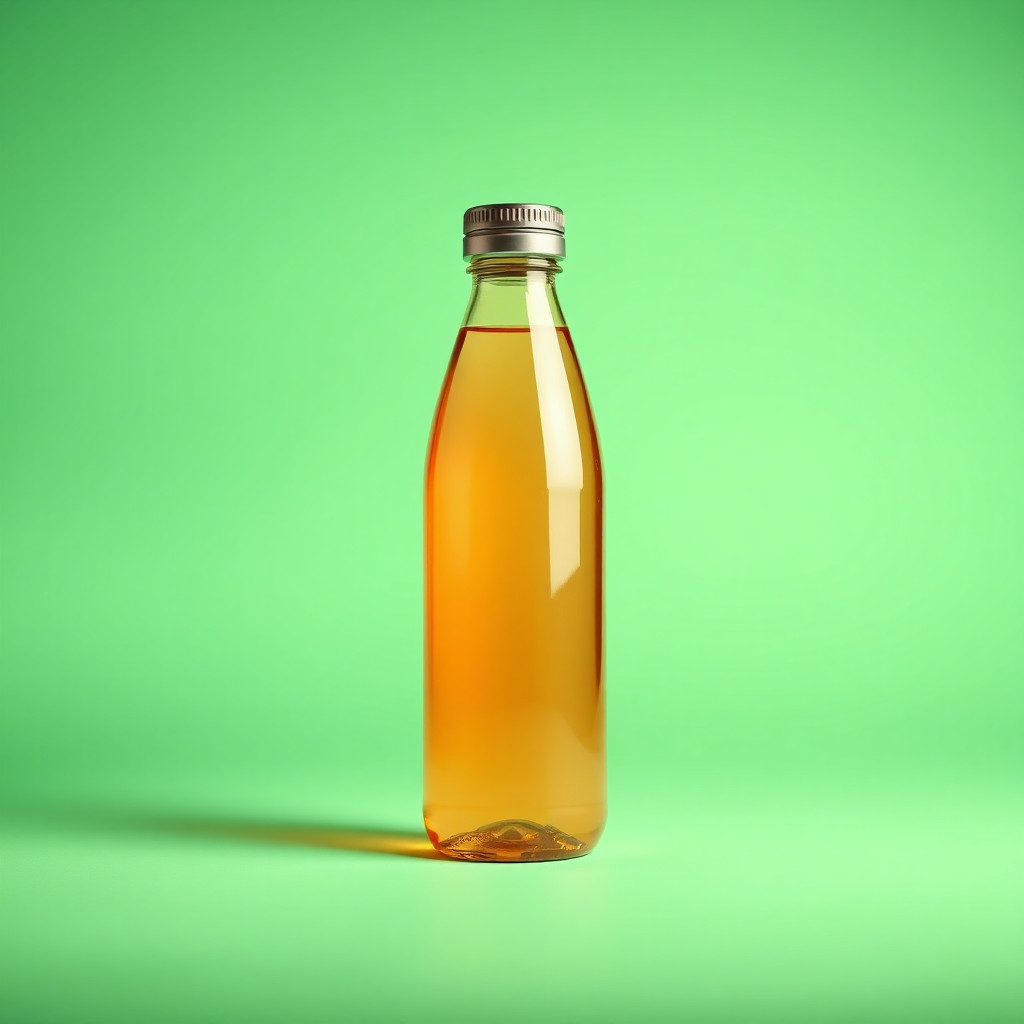
These examples were generated through the Magic Eraser AI Create API with the pop art style selected.
Prompt workflow
How to get a stronger pop art result
Start with one subject and define the color palette, expression, and graphic treatment.
Generate options with different background patterns or framing, then choose the most readable one.
Add final text and layout in the editor rather than relying on generated lettering.
Prompt starters
- “Pop art portrait of an original fashion model wearing red sunglasses, bold color blocks, halftone texture”
- “Pop art product poster for a sparkling soda can, bright yellow and red background, clean hero composition”
- “Pop art social graphic of a happy dog with oversized sunglasses, playful dots, high contrast”
Style tips
- Ask for bold color contrast and simple composition.
- Avoid detailed backgrounds unless they support the main subject.
- Use separate design tools for exact typography.
Output planning checklist
- Decide the final placement before prompting: square post, vertical story, product insert, poster, thumbnail, or wide banner.
- Keep one primary subject and one visual mood so the pop art style has a clear job.
- Describe the background as simple, detailed, bright, dark, studio, outdoor, or textured instead of leaving it open-ended.
- Generate variations first, then edit the selected image for crop, cleanup, and export size.
When to choose this style
Choose pop art when the image needs a clear creative direction before production: an ad concept, a social visual, a character idea, a packaging mood, or a fast design draft. Choose another style if the final asset must look like a camera photo, preserve exact product color, or include precise typography.
For commercial work, treat the generated image as a starting point. Review details, remove distracting artifacts, add exact text separately, and export the final size from the editor.
FAQ
Can I edit the generated image?
Yes. Generate the image, then continue with cleanup, crop, background, and export tools in Magic Eraser.
Should I include exact text?
Use AI Create for the visual direction. Add exact text later with editable design tools for cleaner spelling and layout.
Is this style selected automatically?
The CTA opens AI Create with the pop art style parameter, and the app falls back safely if the option changes.