
Magic Eraser + Canva: صور أفضل لكل تصميم
يجعل Canva التصميم أمرًا سهلاً، ولكن غالبًا ما تحتاج صورك المصدر إلى التنظيف أولاً. Magic Eraser يزيل الخلفيات، ويمحو الكائنات المشتتة للانتباه، ويعزز جودة الصورة حتى تبدأ تصميمات Canva الخاصة بك بصور أقوى.
حول Canva
Canva عبارة عن نظام أساسي للتصميم الجرافيكي يعتمد على المتصفح ويستخدمه الملايين لمنشورات الوسائط الاجتماعية والعروض التقديمية والمواد التسويقية وغير ذلك الكثير. فهو يوفر قوالب وصور مخزنة وأدوات السحب والإفلات لإنشاء محتوى مرئي سريع.
الفوائد
صور مصدر أنظف للتصاميم
قم بإزالة العناصر غير المرغوب فيها والنصوص والفوضى من الصور قبل وضعها في قوالب Canva. ابدأ كل تصميم بصورة مصقولة.
خلفيات شفافة حسب الطلب
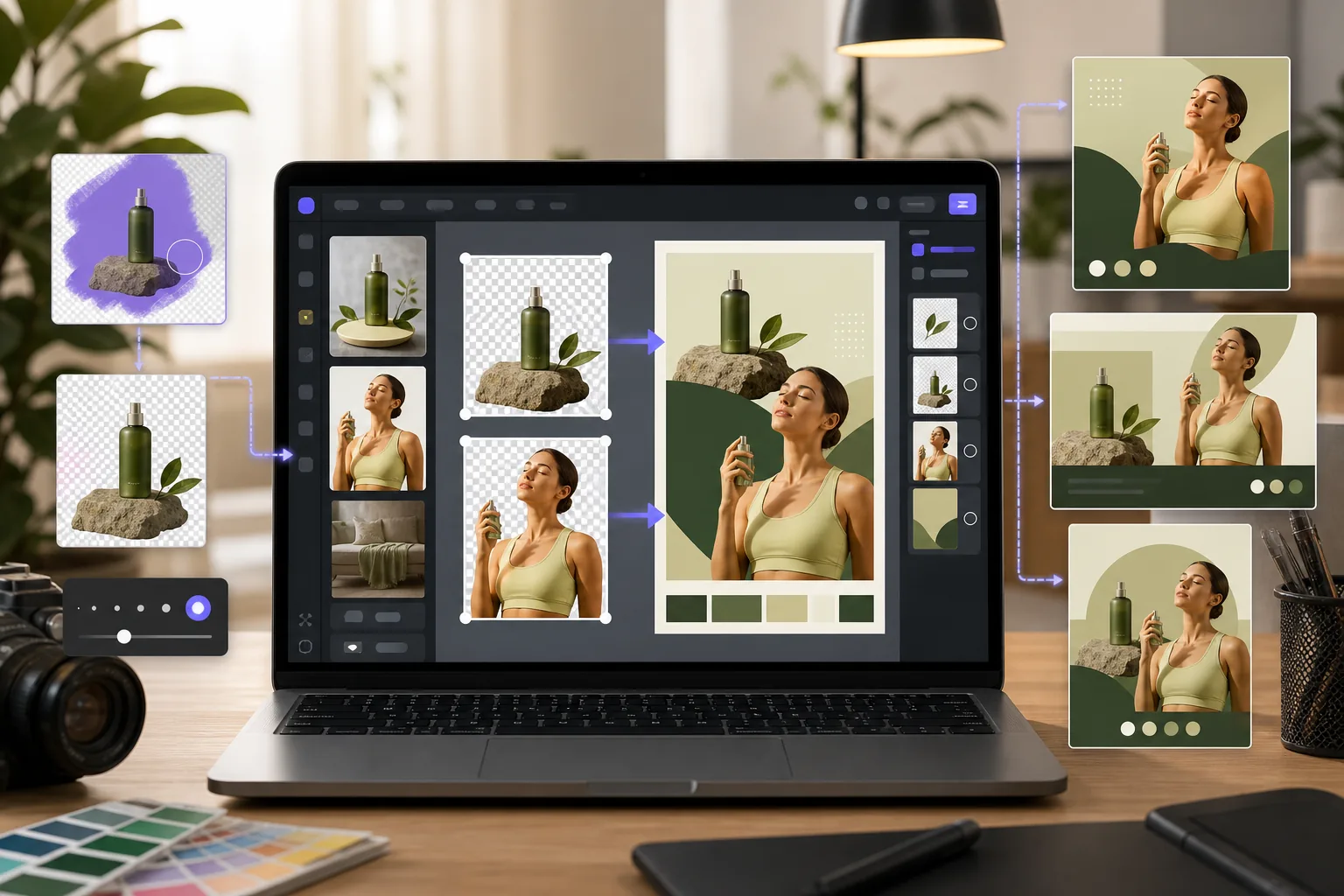
قم بتصدير صور PNG مقطوعة من Magic Eraser واستوردها إلى Canva للتراكيب ذات الطبقات، ونماذج المنتجات، والرسومات ذات العلامات التجارية.
تحسين جودة الصورة
قم بزيادة وضوح الصور الباهتة وتحسين الإضاءة باستخدام AI Enhancement قبل استخدامها في Canva، حتى تبدو تصميماتك احترافية حتى من صور الهاتف الذكي.
سير عمل إبداعي أسرع
بدلاً من التبديل بين أدوات التحرير المتعددة، قم بتنظيف الصور في Magic Eraser وانتقل مباشرة إلى عمل التخطيط في Canva.
كيفية استخدام Magic Eraser مع Canva
تحميل إلى Magic Eraser
افتح Magic Eraser في متصفحك وقم بتحميل الصورة التي تريد استخدامها في تصميم Canva الخاص بك.
تنظيف وتعزيز
قم بإزالة الخلفيات أو مسح عوامل التشتيت أو تحسين الجودة اعتمادًا على ما تحتاجه الصورة.
قم بتنزيل النتيجة
قم بتصدير الصورة المنظفة بتنسيق PNG (للخلفيات الشفافة) أو JPEG (للصور الكاملة).
استيراد إلى Canva
قم بتحميل الصورة المعالجة إلى Canva واستخدمها في القالب أو التصميم أو المشروع الخاص بك.
الأسئلة المتداولة
هل يتكامل Magic Eraser مباشرة مع Canva؟
+
يعمل Magic Eraser وCanva معًا من خلال سير عمل بسيط للتصدير والاستيراد. قم بتنظيف الصور في Magic Eraser، وقم بتنزيلها، ثم رفعها إلى Canva.
هل يمكنني الحصول على خلفيات شفافة لبرنامج Canva؟
+
نعم. استخدم إزالة خلفية Magic Eraser لإنشاء ملفات PNG شفافة تتناسب بشكل مثالي مع تصميمات Canva.
متى ينبغي استخدام Magic Eraser قبل Canva؟
+
استخدم Magic Eraser عندما تحتاج الصورة الأصلية إلى إزالة الخلفية أو العناصر أو تحسين الجودة أو التعبئة بالذكاء الاصطناعي قبل تنسيقها في Canva. يعتمد هذا المسار على التصدير ثم الاستيراد، وليس تكاملًا مباشرًا مع Canva.
ما تنسيق الملف الذي يجب علي تصديره من Magic Eraser لـ Canva؟
+
استخدم PNG للصور ذات الخلفيات الشفافة. استخدم JPEG للصور الكاملة التي لا تحتاج إلى الشفافية.
هل يمكنني استخدام Magic Eraser على الهاتف المحمول قبل التصميم في Canva؟
+
نعم. يعمل Magic Eraser على متصفحات الهاتف المحمول والتطبيق، لذا يمكنك تنظيف الصور الموجودة على هاتفك قبل فتح Canva.
ابدأ بصور أكثر وضوحًا في Canva
جرّب Magic Eraser مجانًا وأزل الخلفيات، وامسح عناصر التشتيت، وحسّن الصور قبل استيرادها إلى تصميمات Canva الخاصة بك.
جرب Magic Eraser مجانًاحالات استخدام ذات صلة
شاهد كيف يستخدم المحترفون هذه الأدوات في مهام العمل الفعلية.
صور الإعلانات المزدحمة بالأغراض الشخصية أو السيارات المركونة أو معدات البناء قد تنفّر المشترين. يستخدم Magic Eraser الذكاء الاصطناعي لتنظيف صور عقارك فورًا — دون الحاجة إلى مهارات Photoshop.
الخلفيات المشوشة ولقطات المنتجات الفوضوية تكلفك مبيعات كل يوم. يساعدك Magic Eraser على إنشاء صور منتجات احترافية ونظيفة في ثوانٍ — دون الحاجة إلى مهارات Photoshop. ما عليك سوى الرفع، ومسح العناصر المشتتة، والإدراج بثقة.
متطفلون يفسدون صور سفرك؟ خلفيات فوضوية تدمّر صور السيلفي؟ توقف عن إضاعة الساعات في Photoshop. يزيل Magic Eraser المشتتات، وينظّف اللقطات المزدحمة، ويوسّع صورك لتناسب أي تنسيق منصة — كل ذلك بنقرة واحدة.
مقارنات ذات صلة
شاهد كيف يقارن Magic Eraser بالأدوات المشابهة.
TouchRetouch هو تطبيق جوال مدفوع شائع لإزالة الكائنات والعيوب. يوفّر Magic Eraser تحريرًا مجانيًا مدعومًا بالذكاء الاصطناعي على أي جهاز دون الحاجة إلى التثبيت. اطّلع على كيفية مقارنتهما من حيث الميزات والأسعار وسهولة الاستخدام.
Cleanup.pictures هي أداة ويب مجانية لإزالة الكائنات بسرعة. يذهب Magic Eraser إلى أبعد من ذلك مع 8 أدوات تحرير مدعومة بالذكاء الاصطناعي AI وتطبيقات للهاتف المحمول ومعالجة متقدمة. اطلع على المقارنة بين الاثنين.
يُعد remove.bg الرائد في السوق لإزالة الخلفية، حيث يوفر واجهة برمجة تطبيقات قوية وتكاملات مع Photoshop و Figma. ويذهب Magic Eraser إلى أبعد من ذلك بثماني أدوات تحرير مدعومة بالذكاء الاصطناعي — من إزالة الكائنات والتعبئة التوليدية إلى التحسين والتصميم بالذكاء الاصطناعي — كل ذلك في محرر واحد.
محرران قويان للصور بالذكاء الاصطناعي بنقاط قوة مختلفة. يقدم Magic Eraser مجموعة أوسع من أدوات الذكاء الاصطناعي التوليدية، بينما يتفوق Photoroom في تصوير منتجات التجارة الإلكترونية والمعالجة الدفعية. اعرف أيهما يناسب سير عملك.
مقالات ذات صلة
نصائح وأدلة ودروس تعليمية متعلقة بهذا الموضوع.
استكشف كيف يغيّر الذكاء الاصطناعي عمليات الأعمال، من الأتمتة وتحليل البيانات إلى تجارب عملاء أكثر تخصيصًا.
تعرّف على كيفية استخدام Magic Eraser لإزالة العناصر والأشخاص والنصوص والمشتتات من الصور بنتائج ذكاء اصطناعي أنظف.
تعلّم كيفية إزالة الأشخاص من الصور بالذكاء الاصطناعي في ثوانٍ. دليل لصور السفر والعقارات والمنتجات.
تكاملات أخرى
استكشف المزيد من المنصات التي تعمل مع Magic Eraser.