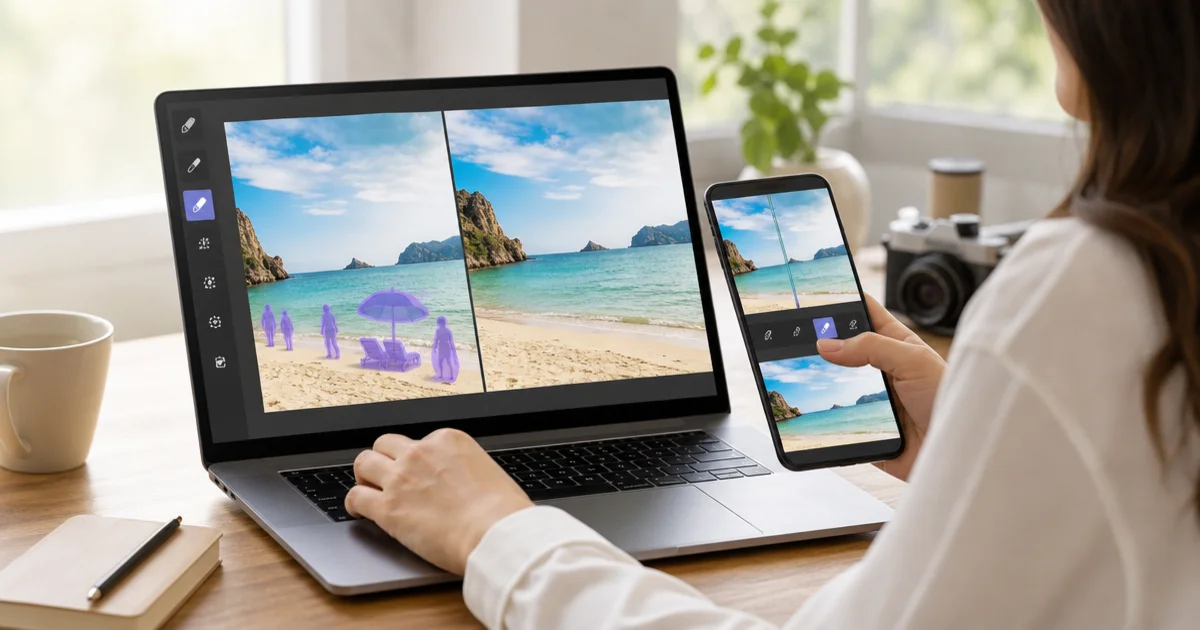
How to Use Magic Eraser
Learn how to use Magic Eraser to remove unwanted objects from photos faster, cleaner, and with more natural results.
Product Team

Magic Eraser helps you remove objects, people, text, and distractions from photos with just a few steps.
A common workflow is to upload the image, brush the area you want to change, run the AI edit, then review the result before exporting.
The tool works well for product photos, social content, travel shots, and any case where you need faster cleanup without heavy manual retouching.
- Upload an image to the editor.
- Brush over the area you want to remove.
- Run the remove action so AI rebuilds the background.
- Review the result and continue with other tools if needed.
Step-by-step object removal workflow
The object removal process in Magic Eraser follows a straightforward sequence that anyone can learn in minutes. Understanding each step in detail will help you get cleaner results from the very first edit.
Start by uploading your image. Magic Eraser accepts JPEG, PNG, and WebP files. Higher-resolution images generally produce better results because the AI has more surrounding detail to work with when it rebuilds the area you erase. If your photo is smaller than 1000 pixels on either side, consider whether you have a larger version available.
Once the image loads in the editor, adjust your view before you start brushing. Zoom in to the area you want to remove so you can see edges clearly. Working at a comfortable zoom level is one of the most overlooked steps, but it makes a big difference. When you can see where the object meets the background, you can brush more precisely and avoid accidentally marking areas you want to keep.
Select the brush tool and adjust the brush size. A good rule of thumb is to use a brush that is slightly larger than the narrowest part of the object you are removing. For a lamp post, that might be a small brush. For a parked car, you would increase the size so you can cover the area in fewer strokes. You do not need to be pixel-perfect — the AI is designed to interpret your selection with some tolerance — but tighter brushwork generally gives you tighter results.
Paint over the object you want to remove. Cover the entire object, including any shadow or reflection it casts on nearby surfaces. Shadows are easy to miss, and leaving them behind is one of the most common reasons an edit looks unnatural. If the object casts a shadow to the right, extend your brush to cover that shadow as well.
Click the Remove button to start the AI processing. The tool analyzes the pixels around your selection and generates new content to fill the gap. Depending on the complexity of the background, this usually takes between two and ten seconds. Simple backgrounds like sky or grass are filled almost instantly, while detailed textures like brick walls or patterned fabric may take a moment longer.
After processing, review the result carefully. Zoom in to check the edges where the removed object used to be. Look for any repeating patterns, color mismatches, or blurring that might look unnatural. If the result is not perfect on the first try, you can undo and try again with a slightly different brush selection. Sometimes including a bit more of the surrounding area in your selection gives the AI better context to work with.
Removing people and text from photos
Removing people and removing text are two of the most common use cases for Magic Eraser, and each benefits from a slightly different approach.
When removing a person from a photo, the key challenge is that people often stand in front of complex backgrounds — a crowded street, a building entrance, or a group of other people. Start by zooming in and carefully brushing over the entire person, from head to feet. Include their shadow on the ground. If the person is partially overlapping another person or object you want to keep, use a smaller brush and trace carefully along the edge of what you want to preserve.
For group photos where you need to remove one person, pay special attention to the areas where people overlap. You may need to run the removal in two passes: first remove the bulk of the person, then do a second, smaller touch-up on any artifacts left near the edges of adjacent people.
Text removal works differently because text is typically flat and sits on top of a relatively uniform surface — a sign, a wall, a product label, or a watermark on a photo. For clean text removal, brush over all the text characters completely. Make sure you cover the full height of each letter, including any descenders on letters like g, p, or y. If the text has a colored background box behind it, include that box in your selection as well.
Watermark removal is one of the fastest operations because watermarks are usually semi-transparent and sit on top of a background that already has full detail. The AI simply needs to restore the underlying image. For best results with watermarks, match your brush size closely to the watermark area and avoid selecting too much of the clean image around it.
When removing text from signs in street photography or travel photos, consider that the AI will replace the text area with what it predicts should be there based on the surrounding surface. On a brick wall, it will generate more bricks. On a painted surface, it will match the paint color. The result usually looks natural as long as the surrounding area provides enough context.
Working with product photos
Product photography is one of the areas where Magic Eraser delivers the most immediate value. Whether you are running an e-commerce store, listing items on a marketplace, or preparing images for a catalog, clean product photos directly impact how buyers perceive your products.
A common scenario is removing distracting background elements from a product shot. Maybe you photographed a handbag on a table and there is a coffee cup in the corner, or you shot a pair of shoes on a shelf and other items are visible in the background. Instead of reshooting, you can brush over those distracting elements and let the AI clean up the background while keeping your product untouched.
For flat-lay photography, Magic Eraser is useful for removing items that felt right during the shoot but look cluttered in the final image. You might remove a prop, a price tag, a stray cable, or a piece of packaging that crept into the frame. The flat perspective makes removal especially clean because the AI only needs to fill in a simple surface.
If you sell on platforms that require white or neutral backgrounds, you can combine Magic Eraser with the Background Remover tool. First, use Magic Eraser to clean up any imperfections or unwanted elements in the original shot. Then switch to Background Remover to isolate the product on a transparent or white background. This two-step approach often produces more polished results than trying to do everything in one pass.
When you have multiple product images to edit, develop a consistent workflow. Decide on your brush size, zoom level, and export settings once, then apply the same approach across all images in the set. Consistency matters for product listings because shoppers notice when images in a gallery have different levels of quality or different background treatments.
Social media and marketing use cases
Social media managers, content creators, and marketing teams use Magic Eraser to prepare images faster without waiting for a designer or learning complex software. The speed advantage is significant: what might take twenty minutes in traditional photo editing software often takes under a minute with Magic Eraser.
Travel photos are a natural fit. You captured a beautiful temple, beach, or mountain view, but there are tourists, trash cans, or construction signs in the frame. Brush over those distractions and the AI fills in the scenery behind them. The result is a cleaner, more focused image that performs better on Instagram, Pinterest, or a travel blog.
For YouTube thumbnails, Magic Eraser helps you isolate subjects and remove clutter from the background. A clean thumbnail with a clear focal point gets more clicks than a busy, cluttered image. You can remove background objects, other people, or text that competes with your thumbnail title overlay.
Ad creatives benefit from Magic Eraser when you need to repurpose an existing photo for a new campaign. Remove a previous logo placement, clean up a background before adding new text overlays, or eliminate a product that is no longer part of the promotion. Instead of commissioning a new photoshoot, you adapt what you already have.
Real estate photographers use Magic Eraser to clean up property photos — removing a garden hose from a front yard, a personal photo from a shelf, or a car from a driveway. These small edits make listings look more professional and help potential buyers focus on the property rather than the current owner's belongings.
Event photographers can use it to remove exit signs, trash bins, or other distractions from venue shots. Wedding photographers sometimes use it to clean up ceremony or reception backgrounds, removing anything that pulls attention away from the couple.
Tips for better results
Getting great results with Magic Eraser is easy once you understand a few practical tips that improve quality and save time.
Brush size matters more than you might think. A brush that is too large will select too much of the surrounding area, forcing the AI to regenerate pixels that were already fine. A brush that is too small requires many strokes to cover the object, and the result may show visible seams between passes. Aim for a brush size that lets you cover the object in two to four smooth strokes.
Always zoom in before you start brushing. At 100 percent zoom or closer, you can see exactly where the object edges are and avoid selecting areas you want to keep. This is especially important near faces, product edges, or any fine detail where precision matters.
Complex edges require patience. If the object you are removing sits in front of a detailed background — like tree branches, a chain-link fence, or a patterned wall — you may get better results by removing the object in sections rather than all at once. Remove one portion, check the result, then move to the next portion.
Pay attention to lighting and shadows. Every object in a photo casts some kind of shadow or creates some change in the surrounding light. When you remove an object but leave its shadow, the result looks immediately wrong to anyone who sees it. Always include shadows and reflections in your selection.
If the first result is not perfect, iterate. Undo the edit, adjust your brush selection slightly — maybe include a bit more background context on one side — and run the removal again. The AI generates different results based on the exact selection it receives, so small changes in your brush area can produce meaningfully different output.
For large objects that cover a significant portion of the image, consider whether Magic Eraser is the right tool or whether you should use AI Expand to extend the background instead. If the object covers more than about a third of the image, the AI may not have enough surrounding context to generate a convincing fill. In these cases, cropping the image first and then using AI Expand to add more canvas can produce a cleaner result.
Combining Magic Eraser with other tools
Magic Eraser is powerful on its own, but it becomes even more useful when you combine it with the other tools available on the platform. Each tool handles a different part of the editing workflow, and chaining them together lets you accomplish complex edits that would otherwise require professional software.
Background Remover is the most common companion tool. Use Magic Eraser first to clean up any unwanted elements in the original photo, then switch to Background Remover to isolate the subject on a transparent background. This order matters: removing distractions before cutting out the subject means the edges around your subject are cleaner and more natural.
AI Enhance pairs well with Magic Eraser for photos that need both cleanup and quality improvement. After you remove unwanted objects, run AI Enhance to sharpen details, improve lighting balance, and boost overall image quality. This combination is especially helpful for older photos or images taken in poor lighting conditions.
AI Expand is the right follow-up tool when removing an object leaves you with an image that feels too tightly cropped. After erasing an object near the edge of the frame, you can use AI Expand to extend the canvas in that direction, giving the image more breathing room. The AI generates new background content that matches the existing scene.
The Design tool lets you add text, shapes, and overlays after your cleanup is done. A typical workflow for marketing teams is: remove distractions with Magic Eraser, enhance the image quality, then open it in Design to add brand text, a logo, or call-to-action overlays. This replaces what would traditionally require moving files between three or four different applications.
The most efficient approach is to plan your editing sequence before you start. Decide which tools you will need, do all your removal and cleanup work first, then move to enhancement and design. Working in this order avoids a situation where you enhance an image and then have to re-enhance it after removing something that changes the overall composition.