Skip to content
オブジェクト除去

写真からオブジェクトを削除

Magic Eraserで写真からオブジェクトを数秒で削除。AIが背景を自動的に再構築します。iOS、Android、Webで無料で利用可能。

Last updated

今すぐ試す
10M+ users4.9 App Store ratingPhotos processed on-device — never stored
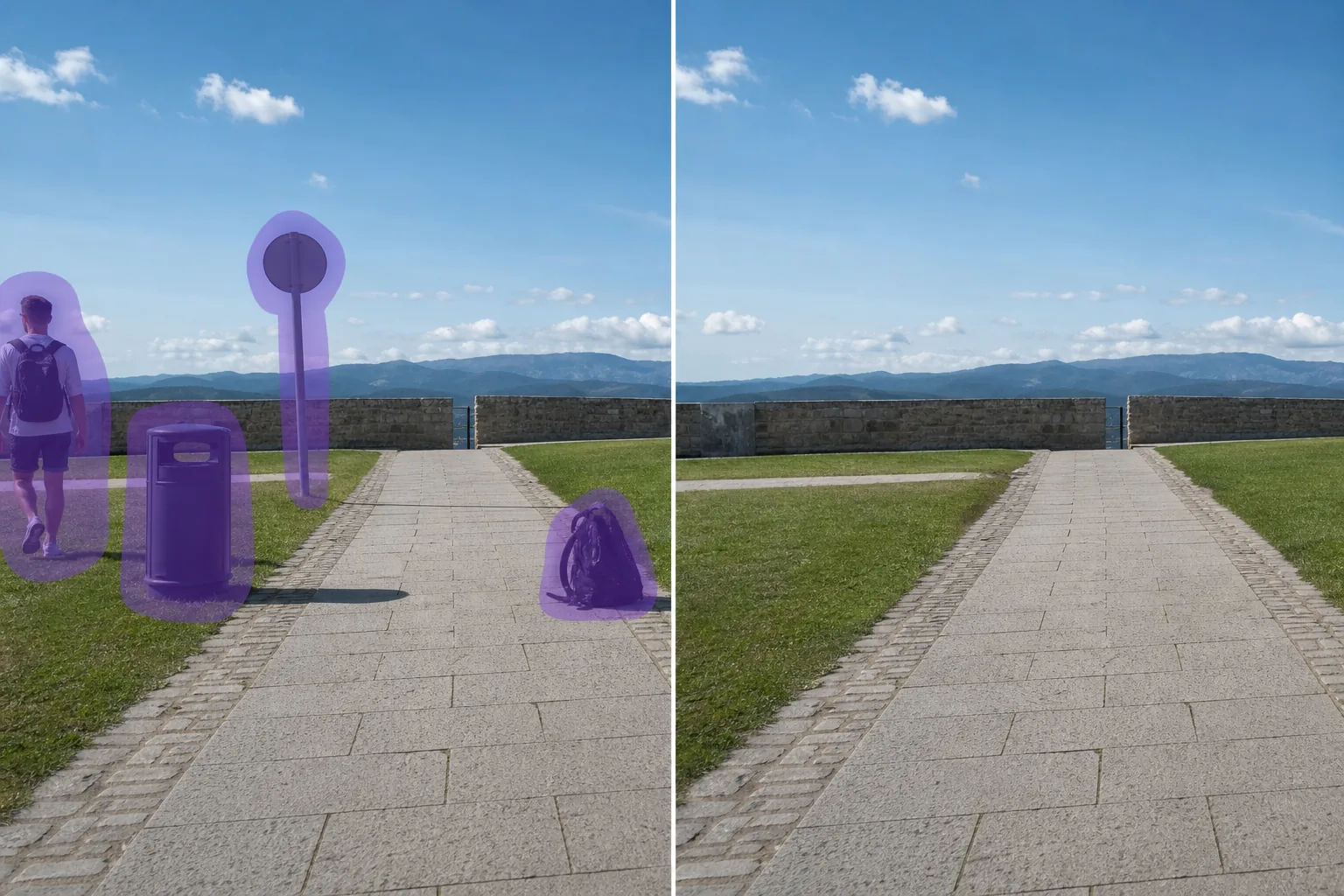
Photo before removing object with Magic Eraser
Before
Photo after removing object with Magic Eraser
After

AIによるオブジェクト削除の仕組み

Most photos don't have one obvious flaw — they have a little of everything. A travel shot with a stranger walking through it and a bin in the corner. A new-listing photo with a car in the driveway and a recycling tote by the gate. A portrait with an exit sign hovering over someone's shoulder. This is the catch-all page for all of it: instead of hunting for the exact tool for each thing, you point one AI eraser at whatever doesn't belong. Magic Eraser uses AI inpainting — you mark the object, and the model synthesizes a believable reconstruction of what was likely behind it, matching the surrounding light, color, and texture. It's important to be clear about what that means: the tool does not recover the literal hidden pixels (the camera never saw them). It generates a plausible fill based on the rest of the frame. For everyday subjects — pavement, grass, sky, walls, water — that fill is usually convincing enough that no one can tell. If your object falls into a common category, there's often a dedicated page tuned for it (people, cars, text and signs, watermarks, glare, and more), but this general eraser handles the long tail of one-off objects that don't fit a neat label.

ステップバイステップ手順

  1. 1

    写真をアップロード

    Web、iOS、AndroidでMagic Eraserを開き、オブジェクトが写っている写真をドロップ。JPEG、PNG、WebPに対応。

  2. 2

    削除したい部分をブラシ

    削除したいオブジェクトの上をブラシで塗ります。対象より少し広めに塗ると、AIがきれいなエッジを作ります。

  3. 3

    消去してダウンロード

    AIが数秒で背景を再構築。結果を確認し、必要に応じてタッチアップブラシで調整、フル解像度でエクスポート。

こんな方におすすめ

注意事項

Because this is AI inpainting, the eraser fills the gap with a synthesized reconstruction, not the real pixels that were hidden behind the object — the camera never captured them. The quality of that fill depends mostly on what's around the object. When the background is simple or repeating — sky, grass, pavement, water, a plain wall — the rebuild is usually seamless and no one can tell anything was removed. It gets harder when the object sits in front of something detailed or structured: a face, repeating tile or brick, text on a sign, or a complex pattern the model has to invent. There you may see slight smudging, a soft patch, or a guess that doesn't quite line up. Two habits help most. First, work in smaller passes for big or layered objects so the model has more reference pixels each time. Second, use the touch-up brush on any seams instead of redoing the whole erase. Large objects that take up most of the frame, or objects in front of clear text, are the cases most likely to need a manual cleanup pass. And for high-stakes uses — news, evidence, legal, or insurance photos — don't alter the image; keep AI removal to personal photos, listings, and creative work, and disclose edits where a platform or MLS requires it.

よくある質問

写真からオブジェクトを削除するのは無料ですか?
はい。Magic Eraserの無料プランでオブジェクトの削除が可能です(1日の使用制限あり)。Premium($29.99/年)にアップグレードすると制限が解除され、高解像度エクスポートが可能になります。
オブジェクトの削除にはどのくらい時間がかかりますか?
通常数秒です。AIが塗った領域を処理し、背景をほぼ瞬時に再構築します。
スマートフォンでも使えますか?
はい。Magic EraserはiOS、Android、Webブラウザで動作します。どのデバイスからでもオブジェクトを削除できます。
画質は劣化しますか?
いいえ。AIは写真の元の解像度と品質を維持します。再構築された領域は周囲の明るさ、色、テクスチャに合わせます。