
फ़ोटो से लेंस फ़्लेयर हटाएँ
परिदृश्य, शादी, पोर्ट्रेट और वास्तुशिल्प तस्वीरों से लेंस फ्लेयर कलाकृतियों - चमकीले धब्बे, रंगीन धारियाँ, धुंध और भूत को हटा दें। Magic Eraser इसके पीछे छिपे विवरण का पुनर्निर्माण करते समय ऑप्टिकल विरूपण को हटा देता है, दृश्य को पुनर्स्थापित करता है कि यह नग्न आंखों को कैसा दिखता है।
अंतिम अपडेट
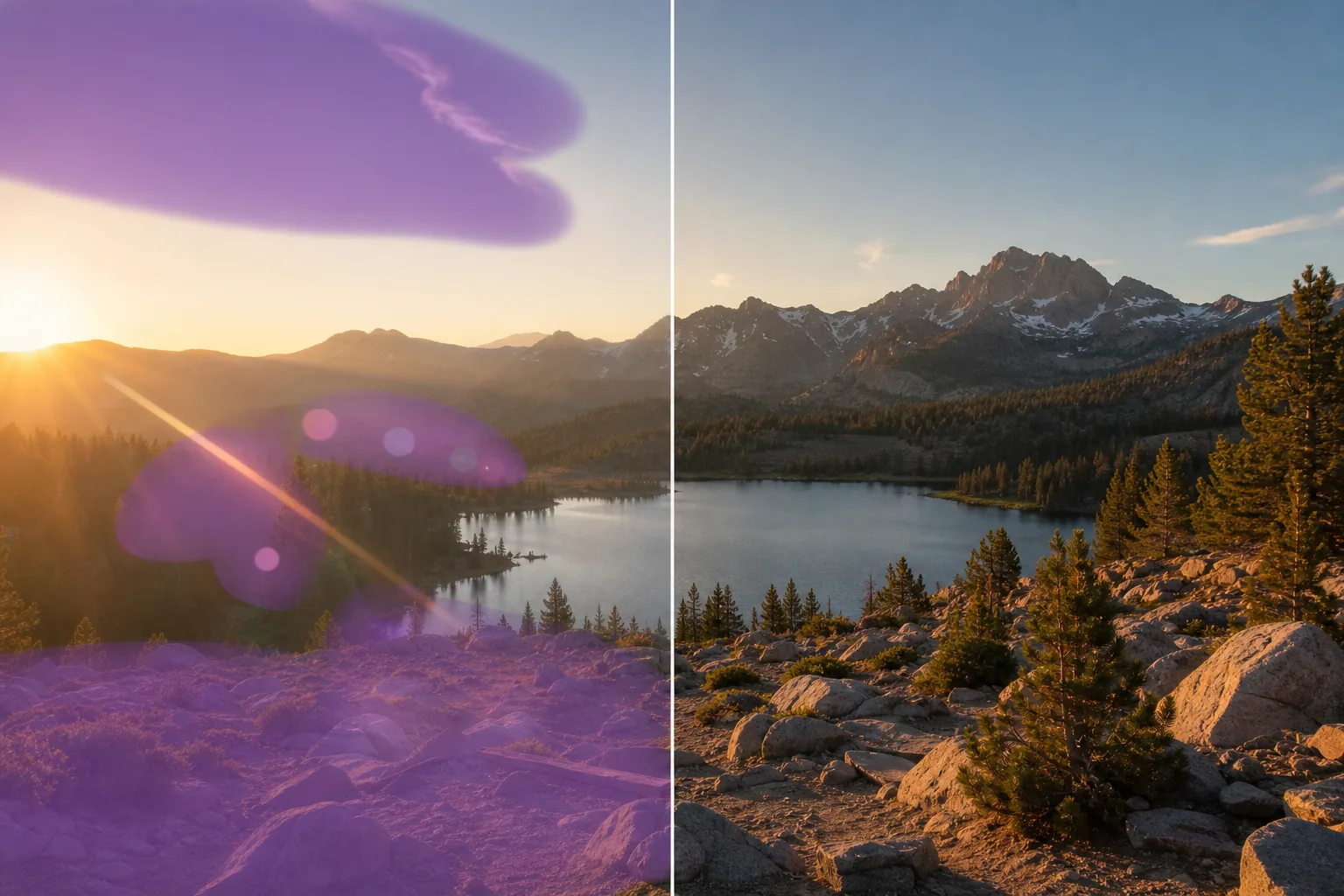
फ़ोटो से लेंस फ़्लेयर कैसे हटाएं
किसी फ़ोटो से लेंस फ्लेयर हटाने के लिए, वेब, iOS या Android पर Magic Eraser खोलें, इमेज अपलोड करें, फ्लेयर पर ब्रश फेरें — यानी रंगीन धब्बे, गोल छल्ले या धुंधली चमकदार लकीर — और AI को उसके पीछे का दृश्य फिर से बनाने दें। यह मुफ़्त है, बिना किसी साइनअप के। यह सबसे अच्छा तब काम करता है जब फ्लेयर आसमान या किसी समतल सतह जैसे सरल हिस्सों से गुज़रता है, और चेहरे, पत्तियों या इमारतों जैसे भरे-पूरे हिस्सों को एक भरोसेमंद अनुमान के तौर पर फिर से बनाता है। चमकीले निशानों पर ब्रश करें, असली रोशनी के स्रोत या जिस आसमान को आप रखना चाहते हैं उस पर नहीं; तेज़ फ्लेयर के लिए, हिस्सों में काम करें और दोबारा चलाएं, फिर ज़ूम इन करके जांच लें। लेंस भड़कना तब होता है जब तेज रोशनी कुछ कोणों पर लेंस में प्रवेश करती है और कांच के तत्वों के बीच उछलती है, जिससे कलाकृतियां बनती हैं जो वास्तविक दृश्य को कवर करती हैं। ये कलाकृतियाँ सूक्ष्म धुंध से लेकर होती हैं जो चमकीले रंग के धब्बों और धारियों के विपरीत को कम करती हैं जो विषय विवरण को अस्पष्ट करती हैं। मैन्युअल निष्कासन चुनौतीपूर्ण है क्योंकि फ्लेयर जटिल अंतर्निहित सामग्री - चेहरे, पत्ते, वास्तुकला - के शीर्ष पर बैठता है और बस उस पर क्लोनिंग एक समस्या को दूसरे से बदल देती है। Magic Eraser का AI आसपास के संदर्भ का विश्लेषण करके समझता है कि भड़कने के पीछे क्या है, फिर अस्पष्ट विवरण का पुनर्निर्माण करता है। एआई फ्लेयर आर्टिफैक्ट (जिसे हटा दिया जाना चाहिए) और आकाश या प्रकाश स्रोतों (जिसे संरक्षित किया जाना चाहिए) जैसे जानबूझकर उज्ज्वल क्षेत्रों के बीच अंतर करता है, जिससे एक स्वच्छ परिणाम उत्पन्न होता है जो स्वाभाविक रूप से जलाया जाता है।
तीन चरणों में लेंस का फ्लेयर हटाएँ
- 1
अपना फोटो अपलोड करें
वेब, iOS, या Android पर Magic Eraser खोलें और प्रभावित परिदृश्य, विवाह, चित्र, या वास्तुशिल्प फ़ोटो अपलोड करें। यह टूल किसी भी रिज़ॉल्यूशन पर JPEG, PNG, HEIC और WebP फॉर्मेट को स्वीकार करता है।
- 2
चमकती कलाकृतियों पर ब्रश करें
लेंस के भड़कने वाले तत्वों पर पेंट करें: चमकीला केंद्रीय स्थान, रंगीन धारियाँ, भूत के गोले और कोई भी धुंध जो प्रभावित क्षेत्र में कंट्रास्ट को कम करती है। प्रत्येक कलाकृति की पूरी सीमा को कवर करें, जिसमें फीके किनारे भी शामिल हैं, जहां चमक साफ छवि में बदल जाती है। फ़्रेम में बिखरे हुए कई फ़्लेयर तत्वों के लिए, प्रत्येक को अलग से ब्रश करें।
- 3
परिणाम मिटाएँ और निरीक्षण करें
मिटाएँ पर टैप करें और एआई नीचे छिपे विवरण का पुनर्निर्माण करते हुए भड़कीले कलाकृतियों को हटा देता है। 100% ज़ूम पर परिणाम की तुलना मूल से करें - जांचें कि पुनर्निर्मित क्षेत्र आसपास की बनावट, रंग और प्रकाश व्यवस्था से मेल खाता है। यदि भड़क ने हल्की अवशिष्ट धुंध छोड़ दी है, तो प्रभावित क्षेत्र पर दूसरा पास चलाएं। पूर्ण रिज़ॉल्यूशन पर निर्यात करें.
के लिए सर्वोत्तम
- शादी और सगाई की तस्वीरें सुनहरे घंटे की बैकलाइटिंग में शूट की गईं, जहां फ्लेयर चेहरों को पार करती है
- लैंडस्केप फ़ोटोग्राफ़ी जहां सूर्य की स्थिति आकाश या अग्रभूमि में चमक पैदा करती है
- रियल एस्टेट के बाहरी दृश्य जहां धूप से लेंस की चमक संपत्ति के एक हिस्से को धो देती है
- स्टेज लाइटों के साथ कॉन्सर्ट और इवेंट की फोटोग्राफी, जिससे रंगीन भड़कीली धारियाँ निकलती हैं
- स्ट्रीट फ़ोटोग्राफ़ी जहां कार की हेडलाइट्स या नियॉन संकेत अवांछित चमक पैदा करते हैं
- कांच की सतहों से प्रतिबिंबों के साथ वास्तुशिल्प फोटोग्राफी, जो द्वितीयक चमक पैदा करती है
- जानबूझकर बैकलाइटिंग के साथ पोर्ट्रेट सत्र, जिससे अत्यधिक भड़कीली कलाकृतियाँ उत्पन्न हुईं
- यात्रा फ़ोटोग्राफ़ी जहां समय या फ़्रेमिंग के कारण सूर्य की ओर शूटिंग अपरिहार्य थी
प्रभावी लेंस फ्लेयर हटाने के लिए युक्तियाँ
कुछ लेंस फ़्लेयर जानबूझकर किए जाते हैं - शादी के फ़ोटोग्राफ़र और सिनेमैटोग्राफर गर्म, रोमांटिक चमक पैदा करने के लिए जानबूझकर धूप में शूट करते हैं। फ़्लेयर हटाने से पहले, तय करें कि यह छवि को बढ़ाता है या ख़राब करता है। फ्लेयर को हटाते समय, एआई तब सबसे अच्छा प्रदर्शन करता है जब उसके फीके किनारों सहित संपूर्ण आर्टिफैक्ट का चयन किया जाता है। किसी भड़की हुई लकीर को आंशिक रूप से काटने से एक दृश्यमान सीमा निकल सकती है। चमकदार केंद्रीय चमक वाले स्थान और फ्रेम में बिखरे हुए द्वितीयक भूत आभूषणों वाली छवियों के लिए, पहले केंद्रीय स्थान को हटा दें (यह आमतौर पर सबसे बड़ा और सबसे अधिक विघटनकारी होता है), फिर भूत आभूषणों को व्यक्तिगत रूप से संबोधित करें। उच्च-विपरीत किनारों (रंगीन विपथन) के साथ हरा और बैंगनी फ्रिंज लेंस फ्लेयर से अलग है - यह एक अलग ऑप्टिकल मुद्दा है जो ब्रश-और-मिटाने के दृष्टिकोण पर भी अच्छी तरह से प्रतिक्रिया करता है लेकिन एक बहुत तंग ब्रश से लाभ होता है जो फ्रिंज किनारे का सटीक रूप से अनुसरण करता है।
अक्सर पूछे जाने वाले प्रश्नों
- क्या किसी फोटो से लेंस का फ्लेयर हटाना निःशुल्क है?
- हाँ। Magic Eraser का निःशुल्क टियर दैनिक उपयोग सीमा के साथ लेंस फ्लेयर हटाने को कवर करता है। प्रीमियम ($29.99/वर्ष) सीमाएं हटाता है और पेशेवर फोटोग्राफी कार्य के लिए उच्च-रिज़ॉल्यूशन निर्यात प्रदान करता है।
- क्या यह चमक के पीछे छिपे विवरण का पुनर्निर्माण कर सकता है?
- हाँ। एआई आसपास की छवि सामग्री का विश्लेषण करके यह पता लगाता है कि चमकती कलाकृतियों के पीछे क्या था। बनावट वाले क्षेत्रों (घास, भवन, कपड़े) पर भड़काने के लिए, पुनर्निर्माण अत्यधिक सटीक है। चेहरों पर चमक या जटिल विषयों के लिए, परिणाम इस बात पर निर्भर करता है कि विषय का कितना हिस्सा चमक के किनारों के आसपास दिखाई दे रहा है।
- उस धुंधले कम-कंट्रास्ट लुक के बारे में क्या कहें जो लेंस के भड़कने का कारण बनता है?
- धुंधले क्षेत्र पर ब्रश करें और AI कंट्रास्ट और रंग संतृप्ति को बहाल करता है। उन छवियों के लिए जहां चमक एक उज्ज्वल स्थान के बजाय समग्र धुंध पैदा करती है, पूरे प्रभावित क्षेत्र का चयन करें। एआई अति-तीक्ष्णता के बिना अंतर्निहित रंग और कंट्रास्ट को पुनर्स्थापित करता है।
- क्या यह वीडियो फ्रेम ग्रैब पर काम करता है?
- हाँ। प्रभावित फ्रेम को JPEG या PNG के रूप में निर्यात करें, इसे Magic Eraser के माध्यम से संसाधित करें, और अपने प्रोजेक्ट में साफ किए गए फ्रेम का उपयोग करें। एकाधिक फ़्रेमों में वीडियो फ़्लेयर हटाने के लिए, प्रत्येक फ़्रेम को व्यक्तिगत रूप से संसाधित करने की आवश्यकता होती है क्योंकि फ़्लेयर पैटर्न कैमरे की गति के साथ बदलता है।