
फोटो से छाया कैसे हटाएं
दोपहर के चित्रों में आंखों के नीचे कठोर छायाएं, सफेद पृष्ठभूमि पर उत्पाद छायाएं जो गैर-पेशेवर दिखती हैं, लैंडस्केप शॉट्स में छायाएं बनाना - अवांछित छायाएं विचलित करती हैं और छवि गुणवत्ता को कम करती हैं। Magic Eraser का AI प्राकृतिक प्रकाश को संरक्षित करते हुए छाया को हटा देता है।
Last updated
अब छाया हटाएँ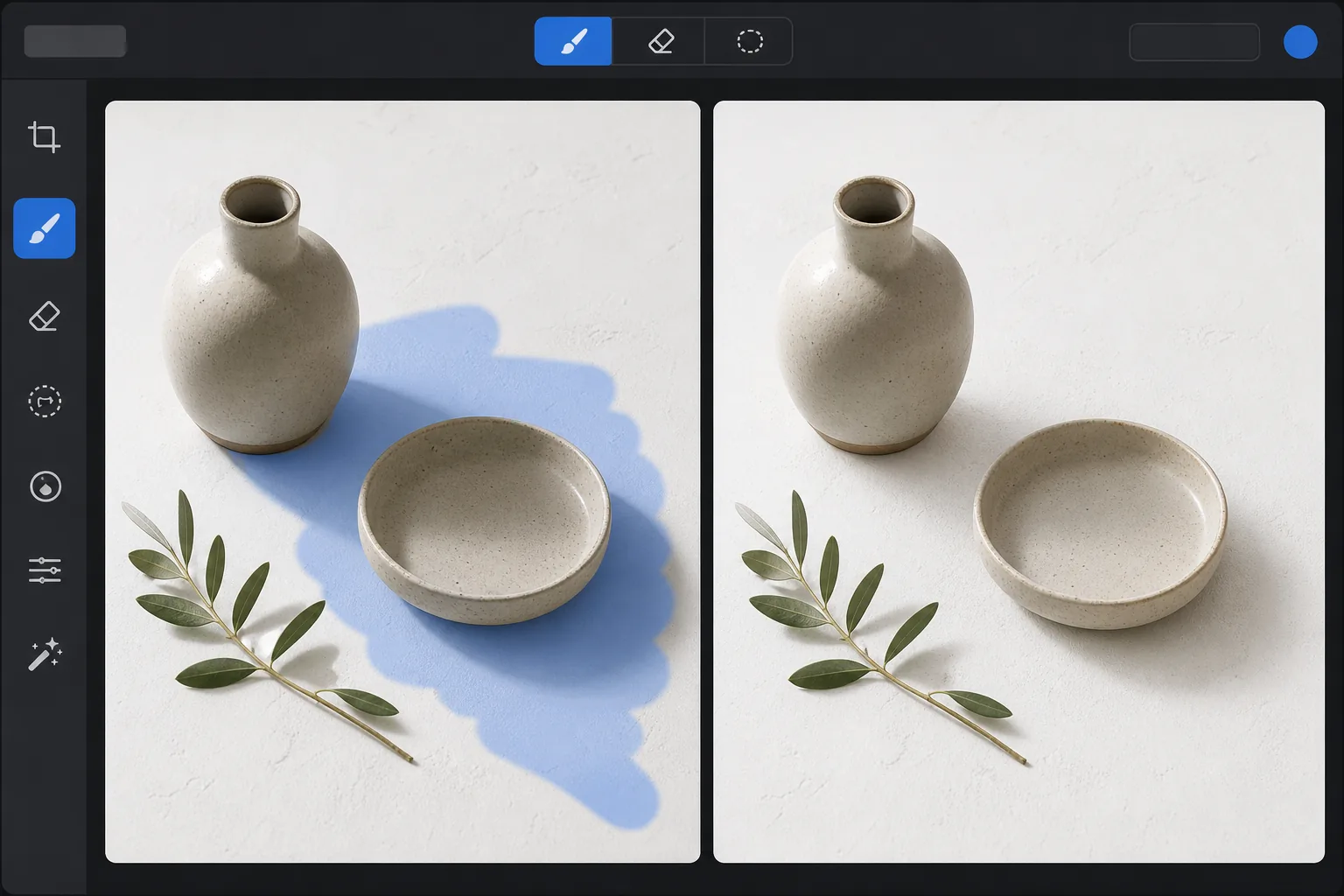
छायाओं को मैन्युअल रूप से हटाना कठिन क्यों है?
किसी फ़ोटो से परछाई हटाने के लिए, वेब, iOS या Android पर Magic Eraser खोलें, इमेज अपलोड करें, अनचाही परछाई पर ब्रश फेरें और Erase पर टैप करें। AI परछाई को हटा देता है और उसके नीचे की सतह — स्किन, दीवार या ज़मीन — को कुछ ही सेकंड में एक समान चमक के साथ फिर से बना देता है। यह मुफ़्त है, बिना किसी साइनअप के। यह तेज़ रोशनी से बने चेहरे की परछाइयों, शॉट पर पड़ी आपकी अपनी परछाई या फ़ोन की परछाई, और प्रोडक्ट या डॉक्यूमेंट फ़ोटो की परछाइयों पर काम करता है। सिर्फ़ उन्हीं परछाइयों पर ब्रश करें जिन्हें आप हटाना चाहते हैं, और गहराई जोड़ने वाली स्वाभाविक परछाइयों को रहने दें। छायाएं केवल अंधेरे क्षेत्र नहीं हैं - वे ऐसे क्षेत्र हैं जहां प्रकाश आंशिक रूप से अवरुद्ध होता है, जो पूर्ण छाया से पेनम्ब्रा के माध्यम से पूरी तरह से रोशनी वाली सतह तक ढाल बनाता है। छायांकित क्षेत्र में अभी भी अंतर्निहित सतह की बनावट, रंग और विवरण शामिल हैं, बस कम चमक के साथ परिवेश के हल्के रंग (आमतौर पर बाहर नीला) की ओर रंग बदलाव होता है। फ़ोटोशॉप में मैन्युअल छाया हटाने के लिए रंग परिवर्तन को सही करते हुए छाया की चमक को सावधानीपूर्वक उठाना, उन किनारों को मिश्रित करना जहां छाया जलती हुई सतह से मिलती है, और सतह की बनावट को संरक्षित करना आवश्यक है - एक प्रक्रिया जिसमें पेशेवर परिणामों के लिए प्रति छाया 5-15 मिनट लगते हैं। Magic Eraser का AI छाया संरचना को समझता है और नीचे की सतह के विवरण को बनाए रखते हुए छाया को हटा देता है, जिससे कुछ ही सेकंड में प्राकृतिक समान रोशनी पैदा होती है।
Before you start
तीन चरणों में छाया हटाएँ
Start with फोटो अपलोड करें. The result preview above and tips below use this guide's existing content; no separate before-and-after proof is assumed.
- 1
फोटो अपलोड करें
वेब, iOS या Android पर Magic Eraser खोलें। अवांछित छाया के साथ फोटो अपलोड करें - कठोर चेहरे की छाया वाला एक चित्र, ध्यान भटकाने वाली छाया के साथ शूट किया गया उत्पाद, या भवन छाया के साथ एक परिदृश्य। JPEG, PNG, HEIC और WebP समर्थित।
- 2
छाया पर ब्रश करें
नरम उपछाया किनारों सहित पूरे छाया क्षेत्र पर पेंट करें, जहां छाया धीरे-धीरे रोशनी वाली सतह पर परिवर्तित होती है। चेहरे की छाया के लिए, आंखों, नाक और ठुड्डी के नीचे के काले क्षेत्रों पर ब्रश करें। उत्पाद छाया के लिए, पृष्ठभूमि सतह पर डाली गई छाया को ब्रश करें। सबसे गहरे से लेकर उस स्थान तक जहां यह रोशनी वाले क्षेत्र के साथ मिश्रित होता है, पूर्ण ग्रेडिएंट शामिल करें।
- 3
मिटाएँ और समीक्षा करें टैप करें
एआई अंतर्निहित सतह की बनावट और विवरण को संरक्षित करते हुए छाया को हटा देता है। पूर्व में छाया हुआ क्षेत्र आसपास की रोशनी वाली सतह की चमक और रंग से मेल खाता है। सुचारू सम्मिश्रण के लिए संक्रमण क्षेत्रों की जाँच करें और यदि आवश्यक हो तो दूसरे पास से परिष्कृत करें। पूर्ण रिज़ॉल्यूशन पर निर्यात करें.
के लिए सर्वोत्तम
- पोर्ट्रेट फ़ोटोग्राफ़ी जहां कठोर ओवरहेड प्रकाश आंखों, नाक और ठुड्डी के नीचे अप्रिय छाया बनाता है
- उत्पाद फोटोग्राफी जहां सफेद पृष्ठभूमि पर डाली गई छायाएं अव्यवसायिक या असमान दिखती हैं
- रियल एस्टेट फोटोग्राफी जहां इमारत की छाया संपत्ति के सामने या यार्ड पर पड़ती है
- आउटडोर फोटोग्राफी जहां पेड़ की छाया या इमारत की छाया मुख्य विषय को पार करती है
- आईडी और पासपोर्ट फ़ोटो के लिए छाया पैटर्न के बिना चेहरे की रोशनी की भी आवश्यकता होती है
सर्वोत्तम परिणामों के लिए युक्तियाँ
सर्वोत्तम परिणामों के लिए, उसके नरम किनारों सहित पूरी छाया को ब्रश करें - सबसे गहरे केंद्र पर रुकना और उपछाया गायब होने से चमक में दृश्यमान उछाल आता है। चेहरे की परछाइयाँ विशेष रूप से अच्छी प्रतिक्रिया देती हैं क्योंकि एआई का चेहरे के रोशनी वाले हिस्से से स्पष्ट संदर्भ मिलता है। सफेद पृष्ठभूमि पर उत्पाद छाया सबसे आसान मामला है - एआई जानता है कि लक्ष्य एक साफ सफेद सतह है। उन छायाओं के लिए जो छवि के एक बड़े हिस्से (आधे परिदृश्य में एक इमारत की छाया) को कवर करती हैं, एआई को एक छोटे संदर्भ क्षेत्र से रोशनी की उपस्थिति का अनुमान लगाने की आवश्यकता हो सकती है, जो सतह के सुसंगत होने पर अच्छी तरह से काम करता है (घास, फुटपाथ, रेत) लेकिन जटिल या विविध सतहों पर कम सटीक हो सकता है।
अक्सर पूछे जाने वाले प्रश्नों
- क्या यह चेहरों से परछाइयाँ हटा सकता है?
- हाँ। ओवरहेड लाइटिंग, साइड लाइटिंग या फ्लैश से चेहरे की छाया सबसे आम उपयोग के मामलों में से एक है। एआई त्वचा की बनावट, टोन और चेहरे की विशेषताओं को संरक्षित करते हुए छाया को हटा देता है।
- क्या यह सभी छायाएँ हटा देता है या केवल चयनित छायाएँ हटा देता है?
- केवल वे छायाएँ जिन्हें आप ब्रश करते हैं। कुछ छायाएँ प्राकृतिक और वांछनीय होती हैं - वे गहराई और आयाम जोड़ती हैं। केवल उन छायाओं को ब्रश करें जो अवांछित या ध्यान भटकाने वाली हों, और एआई उन्हें विशेष रूप से हटा देता है।
- क्या यह दोपहर की कड़ी धूप को ठीक कर सकता है?
- हाँ। सिर के ऊपर कठोर धूप सुविधाओं के नीचे मजबूत छाया बनाती है। बादल छाए रहने की स्थिति या सुनहरे घंटे की समान रोशनी का अनुमान लगाने के लिए एआई इन छायाओं को उठाता है।
- क्या छाया हटाना निःशुल्क है?
- हाँ। Magic Eraser के निःशुल्क स्तर में दैनिक उपयोग सीमा के साथ छाया हटाने के लिए ब्रश टूल शामिल है। प्रीमियम सीमाएं हटाता है और उच्च-रिज़ॉल्यूशन निर्यात को सक्षम बनाता है।
- Android या iPhone पर फ़ोटो से परछाई कैसे हटाएँ?
- किसी भी मोबाइल ब्राउज़र या iOS या Android ऐप में Magic Eraser खोलें, अपने कैमरा रोल से फ़ोटो लोड करें, और परछाई पर पिंच करके ज़ूम इन करें। अपनी उँगली से उस पर ब्रश फेरें, जिसमें वह हल्का धुँधला किनारा भी शामिल करें जहाँ परछाई फीकी पड़ती है, और Erase पर टैप करें। ज़ूम इन करने से आप उन हिस्सों की चमक बढ़ाए बिना परछाई के किनारे को आसानी से फॉलो कर पाते हैं जिन्हें आप रखना चाहते हैं। नतीजा डेस्कटॉप वर्शन जैसा ही आता है और सीधे आपकी फ़ोटो में सेव हो जाता है।
- क्या यह मेरी अपनी परछाई या फ़ोटो पर पड़ी फ़ोन की परछाई हटा सकता है?
- हाँ — खुद की पड़ी परछाई या किसी डॉक्यूमेंट, प्रोडक्ट या सपाट सतह पर पड़ी आपके फ़ोन की परछाई हटाना एक आम सुधार है। पूरी परछाई की शेप पर ब्रश फेरें, उसके फीके किनारे समेत, और AI सतह को एक समान चमक के साथ फिर से बना देता है। किसी डिटेल वाली टेक्सचर पर पड़ी परछाई के लिए, हिस्सों में ब्रश करें और जोड़ की जाँच करें; सादी सतह पर यह लगभग अदृश्य रूप से हट जाती है।