
Stock Photo Preparation
Get your photos accepted by stock agencies on the first submission. This template removes trademarks, logos, and branded elements that trigger rejection, cleans up technical imperfections that fail quality review, and exports files in the exact specifications required by Shutterstock, Adobe Stock, Getty, and iStock — eliminating the most common reasons photos are rejected from stock libraries.
Try this template freeDesign template preview
What this template does
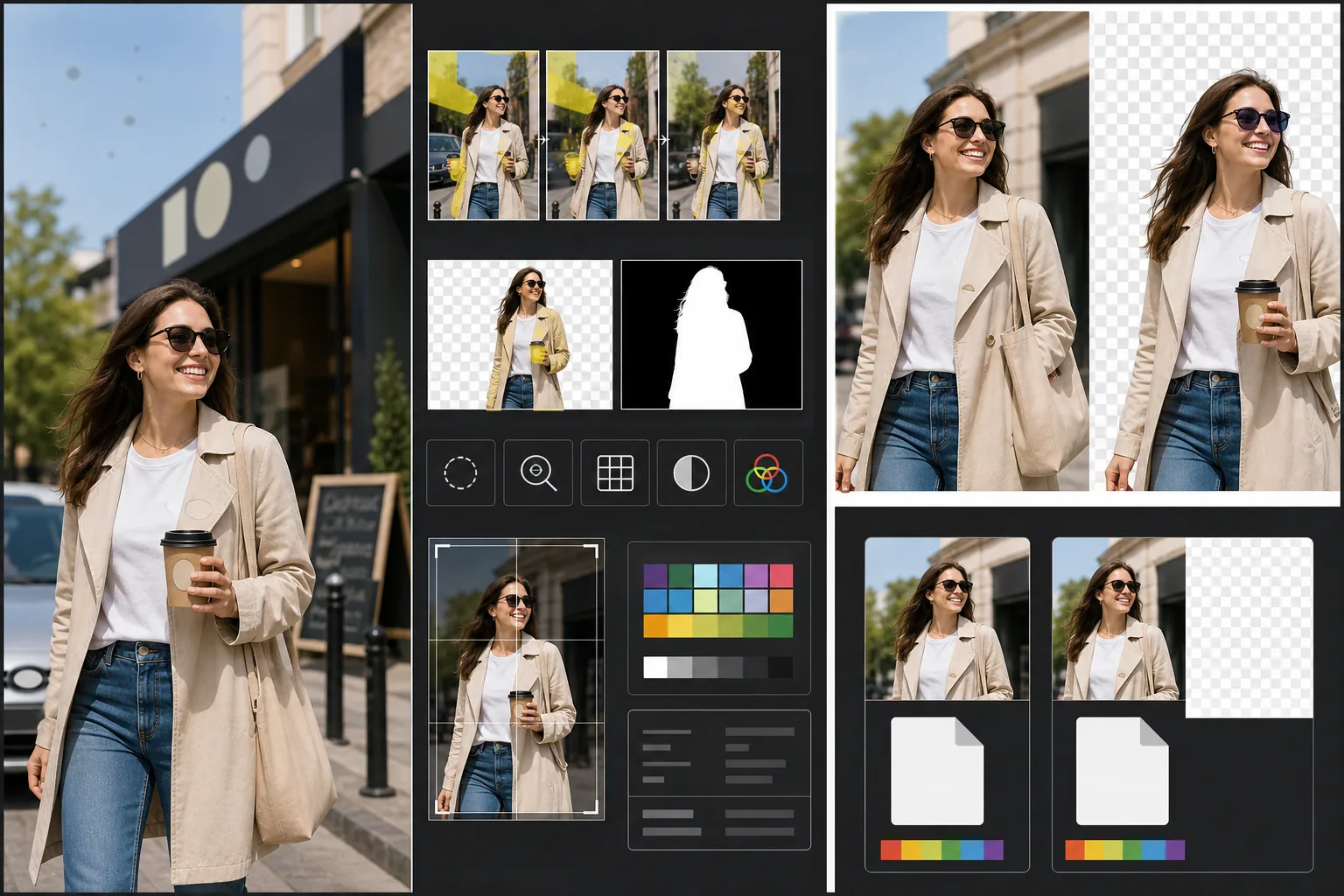
Addresses the specific technical and legal requirements that cause stock photo rejections. Magic Eraser detects and removes visible trademarks, brand logos, product labels, and branded signage that would require property releases or cause outright rejection. This includes clothing logos, car emblems, store signage, and brand names on packaging. Background Eraser provides clean isolation for images intended for cutout use, generating both the RGB image and a separate alpha mask that stock agencies require. Technical quality checks verify noise levels, sharpness, chromatic aberration, and sensor dust spots — all common rejection triggers — and the AI corrects what it can while flagging issues that need reshooting. The final export matches agency specifications for file format, color profile, resolution, and metadata embedding.
Template settings
| Trademark detection | Auto-detect and remove visible logos, brand names, and product labels |
| Technical quality check | Verify noise, sharpness, chromatic aberration, and sensor dust |
| Isolation mask | Generate alpha channel for cutout images (PNG with transparency) |
| Color profile | sRGB (required by most stock agencies) |
| Metadata | Embed IPTC fields for title, description, and keywords |
| Output format | JPEG at maximum quality (level 12) or TIFF (lossless, Getty preferred) |
How to use this template
Upload your photo
Upload the photo you want to submit to stock agencies. The template accepts RAW, JPEG, TIFF, and PNG files. Upload the highest quality version available — stock agencies evaluate technical quality at full resolution and reject images that show compression artifacts from repeated saving.
Remove trademarks and brands
Magic Eraser scans the image for visible trademarks, logos, brand names, and product labels. Detected items are highlighted for review. Approved removals are executed with the AI reconstructing the surface behind each trademark — fabric weave under a clothing logo, car bodywork under an emblem, wall surface under store signage.
Run technical quality check
The template analyzes the image for technical issues that commonly cause stock agency rejections: noise in shadow areas, insufficient sharpness, chromatic aberration on high-contrast edges, sensor dust spots, and white balance errors. Correctable issues are fixed automatically. Uncorrectable issues (like severe motion blur) are flagged so you know before submitting.
Export with agency metadata
Select your target agency and the template exports in that agency's preferred format and specifications. IPTC metadata fields for title, description, and keywords can be embedded before export. The file is ready to upload directly to Shutterstock, Adobe Stock, Getty/iStock, or Alamy contributor portals.
Pro tips for best results
- ✓Shoot with trademarks in mind from the start. While the AI removes logos effectively, scenes with fewer branded elements require less inpainting and look more natural. Turn clothing labels inward, choose unbranded props, and position the camera to exclude store signage when possible.
- ✓Submit at the highest resolution your camera produces. Stock agencies rank search results partially by resolution — a 50-megapixel image appears above a 12-megapixel image for the same search query because buyers prefer larger files for flexible cropping and large-format use.
- ✓Include people in your stock photos when possible. Images with recognizable human subjects (with model releases) consistently earn more revenue than similar scenes without people. The template's skin retouching is calibrated to be minimal, which stock agencies prefer over heavily edited skin.
Common questions
Will removing a car emblem look natural?
+
Yes. The AI reconstructs the car bodywork behind the emblem — matching paint color, reflection, and surface curvature. For common emblem locations (front grille, trunk, wheel centers), the reconstruction is very clean. Unusual placements or very large emblems may require a quick manual touch-up at the edges.
Can this generate keywords for my submission?
+
The template embeds IPTC metadata fields where you can enter title, description, and keywords. It does not auto-generate keywords — stock keyword optimization is a specialized skill that depends on your understanding of how buyers search, and auto-generated keywords often miss the commercial concepts that drive sales.
Which agencies does this support?
+
The export presets cover Shutterstock, Adobe Stock, Getty Images, iStock, Alamy, Dreamstime, and 500px. Each preset configures the correct file format, color profile, maximum file size, and metadata embedding for that specific agency's submission requirements.
Get your photos accepted on the first submission
Upload photos and get stock-agency-ready files with trademarks removed, quality verified, and format requirements met.
Try it freeRelated templates
More design templates for your workflow.
Create transparent PNG logos with clean edge refinement and multi-size export for web, print, social media, and app icons. Works on photos of printed logos and digital files.
Generate realistic book cover mockups with 3D perspective, shadow rendering, and lifestyle backgrounds for author marketing and publisher promotions.
Design podcast cover art that meets Apple Podcasts and Spotify specifications with background replacement, host portrait isolation, and typography-ready layouts.
Prepare digital art and photographs for large-format printing with AI upscaling, canvas expansion, color-accurate proofing, and print-ready file export.