
Art Print Preparation
Prepare digital artwork, photographs, and illustrations for large-format gallery prints, canvas wraps, and poster production. This template uses AI Enhance to upscale images to print-ready resolutions without quality loss and AI Expand to extend canvas edges for gallery wrap margins — all while maintaining color accuracy for professional printing.
Try this template freeDesign template preview
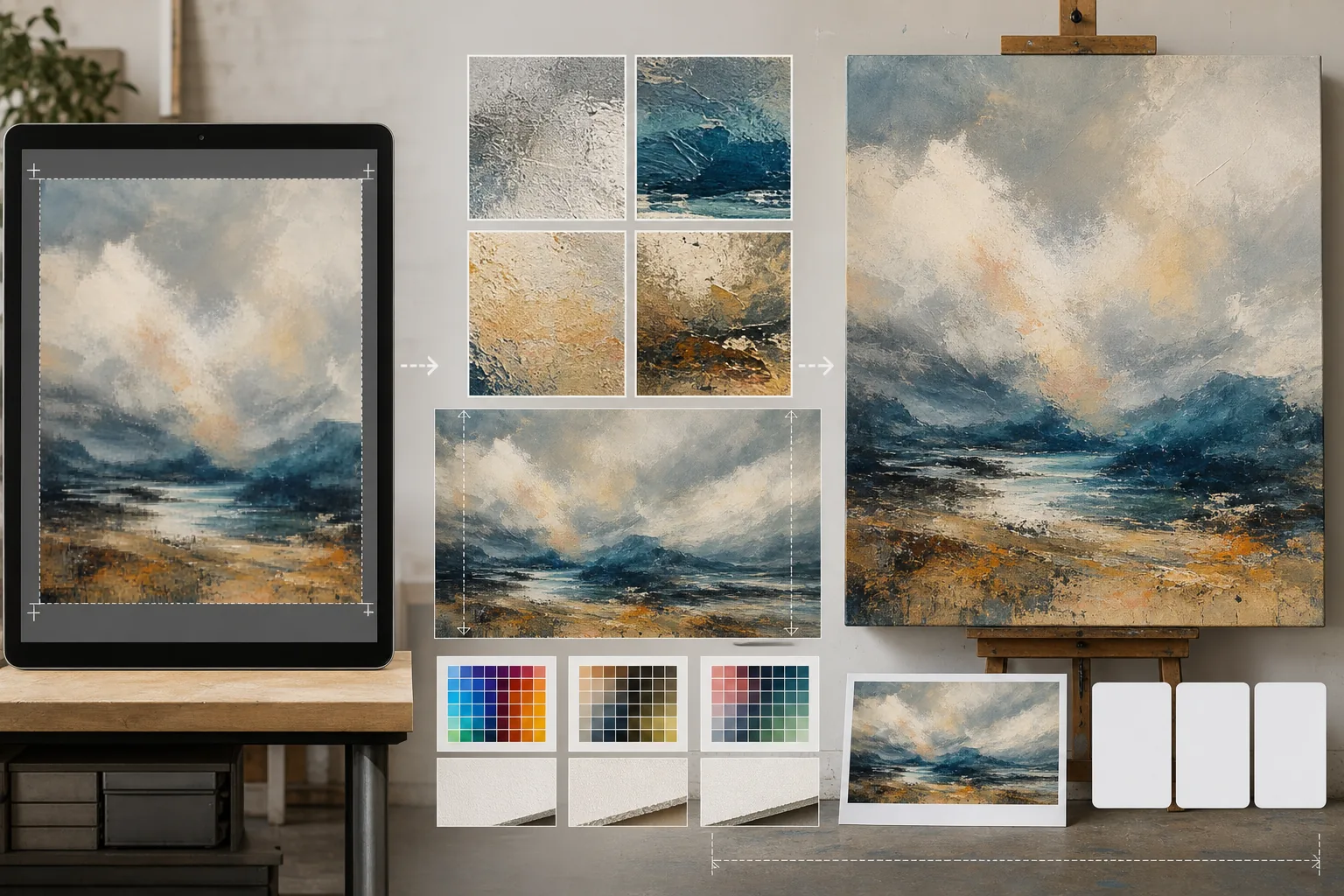
What this template does
Bridges the gap between screen-resolution digital files and the demanding resolution requirements of physical print production. AI Enhance upscales images by 2x to 4x while preserving fine details — brushstrokes in paintings, grain structure in photographs, line work in illustrations — without introducing the blurriness or artifacts typical of simple interpolation. AI Expand extends the canvas edges by generating seamless continuations of the artwork, providing the extra margin needed for gallery canvas wraps where the image folds around the stretcher frame. Color profiles are converted to CMYK or Adobe RGB with soft proofing that shows how the final print will appear on paper, canvas, or metal substrates.
Template settings
| Upscale factor | 2x, 3x, or 4x (up to 16000px long edge for large-format prints) |
| Canvas expansion | 1.5-inch, 2-inch, or custom margin for gallery wrap bleed |
| Detail preservation | Adaptive: brushstroke for paintings, grain for photos, line for illustrations |
| Color profile | sRGB (screen), Adobe RGB (photo print), or CMYK (commercial press) |
| Output format | TIFF (lossless print), PNG (transparency), or JPEG (web preview) |
How to use this template
Upload your artwork
Upload the digital file — painting, photograph, illustration, or mixed media. The template accepts JPEG, PNG, TIFF, and PSD files. For the best upscaling results, start with the highest resolution version you have, even if it is below the print requirement.
Upscale to print resolution
Select the upscale factor based on your target print size. For a 24×36 inch print at 300 DPI, you need 7200×10800 pixels. The AI upscales while preserving the character of the original — brushstrokes remain brushstrokes, film grain remains grain, pixel art retains its blocky charm.
Expand canvas for gallery wrap
If printing on canvas with gallery wrap, AI Expand generates seamless extensions of the artwork around all four edges. The expanded margin matches the original style, color palette, and texture so the wrapped edges look intentional rather than stretched or mirrored.
Proof and export
Review the soft proof that shows how the image will render in your target color profile — CMYK for offset or giclee printing, Adobe RGB for fine art inkjet. Export as a TIFF for the print shop or PNG for further editing. The file includes embedded ICC profile data for accurate color reproduction.
Pro tips for best results
- ✓Always start with the original file at its native resolution. Upscaling a file that has already been compressed and downsampled for web display introduces artifacts that compound with each generation of processing.
- ✓For gallery wrap canvas prints, request a 2-inch expansion margin even if the stretcher frame is 1.5 inches deep. The extra half-inch provides tolerance for the canvas tensioning process where slight shifting during stretching can expose the edge of the image.
- ✓Request a physical proof print at a smaller size before committing to large-format production. Screen displays and paper prints render color differently, and a 5×7 proof costs a fraction of a 30×40 canvas but reveals any color shifts that need correction.
Tools
Common questions
How large can I print from a phone photo?
+
A typical 12-megapixel phone photo (4000×3000px) prints well at 13×10 inches at 300 DPI. With 2x AI upscaling, that doubles to 26×20 inches. With 4x upscaling, a phone photo can produce a clean 40×30 inch print — suitable for gallery display.
Will upscaling change the look of my artwork?
+
The AI adapts its upscaling approach to the content type. Paintings retain visible brushstrokes and texture. Photographs maintain their grain structure and sharpness character. Illustrations preserve line weight consistency. The goal is a larger version that looks like the original, not a reinterpretation.
Can I expand only one side of the canvas?
+
Yes. You can specify which edges to expand and by how much. This is useful when you want to shift the composition within a print — for example, adding sky above a landscape to create breathing room for a title or adding foreground to balance a horizon-heavy composition.
Print your art at any size without quality loss
Upload digital artwork and get print-ready files with AI upscaling, canvas expansion, and color-accurate proofing.
Try it freeRelated templates
More design templates for your workflow.
Create transparent PNG logos with clean edge refinement and multi-size export for web, print, social media, and app icons. Works on photos of printed logos and digital files.
Generate realistic book cover mockups with 3D perspective, shadow rendering, and lifestyle backgrounds for author marketing and publisher promotions.
Design podcast cover art that meets Apple Podcasts and Spotify specifications with background replacement, host portrait isolation, and typography-ready layouts.
Prepare photos for stock agency submission with trademark removal, model release compliance editing, technical quality checks, and agency-specific format requirements.