
Remove tattoo from photo
Erase visible tattoos from headshots, modeling photos, casting images, and professional portraits. Magic Eraser removes the tattoo ink and reconstructs natural skin tone and texture underneath — producing a clean result without visible editing artifacts.
Last updated
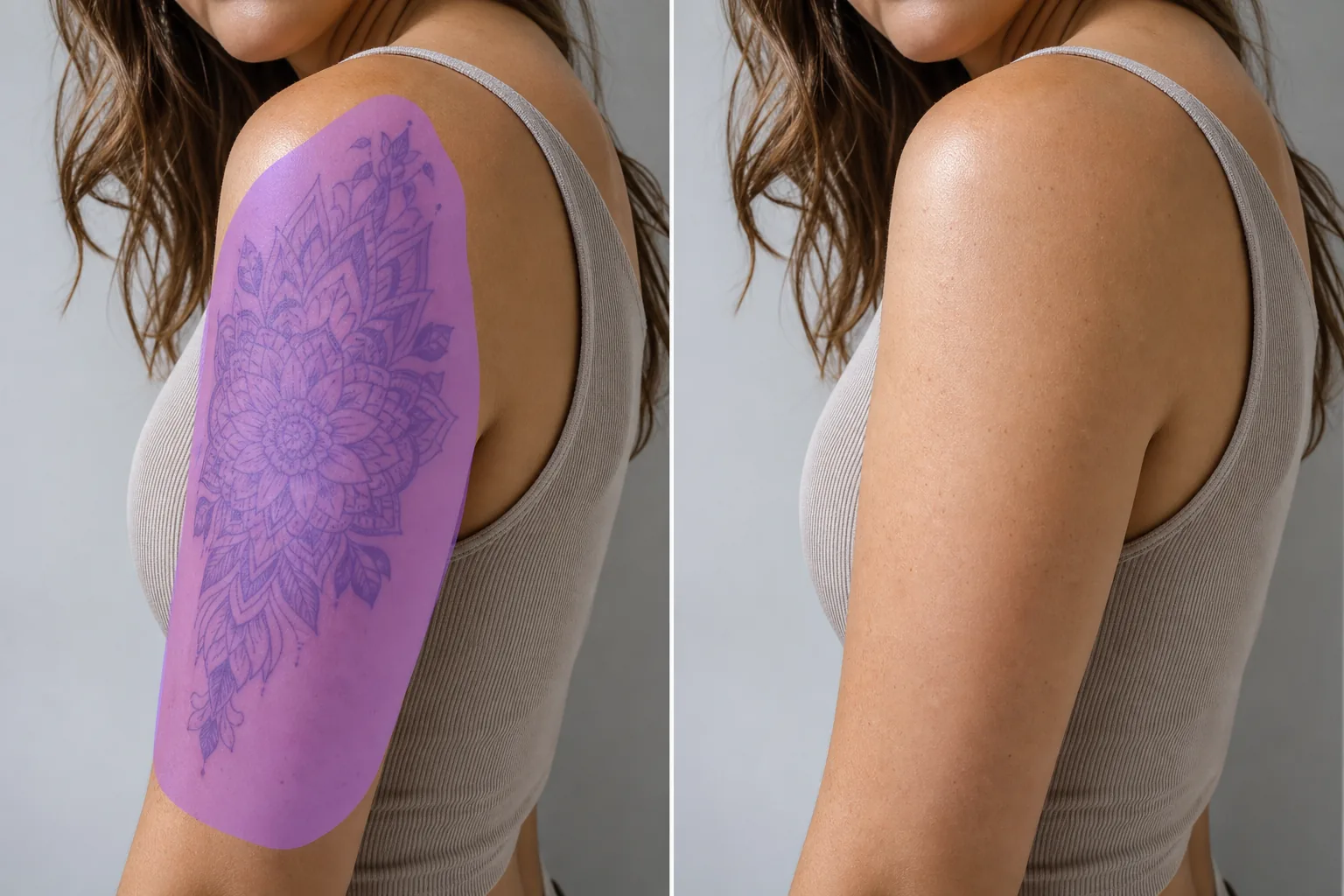
How to remove a tattoo from a photo
To remove a tattoo from a photo, open Magic Eraser on the web, iOS, or Android, upload the portrait, brush over the inked area, and let the AI replace it with skin that matches the surrounding tone and texture. It includes limited free edits after sign-in. This edits the photo only — it changes how the skin looks in the image and does nothing to your actual tattoo, and it isn't a preview of laser or surgical removal. It works best on flatter areas like an arm or shoulder with even skin around them; a large tattoo or one over a curved, detailed area is reconstructed as a plausible match rather than recovered exactly. Edit photos of yourself or images you have the right to alter, and brush in sections for the cleanest result. Actors need clean-skin headshots for roles where tattoos don't fit the character. Models submit both tattooed and clean versions of portfolio shots to different agencies. Corporate headshots for conservative industries may require visible tattoos to be removed. Wedding photographers sometimes get requests to clean up a bridesmaid's arm tattoo for formal portraits. In all these cases, the tattoo needs to disappear convincingly — not just blurred or smudged, but replaced with natural-looking skin that matches the surrounding area. Magic Eraser analyzes the tattoo's location, the surrounding skin tone and texture, and the lighting conditions, then reconstructs clean skin over the tattooed area. The result preserves skin texture, pore detail, and natural color variation rather than producing a flat, airbrushed look.
Remove a tattoo in three steps
- 1
Upload your photo
Open Magic Eraser on the web, iOS, or Android and upload the portrait, headshot, or full-body photo containing the tattoo you want to remove.
- 2
Brush over the tattoo
Paint over the entire tattoo, including any faded edges or color bleed. Include a small margin of clean skin around the tattoo so the AI has reference material for tone and texture matching. For large tattoos, covering the full area in one selection produces more consistent results than working in sections.
- 3
Erase and verify
Tap Erase and the AI replaces the tattoo with natural skin that matches the surrounding area in tone, texture, and lighting. Zoom in to check that the reconstructed skin looks natural under the photo's lighting conditions. Export for portfolios, headshots, or submissions.
Best for
- Actor headshots where the role requires a clean-skin appearance
- Modeling portfolios that need both tattooed and clean versions
- Corporate headshots for industries with conservative dress codes
- Wedding and event photos where tattoos are a distraction
- Casting submissions that specify no visible tattoos
- Social media profile photos for professional networking
- School and team photos where dress code applies
- Product modeling where the brand wants clean skin in the frame
Tips for natural-looking tattoo removal
Tattoo removal works best when the surrounding skin is visible and well-lit. The AI uses nearby skin as reference for tone, texture, and color — the more clean skin visible around the tattoo, the more natural the reconstruction. Dark, heavily saturated tattoos (black, dark blue) are typically easier to remove than light-colored or white-ink tattoos because the contrast between ink and skin is clearer. For sleeve tattoos covering a large area, process in sections and check that skin tone stays consistent across sections. If the tattoo wraps around a joint (elbow, wrist, ankle), the AI accounts for the change in skin texture and lighting across the curved surface. Photos with direct lighting on the tattooed area produce the cleanest results because the AI has the most information about skin texture. Backlit or shadowed tattoos may need a second pass for complete removal.
Frequently asked questions
- Can it remove a full sleeve tattoo?
- Yes. Brush over the entire sleeve area and the AI reconstructs natural skin. For very large tattoos, processing in overlapping sections may produce more consistent results. Verify that skin tone matches across sections.
- Does the result look natural or airbrushed?
- Magic Eraser preserves skin texture, pore detail, and natural color variation. The reconstructed area matches the surrounding skin rather than producing a flat, blurred patch. Results look natural under normal viewing conditions.
- Can I remove tattoos from group photos?
- Yes. Brush over the tattoo on the specific person and the AI removes it without affecting other people in the frame. The removal is localized to the area you paint over.
- Is this free?
- Yes. Magic Eraser's free tier covers tattoo removal. Paid plans offer higher resolution exports and unlimited processing for professional portfolio and headshot work.