
How to remove a sticker from a photo
Stickers, emoji overlays, text captions, and decorative stamps added by messaging apps or photo editors cover the original image content. Magic Eraser's AI removes these additions and reconstructs the photo underneath.
Last updated
Remove sticker now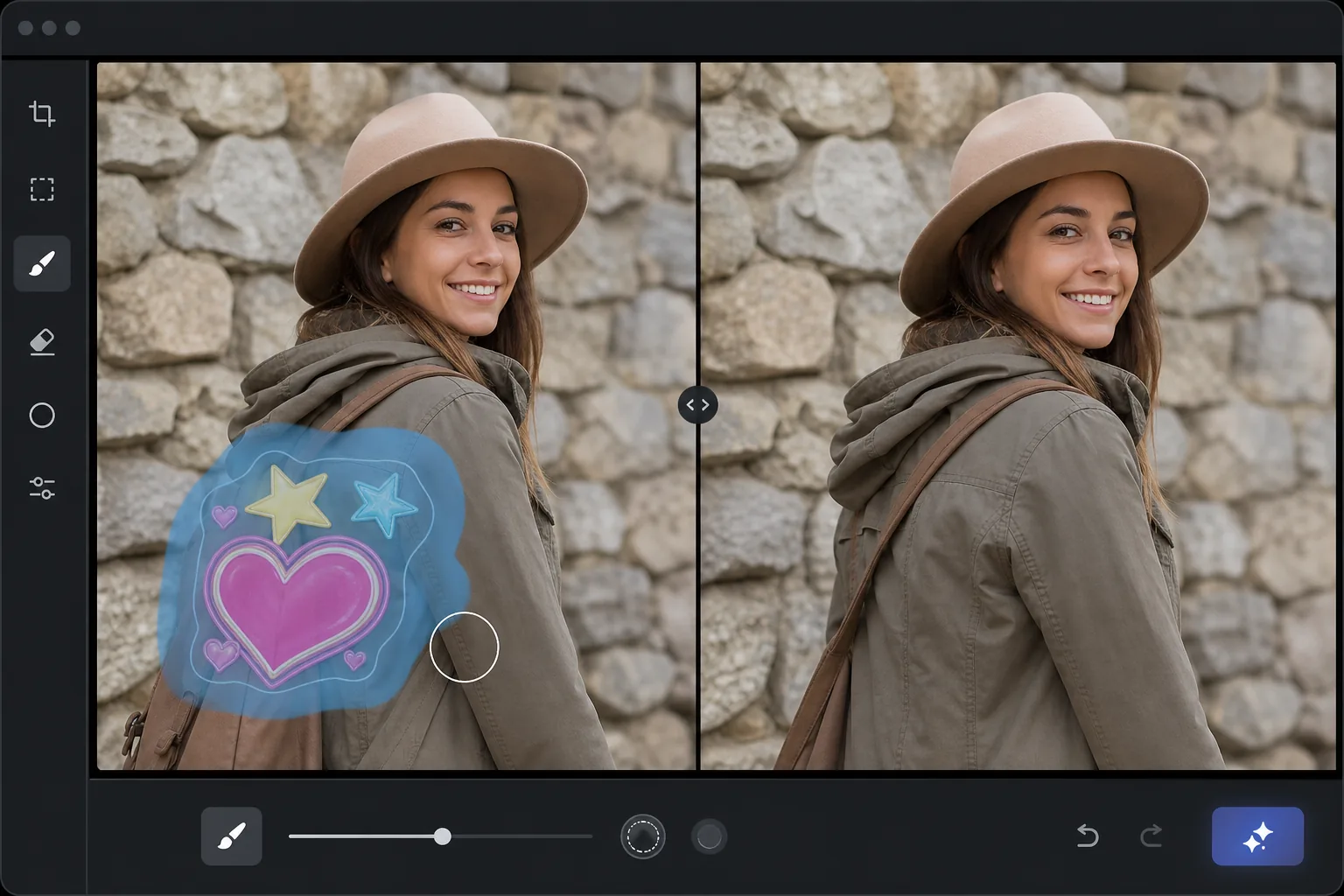
How to remove a sticker from a photo
To remove a sticker from a photo, open Magic Eraser on the web, iOS, or Android, upload the image, brush over the whole sticker — including any glow or semi-transparent edge — and tap Erase. The AI reconstructs whatever the sticker covered from the surrounding image, so the photo looks like the overlay was never there. It includes limited free edits after sign-in. It works for emoji, text captions, and decorative stamps; small stickers over simple backgrounds recover best, while a sticker covering most of a face leaves the AI less to work from. If the original un-stickered photo still exists in your camera roll or the message thread, that's always better than reconstruction. Social media and messaging apps encourage adding stickers, emojis, text, and decorative overlays to photos before sharing. But the original un-decorated photo is often the one you actually want to keep: for printing, for a family album, for professional use, or simply because the sticker now covers something important in the image. Unlike metadata that can be stripped, these visual overlays are rendered directly onto the image pixels — the sticker replaces the original image content in the area it covers. Removing the sticker requires reconstructing whatever was behind it, using the surrounding visible image as reference. This is the same AI reconstruction process used for any object removal, and Magic Eraser handles it the same way: brush over the sticker, and the AI generates the hidden content based on what surrounds the covered area.
Before you start
Remove a sticker in three steps
Start with upload the photo. The result preview above and tips below use this guide's existing content; no separate before-and-after proof is assumed.
- 1
Upload the photo
Open Magic Eraser on web, iOS, or Android. Upload the photo with the sticker, emoji, text overlay, or decorative element you want to remove. JPEG, PNG, and WebP supported. If the photo was saved from a messaging app, it may be compressed — the AI works on any quality level.
- 2
Brush over the sticker
Paint over the entire sticker, covering the full graphic including any shadow or glow effect around it. For text overlays, brush the full text including any background bar or semi-transparent overlay behind the text. For multiple stickers, brush each one separately.
- 3
Tap Erase and review
The AI removes the sticker and reconstructs the image content that was behind it. For stickers over simple backgrounds (sky, walls), the reconstruction is seamless. For stickers over faces or complex content, the AI generates a plausible reconstruction based on the visible surrounding areas. Verify the result and export at full resolution.
Best for
- Recovering original photos that were decorated with stickers before saving to camera roll
- Removing emoji overlays that cover faces or important parts of the image
- Cleaning up text overlays from meme-format photos to recover the original image
- Removing Snapchat, Instagram, or WhatsApp stickers from saved photos
- Cleaning up photos received from others that have unwanted decorative elements
Tips for best results
Smaller stickers over simple backgrounds produce the best results because the AI has more visible reference around a small covered area. Large stickers that cover significant portions of a face or complex scene are harder — the AI must generate more content with less reference. For stickers with semi-transparent edges or glow effects, brush slightly beyond the visible sticker boundary to catch the transparent overlap. If the original unstickered photo exists anywhere (in your camera roll, in the message thread before editing), use that instead — AI reconstruction is good but the original is always better. For multiple small stickers scattered across the image, remove each one individually rather than mass-brushing the entire area.
Frequently asked questions
- Can it restore a face hidden behind an emoji?
- Partially. If the emoji covers part of a face, the AI reconstructs the hidden portion using the visible parts as reference — matching skin tone, facial structure, and features. If the emoji covers the entire face, the AI generates a plausible face but it won't match the actual person.
- Does it work on Snapchat filters?
- For sticker-type overlays (text, graphics, decorations), yes. For AR filters that modify the face itself (dog ears, face distortion, makeup effects), the AI can reduce the effect but the original face data has been altered, not just covered.
- Can I remove a watermark this way?
- Technically yes — the brush tool removes any visual overlay. However, watermarks indicate copyright. Only remove watermarks from your own photos or photos you have rights to.
- Is sticker removal free?
- Yes. Magic Eraser's free tier includes the brush tool for sticker removal with daily usage limits. Premium removes limits for batch processing.
- How do I remove a sticker from a photo on Android or iPhone?
- Open Magic Eraser in any mobile browser or the iOS or Android app, load the photo from your camera roll, and pinch to zoom so you can trace the sticker precisely. Brush over the whole overlay — including any glow or soft edge — with your finger and tap Erase. The AI rebuilds what was underneath right on your phone and saves the clean image back to your camera roll. It works the same as the desktop version, with no app install required if you use the browser, which is handy since most stickers are added on a phone in the first place.