
Remove a Logo Sticker From a Photo
Have a brand logo, label, or barcode sticker stuck to an item you're photographing? Magic Eraser brushes it away and rebuilds the surface beneath, so your product shots look clean and on-brand.
Last updated
Erase the logo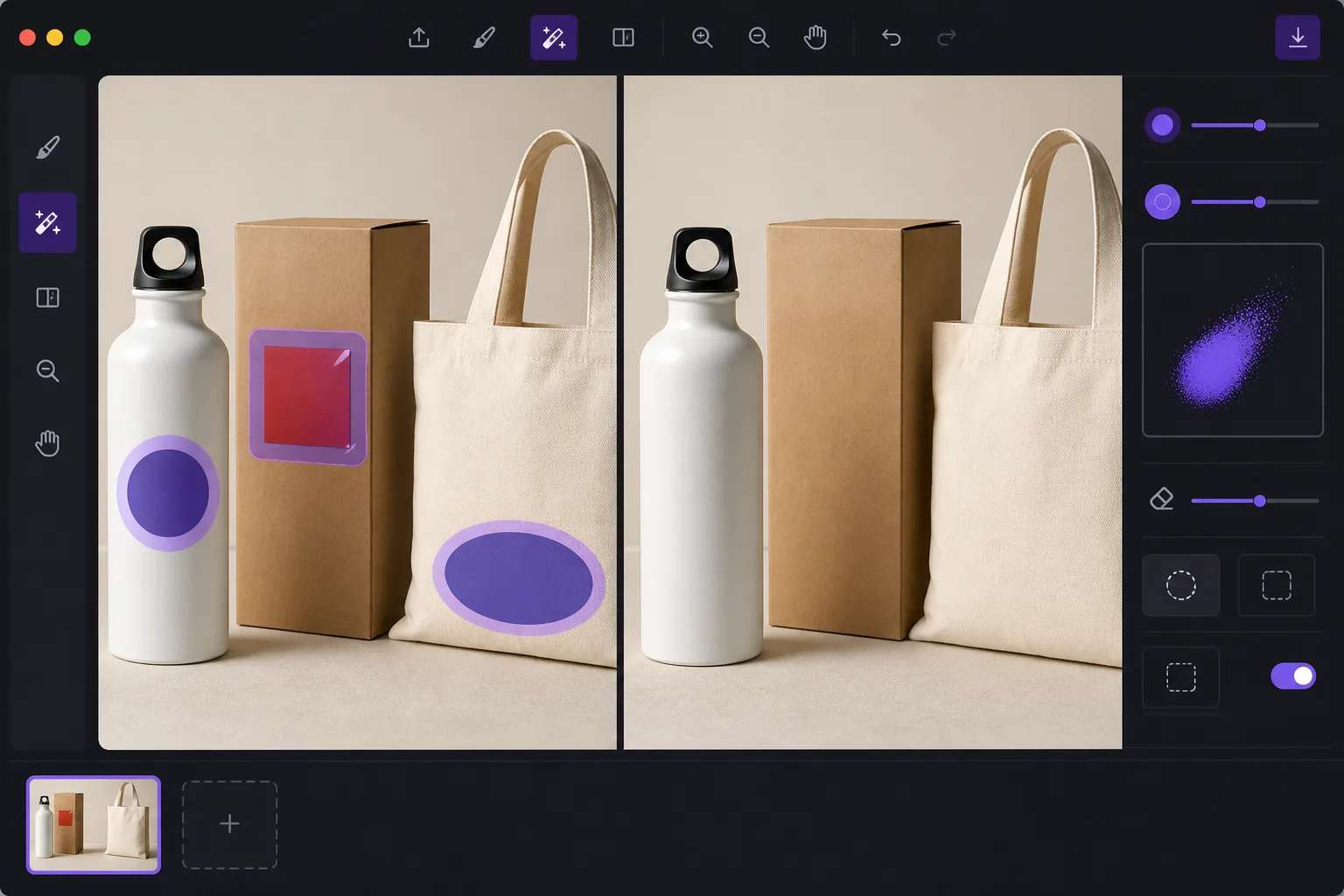
De-brand items for clean catalog photography
When you shoot products for a catalog, marketplace listing, or mockup, a stray brand logo sticker can pull focus, clash with your own branding, or raise licensing concerns. Peeling the sticker off in real life leaves residue, glare, or a torn label — and reshooting costs time. Magic Eraser lets you remove the logo sticker directly in the photo instead. Brush over the offending label and the AI inpainting engine reconstructs the material behind it: the box panel, the bottle curve, the fabric weave, or the matte surface the sticker was covering. It's worth being clear about how this works. Magic Eraser does not recover the literal pixels hidden under the sticker — that information isn't in the photo. It synthesizes a plausible reconstruction based on the surrounding texture, color, and lighting. For flat, evenly lit, single-color surfaces the result is usually seamless. Over busy patterns, text, or sharp edges you may need a second pass or a careful crop. Magic Eraser runs in your browser and on iOS and Android, has a free tier, and adds no watermark, so you can clean up a whole product set without extra cost.
Before you start
How to remove a logo sticker in 3 steps
Start with upload your product photo. The result preview above and tips below use this guide's existing content; no separate before-and-after proof is assumed.
- 1
Upload your product photo
Open Magic Eraser on web, iOS, or Android and add the shot containing the logo sticker or label you want gone.
- 2
Brush over the sticker
Paint across the entire logo, including its edges and any shadow or glare it casts. Covering a little of the surrounding surface helps the AI blend the reconstruction.
- 3
Erase, review, and export
Tap erase and the AI rebuilds the surface beneath. Inspect edges and patterns closely; refine with another pass if needed, then download the clean, watermark-free image.
Best for
- De-branding items so a stray logo doesn't compete with your own brand in catalog shots
- Cleaning price tags, barcodes, and store labels off retail products before listing
- Removing manufacturer logo stickers from props and backgrounds in lifestyle photography
- Prepping neutral product mockups where any visible third-party brand is a distraction
- Tidying review and resale photos so the focus stays on the item, not its packaging label
Tips for a seamless result
The flatter and more uniform the surface under the sticker, the cleaner the reconstruction. Logos on solid-color boxes, matte plastic, or plain fabric usually vanish in one pass. If the sticker sits over printed text, a logo print, or a sharp product edge, the AI is guessing at complex detail — brush in smaller sections, run a second pass on any smudged spots, and zoom in to check the blend. When a reconstruction looks slightly off, reframing or a tight crop can hide the seam entirely. Always confirm the de-branded image still represents the actual product honestly before you publish it to a store or catalog.
Frequently asked questions
- Can Magic Eraser remove a brand logo sticker without leaving a mark?
- Often, yes. The AI reconstructs the surface where the sticker was based on nearby texture and lighting. On flat, single-color surfaces it's usually seamless. Over patterns, text, or curved edges it may take a second pass or a crop to look perfect.
- Does the tool show what was really under the sticker?
- No. The original photo never captured the pixels hidden behind the label, so Magic Eraser cannot reveal them. It generates a plausible, AI-synthesized reconstruction of the surface — convincing for clean shots, but not a literal recovery of what was underneath.
- Is Magic Eraser free to start?
- Yes. Magic Eraser has a free tier on web, iOS, and Android, and exports your edited photo without a watermark, so you can de-brand a full set of product images at no cost.