
Remove halos from photos
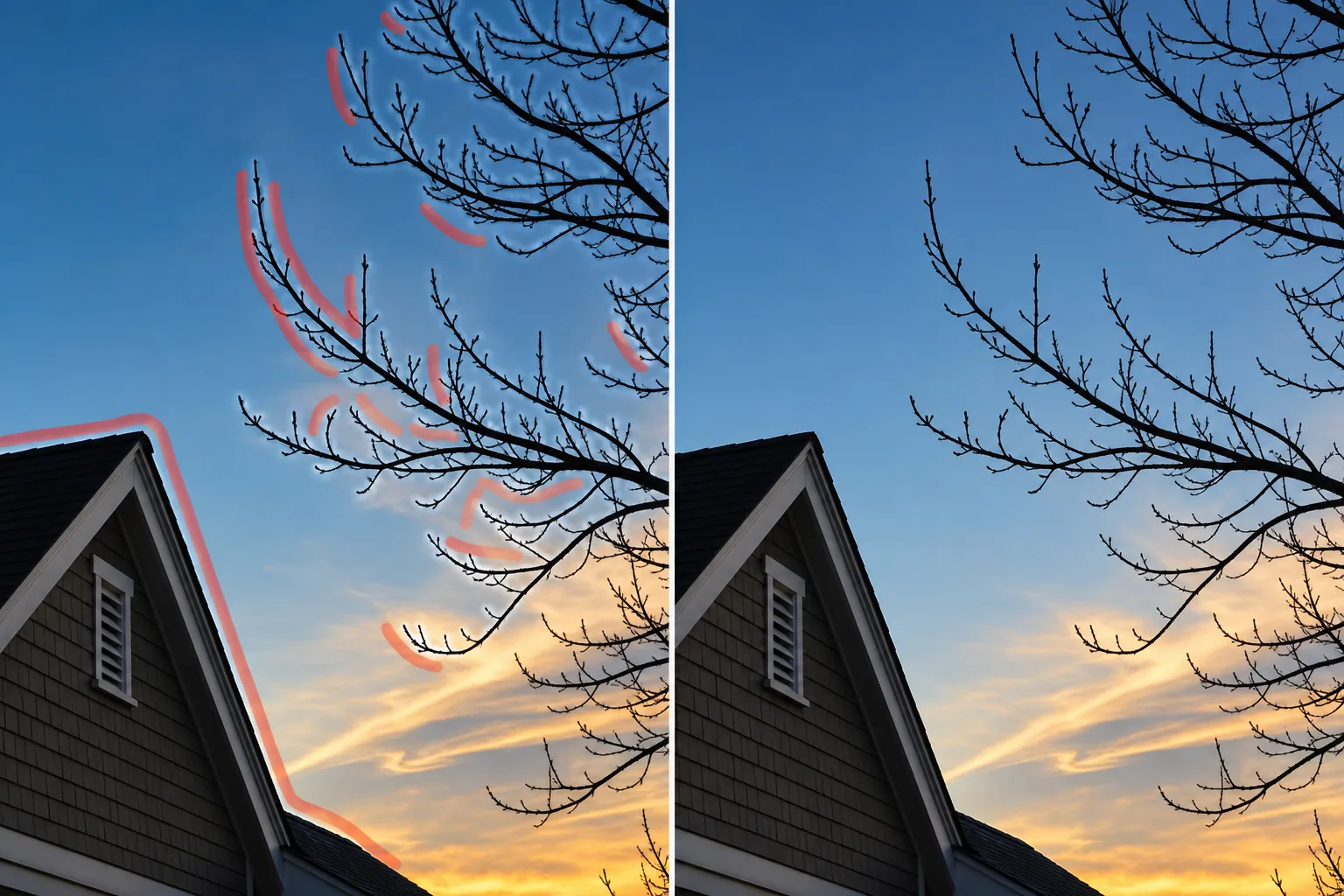
Clear the luminance glow that traces high-contrast edges — a light rim around a roofline against the sky, a dark band hugging tree branches, the ghost outline left by aggressive HDR. Magic Eraser removes the halo and reconstructs the surrounding tone so the true edge stays sharp instead of fuzzy.
Last updated
What a halo is and where it comes from
A halo is a band of glow that runs alongside a high-contrast edge — a pale ring where a dark building meets a bright sky, or a darker shadow line where light foliage meets shade. It is not part of the scene; it is an artifact of processing. Over-sharpening creates it by exaggerating the brightness difference right at an edge, pushing the light side lighter and the dark side darker until a visible rim appears. HDR and heavy local-contrast or clarity sliders do the same thing on a larger scale, leaving a soft glow that can be several pixels wide. Once you notice a halo it is hard to unsee, and it quietly signals that an image was heavily edited. The fix is not to soften the edge — that throws away the detail you wanted — but to remove the glow band while leaving the real boundary intact. Magic Eraser targets the halo specifically: brush the glowing rim, and it rebuilds the tone of the sky, wall, or background that the halo was sitting on, so the edge reads clean and natural. This is different from glare, which is a bright spot or light source in the frame, and from chromatic aberration, which is a colored fringe of red, green, or purple along an edge. A halo is a luminance problem — a glow or ring in brightness, not a separate light and not a color fringe — so it is treated as tonal reconstruction rather than spot removal or color correction.
Remove a halo in three steps
- 1
Upload your photo
Open Magic Eraser on the web, iOS, or Android and upload the image. Halos are easiest to spot on edges where something dark meets something bright — rooflines, horizons, branches against sky.
- 2
Brush the glow band
Paint along the rim of glow that sits just off the edge, not the edge itself. Follow the halo where it runs against the sky or background and keep the brush on the glow, so the AI knows you want the surrounding tone back, not a blurred boundary.
- 3
Erase and review
Tap Erase and the AI reconstructs the background tone the halo was overlaying, leaving the real edge crisp. Check that the boundary still looks sharp and the surrounding gradient is even, then export the cleaned photo.
Best for
- Light rims around buildings and rooflines against the sky
- Glow outlines left by over-sharpening or excess clarity
- HDR halos along horizons and mountain ridges
- Dark bands hugging tree branches and foliage edges
- Ghost outlines around subjects after heavy local contrast
- Cleaning edges before printing or enlarging a photo
- Tidying product shots where the cutout edge glows
- Removing the rim glow on architecture and real-estate images
What to expect from halo removal
Halo removal works best when the glow sits against a relatively smooth area — a clear sky, a plain wall, an even gradient — because the AI can extend that tone back across the band cleanly. A pale rim against open sky reconstructs almost invisibly. The harder cases are halos that run through busy, textured backgrounds, where the AI has to invent matching detail and the patch can look slightly off on close inspection. Keep the brush on the glow band and off the real edge: the point is to remove the rim, not to soften the boundary, and brushing the edge itself will blur the detail you are trying to keep. Very wide HDR halos that span many pixels and blend gradually into the scene are tougher than tight over-sharpening rims, because there is no clean line where the glow ends. As with all generative cleanup, Magic Eraser produces a plausible reconstruction of what was behind the halo, not a recovery of original data — if a halo is severe enough to have erased detail at the edge, the rebuilt area is the AI's best estimate. The cleanest long-term fix is to sharpen and tone-map more gently at capture and export so halos never form; the eraser is the practical remedy for images you already have.
Frequently asked questions
- How is a halo different from glare or chromatic aberration?
- A halo is a band of brightness glow that traces an edge — a light or dark rim. Glare is a bright spot or light source in the frame, and chromatic aberration is a colored fringe (red, green, or purple) along an edge. A halo is a luminance issue, so it is handled as tonal reconstruction rather than spot or color removal.
- Will removing the halo blur my edge?
- No, as long as you brush the glow band and not the edge itself. Magic Eraser rebuilds the background tone the halo was sitting on and leaves the real boundary in place, so the edge stays crisp instead of being softened.
- Does it work on HDR halos?
- Yes, though wide HDR halos are harder than tight over-sharpening rims. Where the glow blends gradually into the scene there is no clean stopping line, so the reconstruction is the AI's best estimate of the surrounding tone rather than a perfect recovery.
- Is halo removal free?
- Yes. Magic Eraser's free tier handles halo cleanup on web, iOS, and Android. Upload your image, brush the glow band, and export the cleaned result at no cost.