
Remove overexposure from photos
Rescue washed-out skies, glaring windows, and flash-burned skin where the highlights have clipped to flat white. Magic Eraser eases the over-bright region back down and reconstructs texture, tone, and color so the area reads as a properly exposed part of the frame instead of an empty white patch.
Last updated
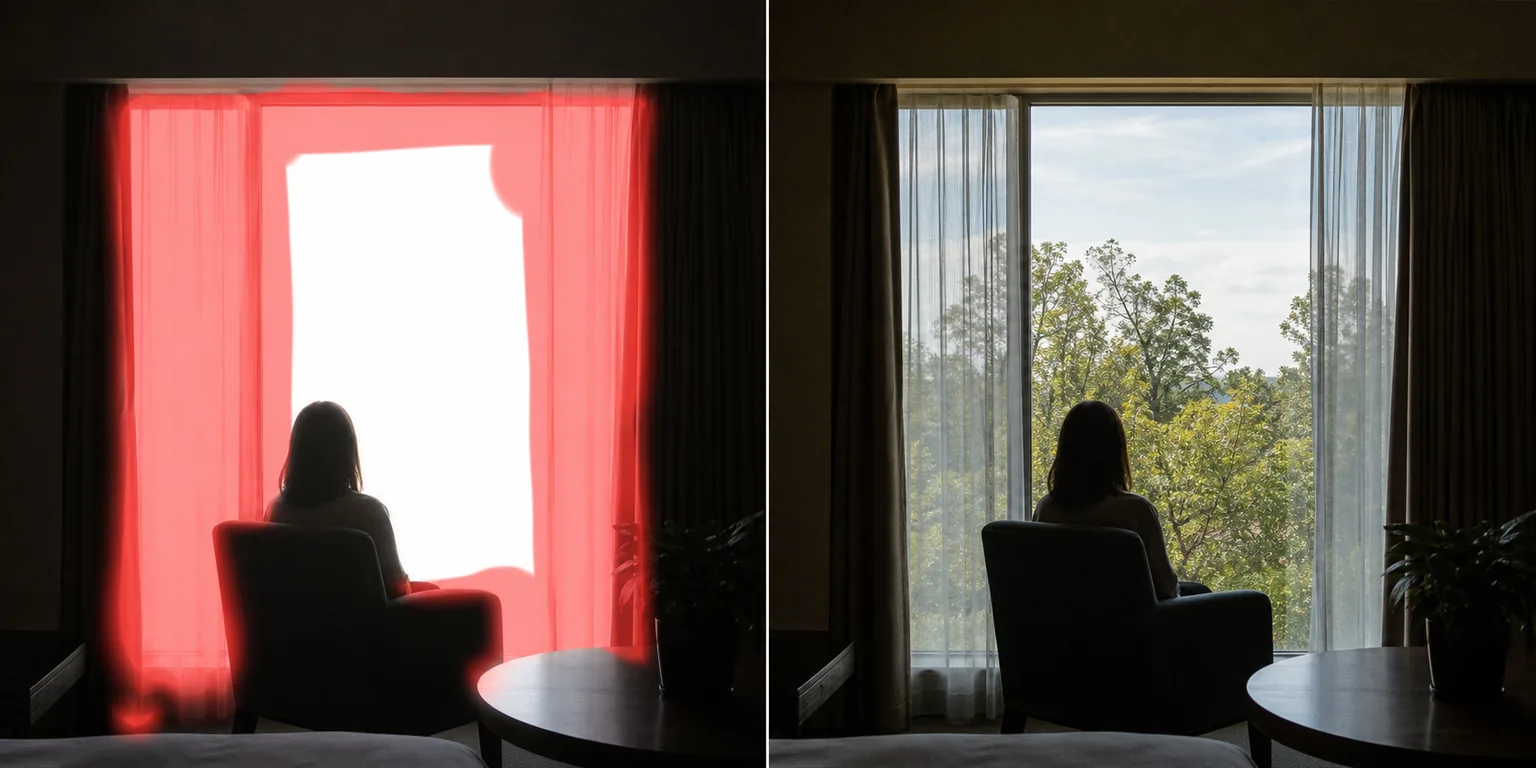
Why overexposure ruins an otherwise good shot
Overexposure happens when a whole region of the frame takes in more light than the sensor can record, so the brightest pixels max out and clip to pure white. A sky behind your subject blows out to a featureless sheet, a window turns into a glowing rectangle, an on-camera flash burns a hot patch across a forehead or wall. Unlike glare — a single bright spot or streak bouncing off a surface — overexposure is a broad over-brightness that swallows an entire area, and once it clips, the gradients, edges, and color that used to live there are simply gone from the file. That is the honest catch: a fully clipped, pure-white region holds no recoverable data, so nothing in software can truly bring back what the camera never captured. What Magic Eraser can do is treat the blown-out patch as something to rebuild — it pulls the brightness back toward the rest of the scene and generates plausible detail to fill the void, using the surrounding tones, textures, and context as a guide. Where the overexposure is only partial — a hazy bright sky that still carries faint cloud shape, skin that is hot but not fully white — there is residual information to work with, and the result recovers far more convincingly. Either way you get a frame where the eye is no longer yanked to a glaring white hole, and the corrected area sits naturally inside the photo.
Fix overexposure in three steps
- 1
Upload the overexposed photo
Open Magic Eraser on the web, iOS, or Android and upload the shot. It handles blown-out skies and backgrounds, bright windows behind subjects, and flash hot spots on skin or walls.
- 2
Brush the blown-out region
Paint over the over-bright area you want to repair — the whole washed-out sky, the glowing window, the hot patch from the flash. Cover the clipped region generously and include a little of the well-exposed edge around it so the AI has surrounding tone to blend toward.
- 3
Erase and review
Tap Erase and the AI eases the brightness down and reconstructs detail and color in the region. Review the result: partially overexposed areas come back with believable texture, while fully clipped patches are filled with invented detail, so check that the reconstruction fits the scene before you export.
Best for
- Restoring a blown-out white sky behind a subject or landscape
- Fixing a glowing, over-bright window in an indoor portrait
- Toning down flash hot spots on foreheads, cheeks, and walls
- Rescuing backlit shots where the background clipped to white
- Recovering hazy, partially overexposed skies that still hold faint detail
- Calming over-bright snow, sand, or water that washed out flat
- Salvaging a one-off moment that is sharp but badly over-lit
- Evening out patchy exposure so no area glares against the rest
What to expect from overexposure removal
Be realistic about what is physically possible. A region that is partially overexposed — bright but not fully white — still carries faint tone and edge data, and that is where Magic Eraser shines: it pulls the highlight back and rebuilds detail that closely matches what was really there. A region that is fully clipped to pure white holds zero recoverable information, so the AI cannot recover it — instead it invents plausible detail based on the surrounding scene. That reconstruction can look convincing, but it is a generated guess, not the original sky or window, and it may not match reality. Results are best when the clipped patch is surrounded by well-exposed, similar content the AI can extend inward — a blown sky bordered by visible blue and clouds rebuilds far more believably than a giant white void with no nearby reference. Skin hot spots from flash usually recover well because the face around them gives strong tonal cues. Keep your brush on the over-bright region and include a thin margin of the correctly exposed edge so the new detail blends seamlessly. Treat this as a repair-and-reconstruct tool, not a magic undo of clipped data: the more original information that survived in the area, the truer the fix.
Frequently asked questions
- Can it really recover detail from a pure-white area?
- Not literally. Fully clipped, pure-white pixels contain no data, so there is nothing to recover — the AI generates plausible detail instead, based on the surrounding scene. Partially overexposed areas that still hold faint tone recover much more faithfully because real information survived.
- How is this different from removing glare?
- Glare is a localized bright spot or streak bouncing off a surface, like a reflection on glasses or a hotspot on glass. Overexposure is a broad, whole-region over-brightness — a blown sky or window — where an entire area has clipped to white rather than one small reflection.
- Will the rebuilt sky or window match reality?
- For partial overexposure, usually yes — it leans on the detail that survived. For fully clipped regions, the result is a plausible reconstruction, not the true original, so review it against the rest of the scene to make sure it fits before exporting.
- Is overexposure removal free?
- Yes. Magic Eraser's free tier handles overexposure repair on web, iOS, and Android. Upload your photo, brush the blown-out region, and export the corrected result at no cost.