
How to remove a double chin from a photo
An unflattering angle can exaggerate a double chin that is barely noticeable in person. Magic Eraser's AI reshaping subtly refines the jawline for a natural result that looks like a better angle, not obvious retouching.
Last updated
Refine jawline now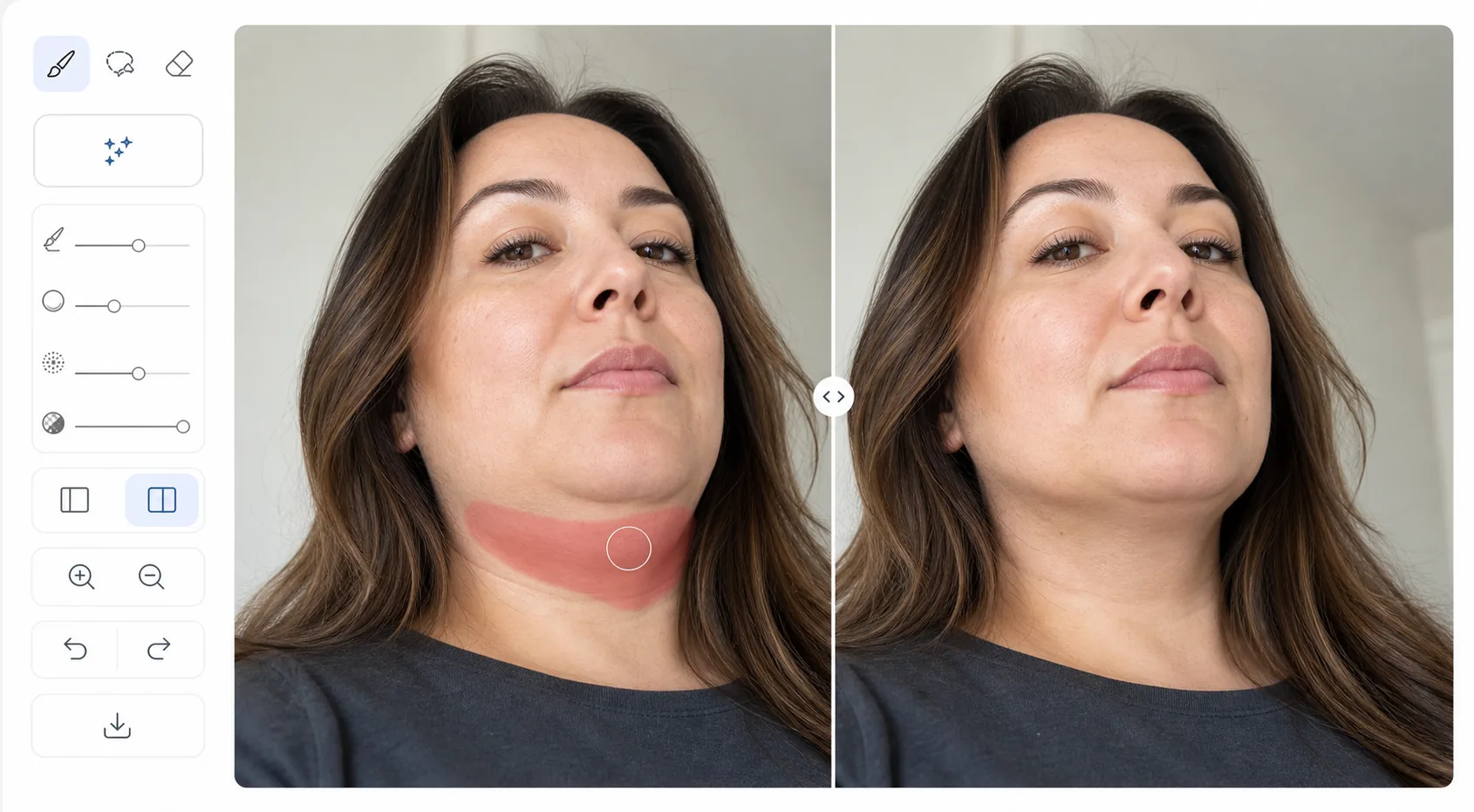
How to remove a double chin from a photo
To remove a double chin from a photo, open Magic Eraser on the web, iOS, or Android, select AI Fill, upload the portrait, brush the area under the jaw, and describe the result — 'reduce double chin naturally' — and the AI subtly refines the jawline while keeping the skin texture and shadow transitions intact. It includes limited free edits after sign-in. The aim is a flattering camera angle, not a different face, so keep the adjustment light: gentle reshaping reads as a good photo, while heavy reshaping looks obviously edited. Compare the before and after at normal viewing size before exporting. Camera lenses, especially wide-angle front cameras on phones, distort facial proportions. A slightly downward camera angle compresses the jawline and exaggerates any tissue under the chin. In person, this is rarely noticeable because people see you from multiple angles and distances. But photos freeze a single unflattering moment. Professional photographers solve this with careful posing (chin forward and slightly down, shooting from slightly above) and lighting (a shadow under the jawline creates definition). AI reshaping achieves a similar result in post-processing — subtly adjusting the jawline contour to match how the person actually looks, not how a bad angle captured them.
Before you start
Refine the jawline in three steps
Start with upload the portrait. The result preview above and tips below use this guide's existing content; no separate before-and-after proof is assumed.
- 1
Upload the portrait
Open Magic Eraser on web, iOS, or Android and select AI Fill. Upload the portrait where the double chin is visible. The tool works best with front-facing and three-quarter angle portraits.
- 2
Select the chin area
Brush over the area under the jaw where you want refinement. Include the transition between chin and neck. Describe the desired result: 'slim jawline' or 'reduce double chin naturally' — the AI interprets the instruction and applies a subtle, proportional adjustment.
- 3
Review and export
The AI refines the jawline while maintaining natural skin texture and shadow transitions. The result should look like a flattering photo angle, not obvious editing. Use the before/after slider to verify the change is subtle. Export when satisfied.
Best for
- Professional headshot retouching where a defined jawline photographs better
- Social media users wanting their photos to match their in-person appearance
- Wedding and event photographers offering subtle portrait refinement to clients
- Anyone who was photographed from an unflattering low angle
- Video call screenshot improvement where webcam angles are typically unflattering
Tips for best results
Subtlety is key — aggressive reshaping looks obviously edited and can change the person's recognizable appearance. Aim for a result that looks like a better camera angle, not a different person. The AI works best when there is a clear chin-to-neck transition to refine. For photos where the chin blends into the neck due to lighting, adding jawline shadow definition (through the AI's lighting-aware processing) is more effective than geometric reshaping. Compare the result at normal viewing size, not zoomed in — minor imperfections that are visible at 300% zoom are invisible at normal viewing distance.
Frequently asked questions
- Will it look obviously edited?
- When used subtly, no. The AI preserves natural skin texture and shadow transitions. The goal is a result that looks like a better angle, not digital surgery. Excessive reshaping will look unnatural — moderation produces the most believable results.
- Does it work on group photos?
- Yes. Select only the specific person's chin area. The AI processes your selection without affecting anyone else in the photo.
- Is jawline refinement free?
- Yes. AI Fill features are available in the free tier with daily usage limits. Premium removes limits.
- How do I remove a double chin from a photo on my phone?
- Open Magic Eraser in any mobile browser or the iOS or Android app, load the portrait from your camera roll, select AI Fill, and brush the area under the jaw with your finger — pinch to zoom for control around the chin and neck. Type 'reduce double chin naturally', and the AI refines it right on your phone, then saves the result back to your camera roll. It works the same as the desktop version, with no app install required if you use the browser.
- Will I still look like myself after editing?
- Yes, as long as you keep it subtle — that's the whole point of aiming for a flattering angle instead of a dramatic change. A light adjustment refines the jawline the way better posing or lighting would, while preserving the features that make you recognizable. If you push it too far, the result starts to look like a different person and obviously edited, so favor the gentlest change that looks right, and the original photo is always kept so you can redo it.