
Entfernen Sie Zahnflecken von Fotos
Korrigieren Sie gelbe, fleckige oder verfärbte Zähne in Porträts, Porträts und lächelnden Fotos. Magic Eraser entfernt die Verfärbung und stellt natürlich weiße Zähne wieder her – hell genug, um gesund auszusehen, ohne den künstlichen Glanz einer übermäßigen Aufhellung.
Zuletzt aktualisiert
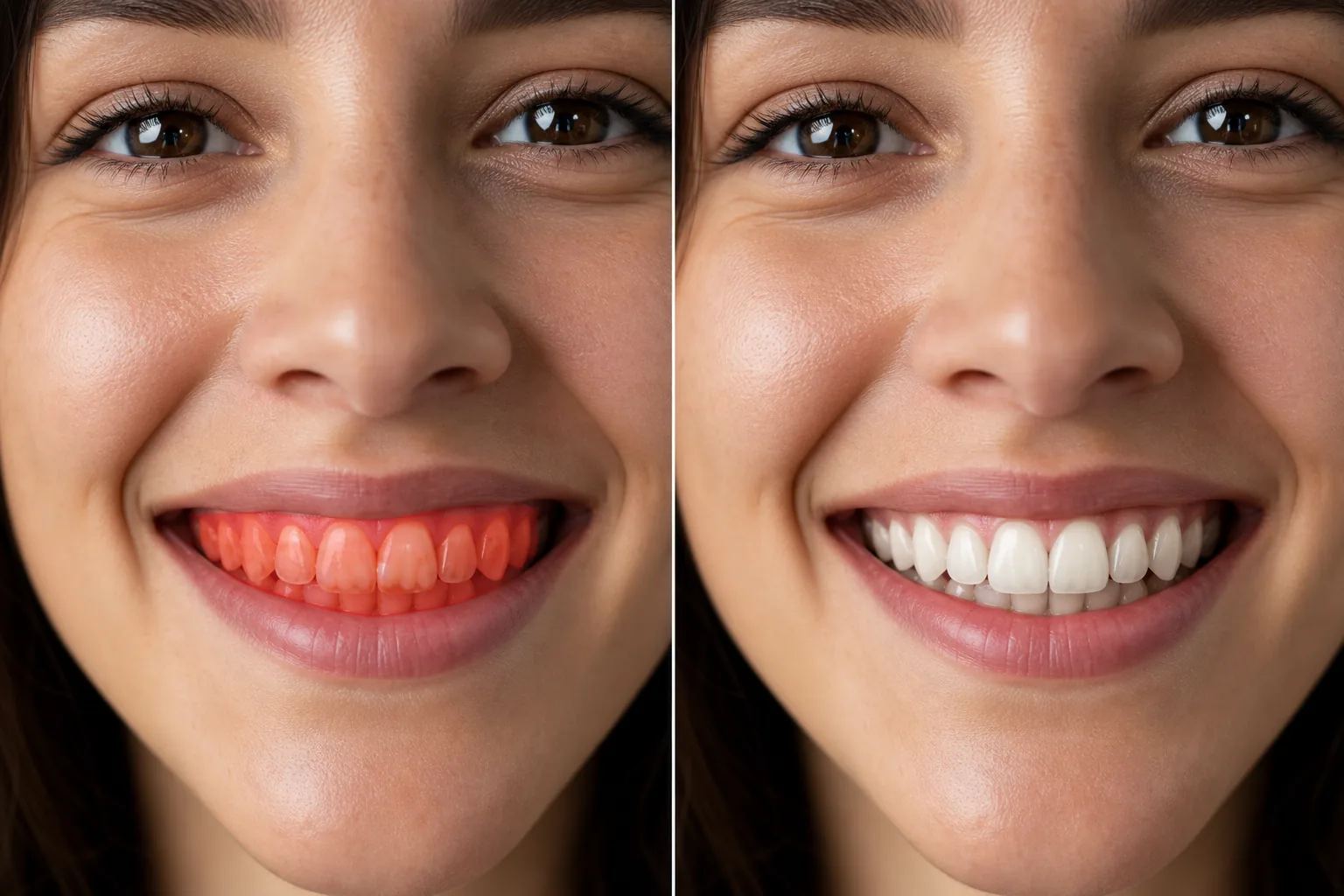
So machst du Zähne auf einem Foto weißer
Um Zähne auf einem Foto aufzuhellen, öffnest du Magic Eraser im Web, auf iOS oder Android, lädst dein Porträt hoch, malst mit dem Pinsel über die sichtbaren Zähne und tippst auf Erase – die AI entfernt die gelblichen und bräunlichen Verfärbungen und sorgt für ein helleres, natürlicheres Lächeln. Kostenlos und ohne Anmeldung. Es reduziert Verfärbungen und oberflächliche Flecken für einen gesünderen Look; es ersetzt aber kein echtes Bleaching beim Zahnarzt und korrigiert weder Zahnform noch Lücken oder Zahnstellung. Kaffee, Tee, Wein und die Zeit verfärben die Zähne – und Kamerablitz und Studiobeleuchtung machen die Verfärbung deutlicher sichtbar, als sie im Spiegel erscheint. Gelbliche Zähne in einem ansonsten polierten Porträt oder Porträt ziehen den Blick des Betrachters auf sich und können den selbstbewussten Eindruck, den das Foto vermitteln soll, untergraben. Professionelle Retuschierer gehen mit der Zahnaufhellung vorsichtig um: Zu viel Aufhellung erzeugt den gebleichten, strahlenden Look der Zähne, der geradezu nach "bearbeitet“ schreit, während zu wenig Aufhellung die Verfärbung sichtbar lässt. Das ideale Ergebnis sind Zähne, die von Natur aus gesund aussehen – in der Farbe, die sie nach einer professionellen Reinigung hätten, nicht nach einer starken kosmetischen Zahnaufhellung. Die KI von Magic Eraser zielt auf die Gelb- und Brauntöne im Zahnbereich ab und bewahrt gleichzeitig die natürliche Variation zwischen den Zähnen, die subtilen Schatten zwischen einzelnen Zähnen und die Transluzenz an den Zahnrändern, die die Zähne echt aussehen lässt.
Zähne aufhellen in drei Schritten
- 1
Laden Sie Ihr Foto hoch
Öffnen Sie Magic Eraser im Internet, auf iOS oder Android und laden Sie das Porträt, Porträt oder lächelnde Foto mit der Zahnverfärbung hoch, die Sie korrigieren möchten.
- 2
Über die Zähne putzen
Den sichtbaren Zahnbereich übermalen. Bleiben Sie innerhalb der Zahnoberflächen – vermeiden Sie das Putzen über Lippen und Zahnfleisch, da die KI auf den spezifischen Farbbereich der Zahnverfärbungen innerhalb Ihrer Auswahl abzielt.
- 3
Löschen und prüfen
Tippen Sie auf "Löschen“ und die KI entfernt die gelben/braunen Verfärbungen und bringt natürlich weiße Zähne zum Vorschein. Die Schatten zwischen den Zähnen und die leichte Transluzenz an den Rändern bleiben für ein realistisches Ergebnis erhalten. Stellen Sie sicher, dass der Weißgrad natürlich aussieht, und exportieren Sie dann.
Am besten für
- Professionelle Porträtaufnahmen mit einem selbstbewussten, gepflegten Lächeln
- Hochzeitsporträts, bei denen das Lächeln im Mittelpunkt steht
- LinkedIn- und Social-Media-Profilfotos
- Schauspiel- und Modelportfolios
- Firmenfotos mit einheitlichem Erscheinungsbild
- Zahnarztpraxis vor/nachher Marketingfotos
- Veranstaltungsfotos, auf denen durch Blitzlicht die Verfärbung der Zähne hervorgehoben wurde
- Dating-Profilfotos mit einem natürlichen, strahlenden Lächeln
Tipps für eine natürlich aussehende Zahnaufhellung
Der Schlüssel zu einer überzeugenden Zahnaufhellung ist Zurückhaltung. Die KI von Magic Eraser strebt nach "professionellem Reinigungsweiß“ und nicht nach "kosmetischem Veneer“-Weiß – die Zähne sollten gesund und natürlich aussehen, nicht leuchtend. Putzen Sie präzise über die Zahnoberflächen und vermeiden Sie Zahnfleisch und Lippen, die ihre eigenen natürlichen Rosa- und Rottöne haben, die nicht beeinträchtigt werden sollten. Wenn auf dem Foto sowohl die oberen als auch die unteren Zähne zu sehen sind, putzen Sie beide Sätze, um eine gleichmäßige Aufhellung zu gewährleisten. Bei Fotos, auf denen nur wenige Zähne sichtbar sind (ein leichtes Lächeln), putzen Sie nur die sichtbaren Zähne – die KI passt die Korrektur an den sichtbaren Bereich an. Einzelne Zähne können leicht unterschiedliche natürliche Farbtöne haben, und die KI behält diese Variation für einen realistischen Eindruck bei. Bei Fotos mit farbiger Beleuchtung (warmes Restaurantlicht, goldene Stunde) berücksichtigt die Zahnkorrektur den Umgebungsfarbstich. Wenn auf dem Foto eine goldene oder silberne Zahnkappe zu sehen ist, vermeiden Sie es, darüber zu bürsten – die KI könnte versuchen, sie aufzuhellen, was unnatürlich aussehen würde.
Häufig gestellte Fragen
- Sehen meine Zähne falsch oder zu weiß aus?
- Nein. Die KI zielt auf einen natürlichen Weißton ab – heller als fleckig, aber nicht den künstlichen Glanz von überhellten Fotos. Das Ergebnis sieht aus wie gepflegte natürliche Zähne.
- Betrifft es das Zahnfleisch oder die Lippen?
- Nur der Bereich, den Sie überstreichen, wird korrigiert. Bleibt man innerhalb der Zahnoberflächen, bleiben Zahnfleisch und Lippen unverändert. Wenn Sie versehentlich den Zahnfleisch- oder Lippenbereich einbeziehen, lässt die KI im Allgemeinen Nicht-Zahnfarben in Ruhe.
- Kann es einen einzelnen verfärbten Zahn reparieren?
- Ja. Putzen Sie nur den betroffenen Zahn und die KI korrigiert seine Farbe, um sie an die umliegenden Zähne anzupassen. Dies eignet sich gut für einen einzelnen verfärbten oder grauen Zahn, der sich von den anderen abhebt.
- Ist die Zahnaufhellung kostenlos?
- Ja. Das kostenlose Kontingent von Magic Eraser deckt die Zahnaufhellung auf Fotos ab. Laden Sie Ihr Porträt hoch, putzen Sie die Zähne und exportieren Sie das strahlende Lächeln kostenlos.
- Ist das ein echter Zahn-Aufhellungs-Editor oder hellt er einfach das ganze Bild auf?
- Es funktioniert als gezielter Editor zum Aufhellen der Zähne. Statt die Helligkeit des gesamten Fotos anzuheben, korrigiert die AI nur den Zahnbereich, über den du malst, und konzentriert sich dabei auf die gelblichen und bräunlichen Verfärbungen. Zahnfleisch, Lippen und Haut behalten ihre natürliche Farbe. Das Ergebnis: weißere Zähne vor einem unveränderten Gesicht – kein ausgewaschenes, überstrahltes Bild.
- Kann ich Zähne auf einem Foto direkt am Handy aufhellen?
- Ja. Magic Eraser läuft auf iOS und Android mit demselben Pinsel-und-Erase-Ablauf wie im Web. Öffne ein Porträt aus deiner Galerie, zoome mit zwei Fingern auf das Lächeln für mehr Präzision, male über die sichtbaren Zähne und tippe auf Erase. Durch das Heranzoomen bleibst du genau auf den Zahnoberflächen und kommst nicht an Lippen und Zahnfleisch – so wirkt die Aufhellung auch auf kleinem Bildschirm natürlich.
- Wie weiß werden die Zähne – lassen sich auch sehr gelbe Zähne aufhellen?
- Starke Gelbverfärbungen lassen sich deutlich reduzieren, aber das Ziel ist ein natürlicher, gesunder Farbton statt reinem Weiß. Bei stark verfärbten Zähnen kannst du eine klare Verbesserung in Richtung professionell gereinigter Zähne erwarten – keinen gebleichten Veneer-Look. So bleibt das Lächeln glaubwürdig. Wenn du sie heller haben möchtest, kannst du den Pinsel erneut anwenden, aber wer zu weit geht, riskiert ein künstliches Ergebnis.