
Rauschen aus Fotos entfernen
Bereinigen Sie körnige, verrauschte Fotos, die bei schlechten Lichtverhältnissen, mit hohem ISO-Wert oder mit älteren Kameras aufgenommen wurden. Die KI von Magic Eraser entfernt das Rauschmuster und bewahrt gleichzeitig scharfe Details und natürliche Textur – so werden unbrauchbare dunkle Aufnahmen in saubere, druckbare Bilder umgewandelt.
Zuletzt aktualisiert
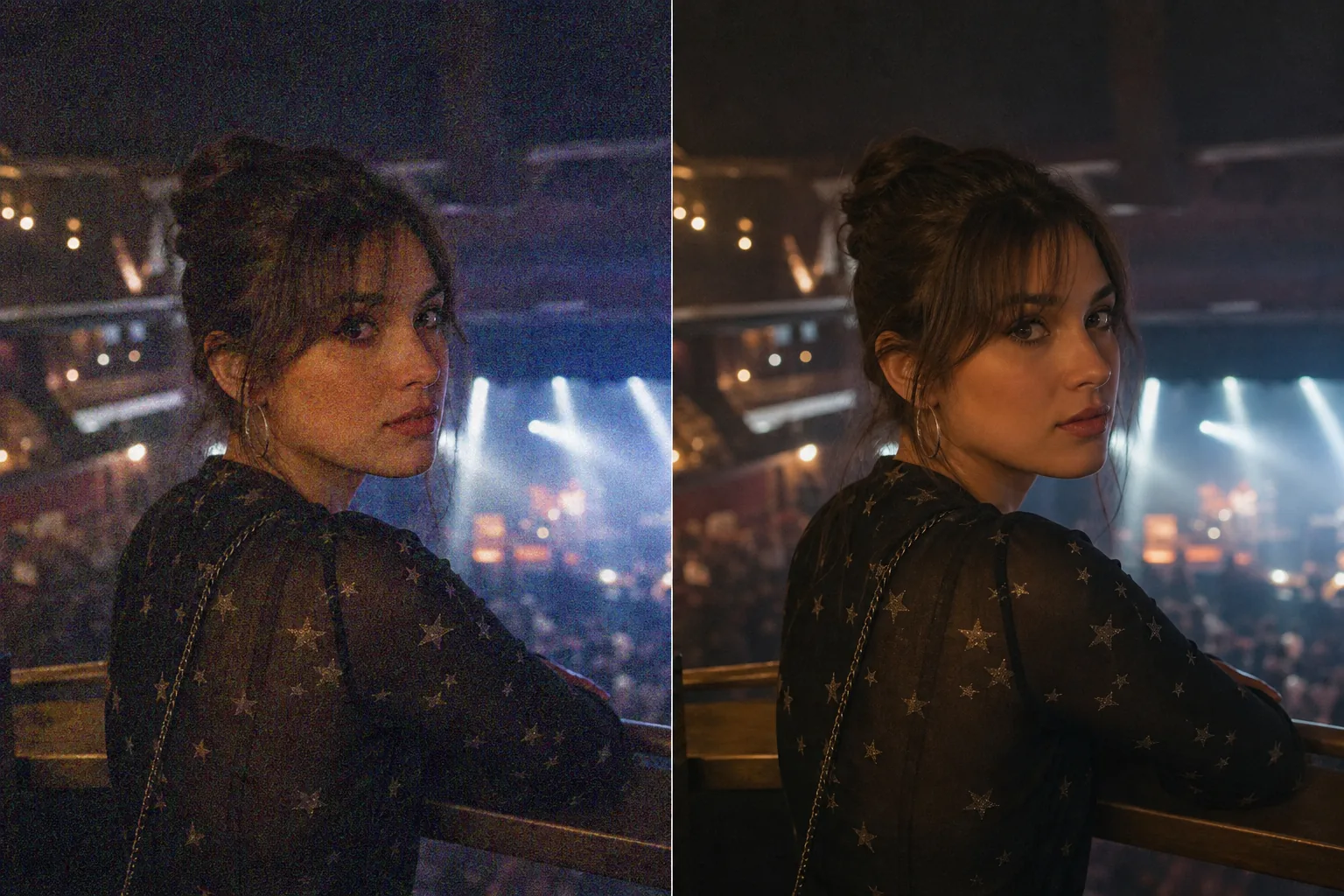
So entfernst du Körnung und Bildrauschen aus einem Foto
Um Korn und Bildrauschen aus einem Foto zu entfernen, öffne Magic Eraser im Web, auf iOS oder Android, lade dein Bild hoch und wende die KI-Rauschunterdrückung an – der KI-Entrauscher erkennt das Muster des Sensorrauschens und beseitigt die farbigen Sprenkel und das Helligkeitsrauschen, während Kanten und Details erhalten bleiben. Kostenlos und ohne Anmeldung. Am besten funktioniert es, wenn unter dem Rauschen noch echte Details stecken; Aufnahmen mit extremem ISO 12800+ werden zwar sauberer, aber Details, die bereits im Rauschen untergegangen sind, lassen sich nicht vollständig wiederherstellen. Digitales Rauschen – die farbigen Flecken und Leuchtdichtekörner, die auf Fotos auftreten – ist das häufigste Qualitätsproblem bei der Fotografie bei schlechten Lichtverhältnissen. Konzertfotos, Aufnahmen von Innenveranstaltungen, nächtliche Stadtansichten, Astrofotografie und alle Fotos, die mit ISO 1600 oder höher aufgenommen wurden, weisen sichtbares Rauschen auf. Telefonkameras in dunklen Restaurants, Clubs und Abendveranstaltungen erzeugen verrauschte Bilder, weil ihre kleinen Sensoren das Signal verstärken. Auch ältere Digitalkameras und gescannte Filme weisen Körnung auf, die die wahrgenommene Qualität beeinträchtigt. Herkömmliche Rauschunterdrückung in Bearbeitungssoftware erfordert eine sorgfältige Balance des Schiebereglers – zu wenig lässt das Rauschen sichtbar, zu viel verwischt Details zu einem aquarellartigen Brei. Der KI-Entrauscher von Magic Eraser unterscheidet zwischen Rauschen (zufällige Fleckenmuster) und tatsächlichen Bilddetails (Kanten, Texturen, feine Merkmale) und entfernt das eine, während das andere erhalten bleibt.
Entrauschen Sie ein Foto in drei Schritten
- 1
Laden Sie Ihr verrauschtes Foto hoch
Öffnen Sie Magic Eraser im Web, iOS oder Android und laden Sie das körnige oder verrauschte Bild hoch. Das Werkzeug verarbeitet sowohl Farbrauschen (farbige Flecken) als auch Luminanzrauschen (körnige Textur).
- 2
Wenden Sie KI-Rauschunterdrückung an
Verwenden Sie das AI Enhancement-Tool mit aktivierter Rauschunterdrückung. Die KI analysiert das Rauschmuster im gesamten Bild und entfernt es, während Kanten, Texturen und feine Details erhalten bleiben. Bei stark verrauschten Bildern kann ein zweiter Durchgang das Ergebnis weiter bereinigen.
- 3
Überprüfen und exportieren
Überprüfen Sie das Ergebnis bei vollem Zoom – Details sollten erhalten bleiben, während die Rauschflecken verschwunden sind. Stellen Sie sicher, dass Gesichtszüge, Text und feine Texturen scharf bleiben. Exportieren Sie die saubere Version zum Drucken, Veröffentlichen oder Archivieren.
Am besten für
- Konzert- und Live-Musikfotos, aufgenommen mit hohem ISO-Wert
- Indoor-Event- und Partyfotos bei gedämpftem Licht
- Nachtfotografie und Stadtansichten mit sichtbarer Körnung
- Handykamerafotos aus dunklen Restaurants und Bars
- Astrofotografie mit Sensorrauschen
- Gescannte Filmnegative mit Körnung
- Standbilder von Überwachungskameras, die bereinigt werden müssen
- Tierfotografie im Morgen- oder Abendlicht
Tipps zur effektiven Geräuschentfernung
Die Rauschentfernung funktioniert am besten, wenn das zugrunde liegende Detail unter dem Rauschen noch vorhanden ist – die KI verstärkt das echte Signal und unterdrückt das zufällige Rauschen. Bei mäßigem Rauschen (ISO 1600–6400 bei modernen Kameras) sind die Ergebnisse ausgezeichnet – das bereinigte Bild sieht aus, als wäre es mit der Basis-ISO aufgenommen worden. Bei extremem Rauschen (ISO 12800+, sehr dunkle Telefonfotos) entfernt die KI die schlechteste Körnung, aber einige Details sind möglicherweise im Grundrauschen verloren gegangen und können nicht wiederhergestellt werden. Farbrauschen (die zufälligen Farbflecken) lässt sich leichter entfernen als Luminanzrauschen (die körnige Textur), daher können die Ergebnisse in extrem verrauschten Bildern eine leichte Körnigkeit beibehalten, während die Farbartefakte vollständig eliminiert werden. Bei Bildern, die sowohl verrauscht als auch unterbelichtet sind, wenden Sie zuerst die Verstärkung an, um die Belichtung zu erhöhen, und entfernen Sie dann das Rauschen. Diese Reihenfolge führt zu saubereren Ergebnissen, als wenn Sie zuerst das dunkle Bild entrauschen.
Häufig gestellte Fragen
- Wird mein Foto durch Rauschunterdrückung unscharf?
- Die KI unterscheidet zwischen Rauschen und echten Details und entfernt Flecken, während Kanten und Texturen erhalten bleiben. Das Ergebnis ist sauberer, ohne die Unschärfe, die die herkömmliche Rauschunterdrückung oft mit sich bringt.
- Funktioniert es bei Fotos mit Handykameras?
- Ja. Telefonkameras erzeugen bei schlechten Lichtverhältnissen erhebliches Rauschen. Der AI-Denoiser verarbeitet die Geräuschmuster der Telefonkamera effektiv und sorgt so für viel sauberere Ergebnisse bei Restaurant-, Bar- und Abendfotos.
- Kann es Filmkörnung aus gescannten Fotos entfernen?
- Ja. Die Filmkörnung folgt einem ähnlichen Muster wie digitales Rauschen. Die KI entfernt die Körnung und bewahrt gleichzeitig die darunter liegenden Bilddetails. Wenn Sie aus ästhetischen Gründen etwas Filmkörnung beibehalten möchten, verwenden Sie eine hellere Anwendung.
- Ist die Geräuschentfernung kostenlos?
- Ja. Das kostenlose Kontingent von Magic Eraser deckt die Geräuschreduzierung ab. Laden Sie Ihr körniges Foto hoch, wenden Sie die KI-Rauschunterdrückung an und exportieren Sie das saubere Ergebnis.
- Worin unterscheidet sich ein KI-Entrauscher von der Rauschreduzierung in Photoshop oder Lightroom?
- Die klassische Rauschreduzierung in Bildbearbeitungsprogrammen arbeitet mit Reglern, die das ganze Bild weichzeichnen, um das Korn zu kaschieren – zieht man sie zu weit auf, werden feine Details matschig. Ein KI-Entrauscher ist darauf trainiert, Rauschen von echten Details zu unterscheiden, und unterdrückt so die zufälligen Sprenkel, während Kanten, Text und Texturen erhalten bleiben. Das bedeutet weniger manuelles Justieren und ein saubereres Ergebnis – besonders bei Gesichtern und feinen Details, an denen reglerbasiertes Glätten meist scheitert.
- Ist Rauschen dasselbe wie Korn, und welche Seite soll ich nutzen?
- Sie überschneiden sich, haben aber unterschiedliche Ursachen. Rauschen ist digitales Sensorgesprenkel durch hohe ISO-Werte oder kleine Handysensoren – zufällige farbige und Helligkeitspunkte. Korn ist die Textur von Film oder ein bewusst gewählter Stil-Look. Diese Seite konzentriert sich auf das Entrauschen von Sensorrauschen bei Low-Light- und High-ISO-Aufnahmen. Wenn du gezielt filmähnliches Korn entfernen oder anpassen möchtest, nutze unsere eigene Seite zur Kornentfernung, die auf dieses Muster abgestimmt ist.
- Kann ich mehrere Fotos nacheinander entrauschen?
- Ja. Bearbeite sie einzeln – Foto hochladen, KI-Rauschunterdrückung anwenden, exportieren, dann das nächste laden. Jedes Bild geht schnell, sodass eine Reihe von Konzert- oder Event-Aufnahmen ohne große Wartezeit durchläuft. Behalte die Originale; das Entrauschen ist für deine Ausgangsdateien nicht-destruktiv, da du jedes Mal eine neue, saubere Kopie exportierst, statt den Upload zu überschreiben.