
Hapus bayangan dari foto
Bersihkan bayangan kasar di bawah produk, bayangan gelap pada potret, dan cahaya tidak merata pada pemandangan luar ruangan. Sapukan bayangan dan Magic Eraser AI Fill membangun kembali area tersebut dengan permukaan dan warna yang serasi. Review edges and preserve realistic lighting because results vary by image.
Terakhir diperbarui
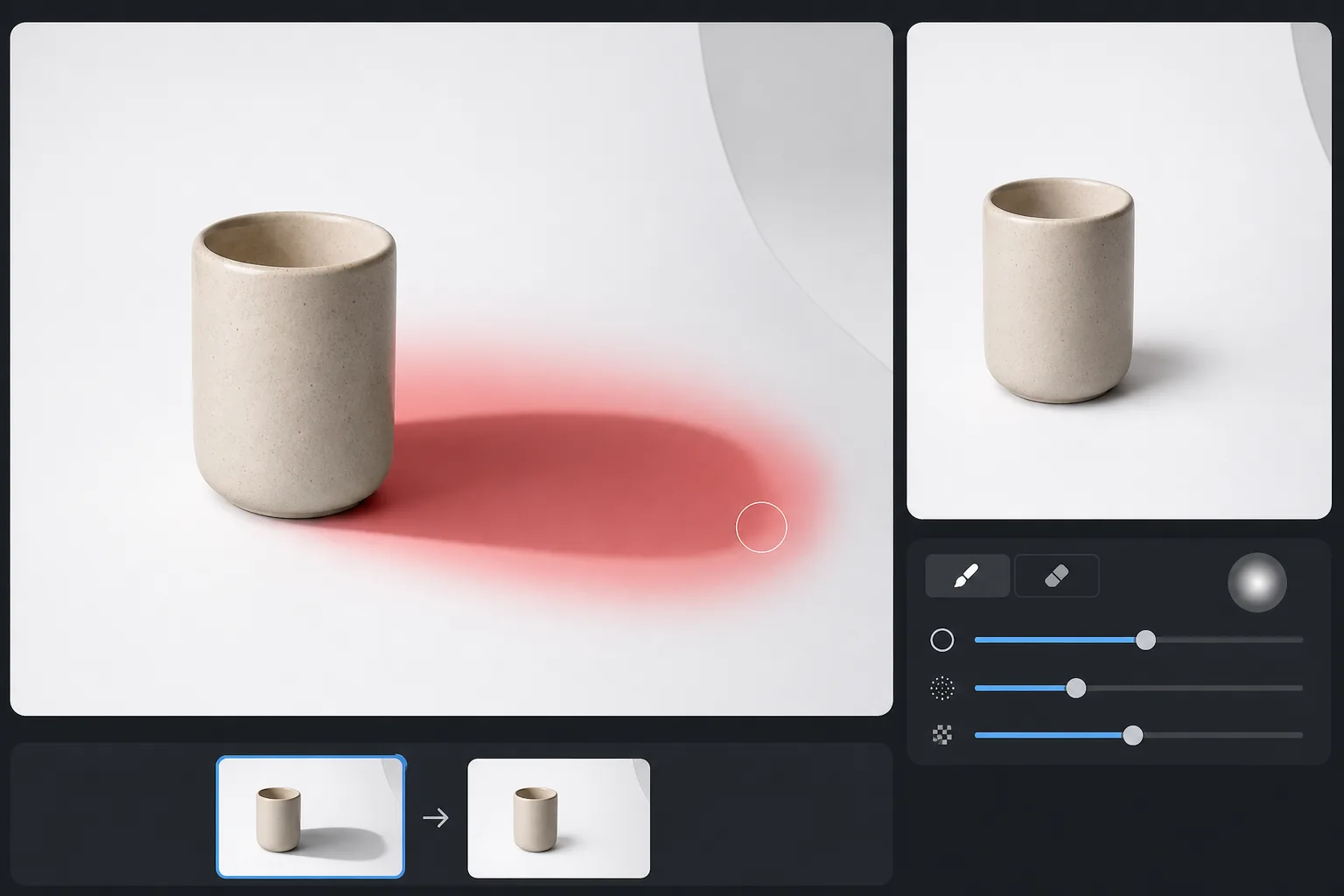
Cara menghapus bayangan dari foto
Clean up unwanted shadows with a tight mask around the dark edge and feathered area, then review nearby texture and lighting. Preserve grounding shadows that make subjects look realistic, and use lighter passes instead of trying to flatten every shadow. Untuk menghapus bayangan dari foto, unggah gambar ke Magic Eraser AI Fill, sapukan brush di area berbayang termasuk tepi luarnya yang samar, lalu tap Fill — AI akan membangun ulang permukaan di baliknya dengan kecerahan penuh hanya dalam beberapa detik. Cara ini cocok untuk foto produk, potret, dan foto luar ruangan, dan paling akurat jika ada versi permukaan yang sama dengan pencahayaan bersih terlihat di bagian lain frame. Gratis dipakai di browser apa pun, tanpa perlu daftar. Bayangannya tembus cahaya — ini bukan bagian buram yang bisa Anda tutupi begitu saja. Bayangan di lantai kayu masih memperlihatkan kayunya, hanya saja lebih gelap. Untuk menghilangkan bayangan secara meyakinkan, editor harus meningkatkan kecerahan di area yang dibayangi tanpa meratakan tekstur di bawahnya atau menyebabkan perubahan warna. Pendekatan manual dengan kurva dan topeng membutuhkan waktu 10-20 menit per foto. AI Fill memprediksi tampilan permukaan pada kecerahan penuh berdasarkan bagian permukaan yang sama yang menyala dan terlihat di tempat lain dalam bingkai, dan melakukannya dalam hitungan detik.
Hapus bayangan dalam tiga langkah
- 1
Unggah foto Anda
Buka Magic Eraser AI Isi, masukkan foto. JPEG, PNG, dan WebP semuanya didukung; berfungsi pada potret, lanskap, dan pemotretan produk.
- 2
Sapukan bayangan
Cat di atas area yang dibayangi. Sertakan bayangan penuh termasuk tepi lembutnya — zona gradien ini adalah tempat bayangan menyatu kembali dengan cahaya sekitar dan AI memerlukannya untuk mencocokkan kecerahan dengan benar.
- 3
Jalankan AI Isi
Ketuk Isi. AI mencocokkan permukaan terang di sekitarnya dan membangun kembali area yang gelap dalam hitungan detik. Untuk bayangan yang sangat besar atau permukaan yang rumit, lakukan gerakan kedua pada bagian gelap yang tersisa. Review edges, surface texture, and lighting before export.
Terbaik untuk
- Fotografi produk dengan bayangan tajam di bawah subjek
- Potret dengan bayangan bawah mata yang kuat atau cahaya terarah satu sisi
- Foto interior real estat dengan bayangan dari tirai jendela atau furnitur
- Foto luar ruangan diambil pada tengah hari dengan bayangan keras melintasi wajah
- Pengambilan gambar flat-lay dimana bayangan fotografer jatuh ke dalam bingkai
Kapan harus menyimpan bayangan
Shadow cleanup should soften distractions without removing all depth. Keep contact shadows where objects meet a surface, review edges at 100%, and stop when the lighting still feels natural. Bayangan memberikan kedalaman pada foto — menghilangkan bayangan sepenuhnya dapat membuat subjek terlihat datar atau ditempel. Untuk foto produk, bayangan kontak lembut di bagian bawah biasanya terlihat lebih realistis daripada gambar yang sepenuhnya bebas bayangan, jadi pertimbangkan untuk menghilangkan bagian bayangan yang kasar saja dan meninggalkan tetesan lembut. Untuk potret, meninggalkan beberapa bayangan terarah akan mempertahankan struktur wajah. AI Fill memungkinkan Anda menyikat secara selektif, sehingga Anda dapat mempertahankan bayangan yang bagus dan hanya menghilangkan bayangan yang mengganggu.
Pertanyaan yang sering diajukan
- Apakah ini berfungsi pada bayangan gradien yang lembut?
- Ya. Sapukan seluruh bayangan termasuk tepi paling lembutnya. AI membaca gradien kecerahan dan membangun kembali permukaan di bawahnya agar sesuai dengan sisi yang terang.
- Bagaimana dengan bayangan saya yang jatuh ke dalam flat-lay?
- Itu adalah salah satu kasus yang paling umum. Sapukan bayangan Anda, jalankan Fill, dan AI akan membangun kembali latar belakang seolah-olah Anda tidak ada di sana.
- Apakah bisa menghilangkan bayangan di wajah?
- Bayangan wajah sebagian berfungsi dengan baik. Untuk bayangan yang menutupi mata atau mulut, rekonstruksi AI adalah tebakan terbaik mengenai apa yang ada di bawahnya – biasanya meyakinkan untuk foto pribadi, kurang meyakinkan ketika akurasi penting.
- Apakah ini akan mengubah pencahayaan foto lainnya?
- Tidak. AI Fill hanya memengaruhi area yang Anda sikat. Sisa gambar tetap tidak tersentuh.
- Kenapa bayangan saya terlihat abu-abu atau belepotan setelah dihapus, bukannya bersih?
- Biasanya itu artinya tidak ada versi permukaan yang sama dalam keadaan terang untuk dijadikan acuan AI, atau tepi luar bayangan yang samar belum tersapu kuas. Sapukan kuas melewati tepi yang terlihat hingga ke bagian gradasinya, dan pastikan ada sebagian permukaan yang terang ikut masuk frame. Pada latar yang halus, sapuan kedua di sepanjang garis sambungan akan meratakan sisa warna yang tertinggal.
- Bisakah ia menghapus bayangan yang jatuh melintasi dua permukaan berbeda sekaligus?
- Bisa, tapi akurasinya bervariasi. Saat bayangan melintasi, misalnya, dinding lalu ke lantai, tiap permukaan butuh acuan area terang sendiri di dekatnya. Hasilnya paling bagus kalau kamu menyapu dan memeriksa satu permukaan dalam satu waktu, karena AI membangun ulang tiap zona dari material di sekitarnya, bukan memperlakukan bayangan sebagai satu objek utuh.
- Sebaiknya saya menghapus bayangannya atau cukup memudarkannya saja?
- Tergantung tujuannya. Untuk bayangan jatuh yang mengganggu — siluet kamu sendiri, garis dari tirai, tepi tiang lampu — penghapusan total adalah pilihan paling bersih. Untuk foto produk dan potret, memudarkan ketimbang menghapus sering terlihat lebih natural: sapukan kuas hanya pada inti bayangan yang keras dan sisakan bayangan kontak atau bayangan terarah yang lembut, supaya subjek tetap terasa membumi dan tiga dimensi.
- Apakah menghapus bayangan dari foto itu gratis, dan apakah saya perlu mendaftar?
- Ya, gratis dan tanpa perlu mendaftar. Buka Magic Eraser AI Fill di browser apa pun, unggah foto, sapukan brush ke bayangan, lalu ekspor hasilnya tanpa biaya. Tool yang sama berjalan di iOS dan Android, jadi kamu bisa membersihkan bayangan langsung dari galeri di ponsel.
- Bisakah menghapus bayangan pada foto produk dengan latar putih?
- Ya — ini termasuk kasus yang paling bersih. Pada latar studio putih polos atau seamless, AI punya referensi yang luas dan tercahaya merata untuk ditiru, sehingga bayangan tajam di samping atau di bawah produk terangkat dengan mulus. Untuk listing katalog dan marketplace yang mewajibkan latar putih murni, sapukan brush pada bayangan jatuh di permukaan, tapi pertimbangkan menyisakan sedikit bayangan kontak tepat di bawah produk agar tetap terlihat berpijak, bukan melayang.
- Bisakah menghapus bayangan yang dijatuhkan orang atau objek ke dinding atau lantai?
- Ya. Bayangan jatuh yang mengenai dinding, lantai, atau trotoar memang persis untuk apa AI Fill dibuat, karena dinding atau lantai yang tercahaya di sekitarnya memberi model permukaan yang jelas untuk dibangun ulang. Sapukan brush ke seluruh siluet termasuk tepinya yang samar. Di area saat bayangan menekuk dari satu permukaan ke permukaan lain — dari dinding ke lantai — periksa tiap permukaan secara terpisah, karena AI merekonstruksi masing-masing dari materi di sekitarnya.
- Apakah ini berfungsi pada bayangan di foto lama atau hasil pindaian?
- Sering kali, ya. Bayangan yang dijatuhkan tangan atau ponselmu melintasi dokumen pindaian, struk, atau foto cetak bisa terangkat dengan baik karena halaman di sekitarnya seragam dan memberi referensi kecerahan yang jelas. Penggelapan berat yang memenuhi seluruh frame akibat pencahayaan asli yang buruk lebih sulit ditangani — tidak ada area dengan pencahayaan bersih untuk ditiru — jadi hasil terbaik didapat saat bayangan hanya menutupi sebagian dari halaman yang secara keseluruhan tercahaya dengan baik.