
Cara mengubah warna rambut di foto
Penasaran bagaimana penampilan Anda jika berambut pirang, berambut merah, atau berambut perak? AI Fill Magic Eraser memungkinkan Anda mengubah warna rambut di foto secara realistis — mempertahankan sorotan, bayangan, dan tekstur alami sekaligus mengubah warna seluruhnya.
Last updated
Ubah warna rambut sekarang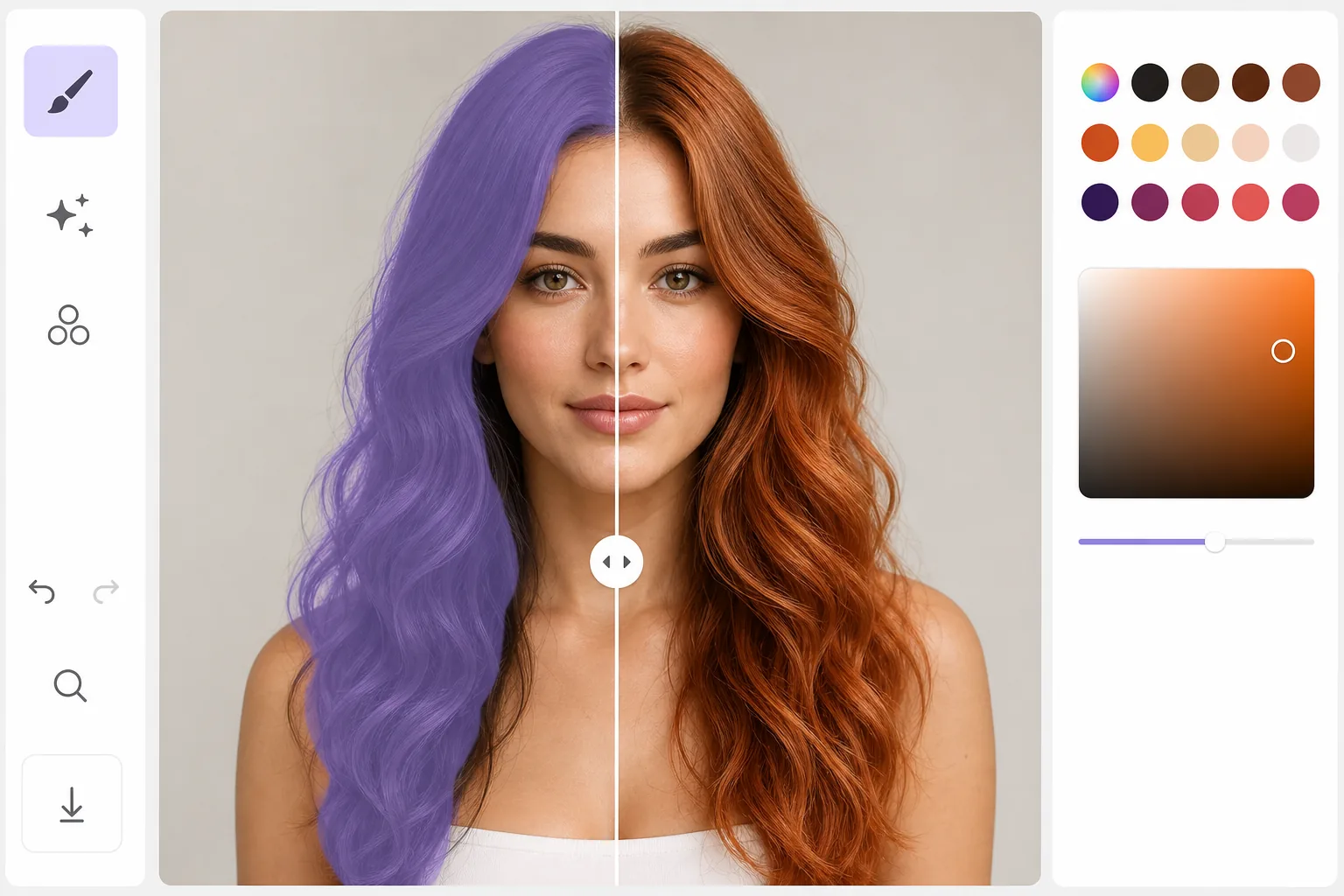
Cara mengubah warna rambut di foto
Untuk mengubah warna rambut di foto, buka Magic Eraser di web, iOS, atau Android, pilih AI Fill, unggah foto potret, sapukan brush di bagian rambut, lalu ketik warna yang kamu mau — 'platinum blonde', 'auburn pekat', 'silver', atau warna fantasi — dan AI akan mewarnai ulang rambutnya sambil menjaga kilau helai, bayangan, dan teksturnya tetap utuh, sehingga hasilnya terlihat seperti rambut asli, bukan sekadar lapisan warna datar. Gratis, tanpa perlu daftar. Karena AI mengikuti cara cahaya bekerja sebenarnya, warna baru terlihat meyakinkan, dan foto aslinya tidak berubah, jadi kamu bisa mencoba berbagai warna satu per satu. Rambut adalah salah satu elemen paling menantang untuk diwarnai ulang dalam foto. Setiap helai menangkap cahaya secara berbeda, menciptakan pola sorotan, bayangan, dan pantulan yang rumit. Mengecat hamparan warna saja akan merusak detail ini dan menghasilkan hasil yang datar dan tidak realistis. Perubahan warna rambut yang didukung AI memahami struktur tiga dimensi rambut: mempertahankan highlight setiap helai rambut, menyesuaikan kedalaman bayangan untuk warna baru, dan memodifikasi warna bayangan rambut pada kulit dan pakaian. Rambut pirang memantulkan lebih banyak cahaya dibandingkan rambut gelap, sehingga AI mencerahkan highlight dengan tepat. Rambut gelap menyerap lebih banyak cahaya, sehingga bayangan menjadi lebih dalam. Hasilnya menghormati fisika daripada hanya menukar saluran warna.
Before you start
Ubah warna rambut dalam tiga langkah
Start with unggah potret. The result preview above and tips below use this guide's existing content; no separate before-and-after proof is assumed.
- 1
Unggah potret
Buka Magic Eraser di web, iOS, atau Android dan pilih AI Fill. Unggah potret yang rambutnya terlihat jelas. Sudut menghadap ke depan dan tiga perempat bekerja paling baik. AI bekerja dengan semua jenis rambut — lurus, bergelombang, keriting, melingkar, dikepang, atau ditata.
- 2
Pilih rambut dan jelaskan warna barunya
Sikat area rambut untuk memilihnya. Ketikkan deskripsi warna yang diinginkan: 'platinum blonde', 'deep auburn red', 'silver grey', 'pastel pink', atau warna apa pun yang dapat Anda deskripsikan. AI menafsirkan deskripsi dan menghasilkan perubahan warna realistis yang sesuai dengan kondisi pencahayaan.
- 3
Tinjau dan ekspor
AI menghasilkan warna rambut baru dengan tetap mempertahankan tekstur, volume, dan pencahayaan alami. Gunakan penggeser sebelum/sesudah untuk membandingkan. Jika warnanya kurang tepat, coba deskripsi lain atau sesuaikan area pemilihan. Ekspor jika puas.
Terbaik untuk
- Siapa pun yang penasaran tentang bagaimana penampilan mereka dengan warna rambut yang berbeda sebelum melakukan kunjungan salon
- Stylist mempratinjau pilihan warna dengan klien sebelum menerapkan perawatan kimia
- Pembuat konten bereksperimen dengan penampilan berbeda untuk pemotretan dan media sosial
- Cosplayer mempratinjau warna rambut karakter di foto mereka sendiri
- Konten fesyen dan kecantikan yang variasi warna rambut menampilkan estetika berbeda
Kiat untuk hasil terbaik
Jelaskan secara spesifik dalam deskripsi warna Anda — 'pirang madu hangat dengan akar yang lebih gelap' memberikan hasil yang lebih realistis daripada sekadar 'pirang'. Sertakan banyak area rambut dalam pilihan Anda tetapi hindari memilih kulit — AI perlu mengetahui di mana ujung rambut dan wajah dimulai. Untuk perubahan warna yang dramatis (coklat tua menjadi pirang platinum), AI mungkin sedikit mencerahkan alis untuk mempertahankan realisme. Warna fantasi (merah muda, biru, ungu) cocok digunakan dan mengikuti aturan pencahayaan yang sama seperti warna alami. Untuk hasil yang paling fotorealistik, ubahlah warna menjadi dua atau tiga warna dari aslinya — rambut coklat dengan warna pirang stroberi terlihat lebih alami daripada warna platinum.
Pertanyaan yang sering diajukan
- Apakah itu bekerja dengan rambut gelap?
- Ya. Rambut gelap dapat diubah menjadi warna apa pun, termasuk warna yang lebih terang. AI menyesuaikan pola sorotan dan bayangan agar sesuai dengan sifat penyerap cahaya warna baru. Beralih dari sangat gelap ke sangat terang mungkin memerlukan perintah yang lebih spesifik untuk mendapatkan warna yang Anda inginkan.
- Bisakah saya mengubah highlight atau akarnya saja?
- Ya. Pilih hanya area yang ingin Anda ubah — hanya bagian akar untuk tampilan lebih dewasa, bagian ujung saja untuk efek ombré, atau hanya bagian highlight untuk pratinjau balayage. AI menghormati batasan pilihan Anda.
- Apakah perubahan warna rambut gratis?
- Ya. Fitur AI Fill termasuk perubahan warna rambut tersedia di tingkat gratis dengan batas penggunaan harian. Premium menghilangkan batasan untuk eksperimen tanpa batas.
- Bagaimana cara mengubah warna rambut di foto lewat ponsel?
- Buka Magic Eraser di browser ponsel mana pun atau aplikasi iOS maupun Android, muat foto potret dari galeri, pilih AI Fill, lalu sapukan brush di bagian rambut dengan jarimu — cubit untuk memperbesar agar tepian di sekitar wajah rapi. Ketik warna yang kamu mau dan AI akan mewarnai ulang langsung di ponselmu, lalu menyimpan hasilnya kembali ke galeri. Cara kerjanya sama seperti versi desktop, dan tidak perlu memasang aplikasi kalau kamu pakai browser.
- Bagaimana caranya mendapatkan warna persis seperti yang aku bayangkan?
- Semakin spesifik deskripsimu, semakin mendekati hasilnya. 'Blonde honey hangat dengan akar lebih gelap' lebih akurat daripada sekadar 'blonde', dan menyebut referensi — 'cokelat abu', 'merah copper', 'rose gold' — membantu AI memilih nuansa yang tepat. Kalau percobaan pertama meleset, ulangi dengan prompt yang lebih detail atau perkecil area seleksinya; foto aslinya tidak pernah berubah, jadi kamu bisa terus mencoba berbagai warna secara gratis sampai pas. Warna fantasi seperti pink, biru, atau ungu mengikuti aturan pencahayaan yang sama dengan warna alami.