
फोटो में कपड़ों से सिलवटें कैसे हटाएं
झुर्रियों वाले कपड़े एक आदर्श उत्पाद शॉट या चित्र को बर्बाद कर सकते हैं। Magic Eraser का AI आपकी तस्वीरों के लिए डिजिटल आयरन की तरह बनावट, सिलाई और प्राकृतिक आवरण को संरक्षित करते हुए कपड़े की झुर्रियों और सिलवटों को चिकना करता है।
Last updated
अब चिकनी झुर्रियाँ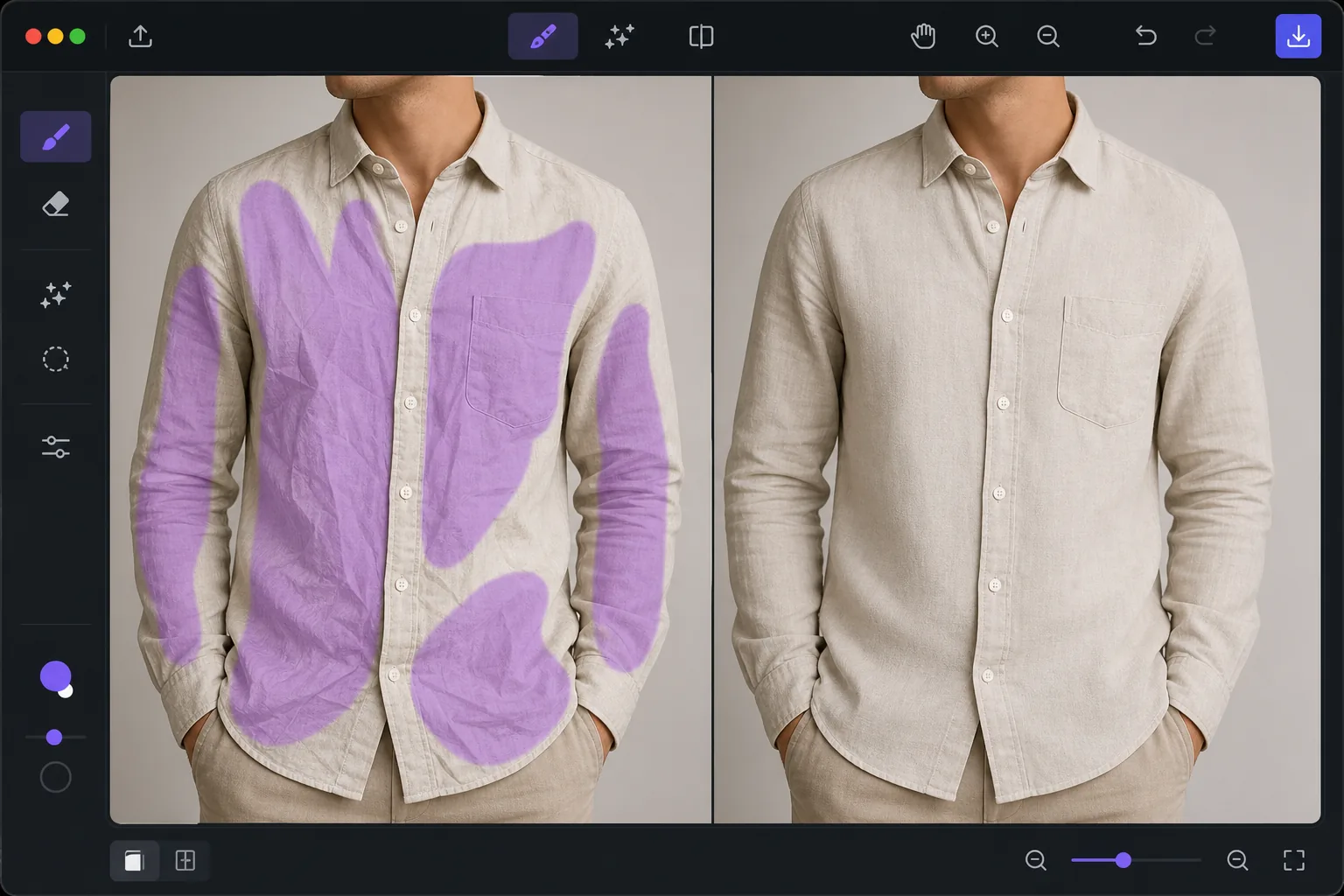
फोटो में कपड़ों की सिलवटें कैसे हटाएं
किसी फोटो में कपड़ों की सिलवटें हटाने के लिए, वेब, iOS या Android पर Magic Eraser खोलें, फोटो अपलोड करें, कपड़े के मुड़े या सिलवट वाले हिस्सों पर brush करें और Erase पर tap करें — AI कपड़े को चिकना कर देता है, जबकि उसका टेक्सचर, सिलाई और सहज गिरावट बरकरार रखता है, मानो फोटो के लिए कोई डिजिटल इस्तरी हो। यह मुफ़्त है, बिना किसी signup के। यह सिर्फ़ उन्हीं हिस्सों को बदलता है जिन पर आप brush करते हैं, इसलिए जान-बूझकर बनाई गई चुन्नटें, सीवन और शरीर के साथ चलने वाली परतें वैसी ही रहती हैं। इसे प्रोडक्ट फ्लैट-ले, मॉडल पर ली गई तस्वीरों और उन पोर्ट्रेट्स पर इस्तेमाल करें जहाँ सिलवट वाली शर्ट विषय से ध्यान भटकाती है। ई-कॉमर्स में, झुर्रीदार कपड़ों की तस्वीरें कथित उत्पाद की गुणवत्ता और रूपांतरण दर को कम कर देती हैं। अध्ययनों से पता चलता है कि पेशेवर रूप से प्रस्तुत उत्पाद छवियां खरीदारी के इरादे को 30% तक बढ़ा देती हैं। पोर्ट्रेट फोटोग्राफी में, झुर्रीदार शर्ट या ब्लाउज विषय के चेहरे से ध्यान भटकाता है और तैयारी की कमी दर्शाता है। शूटिंग से पहले शारीरिक इस्त्री करना और भाप देना आदर्श है लेकिन हमेशा संभव नहीं है - शिपिंग झुर्रियाँ, आखिरी मिनट में पोशाक में बदलाव, और आउटडोर शूट सभी सिलवटों का परिचय देते हैं। मैन्युअल रीटचिंग के लिए आवृत्ति पृथक्करण तकनीकों की आवश्यकता होती है जिसमें प्रति छवि 15-30 मिनट लगते हैं। एआई रिंकल रिमूवल कपड़े की बनावट, झुर्रियों पर प्रकाश प्रतिबिंब और जानबूझकर सिलवटों और अवांछित सिलवटों के बीच अंतर को समझकर सेकंडों में तुलनीय परिणाम प्राप्त करता है।
Before you start
तीन चरणों में कपड़ों की सिलवटें हटाएँ
Start with फोटो अपलोड करें. The result preview above and tips below use this guide's existing content; no separate before-and-after proof is assumed.
- 1
फोटो अपलोड करें
वेब, iOS या Android पर Magic Eraser खोलें। उत्पाद का फोटो, पोर्ट्रेट, या जीवनशैली शॉट अपलोड करें जहां कपड़ों की झुर्रियां दिखाई दे रही हों। यह टूल फ्लैट-ले शॉट्स, ऑन-मॉडल फोटोग्राफी और भूत पुतला छवियों के साथ समान रूप से काम करता है।
- 2
झुर्रियों वाले क्षेत्रों पर ब्रश करें
झुर्रियों और सिलवटों पर पेंट करने के लिए ब्रश टूल का उपयोग करें। एआई अवांछित झुर्रियों और प्लीट्स, सीम और सजावटी संयोजन जैसी जानबूझकर कपड़े की विशेषताओं के बीच अंतर करता है। बड़े क्षेत्रों के लिए चौड़े ब्रश का उपयोग करें। बटन या लोगो के पास लक्षित झुर्रियाँ हटाने के लिए, ज़ूम इन करें और एक छोटे ब्रश का उपयोग करें।
- 3
समीक्षा करें और निर्यात करें
एआई प्राकृतिक बनावट और छाया को बनाए रखते हुए कपड़े को चिकना बनाता है। नतीजा यह दिखता है कि परिधान को ताजा दबाया गया था, एयरब्रश करके सपाट नहीं किया गया था। ई-कॉमर्स लिस्टिंग, प्रिंट कैटलॉग या सोशल मीडिया के लिए पूर्ण रिज़ॉल्यूशन पर निर्यात करें।
के लिए सर्वोत्तम
- ई-कॉमर्स विक्रेता जिन्हें लिस्टिंग और कैटलॉग के लिए रिंकल-मुक्त उत्पाद छवियों की आवश्यकता होती है
- फ़ैशन फ़ोटोग्राफ़र शारीरिक उत्तेजना के बिना ऑन-मॉडल शॉट्स को पॉलिश कर रहे हैं
- कॉर्पोरेट हेडशॉट के लिए ड्रेस शर्ट और ब्लाउज़ को स्मूथ करते पोर्ट्रेट फ़ोटोग्राफ़र
- पॉशमार्क, ईबे या डिपोप पर वस्त्र पुनर्विक्रेता प्रयुक्त वस्तुओं की फोटो गुणवत्ता में सुधार कर रहे हैं
- फ़्लैट-ले फ़ोटोग्राफ़र जो शूटिंग से पहले शारीरिक रूप से कपड़ों को इस्त्री नहीं कर सकते
सर्वोत्तम परिणामों के लिए युक्तियाँ
सबसे पहले सबसे अधिक दिखाई देने वाली झुर्रियों पर ध्यान केंद्रित करें - छाती, कंधों या परिधान के सामने के पैनल पर गहरी झुर्रियाँ। सूक्ष्म प्राकृतिक सिलवटों को छोड़ें जो शरीर की रूपरेखा का अनुसरण करती हैं, क्योंकि इन्हें हटाने से कपड़े कृत्रिम रूप से सपाट दिखते हैं। उत्पाद को फ़्लैट-लेज़ के लिए, अनुभागों में काम करें: धड़ को चिकना करें, फिर आस्तीन को, फिर कॉलर को। गहरे रंग के कपड़ों पर जहां झुर्रियां दृश्यमान हाइलाइट रेखाएं बनाती हैं, एआई विशेष रूप से प्रभावी है क्योंकि चिकना संस्करण एक सुसंगत गहरा टोन है। पैटर्न वाले कपड़ों (पट्टियां, पट्टियां) के लिए, एआई संरेखण बनाए रखते हुए चिकने क्षेत्र में पैटर्न का पुनर्निर्माण करता है।
अक्सर पूछे जाने वाले प्रश्नों
- क्या यह जानबूझकर प्लीट्स और सीम को हटा देगा?
- केवल उन्हीं क्षेत्रों पर ब्रश करें जिन्हें आप चिकना करना चाहते हैं। उपकरण केवल आपके द्वारा चिह्नित क्षेत्रों को प्रभावित करता है। प्लीट्स, डार्ट्स और सीम जैसे जानबूझकर डिजाइन तत्व तब तक सुरक्षित हैं जब तक आप उन पर ब्रश नहीं करते हैं।
- क्या यह पैटर्न वाले कपड़ों पर काम करता है?
- हाँ। एआई चिकने क्षेत्रों में पैटर्न (धारियां, चेक, प्रिंट) का पुनर्निर्माण करता है। जब पैटर्न नियमित और दोहराव वाला हो तो परिणाम सर्वोत्तम होते हैं। अत्यधिक अनियमित प्रिंटों के लिए छोटे ब्रश स्ट्रोक और एकाधिक पास की आवश्यकता हो सकती है।
- क्या कपड़ों की झुर्रियाँ हटाना मुफ़्त है?
- हाँ। ऑब्जेक्ट रिमूवल सुविधाएँ दैनिक उपयोग सीमा के साथ फ्री टियर में कपड़ों की झुर्रियों को हटाने के लिए काम करती हैं। प्रीमियम संपूर्ण उत्पाद कैटलॉग के बैच प्रसंस्करण के लिए सीमाएं हटा देता है।
- अपने फोन पर किसी फोटो में कपड़ों की सिलवटें कैसे हटाऊँ?
- किसी भी मोबाइल ब्राउज़र या iOS या Android ऐप में Magic Eraser खोलें, अपने कैमरा रोल से फोटो लोड करें और कपड़े पर pinch करके ज़ूम इन करें। दिखने वाली सिलवटों पर अपनी उँगली से brush करें और Erase पर tap करें। AI कपड़े को आपके फोन पर ही चिकना कर देता है और नतीजा वापस आपके कैमरा रोल में सेव कर देता है, जो किसी लिस्टिंग या पोस्ट के लिए तैयार रहता है। यह डेस्कटॉप वर्शन की तरह ही काम करता है, और अगर आप ब्राउज़र इस्तेमाल करते हैं तो कोई ऐप इंस्टॉल करने की ज़रूरत नहीं।
- क्या यह फोटो में कपड़ों पर इस्तरी करने जैसा है?
- हाँ — इसे समझने का यही सबसे आसान तरीका है। शूट से पहले कपड़े को भाप देने या इस्तरी करने के बजाय, आप बाद में सिलवटों पर brush करते हैं और AI कपड़े के उस हिस्से को ऐसे फिर से बना देता है मानो वह अभी-अभी प्रेस किया गया हो, और उसकी बुनाई, रंग और कोई भी पैटर्न बरकरार रखता है। यह तस्वीर में कपड़े के दिखने के तरीके को एडिट करता है; यह असली कपड़े को नहीं बदलता, और यह इस बात को बदलने के लिए नहीं है कि कोई क्या पहने हुए है या नहीं। सबसे ज़्यादा खराब सिलवटों को चिकना करें और शरीर के साथ चलने वाली परतें छोड़ दें ताकि कपड़ा सपाट नहीं, बल्कि स्वाभाविक दिखे।