
Remove the Background in GIMP — or Do It in 1 Click
Magic Eraser से Remove the Background in GIMP — or Do It in 1 Click करना सीखें। मुफ़्त AI टूल के साथ आसान स्टेप-बाय-स्टेप गाइड। वेब, iOS और Android पर काम करता है।
Last updated
अभी आज़माएं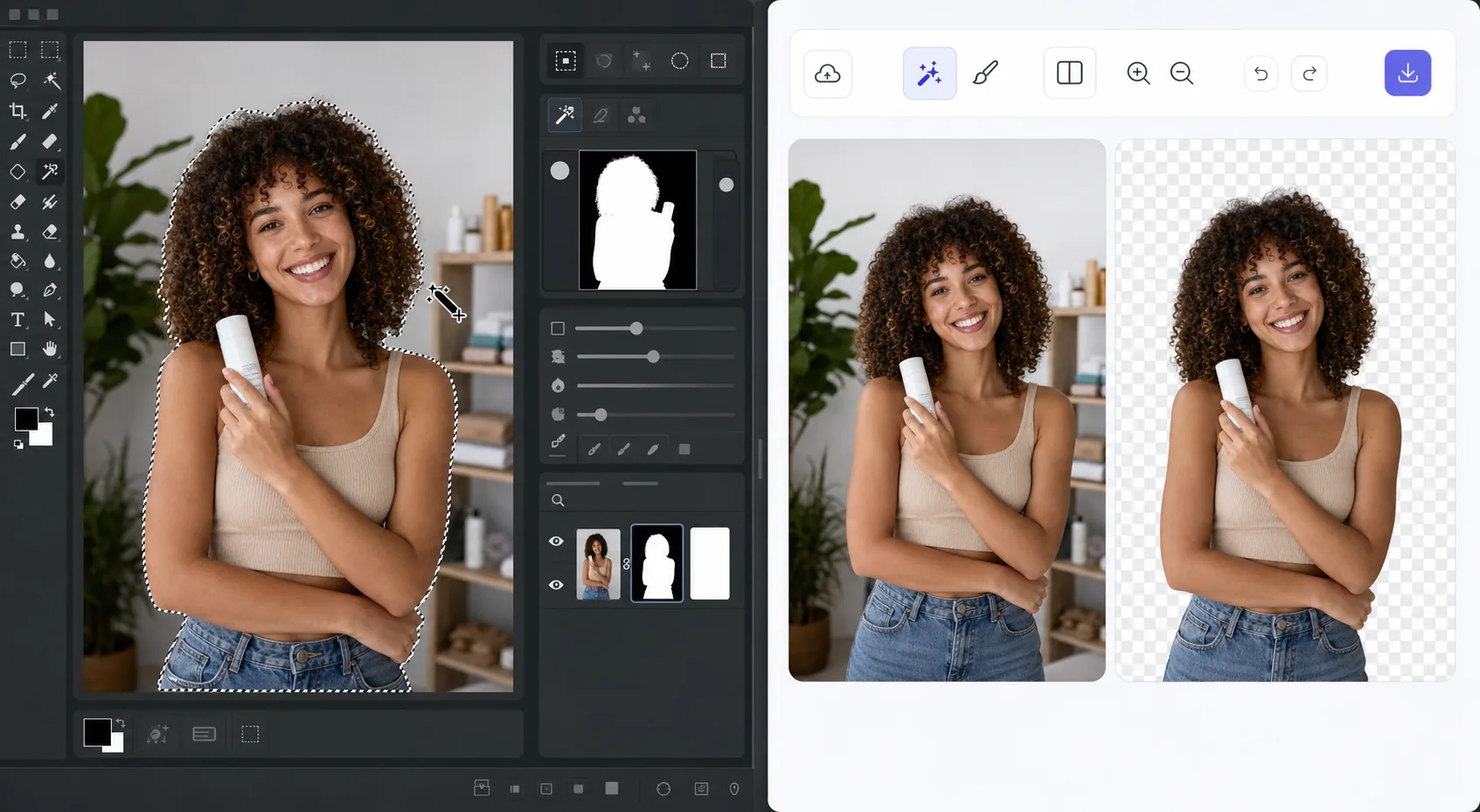
The GIMP method works — it just takes time — Magic Eraser
GIMP is a genuinely capable, free, open-source desktop editor, and removing a background in it is a well-trodden workflow. The usual route: open your image, add an alpha channel, then use the Fuzzy Select (magic wand) or Select by Color tool to grab the background. For clean, high-contrast edges you can often select and delete in a few clicks. For hair, fur, or busy backgrounds, you switch to a layer mask, paint with black to hide and white to reveal, and refine the edge by hand at high zoom. It's powerful and precise — but it's a learn-the-tools, manual process, and it lives on your desktop. If you just need a clean cutout fast, there's a shorter path that needs no install and runs on phone or browser.
Before you start
स्टेप-बाय-स्टेप निर्देश
Start with फ़ोटो अपलोड करें. The result preview above and tips below use this guide's existing content; no separate before-and-after proof is assumed.
- 1
फ़ोटो अपलोड करें
वेब, iOS या Android पर Magic Eraser खोलें। JPEG, PNG, HEIC या WebP फ़ोटो ड्रैग एंड ड्रॉप करें। अकाउंट की ज़रूरत नहीं।
- 2
टूल और एरिया चुनें
सही टूल चुनें और प्रोसेस करने का एरिया मार्क करें। AI ऑटोमैटिक एनालाइज़ करेगा और कुछ सेकंड में बदलाव लागू करेगा।
- 3
रिज़ल्ट डाउनलोड करें
रिज़ल्ट का प्रीव्यू देखें और एडिटेड फ़ोटो डाउनलोड करें। हाई क्वालिटी PNG या JPEG में एक्सपोर्ट करें।
सबसे उपयुक्त
- Product photos that need a clean white or transparent background for a store listing
- Profile pictures and headshots where you want the subject isolated fast
- Anyone without GIMP installed who needs a cutout right now in the browser
- Mobile editing on iOS or Android with no desktop software at hand
- Batch social and marketing images where per-image manual masking isn't worth the time
सर्वोत्तम परिणामों के लिए टिप्स
Use whichever path fits the task. For maximum pixel-level control — compositing, tricky semi-transparent edges, or work you want to keep fully local and offline — GIMP's layer masks reward the effort and cost nothing. For speed and convenience on a clean subject, Magic Eraser's 1-click removal gets you there without the learning curve or the install. A useful workflow: get the fast cutout in Magic Eraser, then open it in GIMP only if you need fine compositing afterward.
अक्सर पूछे जाने वाले सवाल
- क्या Remove the Background in GIMP — or Do It in 1 Click फ़ीचर मुफ़्त है?
- हाँ, Magic Eraser आपको दैनिक सीमा के अंदर मुफ़्त में Remove the Background in GIMP — or Do It in 1 Click करने देता है। अनलिमिटेड प्रोसेसिंग के लिए Pro में अपग्रेड करें।
- Remove the Background in GIMP — or Do It in 1 Click में कितना समय लगता है?
- बस कुछ सेकंड। Magic Eraser का AI फ़ोटो तेज़ी से प्रोसेस करता है — ज़्यादातर रिज़ल्ट अपलोड के तुरंत बाद मिल जाते हैं।
- क्या मैं मोबाइल पर इस्तेमाल कर सकता/सकती हूं?
- हाँ, Magic Eraser iOS, Android और सभी वेब ब्राउज़र पर काम करता है। आप डिवाइस के बीच आसानी से स्विच कर सकते हैं।
- क्या इमेज क्वालिटी कम होती है?
- नहीं, Magic Eraser ओरिजिनल फ़ोटो क्वालिटी बनाए रखता है। AI स्मार्ट तरीके से प्रोसेस करता है ताकि डिटेल और शार्पनेस बनी रहे।