
Remove a color cast from photos
Strip the unwanted tint that tungsten bulbs, fluorescent tubes, and open shade leave across an entire image. Magic Eraser reads the cast affecting your photo and rebalances the colors so whites look white again, skin tones recover, and the scene reads the way your eyes saw it.
Last updated
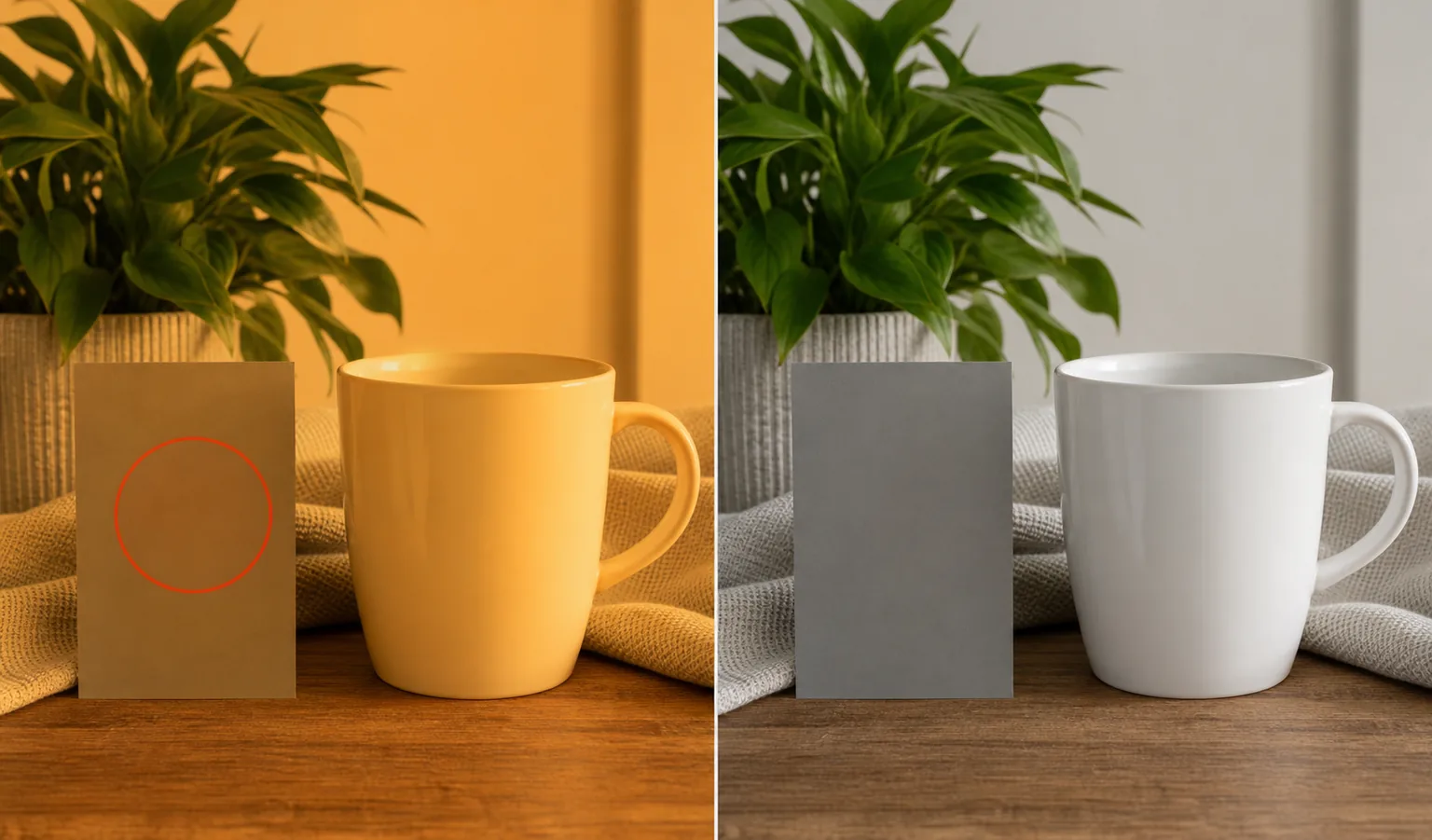
What a color cast is and why it happens
A color cast is an unwanted tint that spreads evenly across a whole photo, pulling every color toward one hue. It comes from the light, not the subject: indoor tungsten bulbs wash a room in warm orange, office fluorescents add a sickly green, and open shade or snow under a blue sky drops a cold blue over everything. Your eyes adapt automatically and still see white walls as white, but the camera records the light's true color, so the captured image keeps the tint. A color cast is different from the problems people often confuse it with — it is not a bright glare spot in one place, and it is not vignette darkening in the corners. It is a global shift that touches every pixel at once, which is exactly why it can be hard to notice until you compare the shot to a correctly balanced one. Magic Eraser tackles the cast at the white-balance level: it estimates the tint coloring your photo, then neutralizes it so neutral tones return to neutral and the rest of the palette falls back into place. The result is a photo that looks like it was shot under clean, natural light instead of whatever bulb happened to be overhead.
Remove a color cast in three steps
- 1
Upload the tinted photo
Open Magic Eraser on the web, iOS, or Android and upload the image with the unwanted tint. It handles indoor shots under artificial light, outdoor shade and snow scenes, and old photos that have yellowed with age.
- 2
Point to a neutral reference
Mark an area that should be white or gray — a wall, a shirt, paper, or clouds. That reference tells the AI which way the cast is pulling, so it knows what truly neutral should look like in your scene.
- 3
Correct and review
Apply the correction and the AI rebalances the whole image away from the cast. Check skin tones and whites for a natural result, ease the strength if it overshoots into the opposite tint, then export the corrected photo.
Best for
- Fixing the orange tungsten tint from indoor lamp and bulb lighting
- Removing the green cast that office and store fluorescents leave
- Warming up blue shots taken in open shade or on snow
- Restoring natural skin tones under mixed indoor lighting
- Cleaning up yellowed, faded color in old scanned photos
- Neutralizing the underwater blue-green tint in pool and dive shots
- Recovering whites and grays so products photograph true to color
- Matching color across a set of photos shot under different lights
What to expect from color-cast removal
Correction works best when the photo contains something that should be neutral — a white wall, gray pavement, paper, or a plain shirt gives the AI a dependable anchor for what the cast is hiding. The stronger and more even the tint, the more reliably it can be reversed; a uniform orange room corrects cleanly, while a scene lit by two different-colored sources at once (a warm lamp plus cool window light) is harder, because no single white balance fits both halves of the frame and fixing one can leave the other slightly off. A heavy cast also costs you color information the camera never recorded — if a deep tungsten orange clipped a channel, the AI reconstructs a plausible neutral rather than recovering exact original color, so extreme casts may not return perfectly true tones. Pushing the correction too far can swing the image into the opposite tint, so favor a balanced result over an aggressive one. This is white-balance correction across the whole image, not localized cleanup: for a bright spot in one place use glare removal, and for darkened corners use vignette removal instead.
Frequently asked questions
- How is a color cast different from glare or vignette?
- A color cast is a tint that affects the entire photo evenly — an overall orange, green, or blue shift from the lighting. Glare is a bright spot in one spot, and a vignette is darkening at the corners. Color-cast removal rebalances the whole image; for those localized issues, use Magic Eraser's glare or vignette tools.
- Do I need to know what caused the cast?
- No. You do not have to identify the bulb or light source. Pointing the AI at something that should be white or gray is enough — it reads the tint from that reference and corrects the rest of the image automatically.
- Can it fix a really strong tint?
- Often, but with limits. Mild and moderate casts reverse cleanly. A very heavy cast can clip color the camera never captured, so the AI rebuilds a plausible neutral instead of recovering exact original tones — close to correct, but not always perfect on extreme cases.
- Is color-cast removal free?
- Yes. Magic Eraser's free tier corrects color casts on web, iOS, and Android. Upload the tinted photo, mark a neutral reference, and export the rebalanced result at no cost.