
Remove skin shine from photos
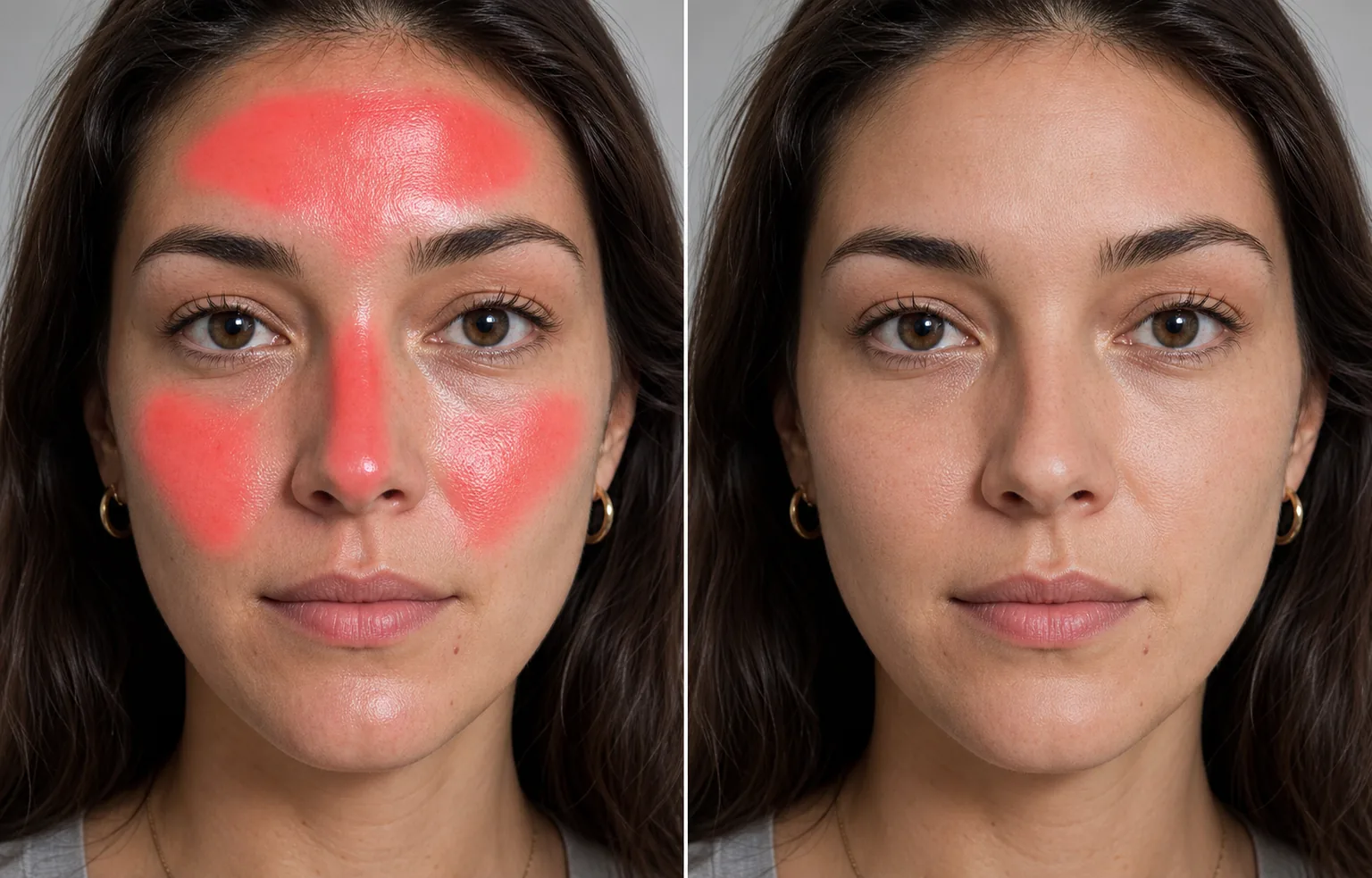
Tame the oily gleam and bright hot spots that flash and overhead lighting bounce off foreheads, noses, and cheeks. Magic Eraser paints down specular shine and rebuilds the skin tone underneath so the face reads matte and even — not washed out, not plastic.
Last updated
Why skin shine shows up in photos
Skin shine is a lighting problem, not a skin problem. When a flash, a window, or an overhead light hits the oilier zones of a face — the forehead, the bridge and tip of the nose, the tops of the cheeks, the chin — those areas act like a mirror and bounce a hard, bright reflection straight back at the lens. The result is a blown-out hot spot: a patch where the highlight is so strong it loses color and detail and reads as a glossy white smear. It is different from a blemish or a patch of acne, which are marks on the skin, and different from sunburn, which is a shift in color. Shine is pure glare — a specular highlight sitting on top of the skin. That is exactly why it is hard to fix with a beauty filter or a brightness slider: dimming the whole image only mutes the rest of the face while the hot spot stays bright, and blur tools smear the surrounding skin into a waxy blob. Magic Eraser treats the shine as something to paint away. You brush over the glare, and the AI tones the highlight back down to the skin tone around it and reconstructs the pores and texture the glare erased, so the area looks like matte skin caught in even light rather than a polished, retouched patch. It works on a single hot spot on the nose or across a whole shiny forehead, on selfies, flash portraits, event photos, and product shots where a model's face is catching studio lights.
Remove skin shine in three steps
- 1
Upload your photo
Open Magic Eraser on the web, iOS, or Android and upload the portrait or selfie. It works on close-up faces, flash photos, and people in group and event shots.
- 2
Brush the shiny hot spots
Paint over the bright, glossy areas — the forehead band, the nose, the cheekbones, the chin. Cover the glare and a little of its soft edge, but stay off the actual highlights of the eyes, teeth, and lips, which should stay bright.
- 3
Erase and review
Tap Erase and the AI tones the shine down to the surrounding skin tone and rebuilds the texture the glare washed out. Check that the matted area blends into the rest of the face, dial it back if it looks flat, and export.
Best for
- Mattifying a shiny forehead in flash and selfie portraits
- Toning down hot glare on the nose and cheekbones
- Fixing blown-out highlights from overhead and on-camera flash
- Evening out an oily T-zone in close-up headshots
- Cleaning up sweat-and-shine glare in event and stage photos
- Reducing studio-light hot spots on faces in product and lookbook shots
- Calming reflective glare on foreheads in group photos
- Subtle mattifying that keeps pores and natural skin texture
What to expect from skin-shine removal
Shine removal works best when the hot spot still holds some color and the skin around it is a good reference. A moderately bright gleam with intact skin tone nearby reconstructs cleanly, because the AI can borrow the surrounding tone and texture to fill the matted area. A fully blown-out highlight — pure white where the flash erased all color and detail — is the hard case: there is no underlying tone left to recover, so the AI invents a plausible matte patch rather than restoring the real skin, and very large or very white areas can come back slightly flat or uneven. Keep the brush on the skin glare and off highlights that are supposed to stay bright — catchlights in the eyes, the shine on teeth and lips, glossy hair, jewelry — or the edit will dull them and the face will look lifeless. For a strong even shine across the whole forehead, several lighter passes usually blend better than one heavy erase. As with all generative retouching, the tool produces a believable matte reconstruction, not a measured recovery of the exact pixels the glare destroyed — treat it as photo retouching, and the best results still come from reducing shine at capture with diffused light or a quick blot.
Frequently asked questions
- Can it fix a totally blown-out white hot spot?
- Partly. If the glare is pure white with no color left, there is no real skin tone underneath to restore, so the AI generates a plausible matte patch instead. It usually looks natural on small spots; very large blown-out areas can come back a little flat. Shine that still holds some color recovers best.
- Will it make the skin look flat or fake?
- Not if you keep it subtle. Magic Eraser rebuilds pores and texture instead of blurring, so a light pass reads as matte skin in even light. Over-erasing a large area is what flattens the face — use several lighter passes on a big shiny forehead rather than one heavy one.
- Won't it dull the eyes, teeth, or hair?
- Only if you brush them. Catchlights in the eyes, the shine on teeth and lips, and glossy hair are supposed to stay bright. Paint only the skin glare on the forehead, nose, cheeks, and chin, and leave those highlights alone so the face keeps its life.
- Is skin-shine removal free?
- Yes. Magic Eraser's free tier handles shine and glare retouching on web, iOS, and Android. Upload your photo, brush the hot spots, and export the mattified result at no cost.