
Remove a label from a photo
Wipe shipping labels, barcode stickers, address slips, and bottle or jar labels out of your photos. Magic Eraser deletes the printed adhesive and reconstructs the box, glass, or fabric beneath it, so a packing label no longer dominates your product, resale, or mockup shot.
Last updated
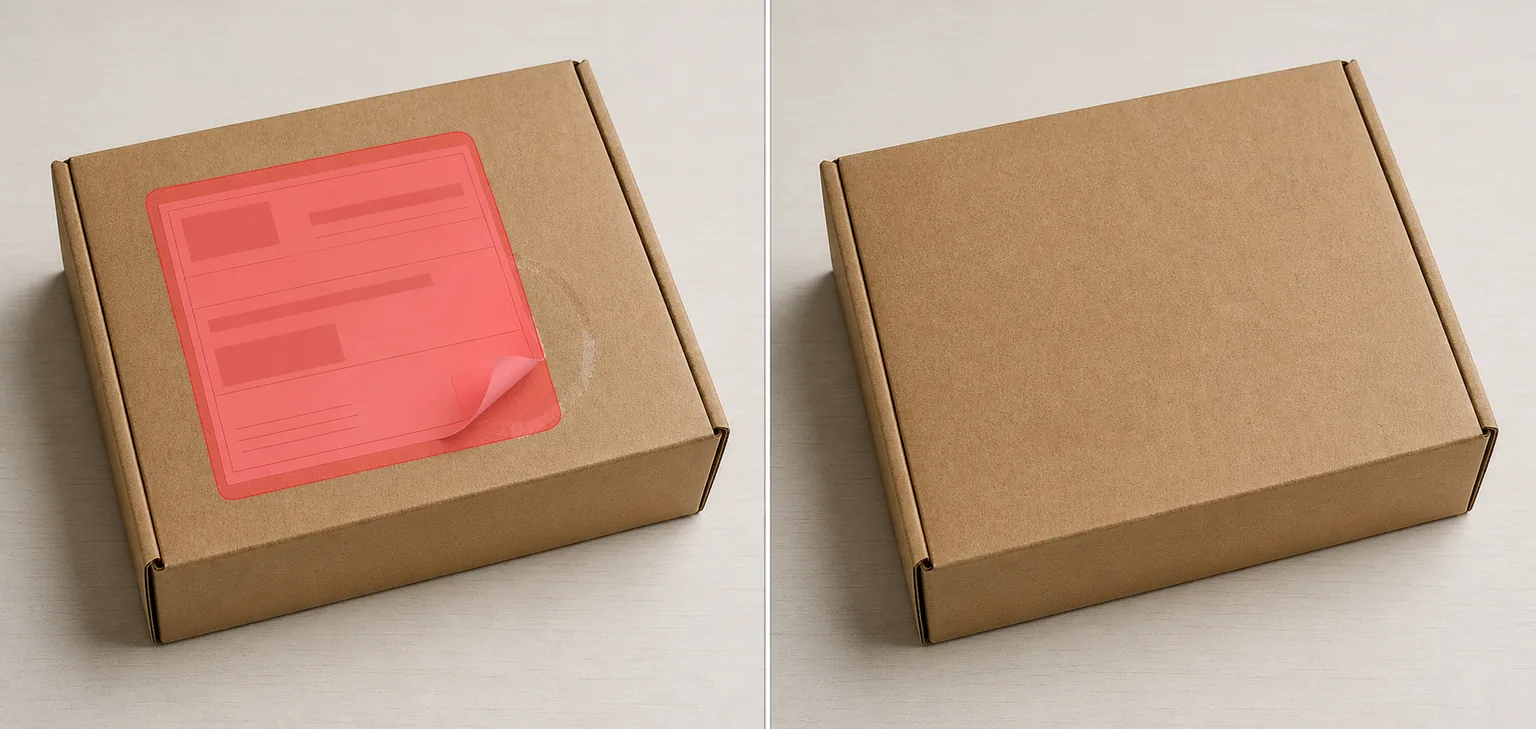
Why labels get in the way of a clean photo
An informational label is built to be read, not to look good in a photo. A shipping label slapped across a parcel, a barcode sticker on the back of a book, a return-address slip on a mailer, or the printed wrap on a bottle, jar, or garment care tag all pull the eye straight to text you do not want in frame. For a marketplace listing, a packaging mockup, or a product shot you are reusing, that label also leaks information you would rather not publish — a tracking number, a home address, a previous owner's name, or a competitor's branding. Reshooting with the label peeled off is not always an option: the box is already sealed, the bottle is one you photographed once, or the label left a sticky residue the camera caught anyway. Magic Eraser lets you brush the label out and rebuild the material underneath — cardboard grain, glass curve, or fabric weave — so the surface reads as continuous instead of patched. Because it reconstructs texture rather than smearing a blur over the spot, a clean, evenly-lit surface comes back looking like the label was never there.
Remove a label in three steps
- 1
Upload the photo
Open Magic Eraser on the web, iOS, or Android and upload the shot — a boxed parcel, a bottle or jar, a folded garment, or a flat-lay product image with the label visible.
- 2
Brush over the label
Paint across the whole label, including its edges, any peeled corner, and the shadow or residue ring around it. Covering the outline matters most — a missed border leaves a faint rectangle the AI will try to keep.
- 3
Erase and review
Tap Erase and the AI removes the label and rebuilds the surface beneath it. Check that the box seam, glass highlight, or fabric pattern lines up across the patch, refine any soft spot, and export the cleaned-up image.
Best for
- Erasing shipping and courier labels from parcel and packaging photos
- Hiding barcodes, SKU stickers, and price-gun tags on product shots
- Removing return-address slips before posting a mailer photo online
- Stripping brand wraps off bottles and jars for clean mockups
- Clearing clothing care and size labels from resale garment photos
- Cleaning up secondhand marketplace listings of books, boxes, and gear
- Deleting a previous owner's name or store tag from a used item
- Tidying flat-lay and catalog images where a label breaks the look
What to expect from label removal
Label removal works best when the surface around it is simple and consistent. A label on flat cardboard, a plain box panel, or an evenly-lit single-color bottle reconstructs cleanly, because the AI can extend that one texture across the gap. Curved glass and reflective surfaces are harder: highlights and reflections shift across the surface, so the rebuilt patch is the AI's best estimate of how the curve and glare would continue, not a measured copy. Be honest with yourself about what was hidden. If a label sat over printed artwork, embossing, a logo, or text, the tool cannot recover the real design underneath — it invents plausible surface, so anything that was covered is reconstructed, not restored. The same goes for a label wrapped around an edge or corner: the AI guesses the geometry and can warp a straight seam. Brush the full outline including any peeled lift and shadow, since a leftover border is the most common reason a faint label ghost remains. Treat the result as a convincing surface reconstruction rather than proof of what the bare item actually looked like.
Frequently asked questions
- Can it rebuild the surface under the label?
- On simple surfaces, yes. Flat cardboard, a plain box panel, or an even-toned bottle rebuild cleanly because the AI extends one consistent texture across the gap. On curved glass or reflective material the patch is an estimate of how the highlight would continue, so check the seam and reflection line before you use it.
- What if there was a design or logo under the label?
- The tool cannot recover something it never saw. It reconstructs plausible surface, so if the label covered printed artwork, embossing, or a logo, that area is invented rather than restored. Use it to clean up blank or textured surfaces, not to reveal a hidden design.
- Why is a faint outline left behind?
- Almost always a missed edge. Brush the entire label including its border, any lifted or peeled corner, and the shadow or sticky residue around it. A leftover rectangle is the AI keeping a boundary you did not fully cover — repaint that edge and erase again.
- Is label removal free?
- Yes. Magic Eraser's free tier removes labels on web, iOS, and Android. Upload your photo, brush over the label, and export the cleaned-up surface at no cost.