
Remove flash from photos
Fix overexposed hotspots, harsh shadows, and washed-out areas caused by camera flash. Magic Eraser removes the flash artifacts and reconstructs natural-looking lighting, skin tones, and background detail — saving indoor and event photos from the flash-ruined look.
Last updated
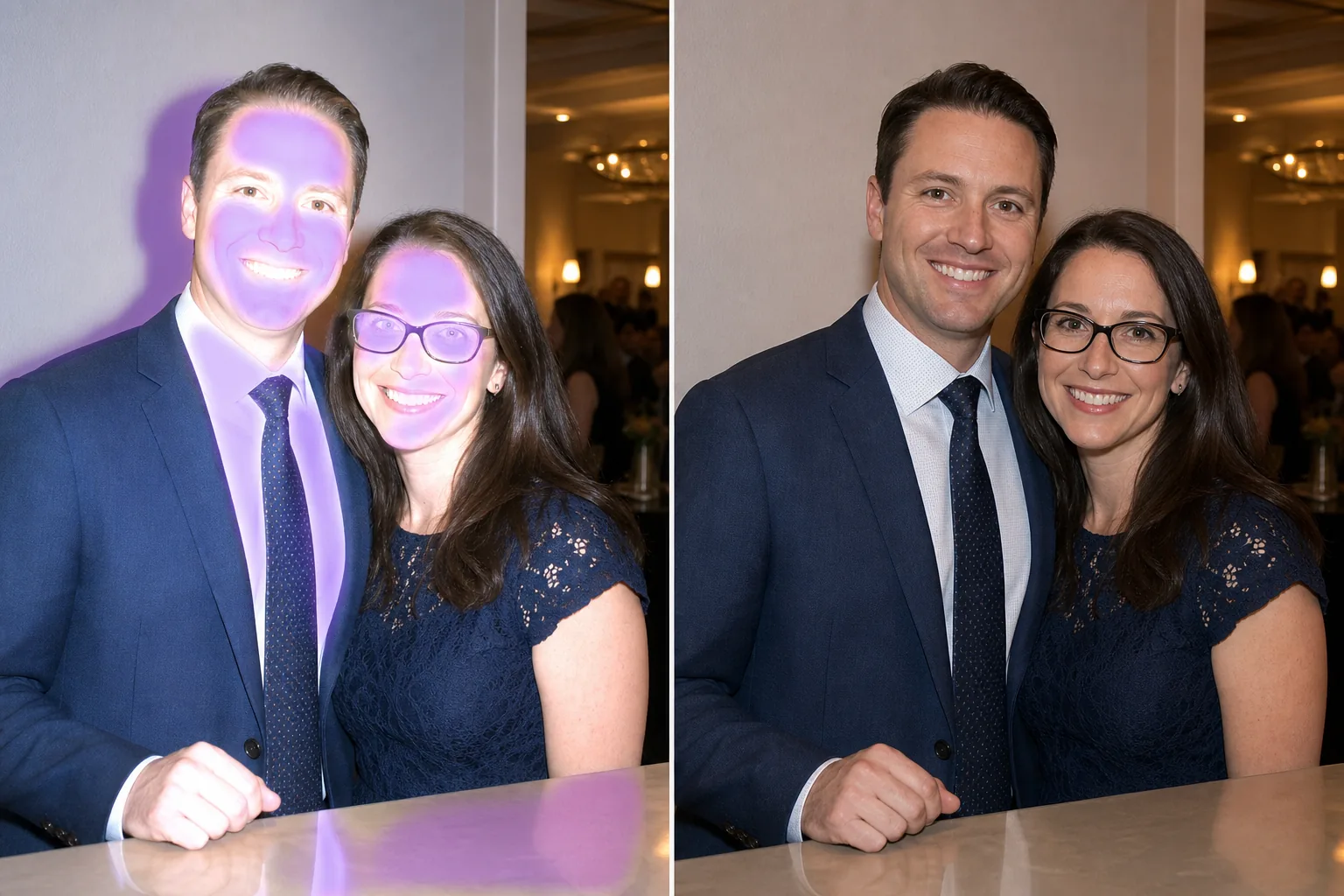
How to remove flash from a photo
To remove flash from a photo, open Magic Eraser on the web, iOS, or Android, brush over the flash artifact — a blown-out hotspot, a hard shadow, or bright glare on a face or surface — and tap Erase, and the AI corrects the exposure and rebuilds natural-looking lighting. It is free with sign-in required. It works best on localized hotspots, shadows, and glare; areas burned to pure white with zero detail can only be approximated, not fully recovered. Camera flash creates a harsh, direct light source that causes multiple problems in photographs: bright hotspots on foreheads and noses, washed-out skin tones, hard shadows behind subjects, reflective glare off glasses and windows, and unnaturally dark backgrounds where the flash falls off. The closer subjects get the worst of it — overexposed faces with blown-out highlights — while background subjects fall into darkness. Event photos, restaurant shots, and indoor group photos are the most common casualties. The flash fires because there isn't enough ambient light, but the cure is often worse than the disease. Magic Eraser targets the specific artifacts flash creates: brush over the hotspot on a forehead, the hard shadow on the wall, or the washed-out area on a face, and the AI corrects the exposure, restores natural skin tone, and blends the lighting to look like ambient illumination.
Fix flash artifacts in three steps
- 1
Upload your flash photo
Open Magic Eraser on the web, iOS, or Android and upload the indoor or event photo with visible flash artifacts — hotspots, harsh shadows, or washed-out areas.
- 2
Brush over flash artifacts
Paint over the overexposed hotspots (bright patches on skin or surfaces), the hard shadows cast by the flash, and any washed-out areas. For reflection spots on glasses or windows, brush over the bright glare patches.
- 3
Erase and balance
Tap Erase and the AI corrects the exposure in the brushed areas, restoring natural skin tone, removing hard shadows, and balancing the lighting. For overall flash correction, follow up with the AI enhancement tool to even out the exposure across the full image. Export the naturally-lit result.
Best for
- Indoor event and party photos with direct flash
- Restaurant and bar photos with flash hotspots
- Flash photos with harsh shadows on walls behind subjects
- Group photos where front-row faces are overexposed
- Photos with flash reflection off mirrors, windows, or glossy surfaces
- Reception and banquet hall flash photography
- Museum and gallery visitor photos (where flash was accidentally used)
- Real estate interior photos with amateur flash lighting
Tips for fixing flash-damaged photos
Flash hotspots on skin are the most common correction — brush over the bright, washed-out patches on foreheads, noses, and cheeks. The AI recovers skin tone and texture from the overexposed area using surrounding properly-exposed skin as reference. For flash shadows (the hard, dark outlines on walls behind subjects), brush over the shadow and the AI blends it into the wall's natural tone. Flash reflection on glasses is handled similarly to the glare removal tool — brush over the bright spots and the AI reconstructs the eye and lens area. If the flash caused the background to go very dark (flash falloff), the AI enhancement tool can lift the background exposure to create a more balanced image. For group photos where people at different distances received different flash intensities, correct the most affected areas first (closest faces with hotspots, farthest faces that are too dark) and then apply overall enhancement for consistency.
Frequently asked questions
- Can it fix completely washed-out faces?
- For moderately overexposed faces, the AI recovers skin detail and natural tone very well. For severely blown-out highlights (pure white with no detail), the AI reconstructs estimated skin texture, but some detail that was lost to overexposure cannot be fully recovered.
- Does it remove the hard shadows behind people?
- Yes. Brush over the dark flash shadow on the wall or surface behind the subject. The AI removes the shadow and fills in the natural wall color and texture.
- Can it fix flash reflection on glasses?
- Yes. Brush over the bright flash spots on the glasses lenses. The AI removes the reflection and reconstructs the eye area visible through the lenses, similar to the dedicated glare removal tool.
- Is flash correction free?
- Yes. Magic Eraser's free tier covers flash artifact correction. Upload your photo, brush over the hotspots and shadows, and export the naturally-lit result.
- How do I get rid of flash eyes in a photo?
- "Flash eyes" — the bright glow or glassy reflection on the eyes when flash fires straight at the face — is fixable. Brush over the bright spot on the eye and tap Erase, and the AI rebuilds the iris and pupil from the surrounding eye detail. This handles the white or washed-out flash glow; for the distinct red glow of red-eye, the dedicated red-eye page is a closer match.
- Can I remove flash from a photo without retaking it?
- Yes — that is the point. You cannot un-fire the flash, but you can repair what it did. Upload the existing shot, brush over the hotspots, hard shadows, or glare, and tap Erase to correct those areas. Follow with the AI enhancement tool to balance overall exposure. It works on photos you already have, including older images, with no need to recreate the scene.
- Does flash removal work on phone photos?
- Yes. Magic Eraser runs on the web, iOS, and Android, so flash photos shot on a phone work the same as any other. Phone flash sits right next to the lens, which tends to produce flat, direct hotspots and glare — exactly the artifacts the brush-and-erase flow targets. Upload straight from your camera roll, fix the affected areas, and export.